
When you need to compare two PDFs online, you're looking for a tool that can instantly flag every single change. It could be a single word in a contract, a tweaked number in a report, or a small layout shift in a design proof. The best online tools give you a clear, color-coded report showing all differences side-by-side, without making you install a thing.
Why Accurate PDF Comparison Is Non-Negotiable
In a professional setting, the tiny differences between two PDF versions can mean everything. We're talking about millions of dollars, legal compliance, or even project failure. A single altered clause in a contract or a tweaked number in a financial statement can have massive consequences. Trying to catch these changes by eye is not just slow—it's dangerously unreliable.
This is where dedicated comparison tools become essential. They don't just proofread; they run a systematic analysis that you can actually trust. The need for this kind of precision is huge, which is why the global PDF software market is valued at USD 2.16 billion in 2024 and is expected to hit USD 5.73 billion by 2033, according to recent market analysis.
The Risks of a Manual Check
Relying on your eyes alone is asking for trouble. Think about these all-too-common scenarios where a manual check just doesn’t cut it:
- Contract Negotiations: A sneaky wording change in a liability clause gets missed, completely changing who's on the hook.
- Financial Reporting: One wrong digit in an annual report misleads investors and can trigger serious compliance issues.
- Design and Engineering: A subtle shift in a blueprint isn't caught, leading to expensive mistakes when it's time to build.
The real problem with comparing PDFs by hand isn't just that it’s slow; it’s the unacceptable level of risk it brings into your work. An automated tool turns this high-stakes guessing game into a reliable, repeatable process.
A PDF isn't just a simple text file. It has layers of text, images, and hidden data that make manual comparison a nightmare. A good online comparison tool deconstructs all these layers to make sure nothing gets missed, giving you confidence that you’ve caught every single change.
Understanding Core PDF Comparison Technologies
To really get the most out of an online PDF comparison tool, it helps to know what’s happening behind the scenes. Different tools use different approaches, and the best one for you depends entirely on what you’re trying to find. Knowing the difference between these core technologies helps you pick the right tool for the job.
At its heart, any comparison tool uses one of three main methods to check your files. Each has its own strengths, making it better suited for specific types of documents and changes.
Textual Comparison for Content Integrity
The most common method is textual comparison, often called a "diff." This approach digs into the actual text and data inside the PDF files, algorithmically hunting down any changes in wording, numbers, or even punctuation.
Think of it as a proofreader who reads every single word and character. This makes it the go-to choice for documents where the content itself is the most important thing.
- Best for: Legal contracts, financial reports, manuscripts, and other text-heavy documents.
- It Catches: A deleted clause, an added sentence, a changed number, or even a tiny comma swap.
- Limitation: It won’t always notice changes in layout, images, or font styles if the words themselves haven't changed.
Visual Comparison for Design and Layout
Next up is visual comparison, which works completely differently. Instead of reading text, this technology turns each PDF page into an image and compares them pixel by pixel. It’s looking for any visual difference, no matter how small.
This is what you need when a document's appearance is just as critical as its content. It will spot subtle shifts that a text-based tool would completely ignore.
A visual comparison is your safety net for brand guidelines, complex forms, and graphic-rich layouts. It ensures that not just the words, but the entire presentation, is exactly as it should be.
Imagine you're reviewing a final brochure design or an architectural blueprint. A tiny graphical misalignment or a slight change in color could be a huge mistake. Visual comparison is built to flag exactly those issues.
OCR-Assisted Comparison for Scanned Documents
Finally, we have OCR-Assisted Comparison. OCR stands for Optical Character Recognition, the technology that turns pictures of text into actual, readable text data. This method is a lifesaver when you need to compare scanned paper documents or old archives—basically, any PDF that is just an image of a page.
Here’s how it works: the tool first runs OCR on both scanned PDFs to pull out all the text. Then, it performs a standard textual comparison on that extracted content. The accuracy really hinges on the quality of the original scan and the strength of the OCR engine.
Sometimes, it helps to prep your files before comparing. For particularly tricky PDFs, converting them to another format can make the process easier. You can find great tools to convert a PDF to Word, which can sometimes simplify the comparison.
Alright, you've got the theory down. Now, let's get practical and walk through how to actually compare two PDFs online. It’s surprisingly simple with tools like PDFPenguin, which are designed to give you fast, clear results without needing to install anything.
Most online tools follow the same basic steps, so you'll get the hang of it in no time.
Step 1: Access the Tool and Upload Files
First things first, head over to the comparison tool’s webpage. You’ll be greeted by a simple interface, usually with big, obvious buttons for uploading your documents. You can either drag your files right onto the page or click to browse your computer's folders.
For this walkthrough, let's say we have two versions of a contract: Original-Contract.pdf and Revised-Contract.pdf. The trick is to be clear about which is the "original" and which is the "new" one. This makes the final report much easier to read.
See how there are two separate boxes for the old and new files? That simple design choice helps you start the comparison correctly right from the get-go.
Step 2: Kick Off the Comparison
With your files uploaded, you're ready to go. Just hit the "Compare" button to start the magic. The tool’s servers will get to work, running complex algorithms to pinpoint every single difference between the two documents.
It only takes a few moments to process. The best tools, like ours, will show you the results in a side-by-side view. This is a game-changer because you're not just getting a list of what changed; you're seeing exactly where it changed in the context of the document.
The side-by-side view is the gold standard for a reason. It lets you see the original text right next to the revised version, making it instantly obvious what was added, deleted, or rephrased.
Step 3: Read the Color-Coded Results
The final step is making sense of the output. Good tools use a simple color-coded system that makes changes pop, so you can digest them at a glance. The exact colors might differ from tool to tool, but the logic is pretty universal:
- Green: This almost always means text or graphics have been added to the new version.
- Red (often with a strikethrough): This highlights content that was deleted from the original document.
- Blue or Yellow: These colors are often used to flag things that were modified, like a rephrased sentence or a moved paragraph.
And that’s really all there is to it. Following these three simple steps lets you accurately compare any two PDFs online. By systematically reviewing the highlighted changes, you’ll catch every critical edit without the headaches and human error of manual proofreading.
Evaluating The Best Online PDF Comparison Tools
Trying to compare two PDFs online can feel like you're drowning in options. But here's the thing: not all tools are built the same, and the "best" one really depends on what you need to do. Instead of just rattling off features, let's look at the top contenders and figure out which one fits your specific situation, focusing on accuracy, security, and real-world use cases.
For anyone in a professional setting, accuracy is everything. You need to trust that your tool can catch every single change, no matter how small.
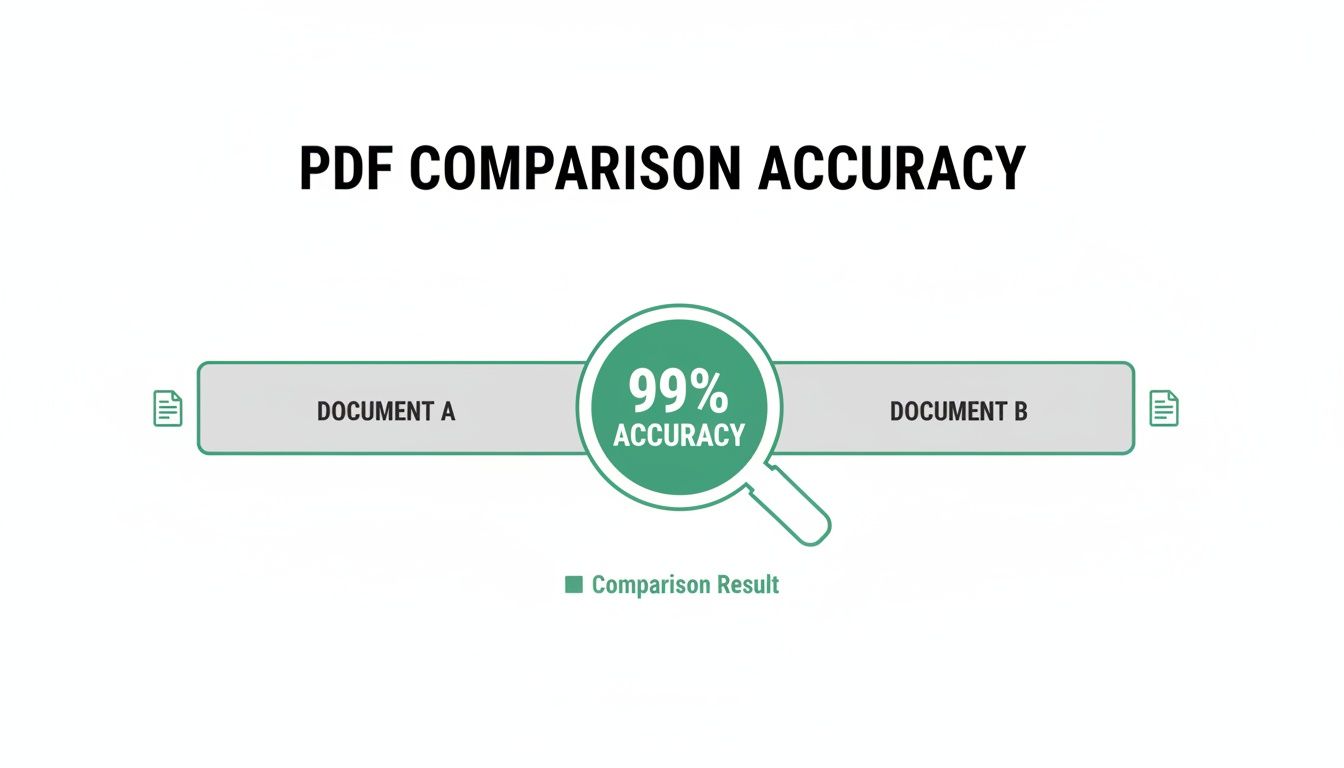
This just goes to show that the right tech can give you near-perfect results, so you can stop worrying about missing a critical edit between versions.
Adobe Acrobat Pro: Best For Integrated Workflows
It’s no surprise that Adobe Acrobat Pro is on this list. It’s the industry heavyweight, and its comparison tool is powerful and reliable. It’s great at catching everything from text and formatting changes to image swaps, and it generates a detailed report that you can filter to zero in on what matters.
Acrobat’s real superpower is how well it plays with others, especially within the Adobe and Microsoft ecosystems. If your team is already living in Creative Cloud or Microsoft 365, using Acrobat feels seamless. No need to learn a whole new tool.
Key Differentiator: For teams already paying for Adobe or Microsoft subscriptions, Acrobat Pro is a no-brainer. It delivers powerful, familiar comparison features without making you switch apps or disrupt your workflow.
The big catch? The price tag. The comparison feature is locked behind the paid Acrobat Pro subscription, which is overkill if you only need to check a document once in a while.
Draftable: Best For Highlighting Formatting Changes
Draftable has carved out a niche by focusing on stylistic and formatting differences. While most tools are all about the text, Draftable goes deeper, flagging changes in fonts, text sizes, and other layout details with impressive accuracy.
This makes it a fantastic choice for designers, marketing teams, or anyone working with brand guidelines where the look and feel of a document is just as important as the words. Its side-by-side viewer is super clean and makes every little change pop.
PDFPenguin: Best For Quick And Secure Comparisons
When you need fast, accurate results without reaching for your credit card, PDFPenguin is the answer. It’s a dead-simple, browser-based tool that nails the balance between ease of use and powerful tech. Plus, it takes privacy seriously by automatically deleting your files after processing—a must-have for sensitive documents.
- Ease of Use: A simple drag-and-drop interface gets you from upload to comparison in seconds.
- Security Focus: Files are processed over HTTPS and aren't stored long-term, so you don't have to worry about your data.
- Accessibility: It's completely free, making it perfect for students, freelancers, or anyone who needs to run occasional but accurate comparisons.
And it’s not just for comparing. You can explore the full suite of document tools on the PDFPenguin tools page to handle other tasks like merging or compressing files.
Diffchecker: Best For Simple Text-Based Files
Diffchecker is a bare-bones tool with one job: to find differences in text, and do it fast. It works by stripping PDFs down to plain text and running a quick comparison. This makes it incredibly speedy for simple, text-heavy documents like articles or code.
Key Differentiator: Diffchecker is the go-to for developers reviewing code, writers checking manuscript edits, or anyone who needs a lightning-fast text diff without getting bogged down by visual analysis.
But that simplicity is also its biggest weakness. Since it ignores all formatting, it's useless for comparing layouts, tables, or any document where visual elements matter. Think of it as a specialized tool for a very specific job.
Feature Comparison Of Leading Online PDF Tools
To make things even clearer, here’s a quick side-by-side look at how these tools stack up. This should help you pinpoint the right one for your needs at a glance.
| Tool Name | Comparison Method | Security Features | Free Tier Limitations | Best For |
|---|---|---|---|---|
| Adobe Acrobat Pro | Visual & Text Diff | Enterprise-grade encryption | Paid subscription only | Teams invested in Adobe/Microsoft |
| Draftable | Visual & Text Diff (strong on formatting) | Encrypted processing | Limited free comparisons | Designers, legal, brand managers |
| PDFPenguin | Visual & Text Diff | HTTPS, automatic file deletion | Completely free | Quick, secure, everyday use |
| Diffchecker | Text-Only Diff | Standard HTTPS | Free with ads; paid Pro version | Developers, writers, code review |
Ultimately, choosing the right tool comes down to balancing your budget, workflow, and security needs. For quick, free, and secure checks, PDFPenguin is a solid all-rounder. For deep integrations or specialized formatting analysis, Acrobat or Draftable might be worth the investment.
Protecting Your Data When Comparing PDFs Online
Whenever you compare two PDFs online, you're essentially handing your documents over to a third-party server. It's fast and convenient, but it also comes with risks—especially if those files are sensitive business contracts, financial statements, or personal records. The big question is: what happens to your data once the comparison is done?
Some online services might hold onto your files longer than you'd like, leaving them vulnerable. That's why picking a tool that takes your privacy seriously isn't just a good idea; it's essential.

A Practical Security Checklist
Before you upload anything important, take a minute to run the tool through this quick security check. A few moments of diligence can save you from a major data headache down the road.
-
Look for HTTPS/SSL Encryption: Is there a little padlock icon in your browser's address bar? That lock means your connection is encrypted, so your files are scrambled and safe while they travel from your computer to the server.
-
Check the Data Retention Policy: A trustworthy tool will be upfront about how long it keeps your files. You want to see a promise of automatic file deletion right after processing. Tools like PDFPenguin are built on this principle, so your data never lingers.
-
Read the Privacy Terms: You don't need to be a lawyer, but a quick scan of the privacy policy can reveal red flags, like clauses giving the service rights to your content. The language should be clear and focused on protecting you, not them.
The gold standard for any online document tool is a strict, automated deletion policy. If a service doesn't tell you exactly how it handles your files, just assume it’s not safe enough for sensitive information.
For an extra layer of security, you can take matters into your own hands. You can learn how to protect your PDFs with a password before you even upload them. It's a simple step that adds a powerful defense, giving you total peace of mind.
Got Questions About Comparing PDFs?
Even the best online tools can leave you with a few questions. When you're trying to spot differences between two PDFs, you want clear answers fast so you can get the job done. Here are a few common issues we see and how to handle them.
Can I Compare Two Scanned PDFs?
Yes, but there’s a catch. A standard comparison tool can’t read a scanned document because it sees the text as one big image. To make it work, you need a tool with built-in Optical Character Recognition (OCR).
OCR technology scans the image, recognizes the letters and words, and turns them into actual text the computer can read. Only then can the comparison happen. The accuracy really boils down to two things:
- The quality of your scan (crisper is always better).
- How good the tool's OCR engine is.
A blurry or low-resolution scan will almost always give you a messy, inaccurate comparison. Always start with the cleanest scan you have.
What’s The Difference Between a Text vs. Visual Comparison?
These two methods are looking for completely different things, and picking the right one is key.
A textual comparison digs into the document's underlying data. It’s perfect for finding changes in words, numbers, and sentences. Think contracts, reports, or manuscripts—anywhere the actual content is what matters most.
A visual comparison, on the other hand, treats each page like a photograph. It compares them pixel by pixel to catch differences in layout, images, font sizes, or formatting. A text comparison would miss these changes completely.
Key takeaway: Use a text comparison when you care about what the document says. Use a visual comparison when you also care about how it looks.
How Can I Get The Most Accurate Results?
Getting a reliable comparison is simple if you follow a few steps. First, double-check that you’ve uploaded the correct versions of your documents—a simple mix-up is the most common error.
Next, choose the right comparison mode for your goal: text for a legal brief, visual for a design mockup. If you’re working with scanned files, make sure they are high-resolution to give the OCR a fighting chance. Finally, don't just glance at the highlights; review each change in the context of the full document to understand its real impact.
Ready to compare your PDFs without the guesswork? The PDFPenguin Compare tool gives you a fast, free, and secure way to spot every change. Your files are automatically deleted for total privacy. Try it now at https://www.pdfpenguin.net.