
Let's be honest, turning a quick photo of a receipt or a screenshot into a professional document should be a one-click job. The fastest way to convert an image to PDF free online is with a secure, browser-based tool that skips the software installs and sign-ups. You should be able to get it done in seconds.
Why You Need a Go-To Image to PDF Converter
We’re constantly mixing digital and physical tasks, and images are at the center of it all. When was the last time you snapped a photo of a whiteboard after a brainstorm, scanned a contract with your phone, or saved a digital receipt? So often, these images need to be shared, archived, or submitted in a more formal, universally accepted format.
This is where converting an image to a PDF becomes a surprisingly common, everyday task.
A student needs to submit five pages of handwritten notes as a single assignment file. A freelancer has a folder stuffed with JPG receipts and needs to compile them into one neat expense report. A designer wants to send a client a proof that combines PNG logos and WEBP mockups without any quality loss. These are real-world headaches.
The Modern Workflow Demands Simplicity
The need for these quick conversions is massive. Just look at the numbers: Adobe's own data shows that over 12 million files were uploaded to their free JPG to PDF converter in a recent 18-24 month period. This points to a huge trend, especially as remote work has grown, with 58% of U.S. workers now relying on digital tools for document sharing as of 2023.
The real value of a reliable online converter isn't just changing a file format; it's about removing friction from your day. It saves you from hunting down clunky desktop software, worrying about compatibility issues with HEIC files from your iPhone, or signing up for yet another service you'll only use once.
A browser-based tool like PDFPenguin gives you a clean, drag-and-drop interface that solves this problem instantly.
Here’s a quick look at the simple workspace you'll use to get your images converted.
The whole thing is designed to be self-explanatory, so you can upload, organize, and convert without a learning curve. Just get it done and move on.
How to Convert Your First Image to PDF
Let's make this real. You just got back from a business trip and your phone is full of receipt photos. Now you need to get them into a single, organized PDF for your expense report. This isn’t a theoretical problem—it’s something you can solve in less than a minute.
The first move is getting your images into the tool. You won’t find any complicated menus here. The whole interface is built around a simple drag-and-drop area, which is easily the fastest way to get started.
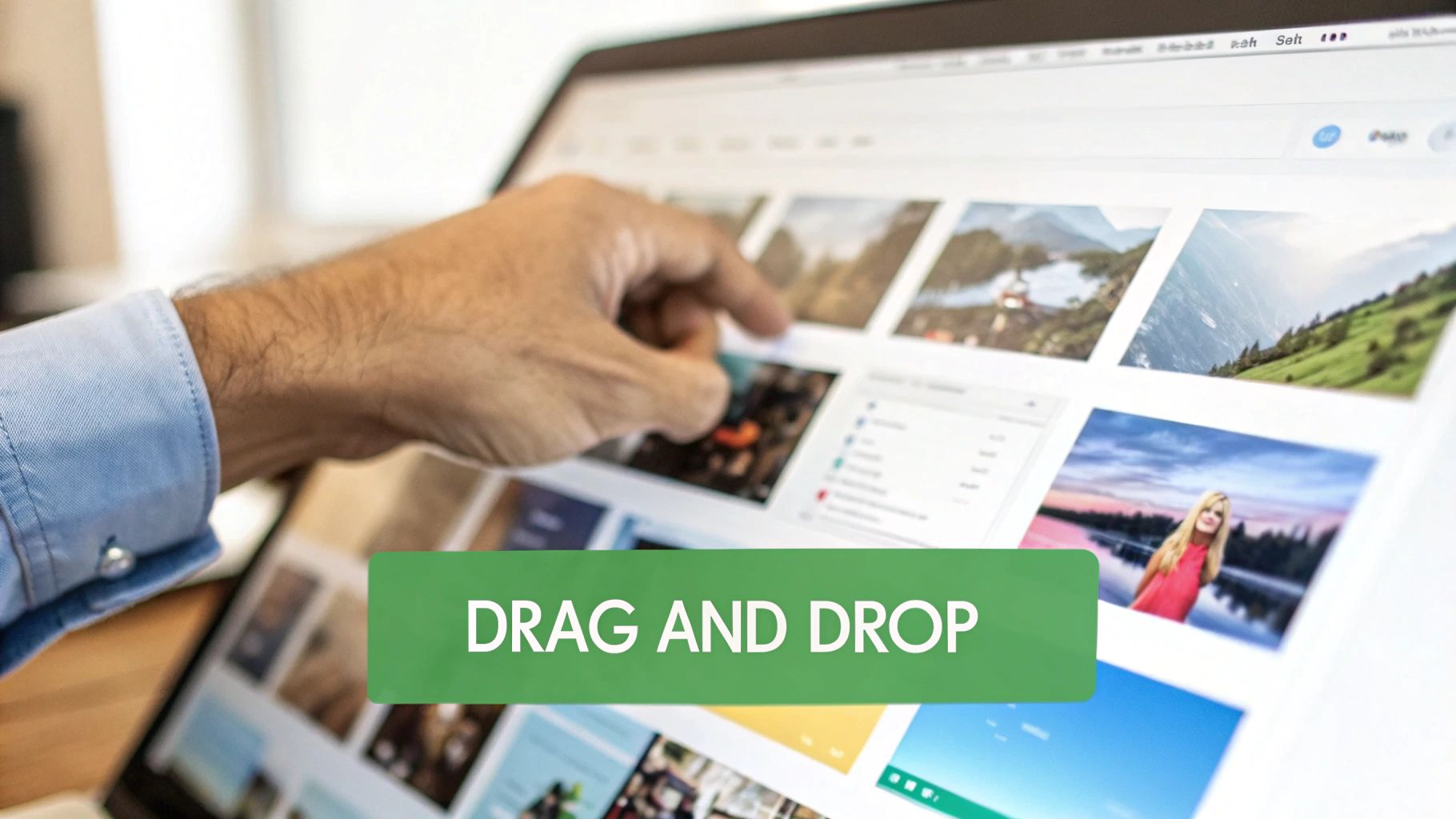
Just open the folder with your receipt images, select them all, and drag them right into your browser window. On your phone? Tapping the upload button pulls up your photo gallery, letting you select multiple images just as easily.
Uploading and Organizing Your Images
Once your files are uploaded, you'll see thumbnails for each receipt. This is your chance to bring some order to the chaos. Maybe the flight ticket photo needs to be page one, followed by the hotel bill, and then the daily meal receipts.
Arranging them is dead simple:
- Click and hold any image thumbnail.
- Drag it where you want it to go.
- Let go to drop it into its new spot.
Do this for all your images until they’re in the perfect chronological order. This visual preview is a huge help—you know exactly how the final PDF will look before you even create it. No guesswork.
You can also clean things up by hovering over a thumbnail and clicking the small 'X' to remove any duplicates or photos you don't need.
Creating and Downloading Your PDF
With your images uploaded and perfectly arranged, you're one click away from done. Look for the big button, usually labeled "Create PDF" or "Convert." Hitting that button tells the tool to work its magic.
The conversion itself is almost instant. The tool grabs your ordered images, stitches them into a single document, and gets it ready for download. No more staring at a progress bar for what feels like an eternity.
After a moment, a download link will pop up, or your browser will ask you to save the new PDF. Just give it a clear name—like "Expense Report - March 2024.pdf"—and save it to your computer.
That’s all there is to it. You’ve successfully managed to convert multiple images to a PDF free online, turning a jumble of photos into a polished, ready-to-submit document. Honestly, the whole thing often takes less time than it took to read this guide.
Customizing Your PDF for Professional Results
Just hitting "convert" is only half the battle. The real magic happens when you tweak the settings to create a document that’s perfectly suited for its purpose. A few small adjustments to things like page layout and image quality can be the difference between a messy, amateur file and a polished, professional PDF.
Think about where this PDF is headed. Are you emailing a visual proposal to a client? Submitting a formal report for school? Or just archiving some high-resolution photos for yourself? Each of these scenarios needs a slightly different setup. This is where you go from a simple conversion to making smart choices that control the final look, feel, and file size.
Dialing in Page Layout and Orientation
The first options you'll see are usually for the page itself. They seem minor, but they set the stage for how your images are displayed. Getting this right from the start saves you a lot of headaches later.
You’ve got two main choices for orientation:
- Portrait (Vertical): This is your standard, everyday document layout. Think letters, reports, or articles. It’s best for images that are taller than they are wide, like a full-body photo or a scanned page from a book.
- Landscape (Horizontal): Flip it sideways for wider images. This is perfect for landscape photos, charts, graphs, or presentation slides. Using landscape prevents wide images from being squished to fit a tall page.
Next up is paper size. Most tools default to a standard size, but you can usually choose between Letter (the go-to in the US) and A4 (the international standard). For a PDF you’re just viewing on-screen, it doesn’t matter much. But if it might be printed, matching the local standard is a nice professional touch.
Balancing Quality and File Size
This is the big one. The quality you choose has a direct impact on both how clear your images look and how big the final PDF file is. Higher quality always means a larger file, which can be a pain to email or upload.
In fact, the need for this balance is a huge reason online converters have become so popular. By 2025, PDFs accounted for 40% of all shared business documents, a massive jump from 25% in 2020. This was driven in part by the 1.2 billion students in hybrid learning who suddenly needed to submit everything digitally.
The goal is to find that sweet spot: an image that looks great but creates a file that’s easy to share.
Pro-Tip: Always pick the lowest quality setting that still looks good for your specific needs. An image for a client presentation needs to be way sharper than a photo of a receipt you're just saving for your records.
If you end up with a file that’s still a bit too chunky, you can always run it through a compression tool afterward. We have a whole guide on how to compress PDF files without losing quality.
PDFPenguin Quality Presets Explained
To make things simple, most tools offer a few presets. Here’s a quick breakdown of what they mean and when to use them.
| Preset | Best For | Typical File Size | Image Quality |
|---|---|---|---|
| Low Quality | Emailing files, quick web uploads, archiving receipts | Smallest | Noticeable quality loss, fine for text & simple graphics |
| Standard Quality | General use, on-screen viewing, internal reports | Medium | A good balance of clarity and manageable file size |
| High Quality | Professional printing, design mockups, high-res photos | Largest | Preserves maximum detail, crystal-clear images |
Choosing the right preset from the start saves you from having to go back and re-convert your files. For most day-to-day tasks, Standard Quality is your safest bet.
Handling All Your Different Image Formats at Once
Let's be honest, dealing with a jumble of different image types is a pain. One minute you have a crisp JPG from a camera, the next a PNG logo with a transparent background, and then a HEIC file straight from your iPhone. Trying to wrangle all of them into a single document is where things usually get messy.
This is where a good online tool really proves its worth. Instead of messing with different apps to convert each file one by one, you can just throw them all in together. It’s a huge time-saver.
Unifying a Mix of Image Types
Imagine you're a designer pulling together a portfolio. You’ve got high-resolution product photos (JPGs), client logos that need to keep their transparency (PNGs), and web design mockups saved as WEBP files. An effective online converter handles this mix without breaking a sweat.
You can upload everything at once, drag the files into the perfect order, and get one clean, cohesive PDF. It turns a tedious job into a quick one. This is exactly what you need to convert image to pdf free online when your source files are all over the place.
A truly useful converter doesn’t care about the file extension; it just sees an image. This universal approach is what separates a good tool from a frustrating one, letting you focus on the final document, not on technical problems.
It's also worth knowing a little about your source files. For instance, understanding the differences between PNG and JPG can help you predict your final PDF's quality and size. PNGs are fantastic for sharp graphics and logos, while JPGs are built for rich, detailed photos.
When You'll Encounter Different Formats
Each image format has its own strengths, and knowing them helps you build better documents. Here’s a quick rundown of what you'll likely see:
- JPG (or JPEG): This is the workhorse for photography. Its compression is great at handling the millions of colors in a real-world photo while keeping file sizes down.
- PNG: The go-to for anything that needs a transparent background, like logos, icons, or text overlays. It uses lossless compression, so it keeps sharp lines and details perfectly crisp.
- HEIC: The modern format used by default on iPhones. It delivers excellent quality in a smaller file size than a JPG, but not everything can open it. If you need to manage photos from your phone, our guide on converting HEIC files to PDF has more specific tips.
- WEBP: A newer format made for the web that offers great compression for both photos and graphics. You'll often run into it when saving images directly from websites.
A powerful online tool supports all these formats, so you’re never stuck with a file you can't use. You can just combine all your visuals into a single, professional PDF and get on with your day.
Keeping Your Documents Private and Secure
Whenever you're turning an image into a PDF online, it's natural to wonder about security. You might be uploading a scanned contract, a client’s design mockup, or even personal ID—and you need to know that information is being handled safely. The good news is, any trustworthy tool is built with your privacy as the top priority.
Every single interaction you have with a secure converter is protected right from the start. Your connection is shielded by HTTPS encryption, the exact same standard that banks and major e-commerce sites rely on. This just means that from the moment you upload your image to the second you download the finished PDF, all that data is scrambled and completely unreadable to anyone trying to snoop.
How Your Files Are Handled
The most critical part of online security isn't just the transfer—it’s what happens to your files once they arrive. A lot of people worry their documents might be stored forever, but that’s not how a reliable service operates.
A core principle is automatic file deletion.
Your uploaded images and the PDFs you create are only kept on the servers for the short time it takes to get the job done. After a brief window, usually just a couple of hours, all files are permanently and automatically deleted. This policy is a guarantee that your data is never stored, analyzed, or shared.
This commitment to not holding onto your data is the key difference between a secure tool and a risky one. Your documents are your property, and they should never be left sitting on a server after you're finished.
What to Look for in a Secure Converter
Unfortunately, not every online tool plays by the same rules. The FBI has even issued warnings about scam sites that use the promise of a "free" conversion to trick you into installing malware.
To keep yourself safe, always look for these clear signs of a secure service:
- A Clear Privacy Policy: The service should openly state how it handles your data, especially how long it keeps your files before deleting them.
- Secure Connection (HTTPS): Always check for the little padlock icon in your browser's address bar. No padlock, no upload.
- No Sneaky Software: A browser-based tool should work right in your browser. If it forces you to download an ".exe" file or an extension, close the tab.
Before using any online tool, it's always a smart move to review their data privacy practices to be sure your files are in good hands.
And if you need an even higher level of protection for your final document, you can learn how to make a PDF password protected to control exactly who can open it. This adds another powerful layer of security for your most sensitive information.
Still Have Questions? Here Are a Few Quick Answers
Even with a tool this simple, a few questions always pop up. That's totally normal. When you need to convert an image to PDF free online, you want to be sure you're getting exactly what you expect. We’ve rounded up the most common ones to give you clear, straightforward answers.
Can I Combine a Bunch of Images Into One PDF?
You bet. The tool is built for exactly that. You can upload dozens of pictures at once—whether they're JPGs from your camera, PNG screenshots, or HEIC files from your phone—all in one go.
Once they're uploaded, you'll see little thumbnails of each image. From there, just drag and drop them into the perfect order before you hit convert. It's ideal for things like compiling a report, creating a photo album, or submitting a multi-page application as a single, tidy file.
Will My Images Get Blurry or Lose Quality?
Nope, your original image quality is safe. The converter is designed to preserve the resolution and sharpness of your files, so what you put in is what you get out.
You also have a say in the final output. You can choose from a couple of presets to get the right balance for your needs:
- High Quality is perfect for creating crisp, print-ready documents where every little detail counts.
- Email Optimized shrinks the file size down for easy sharing, but without making your images look terrible.
This way, you get to decide whether to prioritize flawless resolution or a smaller, more portable file.
Your images won't be degraded unless you specifically choose a lower-quality setting to reduce the file size. The default settings always focus on keeping the original clarity of your pictures.
Is It Safe to Upload My Private Photos?
Yes, security is a big deal for us. When you upload a file, the whole process is protected with secure HTTPS encryption. That's the same security standard banks use, and it means your data is unreadable to anyone else while it's in transit.
More importantly, your privacy is protected by a strict hands-off policy. All the images you upload and the PDFs you create are automatically and permanently deleted from the servers after a few hours. We never look at, store, or share your content, making it a safe bet for both personal and professional documents.
Do I Need to Install Software or Sign Up for an Account?
Not at all. This is a 100% browser-based tool, so there’s absolutely nothing to download or install. You can completely avoid the risk of accidentally installing malware, which the FBI has warned is a real problem with some sketchy "free" converter sites out there.
The core image-to-PDF feature is completely free to use without an account or any kind of sign-up. You can start converting images right away from any device with a web browser—your computer, tablet, or phone. Just open the page and go.
Ready to turn your images into a clean, professional PDF? Try PDFPenguin and get your documents done in seconds, right from your browser. https://www.pdfpenguin.net