
We’ve all been there. That sinking feeling when you need to make one tiny change to a PDF, but a password wall stops you dead in your tracks. It’s one of the most common frustrations in any workflow, especially when a deadline is breathing down your neck.
But what if the solution was simpler than you thought? Often, you have the password to open the file, but you’re still blocked from making edits. Let's fix that.
Why Secured PDFs Are Such a Common Hurdle
Hitting a roadblock with a secured PDF isn’t some obscure technical problem—it’s a daily productivity killer for professionals everywhere. Legal teams need to annotate sensitive case files, and marketers get locked campaign briefs from clients. The need for quick edits is constant, but so is the need for security.
The “Why” Behind the Lock
PDFs are locked for good reasons, and understanding them helps you know what you're up against.
- Protecting Sensitive Data: This is the big one. Contracts, financial reports, and medical records contain information that absolutely cannot be altered or seen by the wrong people.
- Ensuring Regulatory Compliance: Industries like finance and healthcare operate under strict rules (think HIPAA or GDPR). Password-protecting documents isn't just a good idea; it's often a legal requirement.
- Maintaining Copyright and IP: Authors, designers, and researchers lock their work to prevent unauthorized copying, printing, or distribution. It’s how they protect their intellectual property.
These protections are crucial, but they can create real friction. You might be able to read a file perfectly fine, but you're blocked from highlighting text, adding a quick comment, or filling out a form field. That’s where a simple, browser-based tool makes all the difference.
The Growing Need for Simple Unlocking Tools
The struggle to edit secured documents has created a huge demand for better tools. The PDF editing software market was recently valued at USD 0.78 billion and is expected to rocket to USD 2 billion by 2033.
Why the massive growth? Because professionals need to get work done. In fact, over 70% of U.S. enterprises use PDF tools specifically for secure document handling. And for 65% of those businesses, features for editing secured files are a top priority. You can dig into more PDF software market trends to see what’s driving this demand.
This is exactly why a tool like PDFPenguin exists. It lets you quickly unlock and edit files right in your browser—no downloads, no hassle. As long as you have the password and the right to make changes, you can get back to work in seconds.
Decoding PDF Security: Why Can't I Edit This File?
Before you can bust open a secured PDF, you have to figure out what kind of lock you're dealing with. Not all PDF security is created equal. There are two main types, and knowing which one is stopping you is the first and most critical step.
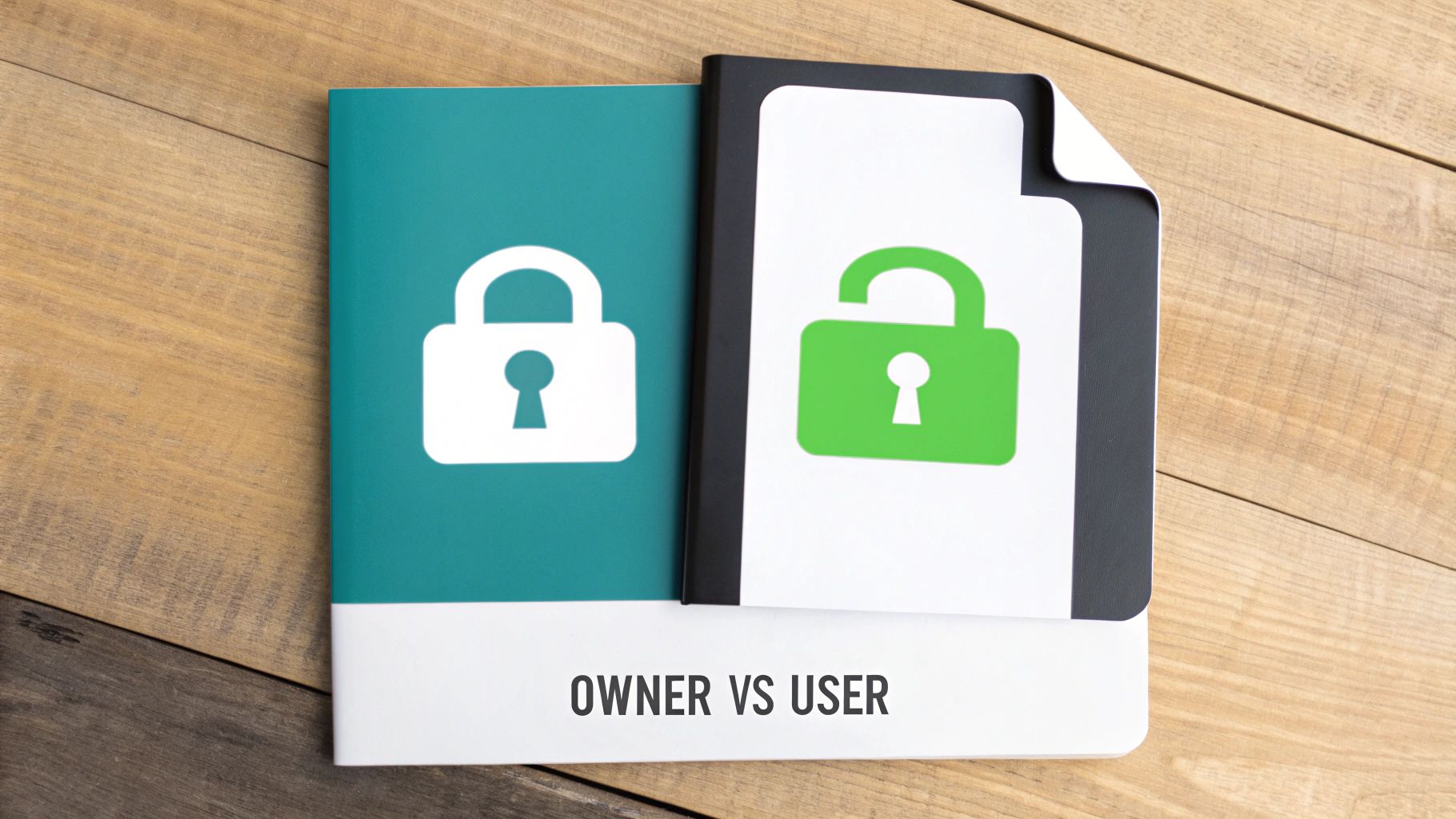
Think of one lock as the key to the front door and the other as a set of house rules you have to follow once you’re inside. Getting this distinction right will save you a ton of time and frustration.
PDF Password Types and Their Restrictions
Here’s a quick breakdown to help you identify what’s locking down your file.
| Security Type | What It Restricts | Common Use Case |
|---|---|---|
| User Password (Open Password) | Opening and viewing the entire document. | Sharing confidential financial records or legal contracts with a specific person. |
| Owner Password (Permissions Password) | Actions like editing, copying, printing, or commenting. | Distributing a final report or a form that shouldn't be altered by the recipient. |
Understanding this difference is everything. One requires a password just to see the content, while the other lets you in but ties your hands.
The User Password (aka "Open Password")
The first type is the user password, which is the most straightforward. If a PDF has this lock, you can't even open or look at it without the password. It’s a total gatekeeper.
It's like a locked diary. Without the key, the contents are completely hidden. This is the go-to for super sensitive documents where just viewing the file is a privilege.
The Owner Password (aka "Permissions Password")
This one is far more common in everyday business and is probably what's causing you headaches right now. The owner password, or permissions password, lets you open and read the PDF just fine, but the creator has put a block on certain actions.
These restrictions usually include things like:
- Editing: You can’t change any text, add images, or mess with the layout.
- Copying: Trying to select and copy text or graphics is disabled.
- Printing: The print function is grayed out, stopping you from making physical copies.
- Commenting: Forget adding notes, highlights, or any other feedback.
This is that classic scenario where you can see the information but can’t do anything with it. If you've ever gotten a report from a colleague and just needed to fix one tiny typo, you’ve hit this wall. If you want to set up these kinds of rules on your own files, check out our guide on how to protect a PDF with a password.
Quick Tip: The easiest way to check is to right-click the file, go to Properties, and click the Security tab. This little menu will show you a list of what’s Allowed and Not Allowed, instantly telling you what kind of lock you're up against.
Once you know you're blocked by a permissions password (and you have the right to make changes), you’re in the perfect position to use a tool to unlock it for editing.
How to Unlock and Edit Your Secured PDF
Let's get straight to it. You have a secured PDF, you need to make changes, and you need it done now. Forget downloading clunky software or wrestling with complicated settings. You can unlock and edit a secured PDF right from your browser in just a few minutes.
Imagine you're a marketing manager. A client sends over the final campaign brief as a secured PDF. You can open it, but you can't add your team's feedback or correct a tiny data point. It's a classic roadblock: you have permission to view the file, but a permissions password is stopping you from doing your job.
This isn't a rare problem. The PDF editor market is booming, expected to jump from USD 3,358.86 million to a massive USD 15,114.11 million by 2032. Why? Because of daily frustrations like this. For small and mid-sized businesses, where 78% rely on digital documents, getting stuck with locked files is a huge productivity killer. One study even found that 62% of administrative staff face delays because of secured PDFs.
Finding the Right Online Unlock Tool
First things first, you need a reliable online tool. My go-to is PDFPenguin because it's built with privacy in mind—it uses secure connections (HTTPS) and automatically deletes your files after processing. That means your sensitive documents aren't just sitting on some random server.
The best tools are also incredibly simple. You shouldn't have to navigate a maze of confusing menus just to unlock a file.
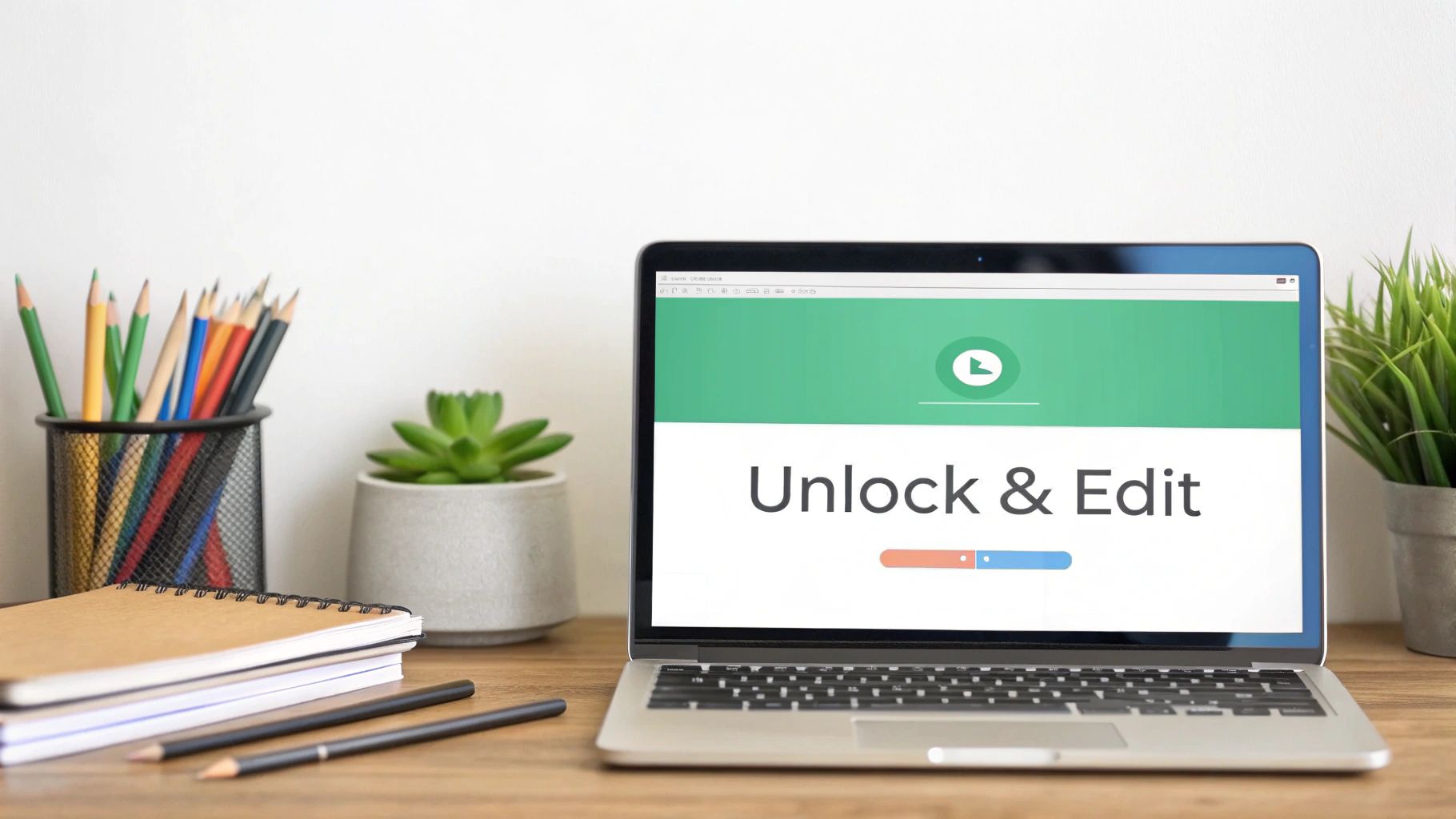
As you can see, a good interface gets straight to the point. No guesswork, just a clear spot to upload your file and get started.
The Unlock-to-Edit Workflow
Once you're on the unlock page, the process is dead simple. Here's how you go from a locked document to an editable one in under a minute.
- Upload Your Secured PDF: Drag and drop your file onto the page or use the "Select PDF file" button to find it on your computer.
- Enter the Password: A prompt will pop up asking for the document's password. This is the owner password you already have. Just a heads-up: these tools are for removing restrictions you're authorized to bypass, not for cracking unknown passwords.
- Unlock and Edit: After entering the correct password, the tool removes the permissions lock instantly. A great platform will then give you the option to go straight to an editor. This is a game-changer because it saves you from downloading the unlocked file only to re-upload it somewhere else.
With the restrictions gone, the document is your canvas. Add comments, highlight key sections, drop in new images, or even reorder the pages. It's fully accessible for whatever changes you need.
Making Edits and Finalizing Your Document
Now you’re in the editor with full control. You can add text boxes for notes, use a drawing tool to circle important figures, or swap out an old chart for an updated one. The goal is to make your changes quickly without messing up the original layout.
When you're finished, just download the new, unsecured version. You can even re-secure it with a new password if you need to before sending it along.
By the way, once you've got your PDF unlocked, learning how to master note-taking on PDFs can seriously speed up your review process on future projects.
Curious to try it yourself? Head over to our Unlock PDF tool and see how easy it is.
Navigating the Ethical and Legal Boundaries
The ability to unlock and edit a secured PDF is a powerful tool. But with great power comes great responsibility. Just because you can strip away a document's protections doesn't always mean you should.
Before you go any further, it’s critical to understand where the ethical and legal lines are drawn.
Let's be crystal clear: these methods are for situations where you have the legitimate authority to modify a file. This isn't about hacking into documents you have no business touching. It's about overcoming a technical roadblock when you're the rightful owner or have been given explicit permission to make changes.
When It's Okay to Edit a Secured PDF
Think of it like using the key to your own house. If it's your house, or the owner gave you a key, you're in the clear. The same logic applies to PDFs.
Here are a few perfectly legitimate scenarios:
- You're the original author. Maybe you locked a file for security, but now you’ve forgotten the password or need to remove the restrictions for a teammate.
- You have express permission. The document's creator has asked you to make edits and given you the password to remove the owner-level security.
- It's your own personal info. You need to edit a password-protected bank statement or a personal contract that belongs to you.
In these cases, you’re just managing your own information or doing your job with the creator's full consent.
The Red Flags: Respecting IP and Confidentiality
You cross a major ethical line the moment you try to bypass security on a document you don't own or have permission to alter. This is where things like intellectual property rights and confidentiality agreements come into play, and it can get serious.
Here’s a real-world example. Unlocking a password-protected W-2 form your employer sent you is totally fine—that’s your financial data. But removing the copy protection from a textbook you bought so you can share it with your entire class? That’s a copyright violation.
Key Takeaway: It all boils down to ownership and authorization. If you didn't create the content and haven't been given permission to change it, stop. Do not attempt to edit the secured PDF.
Understanding this responsibility is just as important as knowing the technical steps. This is especially true in professional settings where documents can contain highly sensitive data. For a deeper dive, learning how to handle confidential information is a crucial skill. It ensures you’re always operating on the right side of the law and using powerful tools as they were intended—to boost productivity, not to undermine security.
Pro Tips for Managing Secured Documents
So, you’ve figured out how to edit a locked PDF. That's the first step. The real challenge is managing these files without creating a chaotic mess, especially when you’re working with a team. It’s not just about getting in and making a change; it’s about building a workflow that’s smooth, secure, and reliable.
Getting these habits right from the start saves you from future headaches and protects the integrity of your work.
One of the worst feelings is editing a complex legal contract or financial report, then wondering, "Did I accidentally delete a crucial sentence? Was a number changed by mistake?" That little bit of doubt can be paralyzing, especially when a single misplaced comma could have serious consequences.
Maintain Document Integrity with Smart Tools
After you've made your changes, how can you be 100% certain only your intended edits are there? Re-reading a 50-page document by hand is not only a drag, it's a recipe for human error. There's a much smarter way.
Use a document comparison tool. An AI-powered feature can instantly scan and highlight every single difference between the original secured PDF and your new version. It gives you a clear, visual map of every change, so you can confirm your work is correct and that no accidents slipped through. It’s the final quality check that gives you complete confidence.
Always Re-Secure Your Documents
Finishing your edits and leaving a sensitive document unlocked is like walking out of your house and leaving the front door wide open. As soon as your work is done, you need to re-apply security to protect the information inside, particularly if you're about to share it.
- Choose a Strong Password: Mix it up with uppercase, lowercase, numbers, and symbols. Steer clear of obvious words or personal info.
- Set Clear Permissions: Think about what you want others to do with the file. Should they be able to print but not edit? A good tool lets you set these permissions precisely.
- Communicate Securely: Never send the password in the same email as the document. Use a separate, secure channel like a password manager or encrypted message.
Re-securing a file isn’t just an extra step; it’s what completes the workflow. It shows you’re serious about data security and keeps your hard work protected.
Establish a Clear Team Workflow
If your team constantly deals with secured files from clients, you need a game plan. Without one, you'll end up with unsecured versions saved on random desktops and frantic searches for passwords when a deadline is looming.
Set up a simple, documented process to stop the chaos before it starts. It could include:
- A central, secure spot for storing passwords.
- Clear rules on who is authorized to unlock and edit a secured pdf.
- A version control system (like "Contract_v2_unlocked_for_editing") to keep track of files.
- A final sign-off step to review the re-secured document before it goes back to the client.
By making these professional habits part of your routine, you’ll go from just reacting to locked files to managing them like a pro. For a closer look at making changes, our deep dive into the PDFPenguin editor has even more tips.
Common Questions About Editing Secured PDFs
When you're dealing with a locked PDF, a bunch of questions usually pop up. Is this allowed? Will it mess up my file? What if I don't even have the password? It's easy to get stuck.
Let's clear the air and tackle some of the most common questions people have when trying to edit a secured PDF.
Is It Actually Legal to Edit a Secured PDF?
Yes, it's 100% legal—if you have the right to do so.
Think of it this way: if you're the one who created the document and just forgot the permissions password, you're in the clear. Same goes if a colleague sends you a report and asks you to add comments. You were given permission.
Where you run into trouble is when you try to bypass security on a document you don't have rights to. That includes things like stripping the copy protection from a purchased e-book to share it, or trying to access a confidential report you weren't meant to see. The golden rule is authorization. If you have it, you're fine.
What if I Don't Know the Password at All?
This is a big one. If a PDF asks for a password just to open it (often called a "user password" or "document open password") and you don't have it, your hands are tied.
Reputable tools like PDFPenguin are designed to remove permissions passwords—the ones that stop you from printing or editing after you've already opened the file. They aren't built to crack open a document you can't access in the first place.
Your only real (and ethical) move here is to contact the person who sent you the file. Ask them for the password or for an unsecured version. Trying to brute-force your way in isn't just a bad idea; it can have serious legal blowback.
Will Unlocking a PDF Reduce Its Quality?
Nope, not at all. Simply removing the security layer won't touch the visual quality of your document. The process just strips away the password restrictions, leaving the text, images, and layout exactly as they were.
Keep in mind, quality loss can happen later. For example, if you compress the PDF to make it smaller or export pages as low-resolution images. Most good tools will give you control over the final output quality, so you can decide what works best for web, email, or print.
Ready to take back control of your documents? With PDFPenguin, you can securely unlock, edit, and manage your PDFs in seconds, right from your browser. Try our suite of free tools today.