
If you've ever stared down a mountain of invoices, you know the feeling. The choice is usually between two painful options: manually copy-pasting every single detail, or finding some kind of software to scan and capture key information like invoice number, date, and amounts. One way is a surefire time-waster, and the other can feel like a big leap.
This guide is about making that leap a smart one.
The Hidden Costs of Manual Invoice Data Entry
For too many finance and admin teams, the daily grind involves keying in data from an endless stream of PDFs and paper documents. This isn’t just boring; it’s a silent killer of productivity that slowly eats away at your company's bottom line. Every minute spent on manual entry is a minute that could have been spent on financial analysis, vendor negotiations, or literally anything else that adds real value.
Sticking with old-school methods creates a few operational drags that are easy to ignore at first, but impossible to escape in the long run.
The True Price of Human Error
Let’s be honest: no matter how careful your team is, mistakes are going to happen with repetitive data entry. A single misplaced decimal or a couple of swapped digits can spiral into incorrect payments, awkward conversations with vendors, and hours of frustrating reconciliation work. These aren't just small clerical hiccups; they create real financial risk and can do a number on your company's reputation.
The market is already voting with its feet. The global invoice processing software market is set to jump from $33.59 billion in 2024 to $40.82 billion in 2025—that’s a massive 21.5% growth rate. It’s projected to hit $87.95 billion by 2029. This boom is all about one thing: the urgent need to move from paper chaos to structured, reliable data.
Processing Bottlenecks and Wasted Hours
Manual processing is slow. Period. An invoice can sit in someone's inbox for days before it's even looked at, let alone keyed in and approved. This creates payment delays, causes you to miss out on early payment discounts, and leaves you with a foggy, inaccurate view of your company’s financial liabilities at any given moment.
The real cost of manual invoice processing isn't just the salary of the person doing it. It's the opportunity cost of what they could be doing instead, compounded by the financial impact of errors and delays.
A great first step to cutting these hidden costs is to explore how you can automate data entry in Excel. Moving to automated extraction isn't just about efficiency; it's about turning a core business process from a liability into a strategic asset.
Comparing Invoice Data Extraction Methods
Picking the right way to get data out of invoices isn't just a technical choice—it's a business decision that hits your bottom line. How fast you work, how accurate your data is, and what you spend on processing all come down to this.
Not every method is built the same. The best one for you depends entirely on your situation: how many invoices you handle, how many different layouts you see, and what your budget looks like.
Let’s walk through the four main ways to do this, from the old-school manual approach to modern AI.
Manual Data Entry: The Familiar Baseline
This is exactly what it sounds like. Someone sits down with an invoice—either on paper or a PDF on their screen—and types the key details into another system like a spreadsheet or accounting software. Simple.
For a freelancer or a tiny business dealing with maybe 10-20 invoices a month, this works just fine. There's no special software to buy, just a need for focus. But that simplicity is also its biggest problem. The moment your invoice volume starts to climb, manual entry becomes a massive bottleneck, riddled with typos and errors that mess up payments and make bookkeeping a nightmare.
Classic OCR: A Step Toward Automation
Optical Character Recognition (OCR) is the tech that turns a picture of text into actual, editable text. When you get a scanned invoice or a "flat" PDF you can't copy from, OCR software is what makes the text readable for a computer.
It's a huge improvement over typing everything by hand. You can at least copy and paste the information you need. But standard OCR is a pretty blunt tool.
Key Takeaway: Classic OCR digitizes the text on the page but doesn't understand what any of it means. It can identify the characters "INV-90210," but it has no idea that's an invoice number.
Because it lacks context, a human still has to hunt through the digitized text to find, copy, and paste the right data. It saves some typing, but not a lot of brainpower. If you're new to the concept, our guide on how to OCR a PDF document is a great place to start.
Template-Based Extraction: Structured but Rigid
This approach takes OCR one step further. You essentially create a "map" for each vendor's invoice layout. You tell the software, "For Vendor A, the invoice number is always here in the top right, and the total is always at the bottom next to the words 'Amount Due'."
Once that template is saved, the system can automatically grab the right data from any new invoice that perfectly matches that layout. This is fantastic if you get hundreds of invoices from the same handful of suppliers every month.
But here’s the catch: it’s incredibly brittle. If a vendor updates their invoice design—even just by shifting the date a few centimeters—the template breaks. You're back to square one, manually creating a new template and killing all the time you were supposed to save.
AI-Powered Intelligent Extraction: The Modern Solution
This is where things get really interesting. Instead of relying on fixed locations, AI-powered systems use Machine Learning (ML) and Natural Language Processing (NLP) to read and understand an invoice just like a person would.
An AI model has been trained on millions of invoices, so it learns to identify data from context. It knows to look for labels like "Invoice No." or "Reference #" to find the invoice number, regardless of where it is on the page. It figures out that the largest dollar amount at the bottom is probably the total. When you're weighing your options, learning how to extract text from PDF documents with AI reveals just how much more accurate and efficient it is than older methods.
This flexibility makes AI the only truly scalable solution for businesses that work with a lot of different suppliers. It handles layout changes without breaking a sweat and actually gets smarter over time. It's no surprise that in 2024, the data extraction segment grabbed a whopping 28.6% share of the AI for invoice management market. Businesses need smarter ways to handle complex digital documents.
The tradeoff is usually a higher upfront cost, but for any growing company, the ROI from saved labor and fewer errors almost always pays for itself.
Comparison of Invoice Data Extraction Methods
To make it even clearer, here’s a side-by-side look at how these methods stack up. Think about your own invoice volume and variety as you review it.
| Method | How It Works | Best For | Pros | Cons |
|---|---|---|---|---|
| Manual Data Entry | A person reads the invoice and types data into a target system. | Freelancers or businesses with very low invoice volumes (<20/month). | No software cost, easy to start. | Extremely slow, high error rate, doesn't scale. |
| Classic OCR | Software converts an image of text into machine-readable text. | Businesses digitizing paper records for archival, not for data entry. | Faster than pure manual entry, makes text searchable. | Doesn't understand context, still requires manual review. |
| Template-Based | A predefined "map" extracts data from fixed locations on an invoice. | Companies with a high volume of invoices from a few, consistent suppliers. | Fast and accurate for known layouts, fully automated. | Inflexible, breaks with any layout change, high setup effort. |
| AI-Powered | AI understands the context to find and extract data, regardless of layout. | Growing businesses with diverse suppliers and variable invoice formats. | Highly accurate, adapts to new layouts, scalable, improves over time. | Higher initial cost or subscription fee. |
Ultimately, the goal is to spend less time shuffling data and more time running your business. Choosing the right extraction method is the first step.
Preparing Your Invoices for Flawless Extraction
Before any software can work its magic on an invoice, the document itself has to be clean and readable. Think of it like a chef prepping ingredients—the final dish is only as good as what you start with. Rushing this prep stage is the number one reason for frustrating extraction errors and messy data.
The truth is, invoices rarely show up in a perfect, ready-to-process format. They land in your inbox as blurry phone pics, massive PDFs with a month's worth of billing, or even password-protected files. Each one needs a little TLC before an extraction tool can even think about reading it.
Get Your Documents in Order
First things first: get every invoice into a consistent, high-quality format. While some tools can handle JPGs or PNGs, converting everything to PDF is a simple best practice that pays off big time. It just makes everything that follows more reliable.
Imagine an office manager gets invoices from three different vendors. One sends a perfect PDF, another emails a blurry photo of a paper copy, and the third sends a multi-page PNG. Trying to feed that chaotic mix into any system is a recipe for disaster.
A much smarter workflow looks like this:
- Convert images to PDF: Use a tool to turn any JPGs or PNGs into a clean PDF. This gives the document a proper text layer for the software to analyze.
- Check the quality: If you're starting with a scan or a photo, make sure it’s not crooked, dark, or low-res. A good rule of thumb is at least 300 DPI (dots per inch). Anything less, and the tool will struggle to recognize the characters.
This small bit of upfront effort standardizes the playing field and prevents a ton of headaches down the line.
Deal with Multi-Invoice Files
One of the most common headaches is getting a single, giant PDF that contains dozens—or even hundreds—of individual invoices. This happens all the time with high-volume suppliers who bundle their billing. If you feed that whole file into an extraction tool, you’ll either confuse it or crash it.
The fix is simple: split the master file into individual documents, so each new file contains just one invoice. This is absolutely critical for accuracy. It lets the software focus on one invoice number, one total amount, and one vendor at a time without getting mixed signals.
For example, a logistics company might get a 200-page PDF from a fuel supplier, where each page is a separate invoice. The first step is to split that into 200 one-page files. Only then can each transaction be processed correctly.
An extraction tool trying to read a multi-invoice PDF is like asking someone to read three books at once. By splitting the file, you're handing them one book at a time.
This step isn't optional if you want accurate, automated invoice processing.
Isolate the Right Pages
Sometimes the problem isn't too many invoices, but one invoice buried inside a much larger document. You might get a 50-page project report where the actual bill is tacked on at the end. Trying to process the whole report will almost certainly pull in tons of wrong, irrelevant data.
Here, the key is to extract only the necessary pages. Before you do anything else, find the pages with the actual invoice and create a new, smaller PDF containing only them. This gives your extraction tool laser focus, ensuring it only analyzes the financial data and ignores all the noise.
This comes in handy all the time with:
- Contracts with an attached invoice: The initial invoice might be buried in the appendix.
- Vendor statements: A monthly summary might list ten invoices, but you only need to process one.
- Project proposals: A detailed proposal could end with an invoice for the first phase.
By trimming the fat, you make your extraction software faster and way more accurate.
Handle Locked or Secured Files
Finally, you’ll occasionally get an invoice that’s password-protected, especially in industries that handle sensitive info. An extraction tool can’t read a locked PDF, so you have to remove the protection first.
If you have the password, just use a PDF tool to unlock the file and save a new, unprotected version. That new file can then be dropped right into your workflow without a problem. It’s a simple but crucial step to keep your automated process from grinding to a halt. This prep work—standardizing, splitting, isolating, and unlocking—is the foundation of any successful data extraction strategy.
Alright, let's get into the nitty-gritty. Having a stack of prepped invoices is great, but the real work starts now. We need a solid, repeatable workflow for pulling out the data and—most importantly—making sure it’s right. This is how you build a system that actually saves time without messing up your books.
It’s not just about clicking a button in some software. It’s about defining what information matters, extracting it cleanly, and then checking the results with a fine-toothed comb. A good workflow turns that digital paper pile into structured, trustworthy data you can actually use.
This diagram gives you a bird's-eye view of getting your invoices ready before the main extraction even begins.
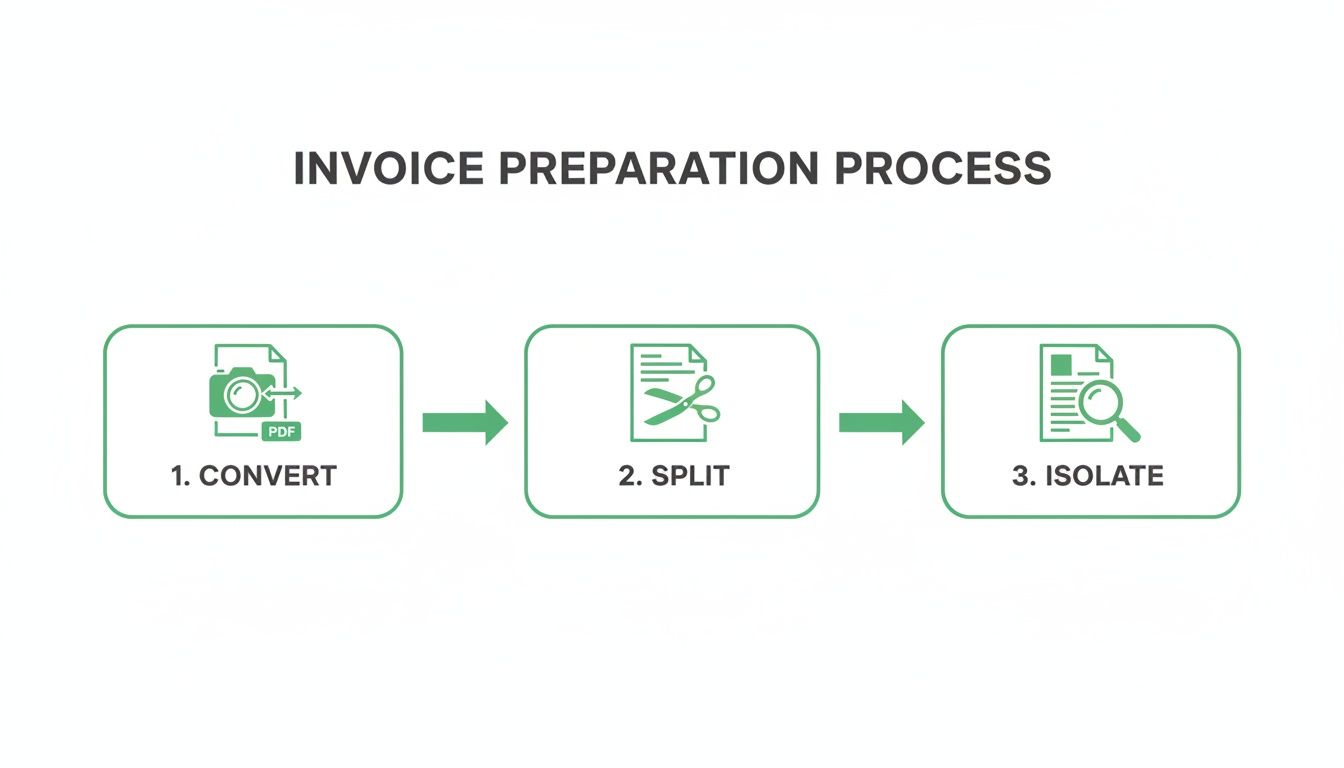
Each of these prep steps—standardizing the format, splitting up individual bills, and tossing out irrelevant pages—makes a huge difference in the quality of the data you'll get later.
Mapping Your Key Invoice Fields
Before you can pull any data, you have to know exactly what you’re looking for. This is called field mapping, and it’s basically the blueprint for your entire operation. You're creating a definitive shopping list of all the data points you need from every single invoice.
Don't just wing it. Sit down with your finance or accounts payable team and hammer out the essentials. A standard list usually looks something like this:
- Vendor Name: Who sent the bill?
- Invoice Number: The unique ID for this specific transaction.
- Invoice Date: When was it issued?
- Due Date: When do we have to pay it?
- Subtotal: The total before any taxes or fees.
- Tax Amount: How much tax was added?
- Grand Total: The final, all-in amount due.
- Line Items: A detailed list of what was purchased, including quantity, description, and unit price.
Getting this list right from the start is critical. If you miss a field now, you’ll be stuck re-processing everything later. Be thorough and think about what your accounting software or payment system absolutely needs to function.
The Critical Step of Data Validation
Let’s be honest: automated data extraction is fast, but it’s never perfect. No matter how fancy your tool is, validation is the non-negotiable step that protects your data's integrity. This is where you catch the tiny errors that can snowball into big problems, like overpaying a vendor or messing up your financial reports.
Put simply, validation is your quality control checkpoint. It’s a mix of automated and manual checks to confirm that the extracted info matches the original invoice and actually makes sense.
Think of it this way: extraction gets the data out of the PDF; validation confirms the data is right. Skipping validation is like building a house without ever checking if the foundation is level.
This is especially true as more companies adopt automation. In fact, North America is leading this charge, accounting for 35.3% of the projected growth in the AI for invoice management market from 2024-2029. This trend is part of a market expected to grow by a massive USD 6.44 billion, driven by finance teams trying to get a competitive edge. The best tools don't just extract data; they help you validate it, too.
Proven Techniques for Validating Accuracy
A smart validation strategy isn't just one check; it's a few layers of checks designed to catch different kinds of mistakes. Here are a few practical techniques you can start using right away.
Set Up Simple Validation Rules These are your first line of defense—automatic, logic-based checks that can instantly flag problems. The classic example is the math check: does Subtotal + Tax Amount = Grand Total? If the numbers don't add up, the system should flag that invoice for a human to review. You can also set rules to check for proper date formats or to make sure an invoice number hasn't already been entered.
Cross-Reference with Purchase Orders If your process starts with a purchase order (PO), you have a built-in source of truth. Compare the extracted line items, quantities, and prices against the original PO. This is a powerful way to catch things like incorrect pricing or a vendor billing you for more than you ordered—before you cut the check.
Leverage Comparison Tools For a quick visual spot-check, a document comparison tool is invaluable. For example, PDFPenguin’s AI Compare feature can instantly show you the differences between two files. You could use this to compare a summary of the extracted data against the original invoice PDF to see if any fields were missed or transcribed incorrectly.
Implement Human-in-the-Loop Review Automation is great, but for high-value invoices or bills from a brand-new vendor, a final once-over by a human is always a good idea. This isn't about re-doing all the work. It’s a quick sanity check on any fields the system flagged as uncertain. This blend of automated rules and human oversight creates a nearly foolproof safety net. For those looking to build even more sophisticated workflows, a flexible document processing API can provide the tools needed for custom validation logic.
Putting Your Extracted Invoice Data to Work
Getting clean data out of an invoice is a huge first step, but it’s not the end of the road. The real magic happens when you get that information flowing directly into the systems that run your business. This is where you close the loop, kill manual data entry for good, and turn a clunky, time-consuming task into a smooth, automated workflow.
Think about it. Once the invoice data is pulled and checked, it needs a permanent home. For a lot of small businesses, that might just be a well-organized spreadsheet. For bigger teams, it's usually accounting software or an ERP system. The goal is always the same: get the data where it needs to go without anyone having to type it in again.
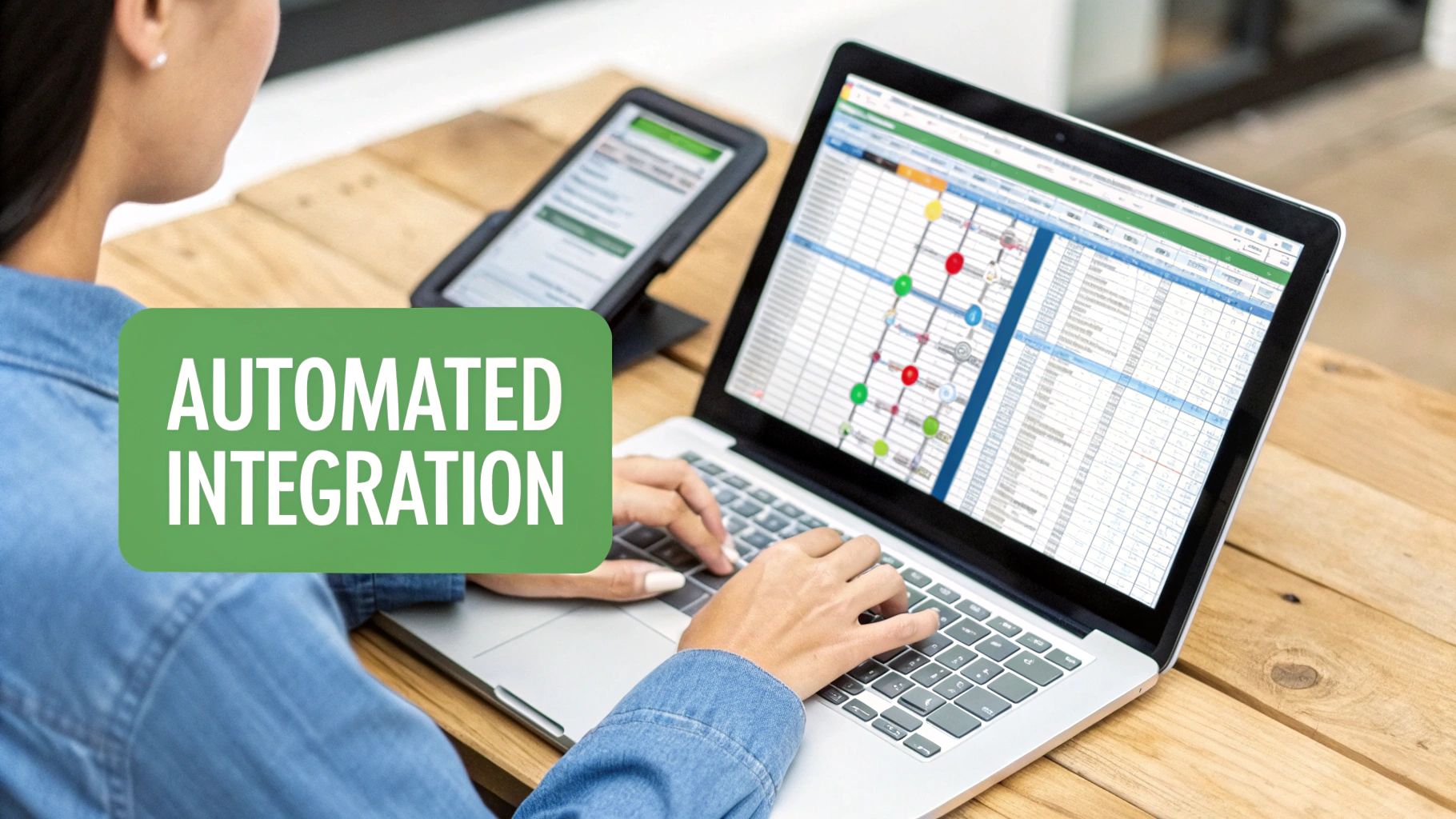
This final handoff is how you reclaim your time and keep your data consistent across your entire operation.
Simple Export and Upload Workflows
The most direct way to get your data moving is with a simple file export. Most extraction tools can spit out the information they’ve captured into standard formats like CSV (Comma-Separated Values) or XLSX (Excel). This is a lifesaver for teams who live and breathe spreadsheets for their bookkeeping or expense tracking.
Let's say a marketing agency gets dozens of invoices from freelancers every month. Instead of a team member manually punching numbers into a Google Sheet, they can extract data from every invoice in one shot. From there, it's as easy as exporting a single CSV file and uploading it. Done.
This approach gives you a few instant wins:
- Massive Time Savings: A task that used to eat up hours now takes just a few minutes.
- Fewer Mistakes: You completely sidestep the typos and copy-paste errors that come with manual transfer.
- Super Easy to Start: There's no complex tech setup, making it a great starting point for any business.
If you’re managing a lot of data in spreadsheets, getting a handle on moving info from a PDF into a structured format is a game-changer. You can find a complete guide on how to convert PDF files to Excel to make this part of your process even smoother.
Connecting Your Tools with APIs and Integrations
Ready for a more hands-off, automated setup? You can connect your extraction tool directly to other software using APIs (Application Programming Interfaces) or platforms built for integration. This creates a direct pipeline for your data, letting your systems talk to each other automatically.
An API is basically a universal translator that allows two different pieces of software to share information without you having to do anything.
Tools like Zapier or Make are brilliant for this. They let you build simple "if this, then that" recipes. For example, you could create a workflow: "When new data is extracted from an invoice, automatically create a bill in QuickBooks and send a notification to the #finance channel in Slack."
Real-World Integration Scenarios
Let's see what this looks like in the real world. A growing e-commerce store could set up a system where every supplier invoice that lands in a specific email inbox gets processed automatically. The extracted data—vendor name, amount due, and due date—is instantly pushed into their accounting software.
Suddenly, they have a real-time view of their accounts payable, which helps the owner make smarter decisions about cash flow. The entire journey, from the moment an invoice arrives to logging the future payment, becomes completely automated. This is how you extract data from invoice documents and turn it into real, actionable business intelligence.
Got Questions About Invoice Data Extraction?
Even with a slick workflow, it's natural to have questions when you first start pulling data from invoices automatically. You might wonder about accuracy, how to handle old-school paper scans, or what happens when things aren't perfect. Let's tackle some of the most common questions head-on.
How Accurate Is This Stuff, Really?
This is always the first question, and the honest answer is: it depends entirely on the tech you're using. Basic OCR might get you 70-80% accuracy, especially if you're working with blurry scans. Old-school template systems can nail it at 99%, but only if the invoice layout is exactly the same every single time.
Modern AI tools are a different story, consistently hitting 95% accuracy or higher straight out of the box. They’ve learned from millions of documents, so they understand context and don't get thrown off by small variations. For example, Uber shared that their GenAI solution hit an impressive 90% overall accuracy, with a full 35% of invoices reaching a near-perfect 99.5% accuracy.
No system is 100% flawless, but an AI-powered tool paired with a quick human review gets you incredibly close. It massively cuts down the manual work, leaving you to just fix the rare error.
Can I Pull Data From Scanned Paper Invoices?
Absolutely. In fact, that's one of the main reasons these tools exist. The magic behind it is Optical Character Recognition (OCR), which turns a picture of text into actual text a computer can read.
But here’s the catch: the quality of your scan is everything. For the best results, remember this:
- Go for high resolution: 300 DPI (dots per inch) is the gold standard.
- Light it up: Shadows and dark spots are the enemy of clean data.
- Keep it straight: A crooked scan makes the OCR engine work way harder, leading to more mistakes.
A clean scan is step one to getting clean data.
What If My Invoices Are in Different Languages?
This used to be a huge headache. You’d need separate tools or manual translation just to handle invoices from international suppliers. Not anymore. Today’s advanced AI and OCR engines are trained on global datasets, letting them read dozens of languages without breaking a sweat.
Many platforms can even auto-detect the language on an invoice and apply the right model on the fly. Some tools support over 25 languages, making them perfect for businesses with a global footprint. If you deal with vendors from multiple countries, this feature is non-negotiable.
Is It Safe to Upload Invoices to an Online Tool?
It's smart to ask about security, especially when you're handling financial documents. Any reputable online tool will have multiple layers of protection built in.
Here’s what to look for:
- HTTPS Encryption: This scrambles your data as it travels from your browser to the server, making it unreadable to anyone else.
- Secure Servers: The service should process your files on protected, well-maintained infrastructure.
- Automatic File Deletion: The best tools don't hang onto your files. They should automatically and permanently delete your uploads after a short window (usually a few hours) to protect your privacy.
Always go with a provider that’s upfront about their security measures. That way, you get all the convenience of a browser-based tool without risking your confidential information.
Ready to simplify your document workflow? From comparing PDFs to converting images, PDFPenguin offers a suite of fast, secure, browser-based tools to handle all your PDF needs. Start for free at https://www.pdfpenguin.net.