
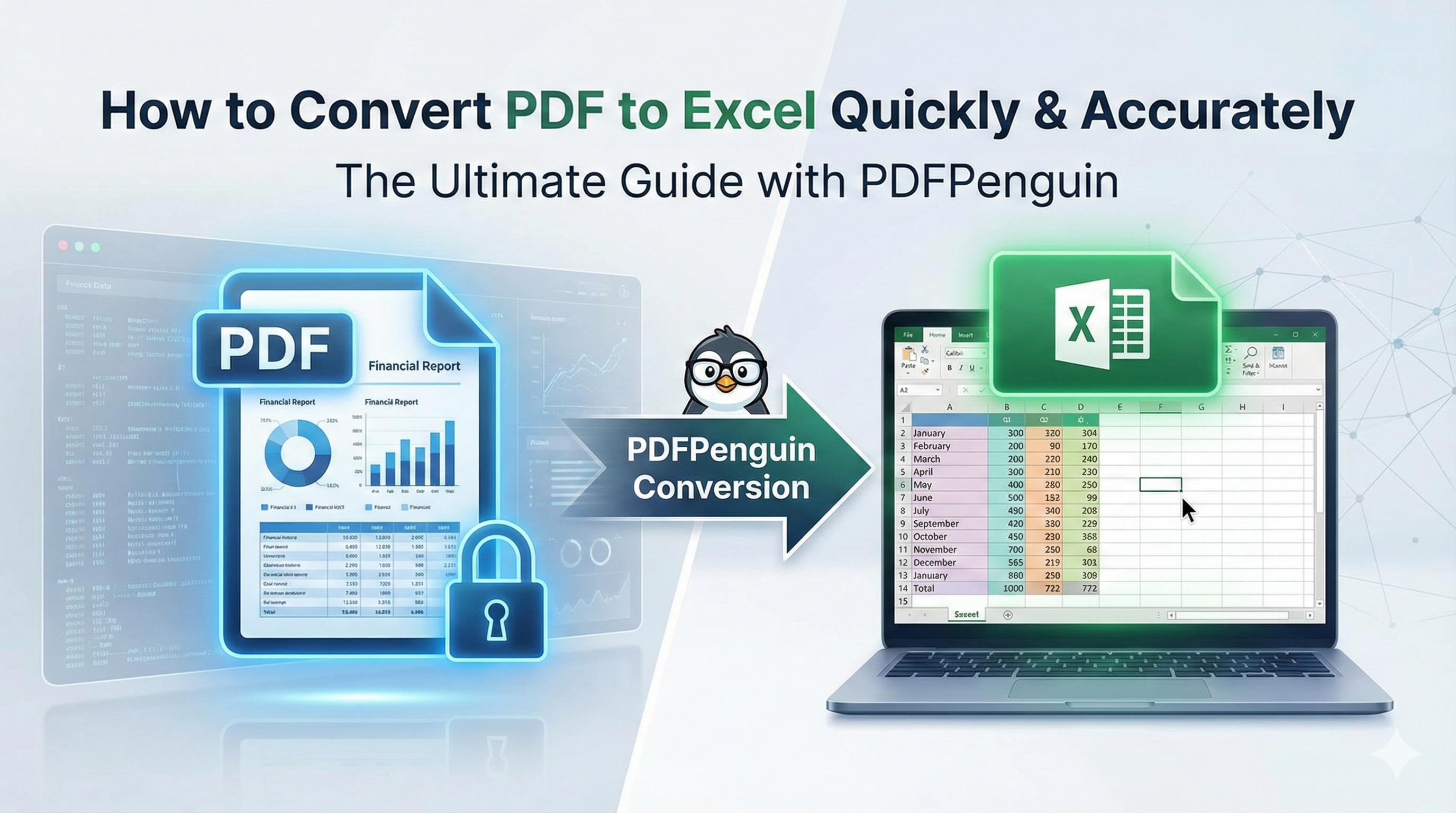
How to Convert PDF to Excel Quickly and Accurately: The Ultimate Guide
Quick Summary (TL;DR)
- The Problem: Manually copying tabular data from rigid PDF files into spreadsheets is slow, frustrating, and highly prone to human error.
- The Solution: You need a dedicated tool to convert PDF to Excel that preserves your exact layout and formatting.
- The Technology: PDFPenguin utilizes advanced Optical Character Recognition (OCR) and intelligent document parsing algorithms to accurately recognize complex tables and extract them flawlessly.
- The Action: Simply navigate to https://pdfpenguin.net/pdf-to-excel, upload your document, and download your perfectly formatted
.xlsxfile in seconds.
Have you ever received a crucial financial report, a massive list of contacts, or a detailed inventory sheet locked securely inside a PDF file? If you have, you already know the intense frustration of trying to extract that data. PDFs are absolutely fantastic for sharing information and preserving the visual formatting of documents across different devices, but they are notoriously difficult to edit. When you need to analyze data, calculate totals, or sort information, you desperately need that data in a spreadsheet format. That is precisely why knowing how to smoothly convert PDF to Excel is an essential skill for professionals in almost every industry today.
In this comprehensive guide, we will walk you through the most efficient ways to tackle this common problem, highlighting the underlying technology that makes modern extraction possible, and showing you exactly how to convert PDF to Excel using the fast, secure, and highly accurate tools available at PDFPenguin.
Why Do You Need to Convert PDF to Excel?
The Portable Document Format (PDF) was initially designed to act as a "digital printout." It ensures that absolutely anyone who opens the file sees exactly what the creator intended. However, this rigid, flat structure becomes a major roadblock when you are dealing with complex tabular data.
When you convert PDF to Excel, you immediately unlock a world of possibilities:
- Advanced Data Analysis: Once your data is safely organized inside a spreadsheet, you can leverage formulas, create pivot tables, and generate dynamic charts to gain actionable insights from the numbers.
- Seamless Editing and Updating: Spreadsheets allow you to quickly update figures, correct inherent errors, and append new rows of data.
- Massive Time Savings: Copying and pasting data directly from a PDF into a spreadsheet almost always results in formatting disasters. Columns suddenly merge, rows wildly misalign, and numbers get completely garbled.
The Technology Behind the Best PDF to Excel Converters
While there are many generic tools on the market, finding one that accurately preserves your intricate formatting requires serious processing power. That is where advanced document parsing algorithms and AI-driven structure recognition step in.
Modern platforms don't just "read" the text; they analyze the geometric layout of the page. By utilizing state-of-the-art Optical Character Recognition (OCR) alongside sophisticated tabular extraction models, a premium tool can tell the difference between a header, a merged cell, and a standard data row. At PDFPenguin, our engine is built specifically to handle these complex document structures so you don't have to spend hours reformatting broken data.
Manual Entry vs. PDFPenguin
To put the power of a dedicated conversion tool into perspective, let's look at how the traditional manual method stacks up against the automated capabilities of PDFPenguin.
| Feature | Manual Data Entry | Generic Converters | PDFPenguin |
|---|---|---|---|
| Speed | Hours or even days | Minutes | Seconds |
| Accuracy | High risk of human error | Often loses formatting | High-fidelity text extraction |
| Complex Tables | Frustrating to recreate | Breaks merged cells | Retains structural integrity perfectly |
| Security | N/A | Questionable data retention | Bank-level encryption, auto-deletion |
Step-by-Step Guide: How to Convert PDF to Excel with PDFPenguin
Getting your valuable data out of a rigid document and into a dynamic spreadsheet has never been easier. Follow these straightforward steps to seamlessly convert PDF to Excel:
Step 1: Navigate to the Conversion Tool
Head over to the official website and access our dedicated PDF to Excel converter page. Our interface is purposefully designed to be clean and distraction-free.
Step 2: Upload Your PDF Document
Click on the "Upload File" button or simply drag and drop your target PDF document directly into the designated drop zone on your screen. We support high-speed uploads so you are never left waiting.
Step 3: Initiate the PDF to Excel Conversion
Once your file is successfully uploaded, hit the "Convert" button. Behind the scenes, our advanced OCR and document processing algorithms will instantly scan the PDF, accurately identify the tabular structures, and intelligently extract the text.
Step 4: Download Your New Spreadsheet
In just a few brief moments, your document conversion will be complete. Click the "Download" button to securely save your newly generated Excel (.xlsx) file directly to your device.
Frequently Asked Questions (FAQ)
Can I convert a scanned PDF to Excel?
Yes. If your PDF is essentially an image of a document (like a scanned invoice), standard text extraction won't work. PDFPenguin utilizes high-powered Optical Character Recognition (OCR) technology to "read" the text within the image and accurately convert those visual elements into an editable Excel spreadsheet.
Is it safe to upload my financial and corporate documents?
Absolutely. We deeply understand that the documents you are converting often contain highly sensitive data. All files uploaded to PDFPenguin are processed over secure, encrypted connections and are automatically wiped from our secure servers shortly after conversion.
Will my complex tables and merged cells be preserved?
Yes. Our intelligent parsing algorithms are specifically designed to recognize complex layouts. While generic converters often dump text into a single column, our tool actively maps the geometric structure of the original PDF to ensure rows, columns, and headers align correctly in your new .xlsx file.
Stop Wasting Time on Manual Data Entry
Data extraction should never be a bottleneck in your daily workflow. By actively utilizing a specialized conversion tool equipped with advanced parsing technology, you can rapidly reclaim hours of your busy workweek and drastically reduce the high risk of human error. Experience the fastest, most reliable way to extract your data and convert PDF to Excel today with PDFPenguin.