
Turning a single PNG into a PDF is pretty straightforward. You just find a good online tool, upload your image, and download the finished document. But the real magic happens when you need to combine multiple images into one clean, professional, and universally shareable file.
Why You Should Convert PNGs to PDF
Ever tried to email a dozen high-res PNGs for a project, only to have the email bounce because it's too big? Or maybe you were submitting a portfolio and wished you could bundle all your visuals into a single, polished file.
These are common frustrations, and they show why knowing how to convert a PNG to a PDF is less of a tech trick and more of a practical, everyday skill for professionals, students, and just about everyone else.

Better Compatibility and Stronger Security
The biggest win for PDF is its universal nature. Unlike a PNG, a PDF looks the same everywhere—the formatting, fonts, and layout are locked in, no matter what device or operating system someone uses to open it. That consistency is non-negotiable for professional documents.
But PDFs also bring a few other tricks to the table that plain images just can't match.
- Serious Security: You can slap a password on sensitive documents to keep them locked down.
- All-in-One Content: Merge a whole collection of PNGs into one organized document. It’s perfect for presentations or reports.
- Smaller File Sizes: PDFs are often better at compressing images, making them way easier to email and share without a noticeable drop in quality.
This isn’t just a niche need, either. The market for tools that convert images to PDF is expected to grow at a CAGR of 7.8% between 2025 and 2033, on track to hit $4.07 billion. That growth is all about the rising demand for simple, browser-based tools that get the job done without forcing you to download any software.
To really see why this matters, let's break down the core differences.
PNG vs PDF: A Quick Comparison for Sharing Documents
| Feature | PNG (Image File) | PDF (Document File) |
|---|---|---|
| Best For | Single graphics, logos, web images with transparency. | Multi-page documents, forms, portfolios, reports. |
| Compatibility | Requires an image viewer; can display differently. | Universally readable on any device with a PDF reader. |
| Security | None. Anyone can open, edit, or copy it. | Can be password-protected and have editing restricted. |
| Combining Files | Cannot combine multiple images into one file. | Easily merges images, text, and other elements. |
| File Size | Can be large, especially at high resolutions. | Often smaller after compression, easier to email. |
Ultimately, choosing PDF is about making your work easier to handle and share.
For anyone compiling client reports, submitting academic projects, or creating digital portfolios, converting images into a single PDF is the standard for professionalism and efficiency.
With remote work being the new normal, this has become more important than ever. A good online PNG to PDF converter gives you control over your documents from anywhere. By turning your images into a secure and portable format, you make sure your work shows up exactly how you meant it to, every single time.
The Easiest Way to Convert PNG to PDF Online
Forget about installing clunky software or digging through confusing system settings. The most direct path from a PNG image to a polished PDF is a simple online tool you can use right in your browser. This approach cuts out all the hassle, boiling the whole process down to a few clicks anyone can master in seconds.
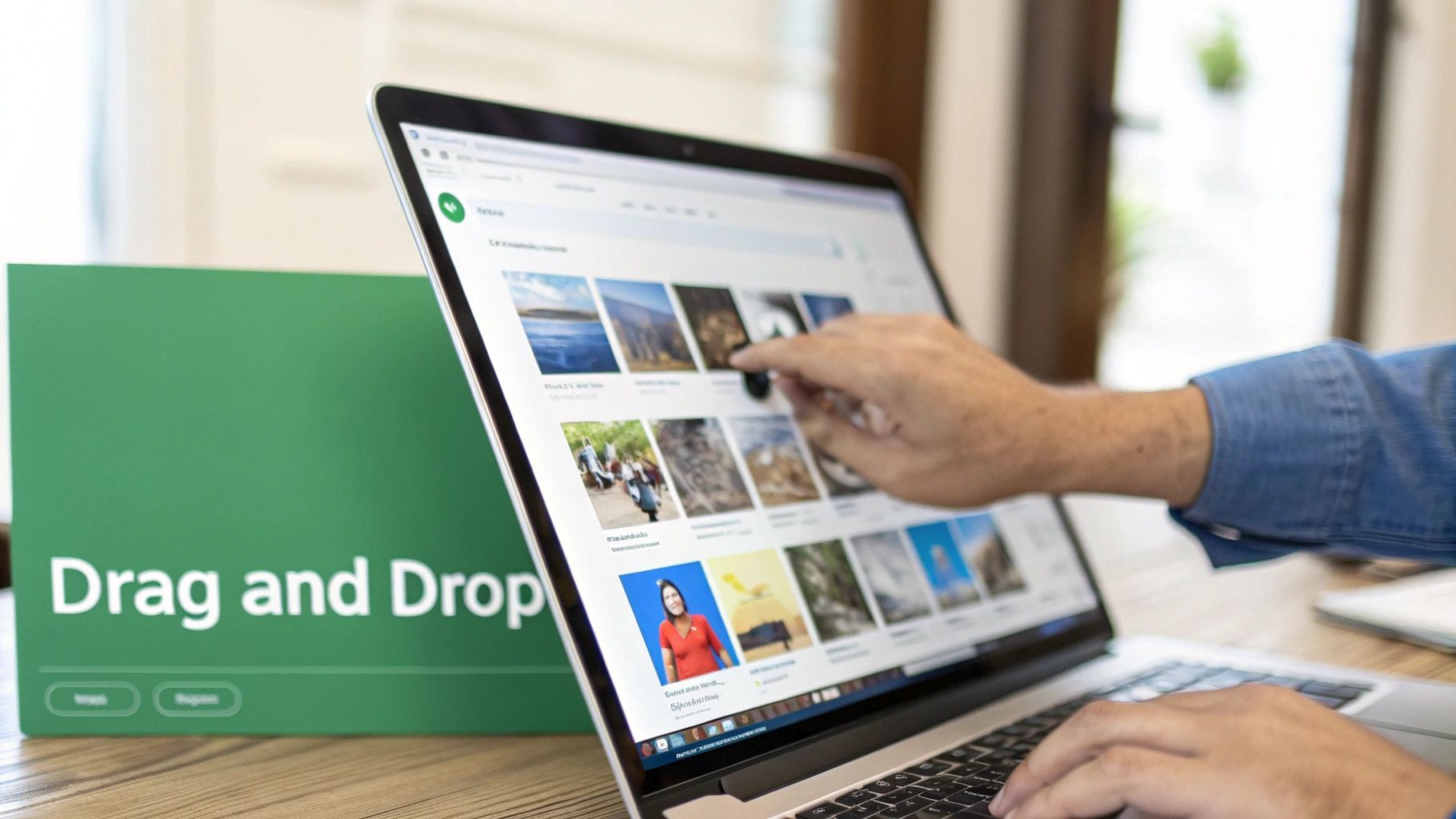
It all starts with getting your images into the converter. Most modern tools feature a simple drag-and-drop interface. You can select a single PNG or grab a whole batch of them at once and just pull them over to your browser window. No more uploading them one by one—a massive time-saver when you're trying to bundle dozens of files for a project.
Arranging Your Images for Impact
Once your PNGs are uploaded, they'll usually pop up as little thumbnails. This is where you get to be the director. Before you even think about hitting that "convert" button, you have the chance to put your visuals into a logical order.
Think about it: if you're building a portfolio, you wouldn't bury your best work on the last page, right? With a quick click and drag, you can reorder everything to tell a story, putting your strongest pieces front and center. The same goes for creating a step-by-step guide or compiling receipts for an expense report. The order matters, and online tools give you that control.
The ability to reorder images before conversion is what separates a basic file change from crafting a professional, easy-to-follow document. It ensures your final PDF is presented exactly as you intend.
Creating Your PDF with a Single Click
After you've arranged your images perfectly, the final step is incredibly simple. You’ll see a big, obvious button—something like "Create PDF" or "Convert." One click is all it takes to kick off the process.
The tool works its magic in the background, combining all your PNG files into a single, clean PDF. Within moments, a download link will appear, and you can save your new document right to your device. This one-click finish is exactly why using an online PNG to PDF converter is so popular. You get a professional, shareable document without any of the technical headaches.
Choosing the Right Online PDF Converter for Your Needs
With so many online tools promising a quick fix for converting a PNG to a PDF, picking the right one can feel like a shot in the dark. But not all converters are built the same, and your choice really depends on what you need. Are you just converting a single screenshot for a school project, or are you handling sensitive client proposals?
A one-off conversion is simple. But if you’re a professional or student who deals with images and documents all the time, the features start to matter. A lot. Look for a tool that offers batch conversion. This lets you upload and process a whole folder of images at once instead of doing them one by one. Trust me, it's a huge time-saver.
Look Beyond Basic Conversion
Security should be non-negotiable, especially if you’re handling anything confidential. A trustworthy converter will always use HTTPS and have a clear privacy policy stating your files are automatically deleted from their servers. This is critical—it ensures your data isn't just sitting around on someone else's computer.
Beyond that, the best platforms give you more than just a simple file flip. Here are a few extras that make a real difference:
- File Merging: The power to combine multiple converted PDFs into a single, organized document.
- Compression Options: Tools to shrink your final PDF for easy emailing without making it look blurry.
- No Watermarks: Free tools often stamp a big, ugly logo on your document. A good converter gives you a clean, professional file every time.
The demand for reliable tools is massive. Adobe's online converter, for instance, processed over 900,000 files in just two years. That shows how many people rely on these services daily. You can find more details about the widespread use of online PDF tools on their site.
When you're picking a converter, think about your whole workflow, not just one task. A platform with solid security, batch processing, and handy extras like compression will save you headaches down the road.
Ultimately, a browser-based solution like PDFPenguin gives you speed and privacy without the hassle of downloading software. It lets you make a smart choice and avoid the frustration of surprise watermarks or file size limits.
Don't Just Convert—Master Your PDFs
Great, you've turned your PNGs into a PDF. But don't stop there. The real magic happens after the conversion. Think of it this way: you haven't just created a file; you've created a flexible document ready to be organized, optimized, and secured.
Let's say you just converted ten screenshots for a client presentation. Sending ten separate PDF files looks messy and unprofessional. Instead, you can merge them into a single, cohesive document. It’s a small step that makes a huge difference, turning a jumble of files into a polished, easy-to-follow report.
Optimize and Secure Your Document
Another common headache is file size. High-resolution PNGs can lead to massive PDFs that are a nightmare to email. Nobody wants to deal with "file too large" errors or long download times. This is where compression is your best friend. For a full walkthrough, check out our guide on how to compress a PDF without losing that crisp quality.
And what about sensitive files, like financial charts or confidential mockups? Security is non-negotiable. Adding a password is a simple, powerful way to control exactly who can open and view your document.
Think of your PDF as a digital briefcase. Merging organizes the contents, compression makes it light to carry, and password protection locks it up tight.
Ultimately, a smart PNG to PDF workflow involves more than just the initial conversion. It's about managing the document's entire lifecycle.
- Merge: Combine multiple PDFs into a single, comprehensive report or portfolio.
- Compress: Shrink the file size for easy sharing via email or web upload.
- Protect: Lock down sensitive info with a password to prevent unauthorized access.
Jumping between different tools to get this done is a pain. A good all-in-one platform saves you time by letting you convert, merge, compress, and protect all in one smooth process. It's the key to efficient and frustration-free document management.
Turning images into a PDF seems simple, but a few common slip-ups can leave you with blurry results, jumbled files, and even security headaches. It’s the little details that make all the difference between a professional document and a messy one.
Don't Sabotage Your Quality
One of the biggest mistakes is ignoring the quality of your images before you even start. If you begin with a low-resolution PNG, your final PDF is going to look fuzzy and unprofessional. Always track down the highest quality source image you can find to keep text and graphics sharp.
Another major pitfall is grabbing the first free online tool you see. The internet is flooded with converters, but many are bogged down with sketchy ads or have questionable privacy policies. Stick to a secure platform that uses HTTPS and automatically deletes your files. It’s the only way to protect your data.
Avoid Disorganized Files and Wasted Time
Jumping straight into the conversion without organizing your files is a recipe for chaos. Dumping a folder full of images named "Screen Shot 2024-10-26" into a converter just creates a confusing, unprofessional document that no one wants to read.
Take a minute to create a clear naming system and arrange your files in the right order before you upload them. This tiny step is the key to making a PDF that’s logical and easy for anyone to follow.
Think of it like telling a story. Arrange your images in a sequence that guides the reader from one point to the next, just like you would with slides in a presentation.
Browser-based tools have made file conversion incredibly accessible, with usage jumping by 250% since 2020. People are realizing just how useful these tools are—for instance, a large PNG can shrink by up to 65% when converted to a PDF, solving those annoying email attachment limits. You can check out more stats on PNG conversion trends from Smallpdf.
Finally, remember that different goals require different tools. If you just need a smaller image file to use on a website, converting it to a different image format is often a better move. Our guide on converting PNG to JPG is the perfect solution for that.
Common Questions About PNG to PDF
Still have a few questions about turning a PNG into a PDF? That's completely normal. Here are some quick answers to the things people ask us most often.
Can I Combine Multiple PNGs Into a Single PDF?
Yes, absolutely. Most modern online tools are built for exactly this. You can upload all your images at once, rearrange them with a simple drag-and-drop, and then merge them into one organized PDF. It’s perfect for things like creating portfolios, submitting reports, or bundling study guides.
Does Converting a PNG to a PDF Hurt the Image Quality?
Not if you’re using the right tool. Good converters are designed to keep the original resolution of your PNGs intact. If you need a smaller file for email, look for tools that offer smart compression. This lets you find the right balance between file size and visual sharpness, making sure your images still look crisp and professional.
The real secret is picking a converter that doesn't compromise on quality. A solid tool gives you a clean PDF without messing up the original image, so your documents always look their best.
Are Online Converters Safe to Use for My Files?
That’s a smart question, and the answer is yes—as long as you choose carefully. Always stick with a trusted tool that uses HTTPS encryption to protect your files while they’re being uploaded and processed.
You should also look for a clear privacy policy that states your files are automatically deleted from their servers after a short time. A big red flag? Sites covered in pop-up ads or those that ask for personal info you don't need to provide.
Ready to create polished, high-quality documents in just a few clicks? With PDFPenguin, you can convert, merge, and organize your images without any hassle. Try our fast and secure online tools today