
Trying to edit a PDF should be easy, but it rarely is. The whole point of a PDF was to create a digital version of paper—something static, reliable, and, most importantly, final. This guide will cut through the frustration and show you how to handle PDF edits with modern, browser-based tools that actually work.
Why Editing PDFs Can Be So Frustrating
Ever tried to fix a simple typo in a PDF and felt like you were trying to edit a stone tablet? You’re not alone. That headache comes from the PDF's original design: its job is to preserve a document's exact look and feel on any device.
Unlike a Word doc, a PDF isn't a flowing stream of text; it's more like a fixed snapshot. This causes a few common problems, especially with scanned documents that are just images of text. You can see the words, but your computer can't, making them impossible to edit without the right tools.
The Viewer vs. Editor Dilemma
A lot of the confusion comes down to the difference between a PDF viewer and a PDF editor. Most of the free programs out there, like the one built into your browser, are just viewers. They let you read and print, but they can't change the actual content.
A true PDF editor lets you get under the hood to change the original text, swap out images, and even restructure the document itself. Figuring out this difference is the first step to solving your PDF problems for good.
The demand for capable tools is growing like crazy. The global PDF editor market is expected to jump from USD 4.69 billion in 2025 to a massive USD 24.7 billion by 2035. This is no surprise, especially with 74% of businesses now using these tools to support their remote teams. You can read the full research on PDF editor market growth to see just how big the shift is.
Common Editing Roadblocks
Most people run into the same few walls:
- Formatting Disasters: Ever convert a PDF to Word, only for it to turn into a jumbled mess of broken layouts and weird fonts? It’s a classic problem.
- Locked Content: Sometimes, security settings stop you from making even basic changes without a password.
- Scanned Document Puzzles: Without a technology called Optical Character Recognition (OCR), the text in a scanned file is just an image, making it unsearchable and uneditable.
The good news? Modern browser-based editors have solved these old-school issues. Now you can make the edits you need without having to download or install a single piece of complicated software.
Mastering Everyday PDF Editing Tasks
Let's get practical. Knowing how to edit a PDF really comes down to a handful of core skills you'll use over and over again. These are the quick fixes and organizational tweaks that stop small document problems from becoming big headaches.
Whether you're updating a client proposal, giving feedback on a team report, or just trying to organize a pile of research papers, having a go-to method for these edits is a massive time-saver.
To give you a clearer picture of what's possible, here’s a quick rundown of the most common editing features and when they come in handy.
Essential PDF Editing Features at a Glance
| Editing Task | Best For | Example Scenario |
|---|---|---|
| Edit Text & Images | Making small, direct changes without going back to the source file. | Fixing a typo in a client's address on an invoice or swapping an old company logo for a new one in a presentation. |
| Annotate & Comment | Collaborating and providing clear, contextual feedback. | Highlighting key statistics in a report for a colleague or adding a sticky note to a design mockup to ask a question. |
| Merge, Split & Reorder | Combining multiple documents into one or extracting specific pages. | Merging a cover letter, resume, and portfolio into a single file for a job application or splitting a 50-page catalog to send only the relevant product section. |
| Compress PDF | Reducing file size for easier emailing and faster uploads. | Shrinking a large, image-heavy PDF so it doesn't get rejected by an email server's attachment limit. |
| Convert to/from PDF | Changing file formats for different needs. | Turning a Word document into a PDF to preserve formatting or converting a PDF into an editable Excel spreadsheet. |
| Sign PDF | Adding a legally binding electronic signature to documents. | Signing a new client contract or approving an official form without needing to print, sign, and scan. |
This table should help you quickly identify the right tool for the job. Now, let’s dive into how these features work in the real world.
Making Direct Text and Image Edits
This is probably the most common reason people need a PDF editor: to fix a small mistake directly. Imagine you’ve finalized an invoice, but you spot a typo in the client's name. Or a marketing brochure has an old phone number. In the past, this meant tracking down the original Word or InDesign file—which you might not even have access to.
With a good online editor, you can just click on the text and type. If a proposal lists a deadline as "October 25th" but it needs to be "November 1st," you just select the text, type the new date, and save. The editor treats the text like an editable element, not just a flat image.
The same goes for images. If your company just went through a rebrand, you can instantly swap the old logo in a sales presentation with the new one. Just select the image, hit "replace," and upload the new file. A solid tool will let you resize and reposition it so it fits perfectly, keeping your document looking professional.
Annotating and Collaborating with Feedback
PDFs are the lifeblood of collaboration, but sending feedback in a long email chain is a recipe for confusion. This is where annotation tools are a game-changer. Instead of writing, "On page 3, second paragraph, please change the statistic," you can highlight the text and add a comment right there.
Let’s say you're reviewing a research paper with a colleague. You can use different tools for different feedback:
- Highlighting: Use a yellow highlight to mark key points you agree with.
- Strikethrough: Cross out text that should be deleted.
- Comments: Drop sticky notes to ask questions or suggest new wording without touching the original text.
- Drawing Tools: Circle a confusing chart or draw an arrow to connect two related ideas.
This creates a clean, visual record of all the proposed changes right on the document itself. It’s way more efficient for everyone involved.
Organizing and Managing Document Pages
Big projects often involve juggling multiple documents. You might have a cover page, a main report, and several appendices all in separate PDFs. Merging them into a single, cohesive file is a must for creating a polished final document. You just upload all the files and drag them into the right order.
But sometimes you need to do the exact opposite. If you have a 100-page catalog but only need to send the "Office Furniture" section to a client, a split tool lets you pull out just those pages. You can select a range (like pages 45-58) or pick individual pages to create a new, smaller PDF. It's perfect for sharing only the relevant info without sending a massive file.
Pro Tip: Before you finalize a merged document, always use the reorder function. It’s easy for pages to get slightly out of sequence. A quick drag-and-drop check ensures your report flows logically from start to finish.
These page management tools are incredibly popular. In fact, optimizing file sizes is one of the most common actions, with compression being used 34% of the time. This just shows how important it is to have tools that make documents easy to share and manage.
If you want to try these features out for yourself, you can start right now with the free online PDF editor from PDFPenguin.
Unlocking Powerful PDF Features
Once you get the basics down, you can start exploring the features that really change how you work with PDFs. These tools do more than just fix typos; they turn static files into dynamic assets you can use for any project.
We're talking about making scanned documents editable, converting files on the fly, and shrinking huge attachments down to a size that won’t get blocked by email servers. Let's dive in.
Making Scanned Documents Editable with OCR
Ever get a scanned contract or an old printed manual as a PDF? You can see the words, but you can’t copy, search, or edit them. That’s because the file is really just a flat image—a photograph of a document.
This is where Optical Character Recognition (OCR) works its magic. OCR technology scans the image, recognizes the shapes of letters and words, and converts them into real, selectable text. It’s a total game-changer for anyone who deals with physical paperwork.
- Real-World Scenario: A client sends you a 20-page signed agreement they scanned and emailed. You spot one small clause that needs an update. Instead of retyping the whole thing, you run it through an OCR tool. In seconds, you have an editable document where you can make the change directly.
This technology saves countless hours of tedious, manual data entry.
Converting Files Without Breaking a Sweat
PDFs are great for keeping formatting locked in place, but sometimes you need to get that content into a different format. Smart file conversion is a must-have skill if you regularly need to edit PDF documents.
Maybe you need to pull data from a PDF report into an Excel sheet for analysis. Or you want to turn a PDF brochure into a series of JPGs for a social media campaign. A solid converter handles these jobs precisely.
For example, turning a PDF back into a Word document is perfect for making big changes to the text. You can see how this works with a reliable PDF to Word conversion tool that keeps your original layout intact.
The most important part of any conversion is fidelity. A good tool preserves your tables, columns, and formatting, so you can focus on the content, not on fixing a broken layout.
Compressing PDFs for Easy Sharing
We've all been there. You try to email an important presentation, only to get that "file too large" error. PDFs packed with high-quality images can get huge, fast.
File compression solves this by intelligently shrinking the file size without a noticeable drop in quality. It optimizes images and gets rid of redundant data, making your document small enough to email or upload anywhere.
Creating and Filling Interactive Forms
Let's talk about forms. Nothing is more frustrating than a static, non-fillable form. It forces people to print it, fill it out by hand, scan it, and send it back. What a clunky process.
Modern PDF editors let you create your own interactive forms with fillable fields. You can add text boxes, checkboxes, radio buttons, and drop-down menus right on the PDF.
This makes it ridiculously easy for people to fill out applications, surveys, or intake forms on their computer or phone. For them, it’s a clean experience. For you, it means getting back clear, legible information every single time.
How to Secure and Finalize Your Documents
Before you hit "send" on that edited PDF, there's one last crucial step: securing it. This isn't just about looking professional; it's about protecting the information inside. From signing contracts to safeguarding sensitive client data, these final touches make sure your document is ready for its audience.
Finalizing a document often starts with a signature. Forget the old print-sign-scan routine—adding a legally binding e-signature is a must-have skill for everything from client agreements to official forms. You can now add a digital signature in seconds, creating a secure, verifiable seal that confirms the document's authenticity.
Applying Password Protection
Got a document with private information, like financial reports or HR records? Password protection is your first line of defense. This is more than a simple lock; it stops unauthorized users from opening, printing, or messing with your file.
When you add a password, you're creating a digital key. Only people with that key can get in. It's a fundamental security practice for any sensitive document you plan to share. If you need a straightforward way to lock down your files, you can learn how to protect a PDF with a strong password.
Professionals take security seriously. In fact, a whopping 43% of externally shared PDFs are now encrypted with strong standards like AES-256. This is a direct response to rising cyber threats and data privacy rules. You can discover more insights about PDF security trends and see how the industry is adapting.
Redacting and Unlocking PDFs
Sometimes you need to share a document but keep certain parts under wraps. That's where redaction comes in. It’s not just drawing a black box over text—true redaction permanently wipes the underlying data. This makes sure sensitive details like social security numbers or personal addresses can't be recovered.
Think of it as digitally shredding specific information before you share the rest.
On the flip side, you might get a protected PDF that you're allowed to edit. If you have the password, a good PDF editor will let you unlock the file to make your changes. This gives you the flexibility to work with secure documents without compromising their integrity.
To make sure your document is fully buttoned up, run through these final security checks:
- Add an "Open" Password: This requires a password just to view the document.
- Set a "Permissions" Password: This lets people view the file but blocks them from printing, copying, or editing.
- Redact All Sensitive Data: Double-check for any personal or confidential info that needs to be permanently removed.
- Verify E-Signatures: Confirm all necessary electronic signatures are applied correctly and are legally valid.
With these steps handled, you can share your documents confidently, knowing they’re both polished and secure.
Choosing the Right PDF Editor for Your Needs
When you need to edit a PDF, the biggest question is often where to do it. The market is flooded with options, but they really boil down to two camps: heavy-duty desktop software (like Adobe Acrobat) and fast, flexible browser-based tools.
For massive design projects or creating complex, interactive documents from scratch, desktop programs have their place. But let's be honest, most of us aren't doing that. We're fixing a typo, merging a few reports, or signing a contract on a deadline. For those everyday tasks, online editors are a much smarter, quicker choice. No installs, no updates, just results.
Browser-Based vs. Desktop Software
It all comes down to one word: accessibility. With a browser-based tool like PDFPenguin, you can upload a file, make your changes, and download the finished product in minutes, from any device. You're never stuck worrying about software compatibility or whether you have the latest version installed.
This convenience is why the online PDF editor market is booming. It was valued at USD 1.5 billion in 2023 and is on track to hit USD 4.1 billion by 2032. North America makes up a huge 35% of that market, thanks to businesses and legal teams going all-in on digital workflows. If you're curious, you can discover more insights about the PDF software market and see the trends for yourself.
Prioritizing Security and Privacy
Of course, uploading a file to a website brings up a valid concern: is my data safe? Handing over sensitive information, even for a few minutes, requires trust. That's why it's critical to know how a service handles your files.
A good online PDF editor should be crystal clear about two things: all file transfers are encrypted, and your files are automatically wiped from their servers after a short time. This isn't just a "nice to have"—it's a must. Your information should always remain yours.
Before you upload anything important, run through this quick mental checklist:
- Is the connection secure? Look for the padlock and HTTPS in the address bar. Never use a site that starts with
http://. - What's in the privacy policy? You're looking for simple, direct language about data handling and, most importantly, automatic file deletion.
- Do I have to sign up? Forcing you to create an account just to perform a simple task can be a red flag. The best tools let you get in, get it done, and get out.
This security decision tree breaks it down visually, showing the key checkpoints to consider before you share a document.
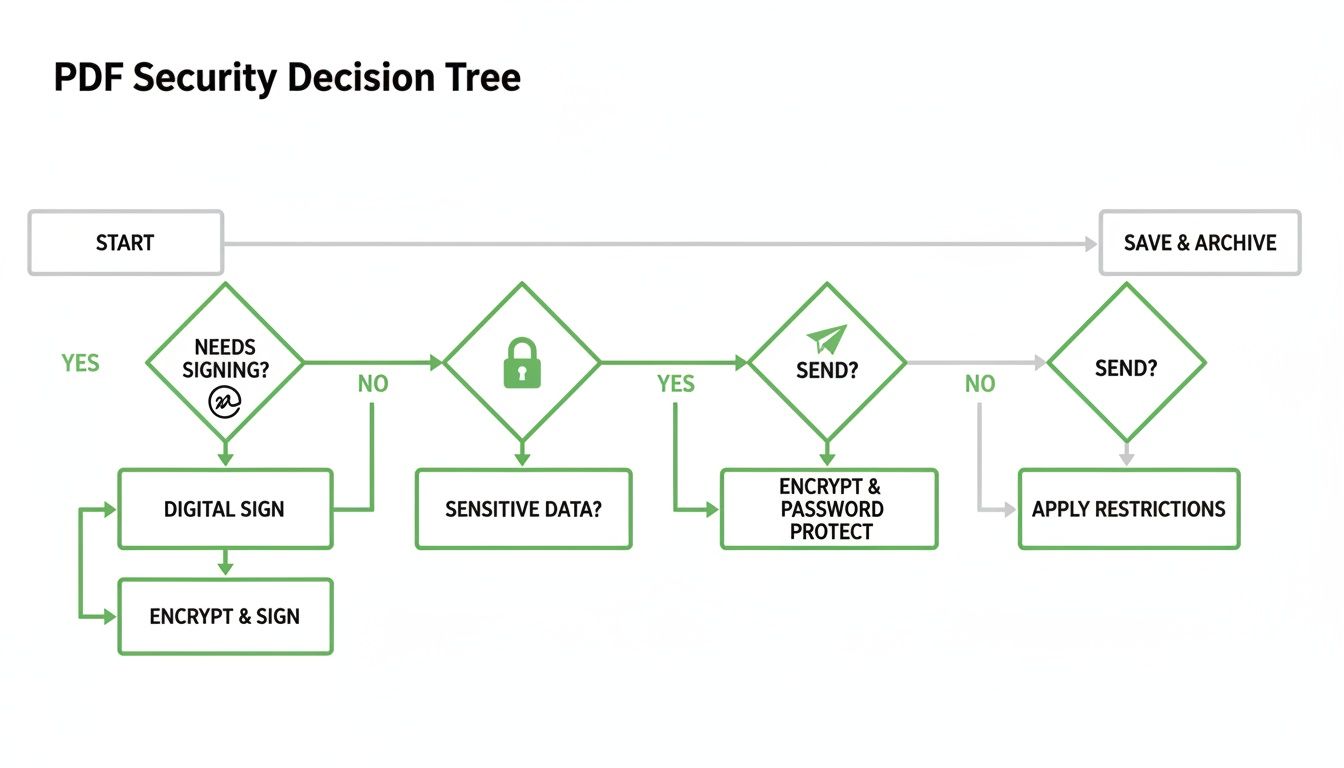
Finalizing a document is more than just hitting "save." It's a process where security needs to be front of mind at every step. Asking these simple questions empowers you to make a smart, safe choice every single time.
Your Top PDF Editing Questions, Answered
Even with the best tools, a few questions always pop up when you're trying to edit a PDF. Let's tackle the most common ones so you can get back to your work without any more roadblocks.
Can I Really Edit a PDF for Free?
Yes, absolutely. Most of the time, what you need to do—like adding a quick signature, highlighting some text, or rearranging a few pages—can be done with a free online tool. Many services, including ours, let you perform a certain number of tasks daily without ever asking for a credit card.
You'll usually only hit a paywall for more heavy-duty features. Think editing the original text directly in the PDF, running Optical Character Recognition (OCR) on a scanned document, or processing a huge batch of files at once. But for everyday fixes? The free options are surprisingly powerful.
Why Won't My PDF Let Me Edit the Text?
This is a classic problem, and it almost always comes down to two things.
First, your PDF might not actually contain any text. If it was made with a scanner, you're looking at a flat image of words, not actual, editable text data. It’s like a photograph of a page.
To solve this, you need a tool with an Optical Character Recognition (OCR) feature. OCR is a clever technology that scans the image, recognizes the letters, and converts them into text you can actually select, copy, and edit. It’s the magic key for scanned documents.
The other common culprit is security. The person who created the PDF may have password-protected it to prevent changes. If you have the password, just pop it into the editor when prompted, and you’ll unlock full editing access. If you don't, the file will stay locked in read-only mode.
Is It Safe to Use an Online PDF Editor?
This is a great question, and the answer hinges on which service you trust with your files. A reputable online editor is built on a foundation of security and transparency. They aren't just an afterthought; they're non-negotiable.
Here’s what to look for to make sure a service is legit:
- HTTPS Encryption: Look for the little padlock icon in your browser's address bar. This is your guarantee that the connection is secure and your file is encrypted while it travels to and from their servers.
- Automatic File Deletion: A trustworthy service won't hang onto your files. They should have a clear policy stating that your documents are permanently deleted from their servers after a short window, usually just a few hours.
- A Clear Privacy Policy: The terms should be easy to find and understand, and they should state explicitly that they won't peek at your files, share them, or sell your data.
For most day-to-day documents, a trusted online editor isn't just convenient—it's also a perfectly safe way to get your work done.
Ready to edit your PDFs without the frustration? With PDFPenguin, you can handle all your document tasks—from quick edits to secure signing—right in your browser. Try our fast, free, and secure tools today at https://www.pdfpenguin.net.