
When you make a PDF "read-only," you're essentially setting a permissions password. This locks down specific actions like editing, copying, or printing. It's a simple way to ensure anyone can view the document, but only people with the owner password can make changes.
This keeps your final version exactly that—final.
Why You Need to Make Your PDFs Read Only
Before we jump into the "how," let's talk about the "why." Making a PDF read-only is all about keeping control over your work after it’s out in the world.
Think about the last important document you sent out. Maybe it was a contract for a new client, a final report for a stakeholder, or your creative portfolio. The absolute last thing you want is for someone to alter your carefully crafted work, whether by accident or on purpose.
Leaving a PDF editable is like leaving the door unlocked. One misplaced click could delete a critical clause in a legal agreement. Someone could copy-paste your proprietary data into another document without asking. This isn't just about stopping bad actors; it's about maintaining professionalism and consistency.
Protecting Document Integrity
The number one reason to lock a PDF is to preserve its integrity. When you set a document to read-only, you’re creating a definitive, final version. In many professional fields where accuracy is everything, this is non-negotiable.
Think about these real-world scenarios:
- Legal and Financial Docs: Contracts, invoices, and financial reports have to stay exactly as they are to be legally binding and auditable.
- Academic and Research Papers: When you submit a thesis or research paper, a read-only format ensures no unauthorized changes are made before it's reviewed.
- Corporate Policies and Manuals: Things like employee handbooks or training guides need to be fixed. This guarantees every employee gets the exact same information.
By setting these restrictions, you're essentially stamping the document with its final state, confirming that this is the official version of record.
Preventing Unauthorized Use
Beyond preventing accidental edits, making a PDF read-only is a smart way to protect your intellectual property. Imagine you're a designer sharing a project proposal. If that PDF is fully editable, a potential client could easily lift your designs, text, and graphics for their own use—without ever crediting or paying you.
A read-only PDF acts as a digital fence. It sends a clear signal that the content is for viewing only, which discourages people from trying to reproduce or distribute it without permission. It’s a simple step, but it’s a powerful deterrent against IP theft.
Locking the document also gives you fine-grained control over how it's used. For instance, you might allow people to view it but disable printing to stop physical copies from floating around. That kind of control is crucial when you're managing sensitive or copyrighted material in a secure, professional way.
Quickly Lock a PDF with Online Tools
Sometimes you just need to lock a PDF and send it—no fuss, no downloads. Maybe you're a freelancer sending a client a draft, or a student submitting a paper. Installing bulky software for a quick task like that is just overkill.
This is where browser-based tools really shine. They give you a fast, convenient way to make your PDF read-only without cluttering up your computer.
Imagine you’ve just put the finishing touches on a project proposal. It’s perfect, and you need to get it in front of someone for review, like, right now. Instead of digging through complicated menus in a desktop program, you can use a simple online service. The process is pretty much the same everywhere: upload your file, pick your protection options, and apply the settings in a few clicks.
This kind of accessibility is a huge reason the industry has grown so much. The demand for simple document security has fueled a massive expansion in cloud-based PDF tools, which have grown by 200% since 2020. It’s mostly small businesses and educators driving this trend. The whole PDF editor market, valued at USD 3.14 billion in 2025, is expected to almost double by 2032. This just goes to show how essential these features have become for everyday users.
How to Lock Your PDF Online
Let's walk through a real-world example using a tool like PDFPenguin. The goal is simple: stop the recipient from editing or printing your proposal.
- Upload your file. First, just drag and drop your PDF into the upload area or click to select it from your computer.
- Find the security settings. Once it's uploaded, look for a button labeled something like "Protect," "Secure," or "Lock PDF."
- Set a permissions password. This is the most important part. You'll be asked to enter a password, which acts as your owner password. You'll need this later if you want to remove the restrictions. It's different from a password that stops someone from opening the file in the first place.
- Choose your restrictions. You'll usually see a few checkboxes. To make a PDF truly read-only, you'll want to check the boxes for "Prevent Editing" and "Prevent Printing."
- Apply and download. Hit the button to confirm your settings, and the tool will do its magic. A moment later, you can download your newly secured, read-only PDF.
Here’s what a typical starting point looks like.
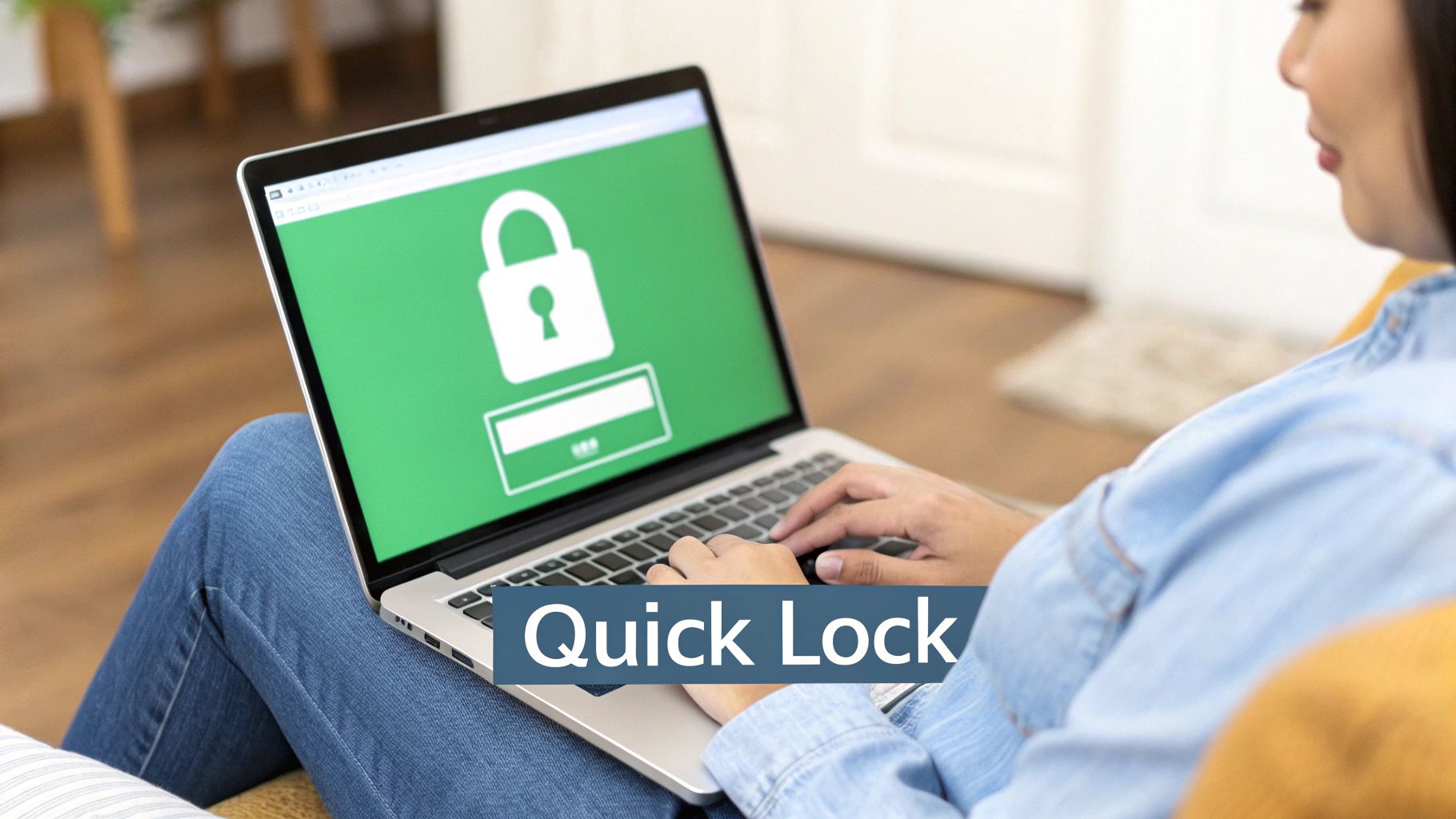
The clean layout is designed for speed, so you can find the exact tool you need—like the one to lock your PDF—without any guesswork.
The Good and the Bad of Online PDF Locks
While online tools are incredibly handy, it's smart to weigh the benefits against the potential downsides, especially when it comes to document security.
| Aspect | The Good | The Not-So-Good |
|---|---|---|
| Accessibility | Works on any device with a web browser. No installs needed. | You need an active internet connection to use it. |
| Speed | The whole process is usually done in a minute or two. | Large files or a slow connection can slow things down. |
| Cost | Most basic locking features are completely free. | Batch processing or advanced options might need a subscription. |
| Privacy | Good services use encryption (HTTPS) and delete your files after you're done. | Uploading super-sensitive data to any third-party server always carries some risk. |
Pro Tip: For most day-to-day documents like reports, school assignments, or non-confidential drafts, online tools are a fantastic choice. But if you're dealing with documents full of sensitive personal or financial info, sticking with an offline desktop app is probably the safer bet.
At the end of the day, browser-based solutions offer an unbeatable mix of speed and simplicity for anyone who needs to secure a PDF on the fly. You can try a free tool to lock your PDF online and see just how fast and easy it is for yourself.
Advanced PDF Protection Using Desktop Software
While online tools are great for quick, simple tasks, some documents just need more. Think legal contracts, financial reports, or proprietary company data. For those, you'll want the serious, offline muscle of dedicated desktop software like Adobe Acrobat Pro. These apps let you go way beyond a simple lock and fine-tune exactly what people can and can't do with your file.
The secret sauce here is the permissions password, sometimes called an "owner" or "master" password. This isn't the password that stops someone from opening the file. Instead, it’s a key that protects a specific set of rules you create, letting you build a truly read-only PDF that anyone can view. It's the gold standard for professional document security.
Setting Granular Permissions in Adobe Acrobat
Let's imagine a real-world scenario. A law firm is sending a final settlement agreement to a client. The client needs to read it, but there's no way they should be able to change the text, print it out, or copy a sensitive clause.
Here's how you'd lock it down in a desktop app:
- First, open your PDF in Adobe Acrobat, head to
File > Properties, and click the "Security" tab. - In the Security Method dropdown, find and select "Password Security." This is where the magic happens.
- You'll see a section for "Permissions." Check the box for "Restrict editing and printing of the document" and create a strong, unique owner password.
Once that password is set, you can start defining the exact "do not" rules for your document.
Understanding the Key Restrictions
The real power of desktop software is in the details. You're not just flicking an "edit" switch on or off; you're managing a whole suite of specific permissions.
These are the most important settings to get right:
- Changes Allowed: This one's critical. For maximum protection, set this to "None." This blocks everything from filling in form fields to adding a single comment.
- Enable copying of text, images, and other content: Uncheck this box. It’s a must for any read-only document, as it stops users from highlighting your content and pasting it elsewhere.
- Printing Allowed: If you don't want physical copies floating around, set this to "None." You can also choose "Low Resolution" if you're okay with proofing prints but not high-quality versions.
By layering these settings—disabling changes, copying, and printing—you effectively turn your PDF into a secure, static file. It can be viewed but not touched.
Once you save the file with these settings, anyone can open it. But the moment they try to edit, copy, or print, they'll hit a wall. The only person who can remove those restrictions is someone who knows the owner password. This is why professional-grade software is the go-to for businesses that can't afford to compromise on document integrity.
For a deeper dive into all the ways you can secure your files, check out our complete guide on how to protect your PDF with advanced options.
Your Computer Already Has the Tools You Need
You don't always have to hunt down new software or trust an online tool to make a PDF read-only. Chances are, your Windows PC or Mac already has everything you need built right in. This is hands-down the fastest and most secure way to lock down a file, since it never has to leave your computer.
It's no surprise that these features are becoming standard. The global PDF software market was valued at USD 2.15 billion in 2024 and is expected to rocket to USD 5.72 billion by 2033. That growth is all about the increasing need for document security in our day-to-day work. You can get more details on this trend from PDF Reader Pro's market analysis.
Using what you already have is a no-brainer—it’s fast, free, and keeps your files private.
Making a PDF Read-Only on Windows
If you're a Windows user, you can lock down your PDF before it even becomes a PDF. When you’re working in a Microsoft Office app like Word, you can set permissions as you’re saving the file. It's a proactive way to build the restrictions right into the document from the start.
Let's say you’ve just wrapped up a project report in Word and need to share it with the team for review, but you don't want anyone making accidental edits. Here's how to lock it down:
- Go to File > Info > Protect Document.
- Click the dropdown and choose Encrypt with Password.
- A better way is often during the save process. Go to Save As, select PDF as the file type, and then look for the Options button.
- In the options menu, you'll find a checkbox to "Encrypt the document with a password." This is where you can set a password specifically to restrict editing, which effectively makes the final PDF read-only.
By doing this, security becomes just another step in your workflow, not an extra chore you have to remember later.
Securing PDFs with Preview on a Mac
For anyone on a Mac, the built-in Preview app is a hidden gem for quick PDF security. It’s perfect for when you get a PDF from someone else and need to lock it before passing it along.
Imagine a colleague sends you a draft agreement. It's ready to be shared, but you need to make sure no one can tweak the terms. Just open it in Preview.
Open the PDF, then head to File > Export. In the window that pops up, check the Encrypt box. You'll be asked for a password to open the file. But here's the key step: click Show Details to reveal the permissions. This is where you can uncheck the boxes for printing, copying text, or making any changes.
This simple, native macOS feature gives you a straightforward way to add a solid layer of security to any PDF. By using these built-in tools, you can easily make your documents read-only without spending a dime.
Choosing the Right Method to Secure Your PDF
So, how do you decide the best way to make a PDF read-only? It really comes down to what you’re working on. The right method for a student submitting an essay is completely different from what a legal team needs for a sensitive contract.
Each approach—whether it’s a quick online tool, powerful desktop software, or your operating system’s built-in features—strikes a different balance between security, convenience, and control.
Start by asking yourself one simple question: how sensitive is the information inside?
For everyday tasks, like sharing a draft report with a colleague, a fast, free online tool gets the job done. But if you're handling documents with financial data, personal details, or confidential business strategy, the rock-solid, offline security of desktop software is the only way to go.
The scale of this is massive. There are an estimated 2.5 trillion PDFs floating around the world, with over 290 billion more created every single year. You can dig into more of these fascinating PDF statistics to see just how common these files are. Picking the right security method is what keeps your document from getting lost or misused in that massive digital shuffle.
Finding Your Best Fit
To make things simple, think about what you need most. Is it speed? Total control over permissions? Or just a free solution that works? Your answer will point you straight to the perfect tool for the job.
This flowchart gives you a great starting point based on whether you're on a Mac or a PC.
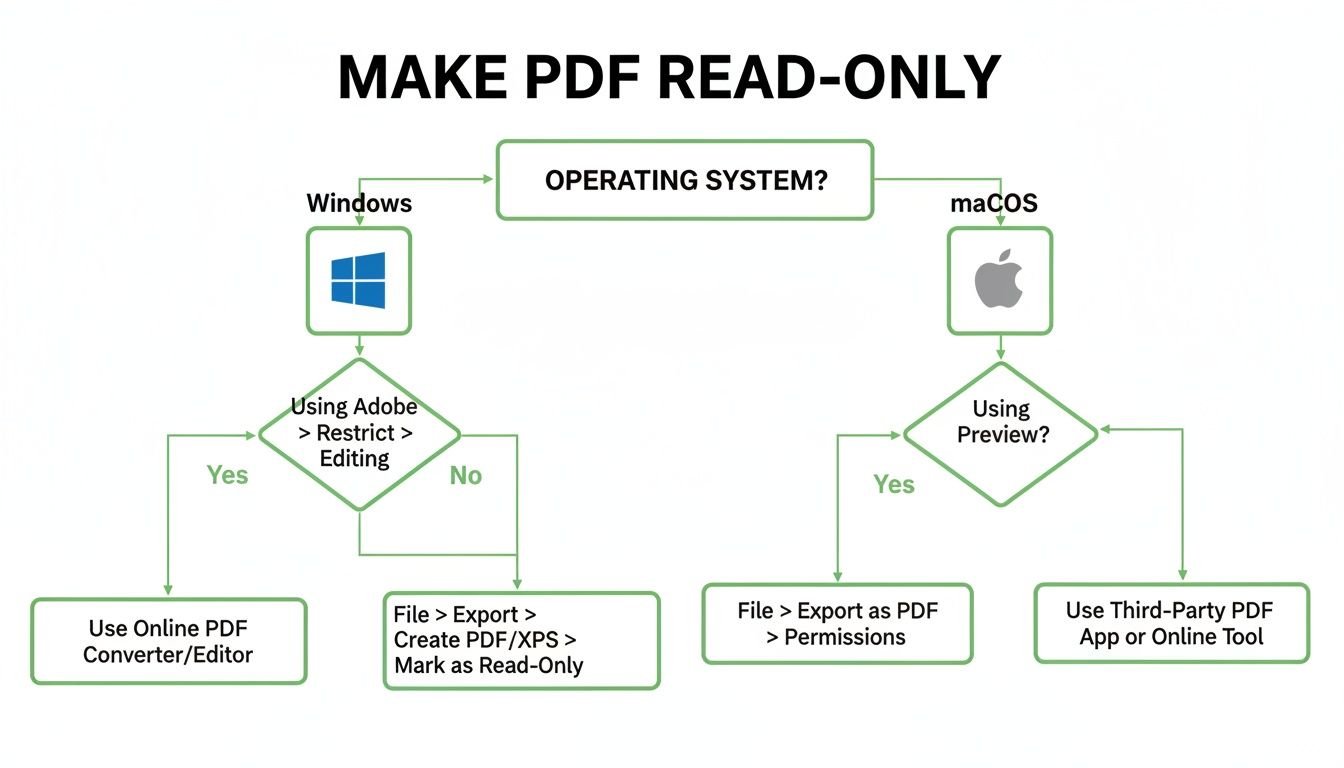
As you can see, both Windows and macOS users have some basic, built-in options. These are perfect for quickly locking a document without having to install any third-party software.
Comparing Methods to Make a PDF Read Only
To help you weigh the pros and cons, I’ve put together a quick comparison table. Use it to choose the best option based on your security needs, how comfortable you are with technology, and your specific situation.
| Method | Best For | Security Level | Ease of Use | Cost |
|---|---|---|---|---|
| Online Tools | Quick, one-off tasks and non-sensitive files | Basic to Medium | Very Easy | Mostly Free |
| Desktop Software | Sensitive corporate, legal, or financial documents | High | Moderate | Paid Subscription |
| Native OS Features | Basic protection without extra software installs | Basic | Easy | Free |
Ultimately, choosing the right method is all about matching the tool to the task. Keep this table handy as a quick reference guide, and you’ll never have to second-guess how to protect your files again.
A Few Lingering Questions About Securing PDFs
Even after you've locked down your file, a few common questions tend to pop up. Getting clear on these final points helps you secure your documents with total confidence, knowing you’ve covered all the bases.
Let's tackle the most frequent concerns we hear from users head-on.
Is a Read-Only PDF Truly Secure?
Setting a permissions password to make a PDF "read-only" is a fantastic defense against casual users trying to edit, copy, or print your work. For most everyday business and academic situations, it’s a perfectly effective deterrent.
But it's important to be realistic: no method is 100% foolproof. A determined person with the right software might still find a way to bypass those restrictions.
Think of it as a strong lock on a door. It stops most people, but a professional can still get through. For highly sensitive files—like trade secrets or classified legal documents—read-only protection should be just one layer of your security strategy. You might want to combine it with full encryption or secure distribution channels for maximum protection.
Can Someone Just Remove the Read-Only Restrictions?
If you protect your PDF with a strong, unique permissions password (sometimes called an "owner" password), it becomes incredibly difficult for someone to remove the restrictions without it. The security of your document is directly tied to the strength of that password.
The biggest vulnerability? Weak or common passwords. These can be cracked by password recovery tools. To make sure your restrictions stick, always create a complex password that mixes:
- Uppercase and lowercase letters
- Numbers
- Special symbols (like !, @, #, $)
Without that specific password, breaking the editing and printing protections is a huge technical challenge for the average person, keeping your document safe and sound.
What’s the Difference Between an Open Password and a Permissions Password?
This is a super common point of confusion, but the distinction is critical. The two passwords do completely different jobs.
An open password (or user password) locks the entire document. Nobody can even see the contents without entering it first. It’s like a locked front door to a house.
A permissions password, on the other hand, is what makes a file read-only. It doesn't stop someone from opening the document—anyone can view it. Instead, it restricts what they can do, like editing, printing, or copying content. This is the password you use to set and change those rules.
For a deeper dive into both types, check out our guide on how to make a PDF password protected.
Ready to secure your documents with ease? PDFPenguin offers a suite of fast, free, and browser-based tools to protect your PDFs in seconds. Lock your files, add permissions, and share with confidence. Try PDFPenguin's free tools today!