
If you've ever tried to email a handful of separate documents or upload them to a portal one by one, you know the frustration. It's clunky, unprofessional, and a surefire way to confuse whoever's on the receiving end.
The good news? You can combine all those scattered files into one clean, organized PDF for free. Using a simple browser-based tool like PDFPenguin, you can upload, reorder, and merge everything in just a few seconds. No software to install, no complicated steps. It works on any device and is hands-down the fastest way to get your documents in order.
Why Merging PDFs Is Your Secret Productivity Weapon

Juggling multiple digital files is a headache we all share. But knowing how to merge PDFs for free isn't just a tech trick—it's a massive productivity hack that simplifies life for professionals and students alike. It’s a small action that saves time, cuts down on digital clutter, and helps you present information clearly and professionally.
Think about it. You're a freelancer sending over a project proposal. You’ve got your cover letter, a few portfolio samples, the contract, and a project timeline—all as separate files. Sending them as a handful of attachments is messy and can easily overwhelm a potential client.
The goal is to present a single, polished package. Merging these documents into one PDF creates a seamless experience, showing you're professional and detail-oriented from the get-go.
The need for simple, effective document management has exploded recently. The PDF Merge Software market was valued at USD 350 million in 2024 and is on track to hit USD 750 million by 2033. This boom is driven by the rise of remote and flexible work, where everyone needs easy-to-use tools to handle digital paperwork without downloading clunky software.
From Chaos to Cohesion
In today's world of remote work and digital collaboration, the demand for straightforward, browser-based tools is higher than ever. Instead of sending a confusing chain of email attachments, you can deliver one consolidated document that tells a clear story. This isn't just about convenience; it's about control.
Beyond just getting organized, merging PDFs is a key first step in document workflow automation, helping to simplify otherwise complex processes.
Here are a few common scenarios where merging PDFs is a total game-changer:
- Students: Combining lecture notes, research papers, and assignments into a single, comprehensive study guide.
- Office Managers: Bundling invoices, receipts, and expense reports together for streamlined accounting.
- Job Applicants: Merging a resume, cover letter, and portfolio into one professional application package.
Each of these examples shows the power of consolidation. It’s a foundational skill for anyone trying to stay organized in a digital-first world. For students especially, mastering this can make a huge difference in managing academic materials. If that's you, you might also find our guide on how to organize research papers helpful.
Now, let's get into the practical side with a step-by-step walkthrough.
A Practical Walkthrough: How to Merge PDFs in Under a Minute
Okay, let's get right to it. You have a bunch of separate files—a cover page, a report, some scanned receipts—and you need to turn them into one clean, organized PDF. This quick walkthrough will show you exactly how to combine them using a simple drag-and-drop tool like PDFPenguin.
No technical skills needed. Seriously. If you can move a file from one folder to another, you've already got this down. The entire goal here is to get from scattered documents to a single, polished PDF in just a few clicks.
Getting Your Files Uploaded
First things first, you need to get your documents into the tool. Let's imagine you're putting together an expense report. You've got a few receipts saved as JPGs and an invoice that's already a PDF. The great part is you don't have to waste time converting anything first.
- Find your files on your computer.
- Select everything you need—the invoice, the receipts, maybe a cover sheet.
- Drag them all together and drop them right into the uploader box in your browser.
That’s it. The tool automatically handles the different file types, converting images into PDF format behind the scenes and getting them ready to be organized.
Here’s what that clean, no-fuss interface looks like.
As you can see, it’s just a simple box. You can either drag your files in, like we just did, or click to browse your computer.
Reordering and Finalizing Your New PDF
Once everything is uploaded, you’ll see little thumbnail previews of each page. This is where you take control. The files will appear in the order you dropped them in, but changing that is as simple as clicking and dragging.
For our expense report example, you’d just drag the cover sheet to the very beginning, put the main invoice right after it, and then arrange your receipts chronologically at the end. This visual approach is a lifesaver—no more downloading and re-uploading just because you got the order wrong.
Pro Tip: Before you hit merge, think about what you'll name the final file. A clear name like 'Expense_Report_Q3_YourName_2024.pdf' is way better than 'merged_file_final(2).pdf'. This tiny habit makes a huge difference in keeping your work organized.
After you've got the pages lined up exactly how you want them, you’re on the home stretch.
- Find the big "Merge PDF" button and give it a click.
- Let the tool work its magic for a few seconds while it combines everything.
- Click the download link that pops up to save your new, consolidated PDF.
The whole process, from start to finish, is designed to be fast and completely painless. If you want to try it yourself, you can use our free online tool to merge your PDFs now.
Level Up Your PDF Merging Game
Once you’ve got the basics of combining PDFs down, it’s time to move on to some pro-level strategies. These aren't complicated tricks, but they make a huge difference in how quickly you can assemble complex documents and how professional the final product looks. Knowing how to merge files for free is great; doing it efficiently is even better.
One of the simplest yet most effective habits is prepping your files before you even open your browser.
Let’s say you’re combining twelve monthly sales reports into an annual summary. Instead of randomly uploading them and then dragging each one into place, just rename them first. A quick 01_January.pdf, 02_February.pdf, and so on, means they’ll upload in the correct sequence automatically. No more frantic dragging and dropping.
Building a Cohesive Document
This little bit of pre-planning is a lifesaver for bigger projects. Imagine you’re putting together a final proposal for a client. It’s not just a random collection of pages; it has a specific, logical flow.
A typical structure might look something like this:
- Cover Page: The first thing your client sees.
- Table of Contents: A roadmap for the entire document.
- Main Body Sections: The core proposal, broken into logical parts.
- Appendices and References: All the supporting materials tucked neatly at the end.
Thinking through this order before you merge is the difference between handing someone a jumbled stack of papers and a polished, easy-to-read report.
The real power of a great PDF tool isn't just combining files—it's giving you the control to build a document that is clear, logical, and easy for your audience to navigate.
The whole process boils down to three simple actions: upload, reorder, and merge.
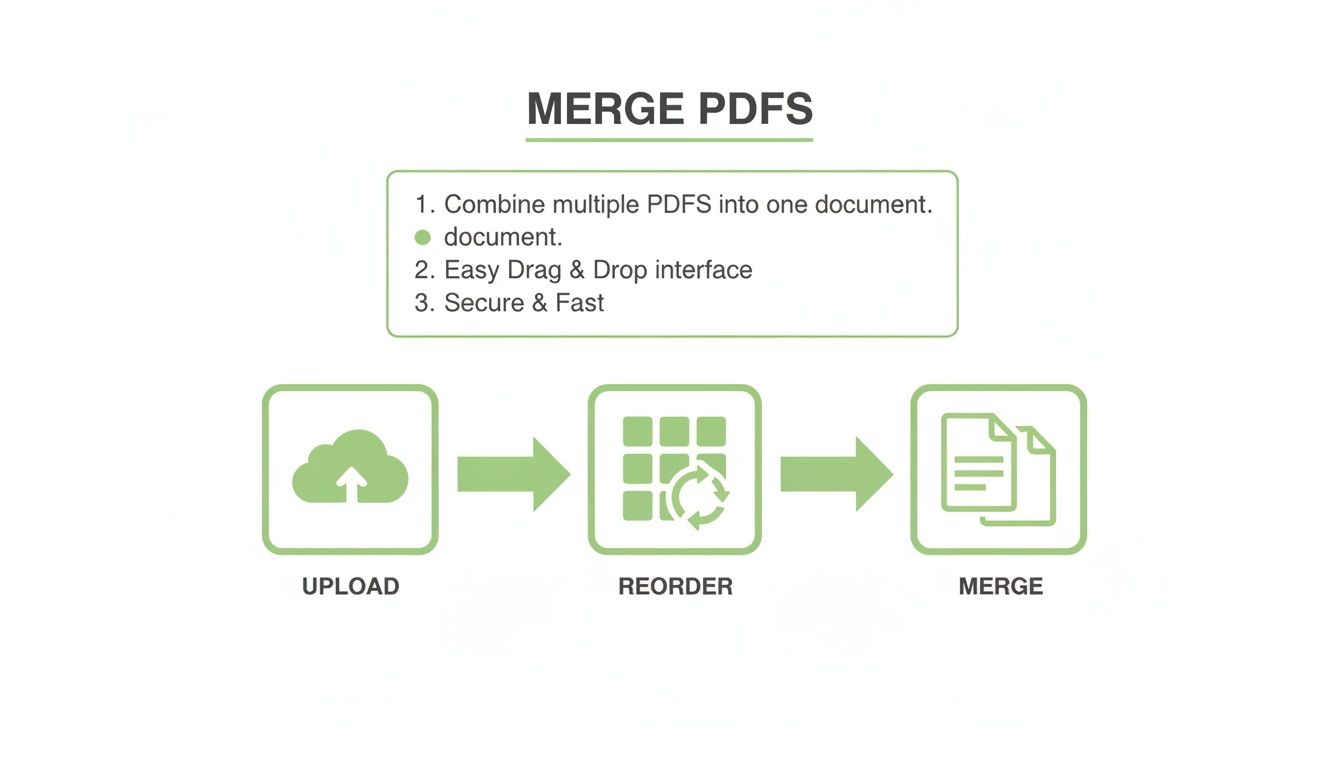
This visual shows just how straightforward it is to combine multiple files into one organized document.
Comparing Free PDF Merging Methods
Not all free tools are built the same, and the best one for you really depends on the job at hand. Are you just quickly combining a few invoices, or are you handling sensitive legal documents? A quick comparison can help you pick the right tool for the task.
| Method | Best For | Pros | Cons |
|---|---|---|---|
| Online Tools (like PDFPenguin) | Quick, everyday tasks and convenience. | Fast, no software to install, accessible anywhere. | Requires an internet connection; files are uploaded to a server. |
| Built-in OS Tools (Mac/Windows) | Security-conscious users and offline work. | Files never leave your computer, no internet needed. | Can be less intuitive; features vary by OS. |
| Cloud Storage (like Google Drive) | Users already working within a cloud ecosystem. | Integrates with existing file storage and workflows. | Often slower and involves more clicks than dedicated tools. |
For example, a browser-based tool like PDFPenguin is fantastic for everyday tasks where speed is everything. But if you’re working with highly confidential contracts, an offline OS tool might give you more peace of mind since your files never touch the internet.
Understanding these trade-offs is key. There's no single "best" method—only the best method for what you need to do right now.
Other Ways to Merge PDFs for Free
While a browser-based tool is fantastic when you're on the go, sometimes the best solution is already sitting on your computer. Your Mac or PC has surprisingly powerful, built-in features that let you combine PDFs offline, keeping your sensitive files entirely in your own hands. Knowing these tricks gives you a complete toolkit for any situation.
And that flexibility is key. The PDF software market is booming—in Europe alone, it was valued at USD 555.36 million in 2024 and is growing at a 10.9% clip. Why? Because legal and finance teams need to merge critical documents without compromising privacy under laws like GDPR. This is where offline tools shine, offering the same level of security as advanced browser-based tools by default. You can read more about this market trend and its impact on PDF technology.
The Hidden Gem on Your Mac: Preview
If you’re a Mac user, you already have one of the best PDF editors hiding in plain sight. It’s called Preview, and it’s perfect for combining documents without ever needing to connect to the internet.
Here's how easy it is:
- Open your first PDF in Preview.
- Head up to the "View" menu and click on "Thumbnails." A sidebar will pop up showing all the pages.
- Now, just drag your other PDF files from Finder and drop them right into that thumbnail sidebar. You can place them at the beginning, the end, or even between existing pages.
- Once everything is in the right order, go to "File" > "Export as PDF" to save it all as one new document.
It's a clean, secure, and surprisingly elegant way to manage your files.
The "Print to PDF" Trick on Windows
Windows users have a clever workaround built right in. The "Microsoft Print to PDF" function is a fantastic way to merge multiple files—even if they aren't all PDFs. You can combine Word docs, images, and PDFs into a single file with just a few clicks.
This is my go-to method for job applications. You can instantly combine a Word document resume, a JPG headshot, and a PDF cover letter into one polished application packet.
Just select all the files you want to merge in File Explorer. Then, right-click and choose "Print." When the print dialog box appears, pick "Microsoft Print to PDF" from the list of printers. Click "Print," and Windows will ask you to name and save your brand-new, combined PDF.
A Smart Workaround with Google Drive
If your files already live in the cloud, Google Drive offers another great free option. This is especially useful for group projects where different people are contributing various parts of a document.
All you have to do is insert your different files—like Google Docs, images, or existing PDFs—into a single Google Doc. Get everything arranged just how you want it, then go to "File" > "Download" > "PDF Document (.pdf)".
Google Drive handles the conversion, giving you a clean, merged PDF ready to go.
Keeping Your Documents Safe with Online Tools
Uploading personal or business documents to a website can feel a little unnerving. When you're deciding how to merge PDF files for free, security should be at the top of your list. The good news is that reputable online tools are built with your privacy in mind, but you have to know what to look for.
The absolute must-have is HTTPS encryption. This is the tech that creates a secure, private tunnel between your computer and the website's server. You can spot it by looking for the small padlock icon next to the URL in your browser's address bar. That little lock means your documents are scrambled and unreadable to anyone trying to peek while they're in transit.
Understanding Data Handling Policies
Beyond encryption, a trustworthy service will be totally transparent about how it handles your files. It’s always worth taking a minute to check out the privacy policy. Does it clearly state that your files are automatically deleted after a short period?
A solid privacy commitment means the service doesn't store your documents forever. For example, tools like PDFPenguin are designed to automatically delete your uploaded files from their servers within a few hours. This ensures your information doesn't just hang around online.
This automatic deletion is a critical feature. It protects you from potential data breaches long after you've merged your PDFs. Good services view your files as your property and are just providing a temporary workspace. Understanding the finer points of encrypted document sharing can give you even more confidence when managing sensitive files online.
When to Use Online vs. Offline Tools
So, what’s actually safe to upload? For most everyday tasks, a secure online tool is perfectly fine.
- Generally Safe Online: Merging invoices for an expense report, combining class notes into a study guide, or assembling a project portfolio.
- Better Offline: Highly sensitive documents like signed legal contracts, detailed financial records, or files containing personal identification numbers.
For those super sensitive files, using a built-in offline tool on your Mac or PC is the smarter play. And for an extra layer of security on any PDF—online or off—you might want to learn more about how to make your PDF password protected. By making informed choices, you can merge your files with total peace of mind.
Common Questions About Merging PDFs
Merging PDFs is usually pretty straightforward, but a few "what if" questions always pop up. Let's tackle the most common ones so you can avoid those little roadblocks and get your documents combined without any snags.
Think of this as your quick-reference guide.
Can I Merge Different File Types into One PDF?
Yes, absolutely. A good online tool doesn't care if you're mixing and matching. You can drag in a .docx file, a .jpg image, and an .xlsx spreadsheet right alongside your PDFs. The merger handles the conversion automatically, stitching everything into a single, clean PDF.
This is a game-changer for things like project reports. Instead of converting each file one by one, you can combine your written report (Word), your data tables (Excel), and your charts (JPGs) all in one go.
Does Merging PDFs Reduce Their Quality?
For text and vector graphics, the answer is no. Merging simply re-shuffles existing pages into a new document without changing the content itself. Your text will stay just as sharp and crisp as it was in the original file.
The only time you might see a change is with high-resolution images. Some tools compress images to keep the final file size down, which can sometimes cause a slight dip in quality.
A high-quality online tool will always prioritize preserving your original quality. Services like PDFPenguin are designed to maintain the integrity of your images unless you specifically choose a compression setting to shrink the file.
Is It Safe to Upload My Confidential Documents?
This is a big one, and it all comes down to the service you choose. Always look for two key things: HTTPS encryption (the little padlock in your browser's address bar) and a clear privacy policy.
The best and most trustworthy services will explicitly state that your files are deleted automatically from their servers after a short window, usually just a few hours. This ensures your private information isn't left hanging around.
For super-sensitive documents like legal contracts or financial records, stick with a trusted service like PDFPenguin or use an offline desktop app for total peace of mind.
How Can I Reorder Pages After Merging?
It happens to everyone. You merge a bunch of files, download the result, and realize page 5 should have been page 2. Don't worry, it's an easy fix.
Most online PDF suites have a dedicated "Organize PDF" or "Reorder Pages" tool. Just upload your newly merged PDF, drag the page thumbnails into the right order, and save the corrected version.
To save yourself that extra step, get into the habit of double-checking the page order in the preview window before you hit the final merge button. A quick five-second scan can save you a whole lot of hassle later.
Ready to combine your files with a tool that's fast, secure, and genuinely easy to use? PDFPenguin offers a full suite of tools to merge, organize, and manage your documents in seconds, right from your browser. Try it for free today at https://www.pdfpenguin.net and see how simple document management can be.