
Ever been handed a dense PDF report and told to present the key findings tomorrow? The idea of manually retyping everything and trying to recreate charts is enough to cause a headache. This is exactly where converting a PDF to a PowerPoint file becomes a total lifesaver.
It’s about more than just changing the file extension. You’re transforming locked-down information into a flexible format you can actually work with.
From Static Report to Dynamic Presentation
Imagine you're a marketing manager with a detailed quarterly analytics report in PDF format. Instead of building a whole new presentation from scratch, you can convert that PDF directly into a PowerPoint deck.
In minutes, you can pull out specific graphs, update the text with fresh insights, and tweak the slides for different audiences. The core data is still there, but now you can present it in a way that's interactive and much more engaging.
Unlocking Content for Real-World Scenarios
The practical uses for this are endless and apply to just about any field.
- Students: Take a long, text-heavy academic article and turn it into a slide deck for a class presentation, breaking down key arguments slide by slide.
- Sales Teams: Pull crucial charts and data points from a market analysis PDF to build a persuasive client pitch in a fraction of the time.
- Project Managers: Convert a project timeline or status report from a PDF into slides for a stakeholder update, making complex info way easier to follow.
The real win here is efficiency. You're not just saving time; you're unlocking the value of content you already have, making it easy to adapt and reuse with minimal fuss.
This need for flexible documents is a huge driver in the software world. The PDF software market has ballooned to a $4.8 billion valuation, with experts predicting a strong 8-11% growth rate each year through 2030. This growth is all about the demand for cloud-based tools that make our lives easier.
And while turning a static report into an editable PPT is a great start, you can take things even further. Some advanced tools now even offer PPT PDF to video conversion, bringing your data to life in a whole new way. Ultimately, it’s all about working smarter, not harder.
For more tips on getting your documents into the right format, check out our other guides on moving your PDFs into different Office files: https://pdfpenguin.net/pdf-to-office
A Practical Walkthrough of the Conversion Process
Turning a static PDF into a fully editable PowerPoint deck doesn't have to be a headache. Forget installing clunky software—with the right browser-based tool, you can get it done with a few quick clicks and have a dynamic presentation ready in minutes.
Let's walk through the process using a tool like PDFPenguin as an example. It all starts with getting your document into the converter.
Selecting and Uploading Your PDF
First things first: you need to upload your file. Most online tools have a big "Upload" button or a simple drag-and-drop area. You can usually grab a file right off your computer or pull it from a cloud service like Google Drive or Dropbox.
A quick heads-up: if you're working with a massive file, like a 50MB report loaded with high-res images, the upload will naturally take a bit longer. A stable internet connection is your best friend here. If the file is huge, ask yourself if you really need every single page. Sometimes, splitting the PDF first to convert only the essential slides can save you a ton of time.
This quick diagram breaks down the journey from a locked-down report to a flexible presentation.
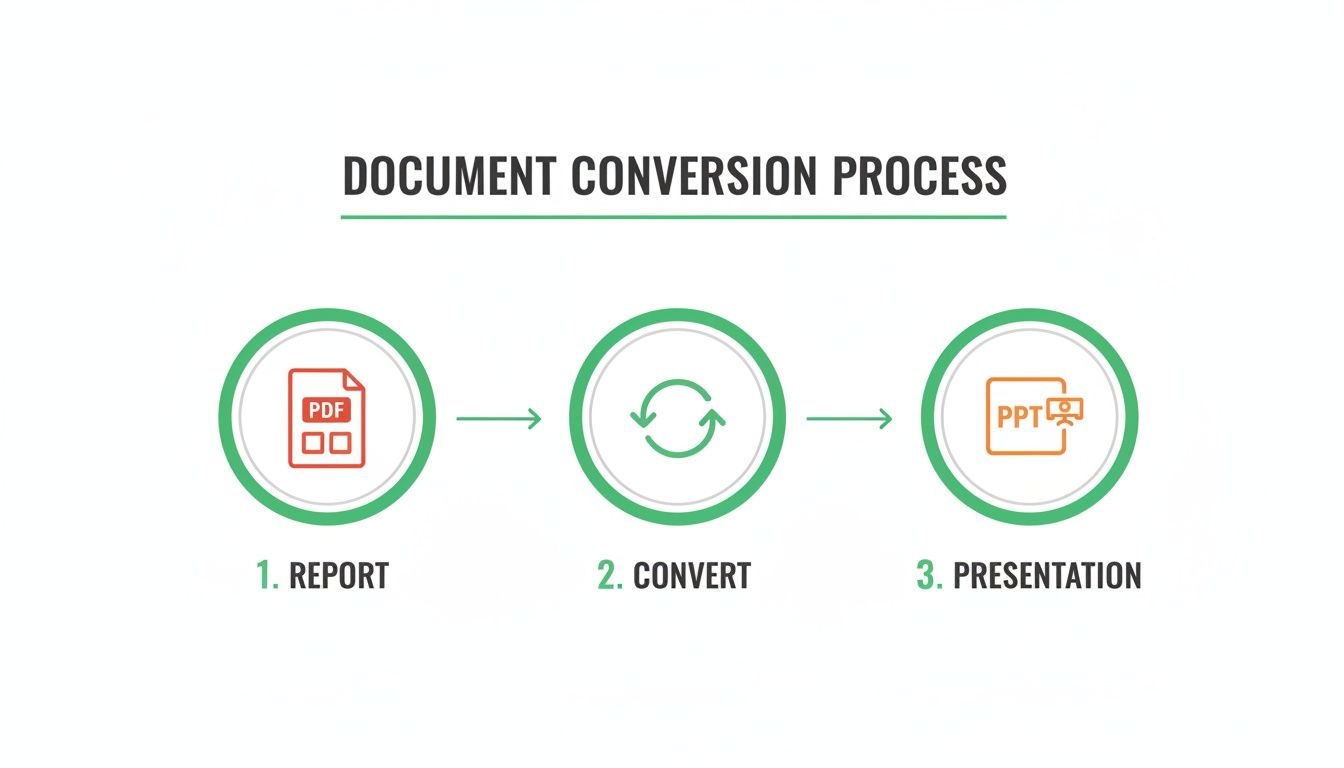
As you can see, the core pdf to ppt convert task is really just one simple, bridging step between a fixed document and an editable format.
Choosing Your Conversion Settings
Okay, your file is uploaded. Now what? Don't just slam the "Convert" button. Most good tools give you a few options that can make or break your final PowerPoint file. Taking a moment to check these settings is worth it.
The most critical feature to look for is Optical Character Recognition (OCR).
If your PDF is just a scan of a paper document, a standard conversion will treat each page like a flat, uneditable picture. This is where OCR becomes essential. The technology intelligently scans the page for text and turns it into actual characters you can edit in PowerPoint.
On the other hand, if your PDF was created directly from a program like Microsoft Word, you won't need OCR. The converter can just pull the existing text and images straight out. Most tools are smart enough to figure this out, but it never hurts to double-check that you’re using the right setting for your file type.
Finalizing the Conversion
Once you've picked your settings, it's time to let the tool work its magic. Hit "Convert," and the servers will get to work restructuring your PDF content into PowerPoint slides. This usually takes anywhere from a few seconds to a couple of minutes, depending on the file’s size and how complex it is. For anyone curious about the tech that makes this happen, it’s all powered by sophisticated document processing APIs.
When it's done, you'll see a download link. Just click it, save your new .pptx file, and open it in PowerPoint to see how it came out. Your static PDF is now a fully editable presentation, ready for you to polish and present.
Choosing the Right Conversion Method
Not all conversion scenarios are the same. Sometimes a quick online tool is perfect, while other times you might need something more robust. This table breaks down the common approaches to help you decide which one fits your needs best.
| Method | Best For | Key Benefit | Potential Drawback |
|---|---|---|---|
| Online Converters (like PDFPenguin) | Quick, one-off conversions and scanned documents (with OCR). | No installation needed; accessible from any browser. | Requires an internet connection; file size limits. |
| Desktop Software (like Adobe Acrobat) | Sensitive documents, batch processing, and complex layouts. | Works offline; advanced editing and security features. | Can be expensive; requires software installation. |
| Manual Copy-Paste | Very simple PDFs with only a few pages of text. | Free and requires no special tools. | Time-consuming; formatting almost always breaks. |
Ultimately, for most day-to-day tasks, a reliable online converter strikes the perfect balance between convenience, power, and cost.
How to Keep Your Formatting and Images Intact
Let's be honest: the biggest fear with any file conversion is hitting "convert" and getting back a jumbled mess. When you turn a PDF into a PPT, you're essentially asking a tool to deconstruct a static file and rebuild it into editable slides. It’s a complex task, but you can get great results by prepping your file first and knowing what to clean up afterward.
Think of it like this: a direct, word-for-word translation between two languages often misses the original nuance. The same thing happens here. A good conversion tool doesn't just move the text and pictures over; it preserves the intent of your design.
Pre-Conversion Checks for a Smoother Outcome
A few quick checks before you upload your PDF can make a world of difference. This isn’t about a full redesign—it's about giving the converter the best possible source material to work with.
First, look at your fonts. If your PDF uses some obscure or custom font, the converter will likely swap it for a standard one like Arial. That single change can throw off your entire layout. Whenever you can, stick with common, web-safe fonts in your original document for the most predictable results.
Next up, your images. A blurry, low-res image in a PDF will only look worse in a PowerPoint. Make sure your original graphics are high-quality and fully embedded in the file, not just linked. This gives the conversion tool clean, solid data to work with.
The rule of thumb is simple: what you put in is what you get out. A clean, well-structured PDF is far more likely to produce a clean, well-structured PowerPoint.
What to Expect From Different Content Types
Not all elements in your PDF will behave the same way during the conversion. Knowing what to expect helps you know where you might need to make a few quick edits later.
- Raster Images (JPG, PNG): These are pixel-based images and usually convert without a hitch. They’ll just show up as regular pictures on your slides. The only real risk here is a loss of quality if the original was low-resolution to begin with.
- Vector Graphics (SVG, AI): These are built from mathematical equations, not pixels. When they get to PowerPoint, they’re often broken down into individual, editable shapes. This can be fantastic for making tweaks, but you might need to group some elements back together.
- Tables and Charts: These are the usual suspects for conversion headaches. A converter might see a complex table as a jumble of separate text boxes instead of a single, unified grid. Simple tables with clear borders tend to have a much better success rate.
When you're dealing with complex layouts, understanding how to perfectly preserve its formatting is what separates an amateur-looking result from a professional one.
Post-Conversion Cleanup in PowerPoint
Once your new PPTX file is ready, don't just assume it's perfect. Open it up and plan to spend a few minutes polishing it. This is where you can take a good conversion and make it great.
Your first stop should be the Slide Master view. Instead of fixing fonts, colors, and alignments on every single slide, you can make those changes once in the Slide Master and have them apply everywhere. This is easily the most efficient way to handle widespread formatting issues.
After that, click through the individual slides to realign any stray text boxes or images. This two-step process—master slides first, individual tweaks second—will save you a ton of time and make sure your final presentation looks sharp.
What to Do When PDF to PPT Conversions Go Wrong
Even the best online converters can sometimes hit a snag. You run your pdf to ppt convert and open the new file, only to find jumbled text, misplaced images, or a layout that looks like it went through a blender. Don’t panic—most of these issues are surprisingly easy to fix.
Think of the conversion process like translating a language. Sometimes, subtle nuances get lost in translation. This is especially true with PDFs that have complex layouts, like multi-column newsletters or detailed tables. These are notorious for not mapping perfectly onto PowerPoint’s slide-based world.
Tackling Jumbled Text and Misplaced Images
One of the most common headaches is seeing text boxes scattered randomly across a slide or images overlapping your content. This usually happens because the conversion tool couldn’t quite figure out the original PDF's structure. It might see a single paragraph as ten separate lines instead of one cohesive block.
Luckily, PowerPoint’s own tools are your best friend here.
- Drag and Drop: Just click and drag the misplaced elements back where they belong. PowerPoint’s alignment guides (those handy red lines that pop up) will help you snap everything into place.
- Merge Text Boxes: If a sentence is split across multiple text boxes, just copy the text from the broken pieces, paste it all into one main box, and delete the empty ones.
It’s a little bit of manual cleanup, but it rarely takes more than a few minutes to get a slide looking sharp again.
Fixing Font and Layout Discrepancies
Ever opened a converted presentation and noticed the font looks… off? If your original PDF used a special font that isn't installed on your computer, PowerPoint will swap it for a default like Calibri or Arial. This can throw off the entire look, messing with spacing and flow.
The fastest way to fix this is with PowerPoint’s Slide Master. Instead of changing the font on every single slide one by one, you can update it just once in the master view. That single change will apply to your entire presentation instantly.
This trick works for layout problems, too. If every slide has a logo that’s a bit too far to the left, a quick adjustment in the Slide Master will correct all of them at once. It’s a powerful feature that turns a major revision into a two-second tweak.
Handling Password-Protected and Complex Files
But what if the conversion fails completely? More often than not, the culprit is a password-protected PDF. For security reasons, online tools can’t process locked files. You’ll need to unlock it first—assuming you have the password, of course. A tool like PDFPenguin’s unlock feature can handle that before you try converting again.
For extremely complex files loaded with vector graphics and intricate tables, the conversion might just produce a mess. When that happens, here’s a great workaround: convert the PDF pages to high-quality images instead. Then, insert those images as the background for each slide. You’ll lose the ability to edit the text, but you’ll get a 100% accurate visual copy of the original. It’s the perfect backup plan when preserving the exact look is more important than anything else.
Keeping Your Documents Secure During Conversion
Uploading any document online, whether it's a personal resume or a confidential business report, naturally brings up questions about privacy. When you use a pdf to ppt convert tool, you're trusting a service with your data. Let's break down what real security looks like so you can convert with peace of mind.
The first and most fundamental layer of protection is HTTPS encryption. When you see that little padlock icon in your browser's address bar, it means the connection between your computer and the server is secure. This scrambles your file as it travels over the internet, making it unreadable to anyone who might try to intercept it. A tool that doesn't use HTTPS is an immediate red flag.
What Happens to Your File on the Server
Once your PDF arrives, the conversion happens on the company's servers. This is where the service’s privacy policy becomes incredibly important. You want to use a platform that has a clear and strict file retention policy.
Reputable services don't hold onto your files indefinitely. They process the conversion and then automatically delete your documents from their servers after a short period, often within just a few hours. This is critical—it minimizes the risk of your data being exposed.
A trustworthy online converter will be transparent about its data handling practices. Look for a clear statement on their website promising automatic deletion of user files. If a service is vague about what happens to your data, it's better to find an alternative.
This commitment to privacy ensures that your sensitive information isn't just sitting on a server somewhere long after you've finished.
Identifying Secure Conversion Platforms
So, how can you quickly vet an online tool? It really comes down to looking for a few key indicators of a secure and professional service. Before you upload anything, just run through this quick check:
- Check for HTTPS: Make sure the website URL starts with
https://. No exceptions. - Review the Privacy Policy: Look for specific language about data encryption and, most importantly, automatic file deletion.
- No Registration Required for Basic Tasks: Forcing you to create an account just to perform a simple conversion can be a sneaky way to collect your data.
Taking a moment to verify these details lets you confidently use the convenience of online tools without compromising your document security. For a deeper dive into securing your documents, you can learn more about how to protect a PDF with a password and other safety measures.
A Few Common Questions About PDF Conversion
Even when the process is straightforward, a few questions always pop up when turning a PDF into a PowerPoint deck. Let's tackle the most common ones so you can get your conversion right on the first try.
Getting great results is all about knowing what the tech can—and can't—do.
Can I Turn a Scanned PDF Into an Editable PowerPoint?
Yes, you absolutely can, but with one huge catch: the tool must have Optical Character Recognition (OCR).
A standard converter looks at a scanned page and sees a single, flat image. It can drop that image onto a slide, sure, but you won't be able to edit a single word. An OCR-powered tool is much smarter. It scans the image, recognizes the shapes of letters and numbers, and turns them into actual, editable text inside PowerPoint.
For the best results, always start with a high-resolution scan with clear, easy-to-read fonts. The cleaner the original, the more accurate the OCR.
Will My Hyperlinks Still Work After Conversion?
This is a classic "it depends" scenario. Most free online converters focus on getting the text and images across, which means they often leave hyperlinks behind. Some of the more advanced platforms might carry them over, but you can't count on it.
The safest bet is to assume you'll need to double-check and re-add any important links yourself. It only takes a minute and ensures your presentation is fully functional.
Before you present, do a quick click-through of your final PowerPoint file. It’s a small step that prevents the awkwardness of a broken link in the middle of a big meeting.
How Should I Handle Really Large PDF Files?
Big PDFs, especially ones loaded with high-res images, can make converters choke. They upload slowly and sometimes fail altogether. Fortunately, you have a couple of easy workarounds.
- Compress it first: Before you even think about converting, run your file through a PDF compression tool. This can slash the file size—often with no visible quality loss—and make the whole process much smoother.
- Split it up: If you only need five pages from a 200-page report, don't convert the whole behemoth. Use a PDF splitter to pull out just the pages you need. A smaller, focused file is always faster and more reliable to convert.
How Do I Fix Formatting Glitches After Converting?
It’s pretty common to see small formatting errors, like weird fonts or misaligned text boxes, after a conversion. The quickest way to fix these is with PowerPoint's 'Slide Master' view.
Instead of fixing every single slide one by one, the Slide Master lets you apply global changes to your fonts, layouts, and colors all at once. For any stubborn elements that are still out of place, you can then go in and adjust them manually. This two-step approach—master slides first, then individual tweaks—is the most efficient way to polish your new presentation.
Ready to turn your static documents into dynamic presentations? The suite of tools at PDFPenguin makes every step of the process simple, secure, and fast. Convert, compress, and manage your documents with ease at https://www.pdfpenguin.net.