
When it comes to picking an online Smallpdf PDF editor, you're really weighing a well-known, feature-packed suite against a new generation of faster, more focused tools. It all boils down to your daily workflow. Smallpdf gives you a massive toolbox, while an alternative like PDFPenguin zeroes in on speed and simplicity for the tasks you do most.
Choosing The Right Online PDF Editor For Your Workflow
Let's be honest, browser-based PDF editors are no longer a "nice-to-have"—they're essential. They save you from installing clunky software and let you edit, compress, and manage files from any device with an internet connection. For professionals, students, or anyone collaborating on a document, that kind of flexibility is a game-changer.
The market for these tools is exploding. It's projected to jump from USD 5.29 billion in 2026 to a massive USD 10.01 billion by 2032. Why? Because 65% of businesses have gone digital with their workflows, and the demand for cloud-based collaboration keeps climbing. When you're looking at your options, the core functions of using a PDF reader online—viewing, editing, and securing documents—are the absolute baseline.
Smallpdf vs PDFPenguin: An Initial Overview
This isn't just another feature checklist. We’re going to dig into a real, side-by-side comparison of the Smallpdf PDF editor and PDFPenguin. We'll look at how each one holds up in common situations, so you can figure out which one actually fits the way you work.
| Aspect | Smallpdf PDF Editor | PDFPenguin |
|---|---|---|
| Primary Focus | A comprehensive suite with over 20+ tools for almost any PDF task you can think of. | Lightning-fast execution of core tasks like editing, compressing, and AI-powered document comparison. |
| User Experience | A dashboard where you pick the specific tool you need for each job. | A streamlined, task-first interface built for getting things done quickly and simply. |
| Key Differentiator | Its huge range of tools and a massive, long-standing user base. | The AI Compare tool for reviewing document changes and a serious focus on user privacy. |
| Ideal User | People who need a wide variety of PDF tools every now and then. | Professionals, students, and teams who value speed, efficiency, and a clutter-free experience. |
Comparing Core Features: Smallpdf vs. PDFPenguin
Once you get past the landing page, the real test of any online PDF tool is how well it handles the daily grind. Does it make quick text edits, file compressions, and document merges feel effortless? This is where you can really see the difference in philosophy between the Smallpdf PDF editor and PDFPenguin.
The need for great PDF tools is growing fast. As workflows go digital, simple, browser-based editors are becoming essential for getting work done.
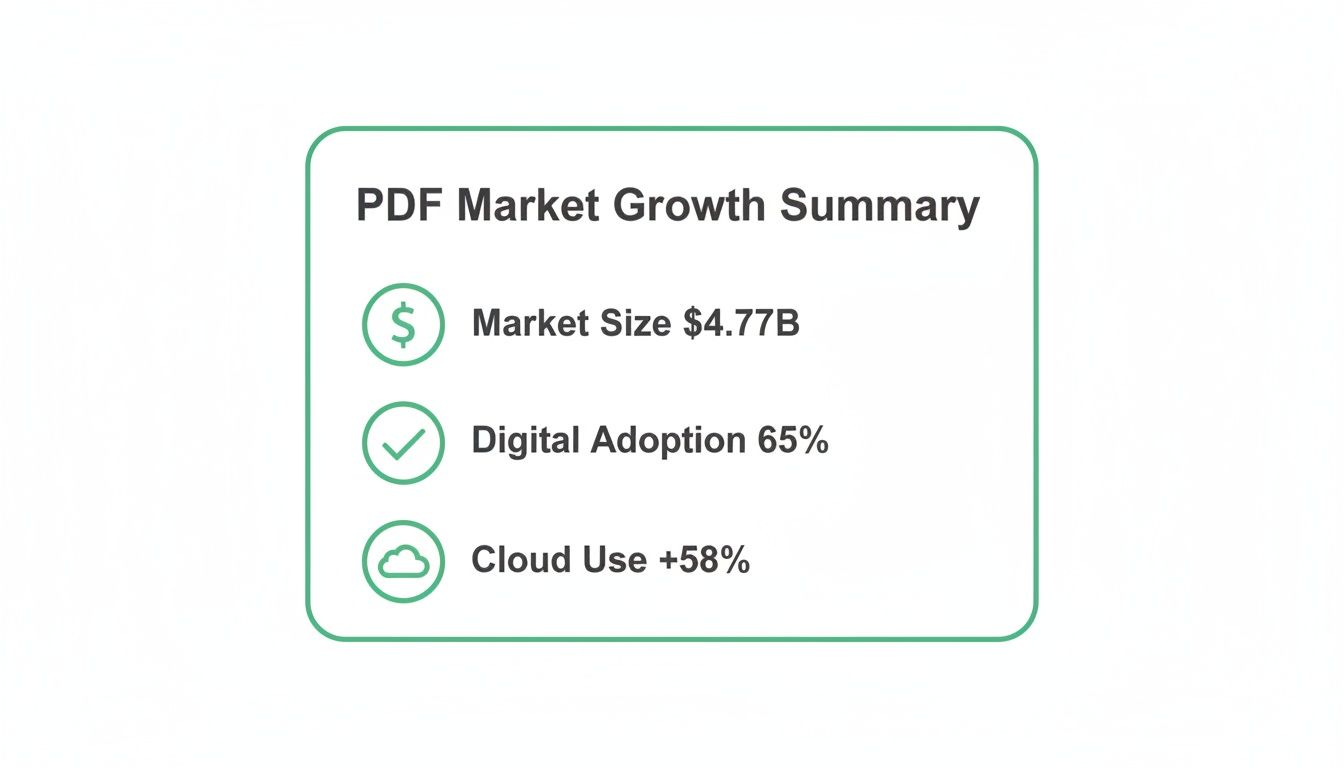
The numbers don't lie. With the market pushing $5 billion and 65% of companies moving to digital-first processes, a reliable PDF editor isn't just nice to have—it's a must-have.
Here’s a head-to-head breakdown of what each platform brings to the table for your most common PDF tasks.
Feature Breakdown Smallpdf vs PDFPenguin
This table gives a quick, at-a-glance comparison of the core tools offered by Smallpdf and PDFPenguin. It’s designed to help you see which one aligns better with the tasks you perform most often.
| Feature | Smallpdf PDF Editor | PDFPenguin |
|---|---|---|
| PDF Editing | Yes, overlay-style for text, images, shapes. | Yes, simple overlay for quick annotations and additions. |
| Compression | Two modes: Basic and Strong. | Quality-based presets (e.g., Email, Web, Print). |
| Merge/Split | Yes, with a visual arranger. | Yes, with a drag-and-drop thumbnail interface. |
| Conversion | Extensive (Office, images, etc.). | Focused on high-demand image-to-PDF workflows. |
| AI Compare | No, this feature is not available. | Yes, built-in tool to detect differences between two PDFs. |
Now, let's dig into what those differences mean in the real world.
Editing And Annotation Capabilities
At its core, a PDF editor should let you make changes without a headache. Smallpdf has a dedicated "Edit PDF" tool that lets you drop in new text, images, and shapes. It works like a markup tool, layering your additions on top of the original document.
PDFPenguin takes a similar approach, focusing on speed and simplicity. Adding a text box or highlighting a key sentence is quick and intuitive. It’s important to know that neither tool is built to rewrite entire paragraphs like Microsoft Word—they excel at annotations, corrections, and quick additions.
For instance, a project manager needing to add a signature and date to an invoice can get it done in seconds on either platform. The real differentiator often comes down to the user interface and how many clicks it takes to get from upload to download.
Compression Quality And Control
Big files are a big problem, especially for email. Both Smallpdf and PDFPenguin have solid compression tools, but they give you different levels of control.
The Smallpdf PDF editor keeps it simple with two choices:
- Basic Compression: A good middle ground for size and quality.
- Strong Compression: Squeezes files down to their smallest size, but you might see a quality drop in images.
PDFPenguin, on the other hand, uses presets based on your goal. You can choose an output optimized for "Email" or "Web," which removes the guesswork. This gives you more predictable results, ensuring your file is small enough to send but still looks sharp on the other end.
Merging And Splitting Documents
Combining reports or pulling out a single page from a massive file are bread-and-butter tasks for almost everyone. Smallpdf’s interface for this is clean, letting you upload files and drag them into the right order before merging.
PDFPenguin makes this process feel more hands-on with a visual, drag-and-drop workspace. You see thumbnails of every page, making it incredibly easy to reorder them or just grab the few you need. If you're a visual person, this direct manipulation feels faster and more natural. Want to see for yourself? Check out how PDFPenguin's editor tool simplifies these tasks.
File Conversion Accuracy
Getting files into and out of PDF format is another daily necessity. The Smallpdf PDF editor can handle a huge range of formats, from Microsoft Office files to various image types, and it does a good job of keeping the original formatting intact.
PDFPenguin zeroes in on the most common conversions, especially turning images into PDFs and vice-versa. It handles JPG, PNG, and HEIC files flawlessly, making it perfect for bundling photos or graphics into a single, shareable document.
The Big Differentiator: The AI Compare Tool
This is where PDFPenguin pulls ahead for anyone who deals with revisions. While Smallpdf offers a wide array of individual tools, PDFPenguin includes a game-changing feature: the AI Compare tool.
This tool lets you upload two versions of a PDF and automatically highlights every single difference—from a tiny wording change in a contract to an altered number in a financial statement.
For lawyers, accountants, or anyone reviewing updated drafts, this is a lifesaver. It automates a tedious, error-prone task, saving you time and reducing risk. Smallpdf doesn't have a comparable built-in feature, meaning you're stuck proofreading manually. This one tool makes PDFPenguin a standout choice for workflows that depend on accuracy and version control.
Evaluating Performance And User Experience
It’s one thing to have a long list of features. It’s another thing entirely to have a tool that actually feels good to use during a hectic workday. The best PDF editor is the one that gets out of your way, and that comes down to user experience (UX) and performance. Let's move past the "what" and get into the "how" of using the Smallpdf PDF editor versus PDFPenguin.
Both platforms start on the right foot: they’re browser-based. That means no installs, no updates, and no waiting. You just open a tab and start working. This is a huge win for convenience, but it's where the similarities in their approach end.
The Smallpdf Multi-Tool Dashboard
Smallpdf greets you with a big dashboard of individual tools—over 20 of them. You’ll see separate options for "Edit PDF," "Compress PDF," "Merge PDF," and so on. The process is simple: you have to choose the task you want to do before you upload your document.
This works just fine if you only need to do one thing. Need to quickly compress a file? Click the tool, upload, and you're done. But what if you need to edit text, then compress the file, and finally merge it with another document? You'll find yourself jumping back to the main dashboard for each step, which can feel clunky and add a lot of extra clicks.
PDFPenguin’s Task-Focused Design
PDFPenguin takes a different approach. Instead of a sprawling menu, it’s built around a more integrated, task-focused workflow. The design is clean and direct, focused on getting you from upload to finished document with as few interruptions as possible.
You really feel this difference when you're working with large files or multi-step tasks. Converting a batch of high-res images into a single PDF or reordering pages in a 100-page report feels snappy and responsive. The interface is built for speed, keeping processing times short so you can stay in the zone.
The core difference comes down to this: Smallpdf is like a buffet of separate tools. PDFPenguin is more like a guided, efficient path designed to get multi-step document work done fast.
Processing Speed And Workflow Clarity
When you're up against a deadline, speed is everything. A slow tool that makes you wait for a file to compress or merge can completely break your focus.
Let’s look at a real-world scenario:
- The Task: An office manager needs to combine three reports, add page numbers, and compress the final file to send over email.
- With Smallpdf: This job requires three separate steps. First, use the "Merge PDF" tool. Then, download that file and re-upload it to the "Page Numbers" tool. Finally, download it again and upload it to the "Compress PDF" tool.
- With PDFPenguin: The process is much more connected. You can perform these actions in a more unified environment, which cuts down on the constant downloading and re-uploading. The flow is designed to feel more natural, mirroring how people actually work with documents.
Ultimately, which one you prefer depends on how you work. If you typically do one-off tasks, the Smallpdf PDF editor's dashboard is perfectly straightforward. But if you need an efficient, fast, and intuitive tool for multi-stage workflows, PDFPenguin’s performance-focused design is the clear winner.
Navigating Security And Privacy In The Cloud
When you're dealing with sensitive files—think contracts, financial statements, or confidential client data—security isn't just a nice-to-have. It's everything. Using an online tool like the Smallpdf PDF editor means putting your trust in their security measures, and both platforms take that responsibility seriously. But they have very different ideas about how long your files should stick around.
This stuff matters more than ever. A staggering 98% of businesses rely on PDFs for communicating with the outside world, and the use of cloud-based tools has shot up by 200% since 2020. That’s why tools that just work are so important. Both Smallpdf and PDFPenguin use standard HTTPS encryption, which is the basic lock and key that keeps your files safe from prying eyes as they travel between your computer and their servers.
Data Handling And File Retention Policies
The real difference shows up in what happens to your files after you’ve finished your work. This is a critical detail for anyone concerned with compliance or just basic digital hygiene.
Smallpdf's approach is pretty clear: they generally hold onto your uploaded files for one hour before they’re automatically wiped. This creates a handy window where you can perform several tasks on the same document without needing to upload it again and again. It’s convenient, no doubt.
PDFPenguin, on the other hand, is built on a more aggressive privacy-first model. Our system is designed to automatically and promptly delete your files right after your session ends. This drastically shortens the amount of time your data lives on any server, shrinking the window of potential exposure to almost zero. You can get the full story on our privacy commitment here.
For anyone working in legal or finance, minimizing data retention isn't just a preference—it’s a core part of their risk management. PDFPenguin’s instant cleanup model lines up perfectly with a "least privilege" approach to handling sensitive information.
Which Security Model Is Right For You?
So, which one should you choose? It really boils down to your workflow and how sensitive the documents are.
-
Smallpdf's approach works well for everyday users who appreciate the convenience of having files ready for the next step. If you’re a student combining lecture notes or a marketer creating a simple flyer, that one-hour window is practical.
-
PDFPenguin's model is designed for privacy-focused professionals and anyone handling sensitive information. If your documents contain personal data, proprietary business secrets, or legal material, a shorter retention period is a massive security win.
At the end of the day, both the Smallpdf PDF editor and PDFPenguin offer secure, encrypted platforms to get your PDF tasks done. The deciding factor is how comfortable you are with your files sitting on a third-party server. For maximum privacy and control, a platform like PDFPenguin that deletes files more promptly offers a clear advantage.
Where Each Tool Shines in the Real World
Features are one thing, but the real test is how a tool performs when you're up against a deadline. A long list of tools doesn't matter if the one you need is clumsy or complicated. Let’s look at a few everyday situations for students, office admins, and legal teams to see where the Smallpdf PDF editor and PDFPenguin really make a difference.
These aren't just hypotheticals—they’re the daily grind for millions of people. The right tool doesn't just save a few minutes; it removes the friction from your workflow, letting you focus on the task, not the software.
For The Student Juggling Research Papers
Picture a college student piecing together a final research paper. They’ve gathered a dozen PDFs—journal articles, ebook chapters, web clippings—and need to make sense of them all. Their goals are simple: merge the files into one document for easy review, pull out key pages for an appendix, and shrink the final paper to meet a strict 5 MB portal upload limit.
-
With Smallpdf: The "Merge PDF" tool gets the job done, and "Split PDF" makes it easy to extract pages. But then comes the compression. The student is faced with just two options: "Basic" or "Strong." "Basic" might not get the file size down enough, while "Strong" could pixelate the charts and graphs, making their hard work look sloppy. It's a gamble right before the deadline.
-
With PDFPenguin: The workflow starts the same, but the compression step offers much more control. After merging and splitting, the student can pick a quality-based preset like "Email" or "Web." This is a purpose-driven approach that guarantees the file will meet the size limit without wrecking the visual quality of their data. That kind of predictable result is a huge relief when your grade is on the line.
For students, PDFPenguin's smarter compression controls mean they can create a submission-ready document that’s both lightweight and professional-looking, every single time.
Key Takeaway: When how your document looks is just as important as its file size, having real control over compression is a game-changer. It’s the difference between crossing your fingers and knowing you nailed it.
For The Office Admin Assembling Reports
Now, let's think about an office administrator putting together the quarterly performance report. They need to merge separate reports from three departments, reorder the pages into a logical flow, and slap a cover page on top. Easy enough. But just before sending it to the executives, the marketing team sends over an "updated" version of their section, and the admin has to spot the changes.
-
With Smallpdf: Merging and reordering pages is a breeze. But finding the differences between the two marketing reports? That's a manual, page-by-page slog. It’s slow, tedious, and carries the huge risk of missing a tiny but crucial change to a sales figure or project timeline.
-
With PDFPenguin: The merge and reorder tools are just as simple. The real magic happens at the review stage. The administrator can drop both versions of the marketing report into the AI Compare tool. In seconds, every single change—added, deleted, or altered—is highlighted. What was a painful proofreading chore becomes a quick, automated check that saves time and boosts accuracy.
In an office where efficiency and precision are everything, PDFPenguin's AI Compare tool delivers a clear advantage that Smallpdf simply can't offer.
For The Legal Team Handling Case Files
Finally, imagine a paralegal preparing documents for a major case. They’re handling extremely sensitive client information like contracts and signed affidavits. There is zero room for error, and security is non-negotiable. Their to-do list includes merging discovery documents, redacting personal info, and comparing a draft settlement agreement with a version sent back from the opposing counsel.
-
With Smallpdf: The merging tools are secure, but that critical comparison step is, once again, completely manual. The paralegal would have to print both contracts and go through them line by line with a ruler, a process that can take hours and is dangerously prone to human error. Plus, Smallpdf’s one-hour file retention, while fine for some, might not fly with a law firm's strict data security policies.
-
With PDFPenguin: This is where PDFPenguin's strengths really come into focus. The AI Compare tool is a lifesaver for contract review, instantly flagging any changes in terms, numbers, or clauses. But the biggest win is security. PDFPenguin’s policy of immediately deleting files after your session ends provides a powerful layer of privacy that aligns perfectly with the compliance needs of legal work. It’s a "zero-footprint" approach that matters immensely when you’re handling confidential data.
For legal teams, the one-two punch of advanced document comparison and a privacy-first security model makes PDFPenguin the obvious choice for managing sensitive case files.
Breaking Down Pricing And Free Tier Value
Let's talk about the bottom line. Cost is often the deciding factor, especially for a tool you'll rely on every day. Both the Smallpdf PDF editor and PDFPenguin have solid free tiers, but their limits and paid plans are built for very different people. Getting this right is the key to picking a platform that delivers real value.
Smallpdf’s free plan is pretty generous at first glance, giving you access to its whole suite of over 20 tools. But there's a catch: a daily task limit. After you process just a couple of documents, you'll hit a paywall and have to wait 24 hours. This works fine for a one-off task, but it’s a workflow killer for anyone with consistent needs.
Comparing Free Tier Limitations
PDFPenguin also offers its core tools for free but takes a different approach. Instead of a hard daily limit on how many tasks you can do, the restrictions are more about advanced features and super high-volume processing. This means you can handle your essential daily edits, compressions, and merges without constantly looking over your shoulder for a paywall.
This is a huge plus for students or freelancers whose document needs can spike without warning. You won't get locked out right before a deadline just because you had to merge and compress a few files in one sitting.
The real difference in the free tiers comes down to workflow. Smallpdf limits how often you can work, while PDFPenguin lets you use essential tools consistently, saving its limits for premium features.
Value Proposition of Paid Plans
When it’s time to upgrade, the value of each service becomes even clearer. Smallpdf's Pro plan is all about removing those daily limits. You get unlimited document processing, desktop access, and stronger compression. It’s an all-in-one package designed for users who need frequent access to their entire toolbox.
PDFPenguin’s paid tier, on the other hand, is for professionals who need more than just higher limits—they need an edge. Upgrading unlocks powerful tools like the AI Compare feature, something Smallpdf doesn't offer at all. The investment here is a direct boost to your productivity, not just a higher usage cap. To see everything included, you can check out the complete pricing structure on the PDFPenguin site.
So, what's the verdict? If your main goal is just to remove daily task limits across a broad set of basic tools, the Smallpdf PDF editor offers a simple fix. But if you’re looking to access powerful, time-saving features like AI-driven document comparison and want a more predictable free experience, PDFPenguin delivers more targeted, professional-grade value.
So, why pick PDFPenguin when a tool like Smallpdf is so popular? It really boils down to your workflow. What do you need to get done, and how fast do you need to do it?
While Smallpdf packs in a massive toolbox for almost any task you can think of, PDFPenguin shines as the ideal alternative for anyone who puts a premium on speed, security, and smart features for the jobs they do every day. Its entire design is built around efficiency, not just a long list of tools.
This is a key difference. The market for online PDF tools has exploded, with services like Smallpdf growing from 25 million users in 2020 to over 40 million monthly active users today. That growth is fueled by core needs like PDF compression (34% of usage) and conversions (28%), tasks that save professionals hours. You can see more about these PDF usage statistics on Smallpdf.com. PDFPenguin nails these exact areas by offering a cleaner, more focused experience.
A Modern Tool For Modern Workflows
PDFPenguin is built for how people actually work—doing more than one thing at a time. Instead of kicking you back to a menu after every single action, it keeps you moving forward in a connected workflow. You can edit a file, merge it with another, and then compress the final version in a logical sequence. No more endless cycles of downloading and re-uploading.
This smooth process is backed by a powerful, standout feature: the AI Compare tool. If you ever review contracts, reports, or academic papers, this is a game-changer. It automates the painful, error-prone job of spotting differences between two document versions, a feature Smallpdf just doesn't have. This isn’t just about convenience; it’s a direct upgrade to your accuracy and productivity.
Privacy By Default
Finally, PDFPenguin’s take on security offers some serious peace of mind. Both platforms use secure encryption, but PDFPenguin’s commitment to automatically and quickly deleting your files after you're done is a huge plus. This "zero-footprint" approach is critical for legal professionals, financial analysts, or anyone handling sensitive data that can’t be left sitting on third-party servers.
In the end, PDFPenguin is more than an alternative; it’s a smarter choice for users who value a clean interface, powerful AI insights, and a rock-solid commitment to privacy. It delivers on the core promise of an online PDF editor by making your work faster, simpler, and more secure.
The best way to feel the difference is to try it yourself.
Ready to streamline your document workflow with a faster, smarter, and more secure tool? Try the free tools from PDFPenguin today and see how effortless PDF management can be. https://www.pdfpenguin.net