
Sometimes, you just need a single page from a huge PDF. Maybe it's one invoice from a monthly statement, a specific chapter from a digital textbook, or just the signature page from a long contract. Knowing how to split PDF pages for free lets you grab exactly what you need without sending the whole sensitive document. It's a simple, practical skill everyone should have.
Why Bother Splitting PDF Pages?

Have you ever tried to email a massive report only to get that dreaded "file size too large" error? Or maybe you needed to share a single section of a project plan without confusing your team with the other 30 pages. These everyday headaches are precisely why splitting PDFs is so useful. It’s not about becoming a document wizard; it’s about making your files easier to manage, share, and secure.
The demand for simple, effective document tools is exploding. The global PDF software market is on track to grow from $3.14 billion in 2025 to $6.2 billion by 2032, which is no surprise given the more than 290 billion new documents created annually. You can dig into these PDF trends and projections yourself, but the takeaway is clear: free, accessible tools are essential for keeping up.
Common Scenarios for Splitting PDFs
Let's look at some real-world situations where splitting a PDF can be a lifesaver. It’s a small trick that solves big problems, making your workflow smoother and more secure.
Here’s a quick look at real-world situations where you would need to split a PDF file.
| Scenario | Why You Need to Split the PDF | Benefit of Using a Free Tool |
|---|---|---|
| Sending a Client Proposal | You only want to send the pricing section, not the internal team notes or other client details. | Protects confidential information and keeps the client focused on what matters. |
| Archiving a Signed Contract | A 50-page contract is signed. You only need to archive the final signature page for your records. | Creates a small, easily searchable file for your digital filing system. |
| Emailing a Design Portfolio | Your full portfolio is 100 MB, but the email attachment limit is 25 MB. | You can break it into smaller, targeted sections to send without hitting size limits. |
| Studying for an Exam | You have a 300-page e-book but only need to review Chapter 5. | Isolates the relevant chapter, making it easier to study without digital clutter. |
Ultimately, splitting PDFs is about control. You get to decide exactly what information is shared, how it's stored, and who sees it—all without paying for expensive software.
The Easiest Way to Split PDFs Online
Let's cut to the chase. You don't need to download clunky software or sign up for another service just to split a PDF. The most straightforward way is using a simple tool right in your web browser. I personally use PDFPenguin for this kind of quick task because it gets the job done fast without any fuss.
Everything happens right in your browser, which is a huge plus. It means your files aren't sitting on some random server, and you don't have to install a single thing. If you've got an internet connection and a PDF, you're ready to go.
Getting Around the PDF Splitter
Most of these online tools are designed to be obvious. You’ll see a big upload box—just drag your file onto it or click to find it on your computer. It’s a familiar process.
Here’s what the PDFPenguin interface looks like right after you’ve dropped a file in.
What I like is that you get a thumbnail preview of every single page. This visual layout is incredibly helpful because you can see exactly what you're working with, which helps prevent mistakes before you even click the "split" button. No more guessing which page is which.
How Do You Want to Split It?
Once your PDF is loaded, you get to the important part: choosing how you want to break it apart. This is where you can be really precise. While the wording might vary slightly from tool to tool, the core options are almost always the same.
You’ll typically see two main ways to split your file:
- Extract Pages: This is your best bet when you need to cherry-pick specific pages that aren't next to each other. Say you need to grab page 2, page 8, and page 15 from a long report to send to a colleague. You just click on those individual pages, and the tool bundles them into a brand-new PDF for you.
- Split by Range: This one is perfect for pulling out a whole section. Imagine you want to save just one chapter from an ebook, and it runs from page 45 to page 62. You’d simply tell the tool that’s the range you want, and it creates a new file with just that chunk.
A Quick Tip from Experience: Always take a second to glance over your selected pages in the preview window before you hit that "Split PDF" button. It's surprisingly easy to misclick, and a quick double-check will save you the annoyance of having to do it all over again.
After you’ve made your choices and hit the button, your new, smaller PDF downloads directly to your computer. The whole process, from upload to download, usually takes less than a minute. It’s designed to be as painless as possible.
Getting More Out of Your PDF Splitter
Once you get the hang of basic splitting, you can start using your tool with more precision. Think of it as moving from a blunt axe to a scalpel. Instead of just chopping a file in half, you can carve out exactly what you need, which is a real game-changer for managing your documents.
For example, let's say you have a hefty 200-page user manual but only need the troubleshooting chapter for a colleague. With a range selection, you can instantly pull out pages 34-51 and send over a clean, focused document. No more telling someone to "just look at page 34."
Matching the Split Mode to the Task
Good PDF splitters offer a few different ways to slice up a document. The trick is knowing which one to use and when.
- Grabbing Specific Pages: Ever need to create a "greatest hits" version of a document? Maybe you need pages 2, 9, and 23 from a report to build a quick summary for your boss. This method lets you cherry-pick pages from anywhere in the file.
- Breaking a PDF into Single Pages: This one is a lifesaver. Imagine you have a 12-page invoice bundle that needs to be archived as 12 separate files. Instead of a dozen tedious "save as" operations, this function does it all in one go.
If you're unsure which approach to take, this simple decision tree can help point you in the right direction.
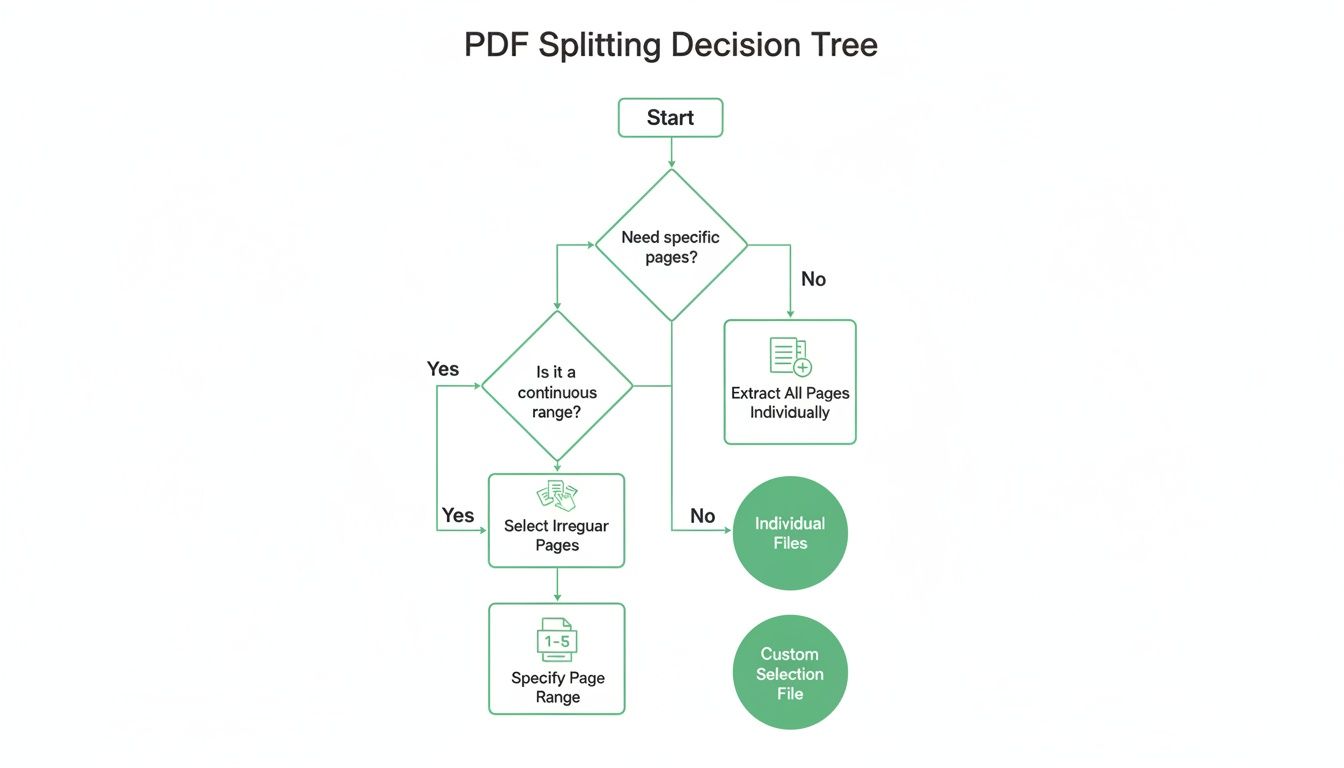
As the flowchart shows, it really boils down to one question: are you after specific pages, or do you need to break apart the whole thing? Your answer will lead you to the most efficient method for the job.
My Two Cents: Don't think of these advanced splitting modes as overly technical. They're about efficiency. Taking a few extra seconds to select the right mode can save you a ton of time down the road, especially when you're organizing or sharing files.
This kind of precision isn't just a convenience; it's often a necessity. Consider that 78% of digital agreements worldwide are PDFs, and they frequently require specific pages to be extracted for e-signatures or legal compliance. In places like Europe, GDPR rules practically demand this level of control to avoid accidentally sharing sensitive information. For a deeper dive, check out these insights on PDF usage trends to see just how essential these tools have become.
4 Free Offline Tools to Split PDFs When Privacy Matters
While browser-based tools are great for quick jobs, sometimes you need to work offline. Maybe you’re on a flight without Wi-Fi, or more importantly, you’re handling sensitive documents that absolutely cannot be uploaded to a third-party server.
For those moments, having a reliable offline PDF splitter is essential. You get total control and your files never leave your machine.
The Easiest Method for Mac Users: Preview
If you're on a Mac, you already have a fantastic tool built right in. The Preview app is often overlooked, but it’s perfect for simple, quick extractions.
There's no complex menu to navigate. Just open your PDF, pop open the thumbnail sidebar, and literally drag the pages you want to split out onto your desktop. That's it. Preview instantly creates a new PDF with just those pages. It’s my go-to for grabbing a single chapter or a specific appendix from a large manual.
While it doesn't offer advanced options like splitting every 5 pages, its speed for basic tasks is unmatched.
A Powerful Desktop App for Everyone: PDFsam Basic
For more complex jobs or for Windows and Linux users, I always recommend a dedicated desktop application. My top pick in the free and open-source world is PDFsam Basic.
This isn't just a simple page extractor; it’s a full-featured workhorse. PDFsam lets you split a document at every bookmark, by a specific file size (like creating 10 MB chunks), or every N pages.
I lean on PDFsam Basic for heavy-duty offline tasks. It’s perfect for breaking down confidential financial reports or legal agreements where uploading the file to a random website is simply not an option. Your data stays local, period.
Choosing an offline tool gives you peace of mind, knowing your sensitive information remains completely under your control.
A Quick Comparison of Your Free Options
To help you decide which tool is right for your situation, here’s a quick breakdown of the methods we've covered.
Comparing Free PDF Splitting Methods
| Method | Best For | Pros | Cons |
|---|---|---|---|
| Online Tools (PDFPenguin) | Quick, convenient splits on any device. | No installation needed; multiple splitting modes; user-friendly. | Requires an internet connection; not ideal for highly sensitive files. |
| macOS Preview | Mac users needing to extract a few pages quickly. | Pre-installed on all Macs; extremely fast drag-and-drop interface. | Lacks advanced features; only available on macOS. |
| Desktop Software (PDFsam) | Complex, offline tasks and handling sensitive documents. | Works offline; robust features (split by size, bookmarks); cross-platform. | Requires software installation and has a bit of a learning curve. |
| Command-Line (Ghostscript) | Developers and technical users who need to automate splitting. | Scriptable for batch processing; powerful and flexible. | No graphical interface; requires command-line knowledge. |
Ultimately, the best tool is the one that fits your workflow. For everyday convenience, an online tool is fantastic. But for privacy and power, a solid desktop application is the way to go.
Staying Safe When Splitting PDFs Online
It’s completely normal to feel a bit hesitant before uploading a document to a website. When you split PDF pages free using an in-browser tool, you're probably wondering, "Where is my file really going?" It's a great question, and knowing what to check for will give you peace of mind.
The absolute non-negotiable feature is SSL/TLS encryption. This is the standard security protocol that keeps your data safe when you're doing things like online banking. Just look for the little padlock icon and "https" in your browser's address bar—that tells you the connection is secure, scrambling your file as it travels to and from their server.
What happens after the split is just as important. A reputable service will have a clear file retention policy. The best ones automatically and permanently delete your files from their servers, usually within a couple of hours at most.
Privacy Check: I always take a quick look at a site's privacy policy before I upload anything. You're looking for specific language about automatic file deletion. If they're vague or don't mention it at all, I'd suggest finding a different tool.
Smart Habits for Online Document Safety
Even with a secure tool, a little common sense goes a long way. I'd think twice before uploading documents packed with sensitive financial or personal information. For things like tax forms, confidential legal agreements, or medical records, sticking with an offline tool is always the smarter, safer bet.
Here are a few practical habits I follow:
- Review Before You Upload: Always give the document one last scan. It's easy to accidentally leave in a page with personal details you didn't mean to send.
- Clear Out Your Downloads: Once you're done, get into the habit of deleting the original and the new split files from your "Downloads" folder if you don't need them anymore.
The demand for these simple tools is massive; some of the bigger players process over 100 million PDFs weekly. That number is only growing, with mobile usage in some regions jumping by 28% since 2020. You can dig into more stats about the growth of the PDF market to see just how essential these tools have become.
By picking a service with solid security and being mindful of what you upload, you can get your work done quickly and safely.
Got Questions About Splitting PDFs?
Even with a straightforward tool, you might still have a few questions or hit an unexpected snag. I've been working with PDFs for years, and these are some of the most common issues people run into. Let's clear them up so you can get on with your work.
What About Password-Protected PDFs? Can I Split Those?
This is a big one. The short answer is: not directly. Most free online tools, including PDFPenguin, will hit a wall if you try to upload an encrypted or password-protected PDF. It's a security measure, and it's there for a good reason—to stop unauthorized access.
To split a protected file, you'll first have to remove the password. You'll need the original password for this. Once you've unlocked it and saved it as a standard, unprotected PDF, you can then upload it to the splitter. Just be sure you have the right to remove the protection before you do anything.
Will Splitting My PDF Make It Look Worse?
It's a valid concern, but you can relax. The answer is a definitive no. Splitting a PDF doesn't touch the actual content on the pages. The process just takes the pages you select and saves them into a new file.
Think of it this way: your text will be just as sharp, your images will have the same resolution, and all your formatting will stay exactly as it was. Quality loss is something to watch out for when you compress a PDF or convert it to another format like a JPEG, but splitting is a completely different operation.
Splitting is a lossless process. It’s like taking a few specific photos out of a physical photo album. The photos themselves don't change at all—you've just created a new, smaller collection from the original.
How Can I Change the Page Order After Splitting?
Splitting pulls out the pages you want but keeps them in their original order. So, if you extract pages 5, 8, and 2, they will appear in the new document in that same sequence: 5, 8, 2.
If you need to reorder them, you'll need a different function, usually called a "PDF Organizer" or "PDF Merger." Many online PDF suites have this tool right alongside the splitter.
A common workflow I use is:
- Split the large document to get only the essential pages.
- Upload that new, smaller PDF to an organizer tool.
- Drag and drop the pages into the correct order.
- Save the final, perfectly arranged file.
Ready to manage your documents without the usual headaches? PDFPenguin gives you a fast and secure way to split, merge, and organize PDFs right in your browser. Give our free tools a try today at https://www.pdfpenguin.net.