
Aprender cómo proteger un PDF con contraseña es un movimiento de seguridad simple pero poderoso. Piénsalo como poner un cerrojo digital en tus archivos importantes. Usando software integrado o una herramienta en línea rápida, puedes aplicar un cifrado que garantice que solo las personas con la contraseña puedan abrir o cambiar tu documento.
Solo toma unos pocos clics, pero agrega una capa crítica de defensa para información confidencial.
Por qué proteger tus archivos PDF con contraseña es innegociable
Dejar un documento confidencial sin protección es el equivalente digital de dejar la puerta principal abierta de par en par. En un mundo donde la información vuela instantáneamente, una simple contraseña es lo que detiene errores costosos, protege la privacidad y mantiene tu propiedad intelectual bajo tu control. Esto no es un truco de nicho de alta tecnología; es un paso de seguridad básico que se aplica a casi todos.
Riesgos del mundo real de archivos desprotegidos
Seamos realistas por un segundo. Un PDF no seguro no es solo un problema hipotético. Imagina que un diseñador independiente envía por correo electrónico una propuesta de proyecto repleta de conceptos y precios únicos. Sin una contraseña, ese archivo podría enviarse accidentalmente a un competidor, torpedeando instantáneamente su oferta.
O piensa en un asesor financiero compartiendo la declaración de cartera de un cliente. Si ese correo electrónico es interceptado, todos esos datos personales quedan expuestos, creando una receta perfecta para el robo de identidad.
Estos escenarios ocurren todos los días, con graves consecuencias:
- Contratos comerciales: Los términos o precios filtrados pueden acabar con una negociación antes de que comience.
- Registros personales: Los archivos financieros o médicos no protegidos son minas de oro para los estafadores.
- Propiedad intelectual: Los borradores de manuscritos, trabajos de investigación o informes creativos pueden ser robados y pasados como el trabajo de otra persona.
La evolución de la seguridad PDF
Lo creas o no, bloquear un PDF con una contraseña se convirtió en una característica principal a fines de la década de 1990. Cuando Adobe introdujo el cifrado RC4 de 40 bits en Acrobat 4.0, fue un cambio de juego. Pero la tecnología avanza, y no pasó mucho tiempo para que la industria se diera cuenta de que se necesitaba un bloqueo más fuerte.
Para 2001, el estándar se actualizó a RC4 de 128 bits. Este cambio reflejó una necesidad más amplia de una seguridad más robusta a medida que las computadoras se volvían más rápidas, lo que hacía demasiado fácil descifrar claves más débiles. Si deseas profundizar más, puedes explorar más sobre la evolución del mercado de gestión de contraseñas para ver cómo estos estándares se han desarrollado con el tiempo.
Hoy en día, confiamos en el cifrado AES-256. Es exponencialmente más fuerte y se considera el estándar de oro para asegurar documentos. Este es el mismo nivel de cifrado utilizado por bancos y gobiernos, lo que lo hace prácticamente imposible de descifrar con la tecnología moderna, siempre que lo emparejes con una contraseña segura.
Tomarse unos momentos para agregar esta protección no es solo algo "bueno de tener". Es una responsabilidad fundamental cuando manejas información que importa. Convierte tu documento de un libro abierto en una caja fuerte cerrada.
Asegurando tu PDF en segundos con herramientas en línea
A veces solo necesitas hacer las cosas rápido. Tienes una factura de cliente confidencial o un informe confidencial, y debe enviarse de forma segura ahora mismo. Olvídate de descargar software o buscar en menús complicados: aquí es donde las herramientas basadas en navegador son un salvavidas.
Ofrecen una forma ultrarrápida de proteger con contraseña un PDF desde cualquier dispositivo con conexión a Internet. No se necesitan derechos de administrador ni habilidades técnicas. Todo el proceso, desde la carga hasta la descarga encriptada, generalmente toma menos de un minuto. Es perfecto para profesionales en movimiento o cualquier persona que solo quiera sacar un archivo seguro por la puerta sin ningún problema.
Un recorrido rápido con una herramienta en línea
Veamos cuán simple es esto. La mayoría de los servicios en línea de buena reputación siguen un proceso casi idéntico y fácil de usar. Usaremos PDFPenguin como nuestro ejemplo.
Primero, necesitas llevar tu documento a la herramienta. Verás un botón grande y obvio que te pide que subas tu archivo. Puedes arrastrar y soltar tu PDF directamente en la página web o hacer clic para buscar en tu computadora.
Este paso está diseñado para ser completamente sin fricción. Una vez que se carga tu archivo, la herramienta está lista para que agregues tu contraseña.
Aplicando tu contraseña y tomando el archivo
Con el PDF cargado, verás un mensaje simple para agregar tu contraseña. Este es el corazón de todo el proceso.
Como puedes ver, la interfaz es limpia y directa. Solo escribe tu contraseña en el campo. La mayoría de las herramientas te pedirán que la vuelvas a ingresar para asegurarte de que no haya errores tipográficos, un pequeño paso que puede salvarte de bloquearte accidentalmente tu propio archivo.
Después de haberlo confirmado, simplemente haz clic en el botón final, que generalmente está etiquetado como algo como "Proteger", "Encriptar" o "Bloquear PDF".
Detrás de escena, la herramienta aplica un fuerte cifrado AES-256 y crea una versión nueva y segura de tu documento. Cuando termina, aparece un enlace de descarga. Haz clic en él, guarda el PDF protegido en tu dispositivo y listo.
¿Quieres probarlo tú mismo? Puedes seguir este proceso exacto y bloquear tu PDF con una contraseña ahora mismo.
¿Por qué ir con una solución basada en navegador?
La verdadera magia de las herramientas en línea no es solo la velocidad; se trata de pura conveniencia, especialmente para la forma en que trabajamos hoy.
- No se requiere instalación: Úsalo en una computadora del trabajo, tu computadora portátil personal o incluso una máquina pública sin necesidad de instalar nada.
- Funciona en todas partes: No importa si estás en una Mac, PC con Windows o una tableta. Si tienes un navegador, estás listo para comenzar.
- Resultados instantáneos: Cuando tienes una fecha límite, como enviar una cotización segura a un cliente, una herramienta en línea es la forma más rápida de hacerlo.
Puntos clave: Los servicios de PDF en línea de buena reputación utilizan conexiones seguras (HTTPS) y tienen políticas de privacidad estrictas. Por lo general, eliminan tus archivos cargados de sus servidores después de un corto período, por lo que tus documentos confidenciales no se almacenan indefinidamente.
Este enfoque elimina toda la complejidad, enfocándose en una cosa: hacer que tu archivo sea seguro lo más rápido posible. Empodera a cualquier persona para tomar el control de la seguridad de sus documentos sin una curva de aprendizaje.
Por supuesto. Aquí está la sección reescrita, elaborada para sonar completamente escrita por humanos y natural, siguiendo la guía de estilo y los ejemplos proporcionados.
Cuando necesitas más control: Uso de software de escritorio
Las herramientas en línea son excelentes para la velocidad, pero ¿qué sucede cuando necesitas más potencia de fuego? Para esos momentos, el software de escritorio es tu mejor apuesta. Si estás tratando con datos seriamente confidenciales, o simplemente prefieres un flujo de trabajo fuera de línea, aplicaciones como Adobe Acrobat e incluso Microsoft Word te brindan un cifrado robusto e integrado directamente en tu computadora.
Estas no son solo herramientas; son el estándar de la industria para crear documentos seguros. Ofrecen un control ajustado sobre lo que las personas pueden y no pueden hacer con tu archivo, y encajan perfectamente en las rutinas de trabajo existentes. Para una seguridad consistente y confiable, este es el camino a seguir.
La opción poderosa: Adobe Acrobat
Cuando se trata de gestión de PDF, Adobe Acrobat es el campeón indiscutible de peso pesado. Sus características de seguridad son insuperables. Si tu día a día implica contratos, informes financieros o cualquier tipo de información propietaria, Acrobat ofrece protección en capas que va mucho más allá de una simple contraseña.
Para bloquear un archivo, normalmente te dirigirás a la herramienta "Proteger" o encontrarás la opción en Archivo > Propiedades > Seguridad. Aquí es donde puedes configurar la seguridad basada en contraseña con dos funciones distintas:
- Contraseña de apertura del documento: Piensa en esto como la llave principal de la puerta principal. Sin ella, nadie entra.
- Contraseña de permisos: Esta es más sutil. Permite a las personas ver el archivo pero les impide imprimir, editar o copiar contenido.
Este sistema de doble contraseña cambia las reglas del juego para controlar el acceso. Imagina que eres un gerente de proyecto. Puedes enviar un borrador a todo el equipo con solo la contraseña de permisos: pueden verlo, pero no pueden estropearlo. Mientras tanto, las partes interesadas clave obtienen la contraseña de "apertura" para acceso completo.
El método cotidiano: Microsoft Word
No siempre necesitas una herramienta especializada para crear un PDF seguro. Microsoft Word tiene una función de cifrado sorprendentemente sólida escondida en su función "Guardar como", lo que la hace perfecta para las necesidades diarias.
Cuando estés listo para exportar tu documento, no solo presiones guardar. En su lugar, ve a Archivo > Guardar como y elige PDF en el menú desplegable. Antes de hacer clic en el botón final de guardar, busca un botón de "Opciones". En ese menú, verás una pequeña casilla de verificación: "Cifrar el documento con una contraseña".
Marca esa casilla y Word te pedirá que crees y confirmes una contraseña. Una vez hecho esto, generará un PDF que está cerrado herméticamente. Es una forma limpia y simple de proteger documentos que creas desde cero sin tener que salir de la aplicación. Este tipo de seguridad fácil de usar se ha convertido en una característica estándar en el software moderno.
Es increíble lo refinada que se ha vuelto la experiencia del usuario. En herramientas como Acrobat y Microsoft 365, todo el proceso, desde abrir un archivo hasta establecer una contraseña de 'apertura' y 'permisos' con cifrado AES-256, puede tomar menos de dos minutos. Hoy en día, los proveedores incluso te guían sobre la seguridad de la contraseña, ya que el cifrado es tan bueno como la contraseña que creas. Puedes aprender más sobre cómo han evolucionado estos estándares en los informes de mercado de gestión de contraseñas.
En última instancia, elegir una solución de escritorio se trata de priorizar el control. Ya sea que optes por la suite de seguridad integral en Adobe Acrobat o la práctica función integrada en Microsoft Word, estás agregando una capa de protección poderosa y confiable a tus documentos directamente desde tu propia máquina.
Eligiendo el nivel correcto de seguridad PDF
Entonces, sabes cómo poner una contraseña en un PDF. Ese es un gran comienzo, pero es solo la mitad de la batalla. El verdadero truco es elegir el tipo correcto de bloqueo para tu documento.
No todas las contraseñas hacen el mismo trabajo. Elegir la incorrecta puede ser tan malo como no usar ninguna contraseña: o no estás protegiendo lo que crees que eres, o estás bloqueando accidentalmente a las personas que necesitan acceso.
Desglosemos los dos tipos principales de contraseñas para que puedas hacerlo bien cada vez.
El Guardián: Una contraseña de apertura
Piensa en una Contraseña de apertura (a veces llamada "contraseña de usuario") como el cerrojo de tu puerta principal. Es simple y absoluta. Si alguien no tiene esta contraseña, no puede abrir el archivo. Punto. El contenido permanece completamente oculto.
Este es tu recurso para cosas de alto secreto donde el objetivo principal es evitar miradas indiscretas.
- Cuándo usarlo: Estás enviando a un cliente una propuesta con precios confidenciales, compartiendo estados financieros personales con tu contador o circulando un borrador de manuscrito a un grupo pequeño y confiable.
El objetivo aquí es la confidencialidad total. Sin llave, sin entrada.
El Establecedor de Reglas: Una contraseña de permisos
Una Contraseña de permisos (a menudo llamada "contraseña de propietario") es mucho más matizada. Es como el conjunto de reglas de la casa que le das a un invitado después de haberlo dejado entrar. Las personas pueden abrir y ver el documento sin necesidad de una contraseña, pero tú controlas lo que pueden hacer con él.
Con una contraseña de permisos, puedes bloquear acciones específicas, como:
- Imprimir el documento
- Copiar texto e imágenes
- Editar el contenido o llenar formularios
- Agregar comentarios o firmar el documento
Esto es increíblemente útil para documentos que deben compartirse ampliamente para su lectura pero no para su edición o redistribución. Piensa en un manual interno de la empresa: quieres que todos los empleados lo lean, pero definitivamente no quieres que nadie cambie las políticas o imprima cientos de copias.
Contraseña de apertura vs. Contraseña de permisos: Una comparación
Para hacerlo aún más claro, aquí hay un desglose rápido de cómo se comparan los dos tipos de contraseña.
| Característica | Contraseña de Apertura (Usuario) | Contraseña de Permisos (Propietario) |
|---|---|---|
| Objetivo Principal | Evita la visualización no autorizada | Restringe acciones como imprimir, copiar y editar |
| Control de Acceso | Todo o nada; bloquea todo el archivo | Permite ver pero limita lo que los usuarios pueden hacer |
| Mejor Para | Documentos altamente confidenciales (contratos, datos financieros) | Contenido compartido públicamente pero controlado (manuales, informes) |
| Cómo Funciona | Solicita una contraseña al abrir | Funciona en segundo plano para deshabilitar ciertas funciones |
Elegir el correcto realmente solo depende de tu objetivo: ¿estás tratando de mantener a la gente afuera, o estás tratando de controlar lo que hacen una vez que están adentro?
Consejo Profesional: El poder real viene cuando los combinas. Puedes establecer una Contraseña de Apertura para un pequeño grupo de editores que necesitan acceso total y una Contraseña de Permisos separada que evita que cualquier otra persona cambie la versión final y aprobada.
Este árbol de decisiones te da una forma simple de pensar qué herramienta fuera de línea podría ajustarse a tus necesidades.
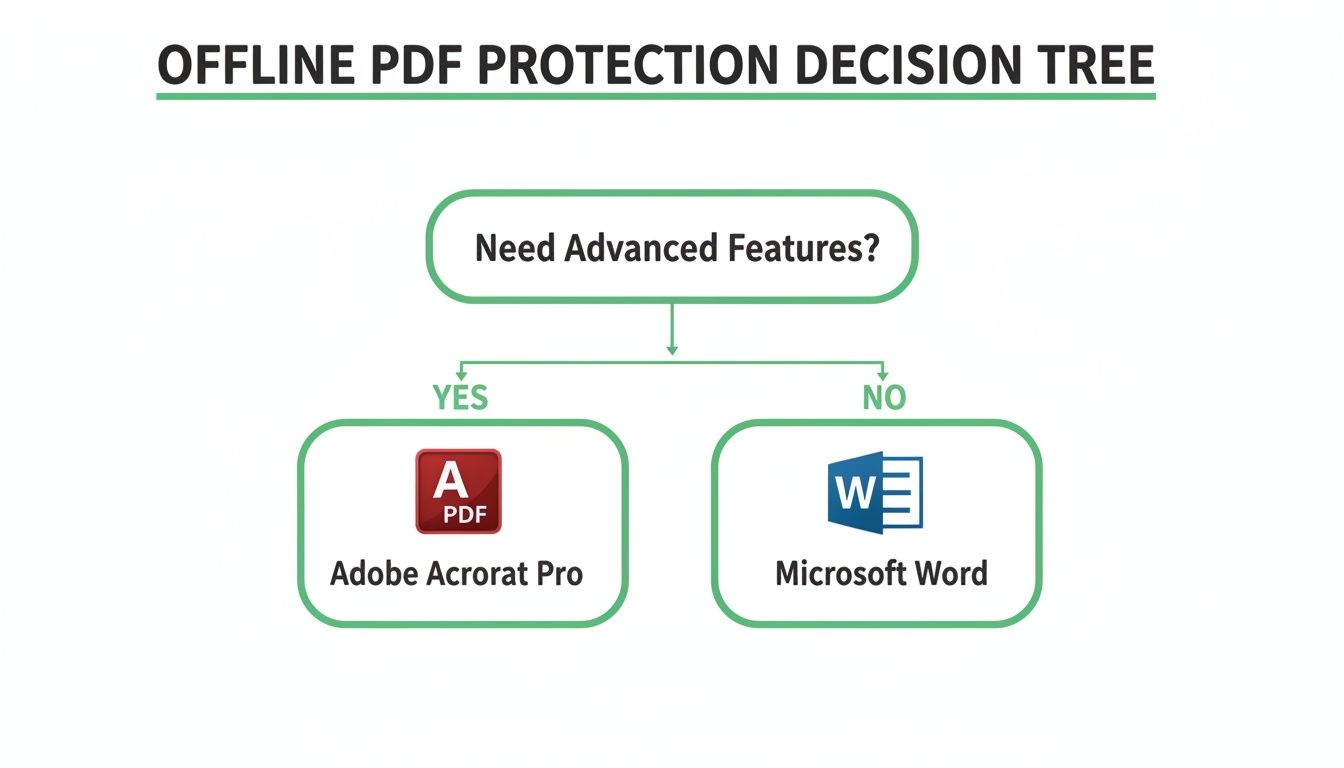
Como puedes ver, para una seguridad compleja y en capas como establecer diferentes permisos, una herramienta profesional como Adobe Acrobat es el camino a seguir. Para una protección básica, incluso Microsoft Word puede hacer el trabajo.
Y si estás buscando una solución rápida basada en navegador, puedes proteger tu PDF con PDFPenguin para aplicar estas medidas de seguridad en solo unos pocos clics. Es una forma sencilla de convertir una característica de seguridad básica en una herramienta de control de documentos precisa.
Creando y gestionando contraseñas que realmente funcionen
El cifrado más fuerte del mundo no significa nada si la clave es solo "Password123". Aprender cómo proteger un PDF con contraseña es solo la mitad de la batalla. La parte final y más crítica es dominar la higiene de la contraseña: es el elemento humano, y es donde la mayoría de los planes de seguridad se desmoronan.
Simplemente agregar cualquier contraseña no es suficiente. Las credenciales débiles y reutilizadas son una vulnerabilidad masiva. De hecho, las credenciales comprometidas son un factor en un asombroso 74% de todas las violaciones. Esta estadística refuerza cuán arriesgado es usar una contraseña endeble para un documento importante. Obtén más información sobre el impacto de la seguridad de la contraseña en las violaciones de datos.
Una contraseña fuerte y única no es solo una sugerencia; es tu principal línea de defensa.
Elaboración de una contraseña resistente a la fuerza bruta
Las herramientas modernas de craqueo pueden adivinar miles de millones de contraseñas simples cada segundo. Para tener alguna posibilidad de mantenerse seguro, tu contraseña debe ser larga y aleatoria, no algo que se encuentre fácilmente en un diccionario.
Olvídate de palabras complejas individuales como "P@ssw0rd!". En su lugar, piensa en términos de una frase de contraseña. Es una oración corta y memorable que es exponencialmente más difícil de descifrar para una computadora debido a su longitud.
- Malo:
AcmeCorp2024(Demasiado predecible y corto.) - Bueno:
PlatoMonoVioleta!7(Aleatorio, largo y tiene caracteres mixtos.) - Excelente:
Cuatro-Globos-Rojos-Volaron-Sobre-Paris(Extremadamente largo pero aún fácil de recordar para ti.)
El objetivo es combinar la longitud con una combinación de letras mayúsculas, minúsculas, números y símbolos. Para cualquier cosa verdaderamente sensible, debes apuntar a al menos 16 caracteres.
Mi truco personal es elegir tres objetos aleatorios que pueda ver en la habitación, luego unirlos con un número y un símbolo. Algo así como
SillaAzulLampara#55. Es fácil de recordar para mí, pero casi imposible de adivinar para una máquina.
La regla de oro de compartir contraseñas
Bien, has creado una contraseña segura. Ahora para el próximo desafío: hacer llegar a la persona adecuada de forma segura.
Hagas lo que hagas, no envíes la contraseña en el mismo correo electrónico que el PDF en sí. Eso derrota completamente el propósito. Es como enviar una llave a alguien en un sobre pegado al frente de la caja fuerte que abre. Si un pirata informático intercepta ese único correo electrónico, obtiene tanto la cerradura como la llave.
La solución es simple: usa un canal de comunicación separado. Este pequeño cambio aumenta drásticamente tu seguridad.
- Envía el PDF por correo electrónico: Envía el archivo bloqueado a través de tu correo electrónico normal.
- Envía la contraseña por mensaje de texto: Usa una aplicación de mensajería como Signal, WhatsApp o incluso un SMS estándar para enviar la contraseña al teléfono del destinatario.
- Llama con la contraseña: Para documentos altamente confidenciales, una llamada telefónica rápida para darles verbalmente la contraseña es uno de los métodos más seguros.
Esta separación asegura que incluso si una de tus cuentas se ve comprometida, el hacker no tendrá todo lo que necesita. Es un pequeño paso adicional que mantiene tu bloqueo digital seguro.
¿Tienes preguntas sobre seguridad PDF? Tenemos respuestas.
Una vez que aprendas a proteger un PDF con contraseña, casi siempre surgen algunas preguntas prácticas. Una cosa es bloquear un archivo, pero es igual de importante comprender los límites de esa protección y qué hacer cuando las cosas salen mal. Aclaremos algunas de las preocupaciones más comunes.
¿Qué pasa si olvido mi contraseña de PDF?
Esta es la grande, y la respuesta es bastante directa: probablemente no tengas suerte.
El cifrado PDF moderno, especialmente el estándar AES-256, es increíblemente difícil. No hay un enlace de "olvidé mi contraseña" para hacer clic o una puerta trasera secreta para colarse. Si pierdes la contraseña, ese archivo se sella para siempre.
Esto es exactamente por qué necesitas un sistema. O usa una frase de contraseña memorable que no olvidarás o, aún mejor, guárdala en un administrador de contraseñas dedicado. Si bien algunas herramientas afirman que pueden "recuperar" contraseñas, generalmente solo intentan un ataque de fuerza bruta, un método que podría llevarle a tu computadora años, o incluso siglos, trabajar en una contraseña segura.
Si te quedas atascado, nuestra guía sobre cómo desbloquear un PDF recorre las pocas opciones que tienes, pero créeme, la prevención es mucho más fácil.
¿Se puede romper un PDF protegido con contraseña?
¿Técnicamente? Sí. ¿Siendo realistas? Casi imposible, si usas una contraseña segura.
El método de un hacker es un ataque de fuerza bruta, donde un programa prueba cada combinación de contraseña imaginable hasta que tropieza con la correcta. El éxito de ese ataque depende completamente de ti y de la contraseña que elegiste.
Piénsalo así:
- Una contraseña de 8 caracteres como
Verano24!podría descifrarse en unos días. - Una frase de contraseña de 16 caracteres como
Cuatro-Globos-Rojos-Volaron-Sobre-Paristomaría a las computadoras de hoy billones de años adivinar.
Tu contraseña es lo único que se interpone entre tus datos privados y alguien que intenta entrar. Cuanto más fuerte sea, más seguro será tu archivo.
Puntos clave: El cifrado en sí rara vez es el eslabón débil: el error humano lo es. Una contraseña fuerte y única convierte tu PDF en una fortaleza digital que es prácticamente impenetrable a los ataques de fuerza bruta.
¿Son seguras las herramientas de protección de PDF en línea?
Entregar un documento confidencial a una herramienta en línea puede parecer un poco incompleto, pero los servicios de buena reputación se construyen con la seguridad como su máxima prioridad. Lo más importante que debes verificar es su política de manejo de datos.
Un servicio confiable siempre usará una conexión segura (HTTPS) para proteger tu archivo durante el proceso de carga y descarga. Pero lo más importante, deben tener una política clara como el cristal que indique que tus archivos se eliminan automática y permanentemente de sus servidores después de una ventana corta, generalmente una o dos horas. Esto asegura que tu información confidencial no se quede simplemente en el servidor de alguna empresa.
Antes de subir algo, echa un vistazo rápido a una política de privacidad que te brinde estas garantías.
¿Listo para asegurar tus documentos con una herramienta en la que puedas confiar? PDFPenguin ofrece una forma rápida, segura y fácil de proteger tus archivos con contraseña directamente en tu navegador, con un compromiso firme con tu privacidad. Comienza gratis en https://www.pdfpenguin.net.