
¿Atascado con un PDF que no puedes editar? Es un dolor de cabeza sorprendentemente común, pero la solución suele ser sencilla. O tienes la contraseña necesaria para desbloquear las funciones de edición, o necesitas una herramienta para eliminar esas restricciones por ti.
Esta guía te explicará exactamente cómo manejar ambas situaciones y preparar tu documento para los cambios.
Cómo preparar tu PDF para editar
No hay nada más frustrante que tener un documento crucial bloqueado justo cuando necesitas hacer una actualización rápida. Tal vez sea un contrato que necesita una firma, un informe al que le faltan datos nuevos o un formulario que tienes que completar. Un PDF bloqueado puede detener todo tu flujo de trabajo.
Pero no te preocupes, no tienes que empezar de cero. La necesidad de ediciones de PDF rápidas y fáciles ha impulsado un gran mercado para estas herramientas, con el mercado global de editores de PDF ahora valorado entre USD 2–5.5 mil millones.
Desglosemos los dos escenarios principales con los que te encontrarás.
Los dos tipos de bloqueos de PDF
Primero, es posible que tengas un PDF con una contraseña de propietario. Esta no es la contraseña que te impide abrir el archivo; es la que restringe lo que puedes hacer una vez que está abierto, como editar, imprimir o copiar texto. Si tienes esta contraseña, desbloquear el archivo es simple y seguro.
La segunda situación, y más común, es cuando puedes abrir el PDF sin problemas pero no puedes cambiar nada. Esto sucede a menudo con archivos compartidos por colegas o documentos antiguos donde la contraseña se ha olvidado hace mucho tiempo. Para estos casos, necesitarás una herramienta especializada para eliminar las restricciones.
Conclusión clave: Lo primero que debes averiguar es tu problema específico. ¿Tienes la contraseña para cambiar los permisos del archivo, o estás tratando de eludir las restricciones de edición sin una? Tu respuesta te señala la solución correcta.
Esta distinción es crítica. No estamos hablando de un archivo que no puedes abrir en absoluto (lo que requiere una "contraseña de usuario"). Nuestro enfoque aquí está en los archivos que puedes ver pero no puedes modificar debido a una "contraseña de propietario". Una vez que sepas en qué barco estás, puedes encontrar la herramienta adecuada para el trabajo. Y una vez que esté desbloqueado, puedes saltar directamente a un editor de PDF en línea confiable para realizar tus cambios.
Para hacerlo aún más claro, aquí hay un desglose rápido de los dos tipos de bloqueo y qué hacer a continuación.
Tipos de bloqueo de PDF y tus próximos pasos
| Tipo de Bloqueo | Qué Restringe | Solución Principal |
|---|---|---|
| Contraseña de Propietario | Edición, copia de texto, impresión, firma | Usa una herramienta como Adobe Acrobat o un desbloqueador en línea de confianza con la contraseña conocida. |
| Contraseña de Usuario | Abrir el archivo | Debes saber la contraseña para abrir el archivo. Esta guía se centra en los problemas de contraseña de propietario. |
En última instancia, identificar el bloqueo es la mitad de la batalla. Una vez que sepas a qué te enfrentas, el camino hacia un documento editable se vuelve mucho más claro. Puedes descubrir más información sobre el mercado de software PDF y ver cuán esenciales se han vuelto estas herramientas.
Decodificando por qué tu PDF está bloqueado
Antes de poder desbloquear un PDF, debes averiguar por qué está bloqueado en primer lugar. La seguridad de PDF no es solo un gran interruptor de "encendido/apagado". Es un conjunto de permisos específicos diseñados para proteger la integridad del documento. Intentar editar un archivo bloqueado sin saber a qué tipo de bloqueo te enfrentas es como intentar abrir una puerta sin saber si necesitas empujar, tirar o usar una llave.
Los dos tipos principales de protección se confunden todo el tiempo, pero la diferencia es bastante simple. Uno es un muro sólido y el otro es un conjunto de reglas.
Contraseña de Usuario vs. Contraseña de Propietario
Una contraseña de usuario, a veces llamada "contraseña de apertura", es el muro. Bloquea completamente el acceso al documento. Si no tienes esta contraseña, ni siquiera puedes ver lo que hay dentro del archivo. Este tipo de bloqueo cifra todo el documento, haciéndolo ilegible para cualquier persona sin la llave.
Una contraseña de propietario, también conocida como "contraseña de permiso", simplemente establece las reglas. Esto es mucho más común en el día a día de los negocios. Puedes abrir y leer el PDF sin problemas, pero encontrarás que estás restringido para hacer ciertas cosas, como:
- Editar cualquiera de los textos o imágenes
- Copiar contenido a tu portapapeles
- Imprimir el documento
- Agregar comentarios o anotaciones
- Rellenar campos de formulario
Este es el tipo de protección que una empresa podría usar en un contrato finalizado para evitar cambios accidentales, o lo que un editor podría aplicar a un libro electrónico para detener la copia ilegal. Darse cuenta de que estás tratando con una contraseña de propietario es el primer y más importante paso para encontrar la solución correcta.
Este árbol de decisiones rápido te muestra el camino simple a seguir según tu situación.
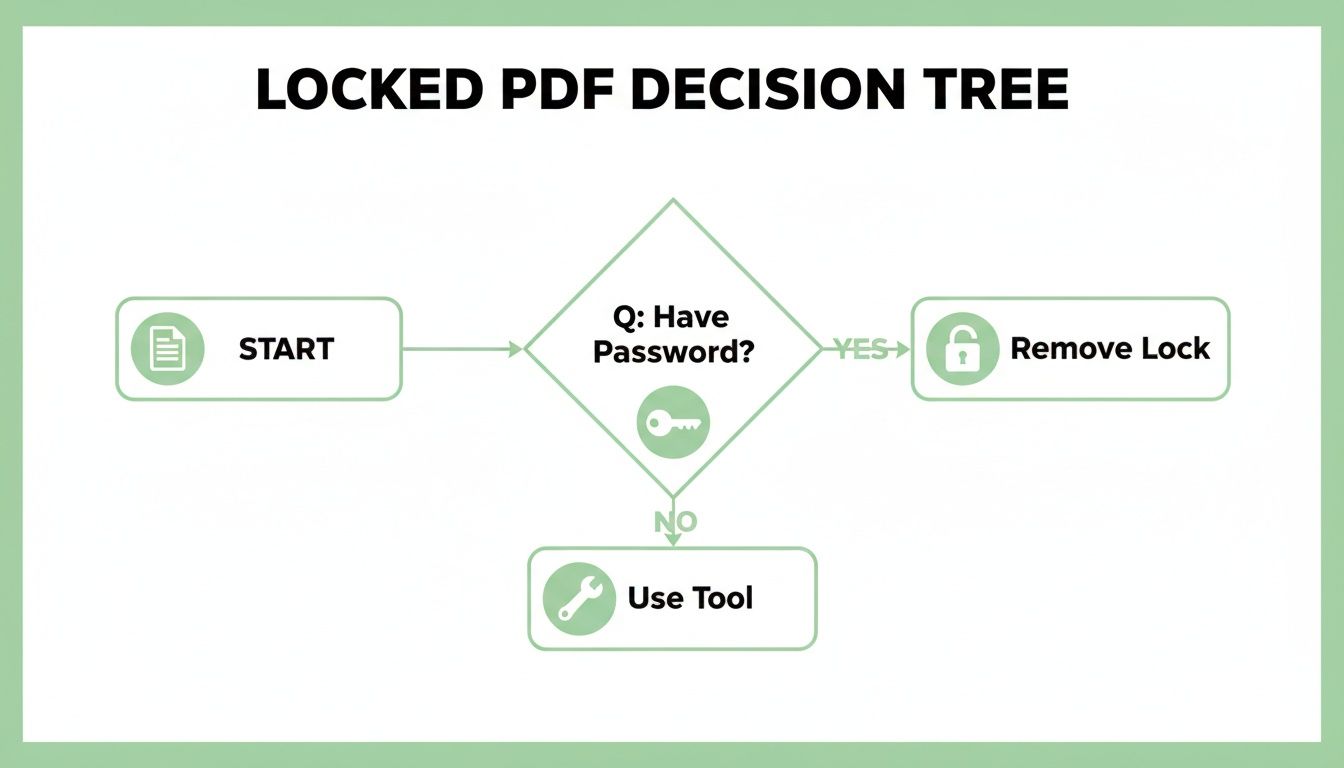
El diagrama de flujo lo deja claro: tu estrategia sobre cómo desbloquear un PDF para editar depende completamente de si tienes la contraseña original.
Información clave: La mayoría de las veces, cuando las personas dicen que un PDF está "bloqueado", quieren decir que tiene una contraseña de propietario que restringe las ediciones, no una contraseña de usuario que bloquea el acceso. Esta es una distinción crítica porque las restricciones de contraseña de propietario a menudo se pueden eliminar con las herramientas adecuadas, incluso si has olvidado la contraseña en sí.
Comprender esta diferencia te evita perder tiempo en los métodos incorrectos. Si puedes abrir el archivo, tu objetivo es eliminar las restricciones de edición. Si no puedes abrirlo en absoluto, necesitarás esa contraseña original; ninguna herramienta puede romper ética o legalmente ese nivel de cifrado.
Por otro lado, si buscas proteger tus propios documentos de cambios no autorizados, podrías estar interesado en aprender más sobre cómo agregar una contraseña a un PDF para asegurar tu trabajo.
Eliminando restricciones de PDF con una contraseña conocida
¿Alguna vez te has topado con una pared tratando de copiar texto de un PDF, solo para darte cuenta de que está bloqueado? Si tienes la "contraseña de propietario", estás de suerte. Esta es la llave dorada, la forma legítima de desbloquear todo el potencial de un PDF para editar, imprimir y copiar.
Piénsalo como tener las credenciales de administrador para una computadora. Un usuario estándar puede abrir aplicaciones, pero solo el administrador puede cambiar la configuración central del sistema. La contraseña de propietario te da ese mismo nivel de control sobre un PDF, permitiéndote entrar bajo el capó y eliminar permanentemente sus permisos de seguridad. ¿La mejor parte? Es sencillo y puedes hacerlo con herramientas comunes que probablemente ya tengas.
Usando Adobe Acrobat para eliminar la seguridad
Si tienes Adobe Acrobat en tu máquina, incluso la versión gratuita Reader a veces puede funcionar, tienes la ruta más directa. Adobe diseñó el software para administrar estas configuraciones, por lo que es la opción más confiable. No estás pirateando nada; solo estás usando la contraseña exactamente como estaba prevista.
Así es como funciona generalmente:
- Primero, abre tu PDF protegido con contraseña en Adobe Acrobat.
- Dirígete a las propiedades del archivo. Por lo general, puedes encontrar esto en Archivo > Propiedades, luego haz clic en la pestaña Seguridad.
- busca el menú desplegable "Método de seguridad" y cámbialo a Sin seguridad.
- Acrobat te pedirá la contraseña de propietario para demostrar que tienes la autoridad para realizar el cambio. Simplemente escríbela y listo.
Una vez que ingreses la contraseña y guardes el archivo, esas restricciones desaparecerán para siempre. Ahora tienes una versión limpia y totalmente editable de tu documento.
Desbloqueando PDF en tu navegador web
¿Qué pasa si no tienes Adobe Acrobat instalado? No hay problema. Los navegadores web modernos como Google Chrome o Microsoft Edge tienen visores de PDF integrados que ofrecen una solución inteligente. Este método esencialmente "vuelve a imprimir" el documento en un archivo nuevo y no seguro.
Es sorprendentemente fácil de lograr:
- Arrastra y suelta el PDF bloqueado en una ventana abierta del navegador Chrome o Edge.
- El navegador te pedirá la contraseña para ver el archivo. Ingrésala.
- Una vez que puedas ver el documento, abre el menú de impresión (el atajo suele ser Ctrl+P en Windows o Cmd+P en Mac).
- En lugar de seleccionar tu impresora de oficina, elige "Guardar como PDF" como destino.
Esta simple acción crea un PDF completamente nuevo a partir del contenido de tu pantalla. Debido a que el nuevo archivo se genera desde cero, no transfiere ninguna de las restricciones de contraseña del original. Te quedas con una copia desbloqueada, lista para editar.
Consejo profesional: Este truco de "impresión" del navegador es una forma fantástica y sin software de eliminar rápidamente las contraseñas de propietario conocidas de los documentos. Funciona porque al navegador solo le importa lo que puede mostrar, no los datos de seguridad subyacentes adjuntos al archivo original.
Al guardar esta nueva versión, has hecho efectivamente un clon del original pero sin ninguno de los bloqueos. Es una solución simple pero poderosa para un dolor de cabeza muy común.
Usando herramientas en línea para eliminar restricciones de edición
¿Alguna vez has abierto un PDF, listo para copiar una oración o corregir un error tipográfico, solo para encontrar todas las opciones de edición en gris? Es un inconveniente común. Esto generalmente significa que el archivo tiene una "contraseña de propietario" que bloquea los cambios, incluso si puedes verlo bien. A menudo sucede con documentos antiguos donde la contraseña se ha olvidado hace mucho tiempo o con archivos de otros departamentos donde los permisos se establecieron demasiado altos por error.
No necesitas cazar al creador original. Un montón de excelentes herramientas en línea están diseñadas para eliminar estas restricciones de edición e impresión, poniéndote de nuevo en control. Estos servicios basados en navegador son un salvavidas: sin software para instalar, y obtienes un archivo desbloqueado en segundos.
Cómo funcionan de forma segura los desbloqueadores de PDF en línea
El proceso no podría ser más simple. Subes el archivo bloqueado, el servicio elimina la contraseña de permisos y descargas una versión nueva y totalmente accesible. El truco es elegir un servicio que realmente respete tu privacidad.
Aquí es qué buscar en una herramienta confiable:
- Políticas de privacidad claras: Un buen servicio te dirá exactamente cómo manejan tus datos y cuánto tiempo guardan los archivos antes de eliminarlos para siempre. Busca un compromiso de eliminar archivos en unas pocas horas.
- Conexiones seguras: La dirección del sitio web debe comenzar con HTTPS. Esta simple verificación asegura que tu archivo esté cifrado mientras viaja hacia y desde sus servidores.
- Recopilación mínima de datos: La herramienta solo necesita el archivo en sí. Si un sitio comienza a pedir información personal solo para desbloquear un PDF, es una señal de alerta.
Estos no son solo agradables de tener; son esenciales. Si bien nunca debes subir información altamente confidencial a cualquier plataforma en línea, una herramienta segura es perfectamente segura para informes cotidianos, borradores y otros archivos no confidenciales.
Nota importante: Estas herramientas están diseñadas para eliminar las contraseñas de propietario que restringen la edición, no las contraseñas de usuario que impiden que se abra un archivo. Si no puedes ver el documento en absoluto, estos servicios no podrán ayudarte.
La necesidad de estas herramientas es enorme. La gente está constantemente editando y convirtiendo PDF. En muchas plataformas, tareas como la compresión (~34%), la firma electrónica (~19%) y la conversión (~16%) son las actividades más comunes. Esta demanda es exactamente la razón por la que hay tantos métodos efectivos para desbloquear un PDF para editar.
Un vistazo rápido a las herramientas de desbloqueo populares
No todas las herramientas en línea son iguales. Cuando se trata de documentos, incluso los no confidenciales, deseas un servicio que sea efectivo y seguro. Aquí hay una comparación rápida para ayudarte a elegir.
Comparando herramientas populares de desbloqueo de PDF en línea
| Nombre de la Herramienta | Característica de Seguridad | Procesamiento de Archivos | Mejor Para |
|---|---|---|---|
| PDFPenguin | Cifrado HTTPS; archivos eliminados en 1 hora | Procesamiento rápido en el navegador | Desbloqueo rápido y sin complicaciones para documentos cotidianos |
| Smallpdf | Cifrado TLS de 256 bits; archivos eliminados después de 1 hora | Procesamiento basado en la nube con alta velocidad | Usuarios que necesitan un conjunto de herramientas PDF integradas |
| iLovePDF | Cifrado HTTPS; archivos eliminados después de 2 horas | Maneja archivos más grandes | Desbloqueo de informes más grandes o lotes de varios documentos |
Si bien las tres son opciones sólidas, la mejor depende de tus necesidades específicas. Para un desbloqueo sencillo y seguro, una herramienta como PDFPenguin hace el trabajo sin pasos adicionales.
Proceso de desbloqueo paso a paso
Caminemos a través de él. Usar una herramienta como la herramienta Desbloquear PDF de PDFPenguin es una forma rápida y confiable de hacer esto en menos de un minuto.
Primero, dirígete a la herramienta de desbloqueo en tu navegador web. Verás un área simple de arrastrar y soltar o un botón de carga. Simplemente elige tu PDF restringido de tu computadora.
La herramienta se pone a trabajar al instante, analizando la configuración de seguridad del archivo. Una vez que haya terminado, aparecerá un enlace de descarga.
Guarda el nuevo archivo desbloqueado en tu computadora. ¡Eso es todo! Las antiguas restricciones de edición, copia e impresión han desaparecido. Ahora puedes abrirlo en cualquier editor de PDF y realizar los cambios que necesites. No más obstáculos.
Navegando por los límites legales y éticos
Saber cómo desbloquear un PDF es una habilidad útil, pero un gran poder conlleva una gran responsabilidad. El hecho de que puedas eliminar las protecciones de un archivo no siempre significa que debas. La tecnología en sí es neutral, pero cómo la usas es lo que importa.
Piénsalo de esta manera: ¿estás tratando de volver a entrar a tu propia casa porque perdiste la llave, o estás tratando de entrar a la de otra persona?
La línea suele ser bastante clara. Si estás desbloqueando un informe que escribiste pero olvidaste la contraseña, estás bien. Lo mismo ocurre si un compañero de trabajo te envía un archivo bloqueado y te dice que lo edites. Tienes permiso.
El problema comienza cuando eludes la seguridad en un documento que no posees o no tienes los derechos para cambiar.
Cuando desbloquear un PDF cruza la línea
Algunas cosas son simplemente no-gos obvios. ¿Eliminar la protección de copia de un libro electrónico que compraste para poder compartirlo con amigos? Eso es infracción de derechos de autor, simple y llanamente.
Otras señales de alerta incluyen:
- Alterar una lista de precios oficial de la empresa sin autorización.
- Cambiar los términos de un contrato firmado.
- Editar un trabajo académico protegido sin el visto bueno del autor.
Acciones como estas no son solo irrespetuosas para el creador; pueden meterte en serios problemas legales, desde multas hasta otras sanciones, dependiendo de dónde te encuentres y qué tipo de documento sea.
El resultado final: Siempre pregúntate de dónde vino el PDF y por qué está bloqueado. Si no lo creaste u obtuviste permiso explícito para cambiarlo, deja las características de seguridad en paz.
¿Por qué las empresas bloquean los PDF de todos modos?
Para las empresas, la protección con contraseña no es solo un botón: es una parte crítica de su estrategia de seguridad. A menudo pagan por software PDF costoso específicamente para funciones como el cifrado y los bloqueos de contraseña para proteger la información confidencial.
Pero ese software tiene un precio. De hecho, el 48% de las pequeñas y medianas empresas dicen que los altos costos de licencia les impiden obtener editores de PDF avanzados.
Esta barrera de costos es una gran razón por la que tanta gente recurre a herramientas en línea gratuitas. Es posible que tengan permiso para editar un archivo pero no tengan el software costoso para hacerlo. Puedes leer más sobre el mercado de software PDF para ver cómo se desarrollan estas tendencias.
Antes de desbloquear algo, revisa esta rápida lista de verificación mental:
- Propiedad: ¿Es este mi documento, o el propietario dijo que podía editarlo?
- Intención: ¿Se bloqueó esto para proteger datos privados o propiedad intelectual?
- Legalidad: ¿Estoy rompiendo los derechos de autor o alguna otra ley al hacer esto?
Responder estas preguntas con honestidad te mantendrá en el lado correcto de la línea ética.
Desbloqueando PDF: Tus preguntas respondidas
Incluso con una buena guía, desbloquear un PDF a veces puede lanzarte una bola curva. Es posible que te encuentres con un inconveniente inesperado o simplemente te sientas un poco cauteloso al usar una herramienta en línea.
Aclaremos algunas de las preguntas más comunes y te devolveremos a la edición de tu documento, rápido.
¿Puedo desbloquear un PDF que pide una contraseña solo para abrirse?
No. Las herramientas y trucos de los que estamos hablando aquí son para un tipo diferente de bloqueo. Si un PDF pide una contraseña en el momento en que intentas abrirlo, esa es una contraseña de usuario. Cifra todo el archivo, y la única forma de entrar es con la contraseña correcta.
Nuestra guía se centra en deshacerse de la contraseña de propietario, la que te permite abrir el archivo pero te impide editar, copiar texto o imprimir.
¿Son realmente seguras las herramientas de desbloqueo de PDF en línea?
Realmente se reduce a dos cosas: la herramienta que elijas y el documento que estés subiendo. Para la mayoría de los archivos cotidianos, un servicio de buena reputación es perfectamente seguro.
Esto es qué buscar en una herramienta confiable:
- Cifrado HTTPS: Asegúrate de que la URL del sitio comience con
https. Esto mantiene tu archivo seguro mientras se carga y descarga. - Eliminación automática de archivos: Un buen servicio indicará claramente en su política de privacidad que tus archivos se borran de sus servidores después de un corto período, generalmente solo unas pocas horas.
Aquí está mi regla general: nunca subas documentos con datos personales confidenciales, detalles financieros o información confidencial de la empresa a cualquier servicio en línea. Para esos archivos de alto riesgo, quédate con el software fuera de línea como Adobe Acrobat Pro donde te mantienes en control total.
Desbloqueé mi PDF, entonces, ¿por qué no puedo editar el texto?
Este es un clásico, y casi siempre significa que estás tratando con un documento escaneado. Cuando eliminas las restricciones de edición pero aún no puedes seleccionar ningún texto, es porque tu PDF es solo una imagen de palabras, no texto real y seleccionable.
La solución para esto es una herramienta con Reconocimiento Óptico de Caracteres (OCR). Un motor OCR escanea la imagen, reconoce las formas de las letras y las convierte inteligentemente en texto real que finalmente puedes editar.
¿Desbloquear un PDF arruinará su calidad?
De ninguna manera. Eliminar una contraseña de propietario simplemente juega con la configuración de seguridad del archivo. No toca el contenido real.
Tus imágenes no se volverán a comprimir, las fuentes no cambiarán y el diseño se mantendrá exactamente como estaba. Puedes desbloquear un archivo con confianza, sabiendo que se verá tan nítido como antes.
Cuando necesites una forma simple y segura de ordenar tus documentos, PDFPenguin tiene un conjunto completo de herramientas basadas en navegador listas para usar. Desde desbloquear y editar hasta convertir archivos, puedes manejar todas tus tareas de PDF sin instalar nada. Explora nuestras herramientas gratuitas hoy.