
When you need to compare PDF files online, the fastest way is to use a secure, browser-based tool. These services automatically highlight additions, deletions, and formatting changes, taking the guesswork out of manual reviews and giving you clear, visual results in seconds.
Why Accurate PDF Comparison Is Non-Negotiable
In any professional setting, keeping track of document versions is a headache. Relying on your memory or confusing filenames like Final_Contract_v3_updated.pdf is a recipe for disaster. Small, missed changes in contracts, reports, or academic papers can lead to serious financial losses, legal disputes, or compliance failures.
This problem has only gotten bigger with the shift to remote and hybrid work, making a reliable way to compare documents more critical than ever. The need to compare PDFs online has exploded right alongside the number of digital documents.
The use of cloud-based PDF tools has skyrocketed by 200% since 2020, with an estimated 290 billion new PDFs created every year. Without a dependable way to track what’s changed, managing that volume would be impossible. You can check out more insights on these trends at Smallpdf. This shift from manual side-by-side checks to automated tools is a huge leap forward in both speed and accuracy.
The Risks of Manual Comparison
Trying to compare two documents by hand isn't just slow—it's also begging for human error. It’s incredibly easy to miss tiny but critical differences, like:
- A single wrong digit in a financial report.
- A slightly rephrased clause in a legal agreement.
- A minor tweak to a blueprint or design file.
An automated comparison tool acts as your second set of eyes, catching the small details your brain is wired to skim over. It turns a tedious, high-risk task into a quick, reliable verification step.
Choosing the Right Approach
The best way to compare PDFs really depends on what you’re working on. A simple text review might be fine for a short article, but a complex contract needs a tool that can analyze layout, images, and tables with precision.
Modern, browser-based tools like PDFPenguin offer a great solution, giving you instant, accurate results without needing to install any software. This guide will help you pick the right strategy for every situation.
Choosing Your PDF Comparison Method
Figuring out the right way to compare PDF files all comes down to what you’re working on. The best method for a student proofing an essay is totally different from what a legal team needs to spot tiny changes in a contract. If you know the strengths of each approach, you can be sure you're getting the accuracy and security your job demands.
Let’s break down the options into four main categories, from old-school manual reviews to smart, automated systems. Your choice will really depend on how complex your documents are, how sensitive the information is, and how much time you have.
At-a-Glance PDF Comparison Method Showdown
Before we dive deep, here's a quick look at how the different methods stack up against each other. Think of this as your cheat sheet for picking the right tool for the job.
| Comparison Method | Best For | Accuracy | Speed | Security Level |
|---|---|---|---|---|
| Manual Side-by-Side Review | Quick checks on very short, simple text files. | Low (very prone to human error). | Very Slow | High (files stay on your device). |
| Desktop Software Solutions | Offline, heavy-duty comparisons for sensitive files. | High | Fast | Highest (no cloud upload needed). |
| Basic Online Diff Checkers | Fast, free checks for text-only document changes. | Medium (misses visual/layout changes). | Very Fast | Varies (check provider's privacy policy). |
| AI-Powered Online Tools | Complex, high-stakes documents with text, images, and tables. | Highest (pixel-level and OCR-aware). | Very Fast | High (secure processing, auto-deletion). |
As you can see, what you gain in convenience with one method, you might trade off in accuracy or security with another. Now, let's explore each one in more detail.
Manual Side-by-Side Review
This is the most basic approach: just open two PDFs on your screen and eyeball the differences. No special tools required—just your eyes and a lot of patience.
- Best For: Short, text-only documents where you expect changes to be obvious. Think a one-page memo or a short blog draft.
- Drawbacks: This method is a recipe for human error. It’s incredibly easy to miss tiny but critical changes in numbers, punctuation, or wording, especially in long documents. It’s also, by far, the slowest and most tedious option.
Relying on memory or a quick scan is a risky game. It's just not built for catching everything.
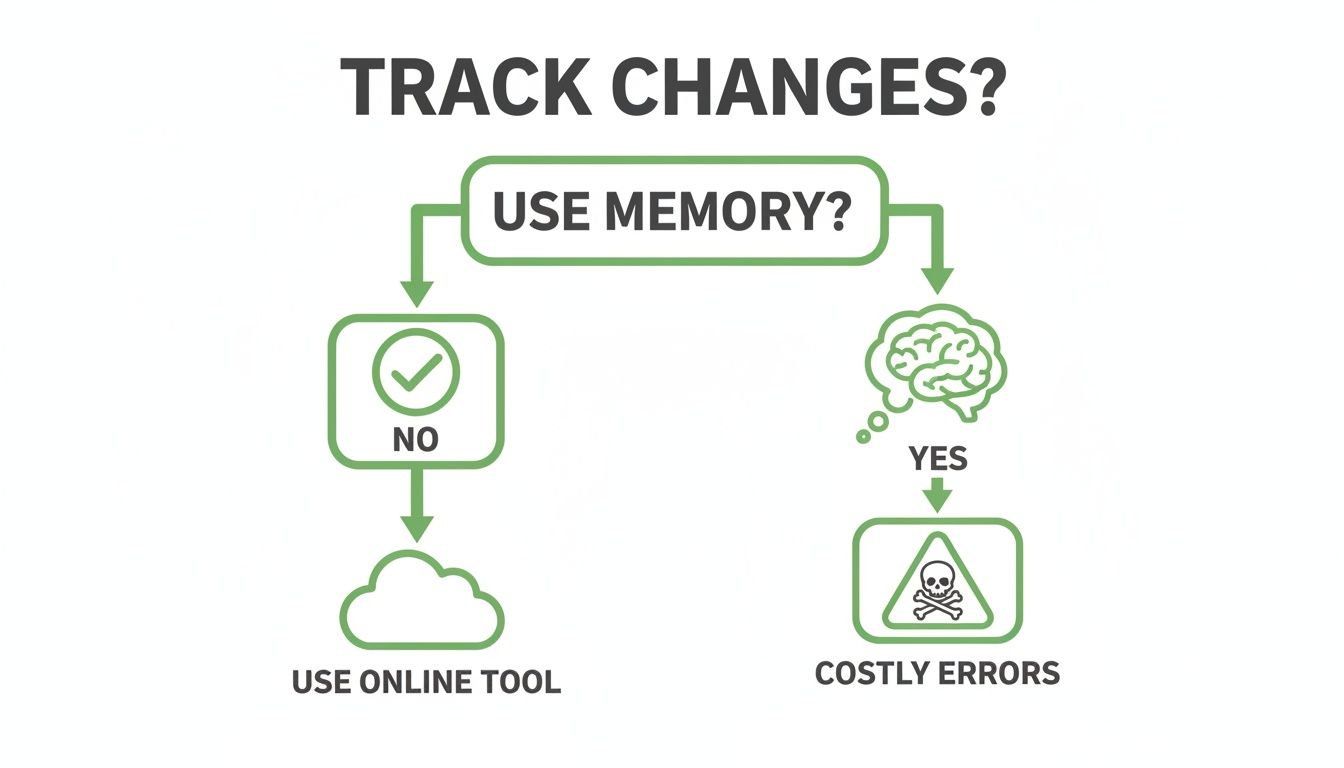
As this shows, trusting your own review often leads to costly mistakes. A dedicated tool is a much safer bet.
Desktop Software Solutions
For those who need more muscle and prefer to work offline, dedicated desktop software offers some seriously powerful comparison features. These are programs you install on your computer, often bundled with a full suite of PDF editing tools.
They deliver a high degree of accuracy and security since your files never leave your machine. The catch? It comes at a cost. These applications can be expensive, require installation and updates, and don’t have the grab-and-go accessibility of a browser-based tool.
Basic Online Diff Checkers
These free, browser-based tools are a definite step up from a manual review. You upload two files, and the service highlights what’s different, but usually on a text-only basis. They’re fast and convenient for a quick check.
The major downside here is their lack of context. Most basic checkers just rip the text out and compare it line by line, completely ignoring crucial visual elements like:
- Changes in tables or charts
- Moved images or paragraphs
- Subtle formatting adjustments
This can lead to confusing results or, worse, missed changes. That makes them a poor fit for anything visually complex or high-stakes.
AI-Powered Online Tools
This is where things get really smart. AI-powered tools like PDFPenguin go way beyond simple text comparison. They analyze the entire document—layout, images, tables, and even text within scanned documents using Optical Character Recognition (OCR).
AI tools don’t just read the words; they understand the document as a whole. This allows them to intelligently pinpoint additions, deletions, and stylistic changes with incredible precision. It’s the only method that can reliably compare a scanned contract against a digital draft and flag every single difference.
This approach gives you the perfect mix of accessibility, speed, and accuracy, making it the clear winner for most professional and academic work. If you want to see it in action, check out our guide on how to compare two PDFs online using this tech. They handle complexity with ease and give you simple, color-coded results right in your browser.
How AI Changes the Game for Document Comparison
If you’ve ever used a basic online tool to compare two documents, you know they’re good at spotting simple text changes. But what happens when a table gets rearranged, a logo is resized, or a sentence is rephrased instead of just deleted? That’s where they fall flat. This is where Artificial Intelligence (AI) completely changes the game when you need to compare PDF files online.
AI-powered systems don’t just read words; they understand the document’s entire structure. They see the layout, the context, and the visual elements. By combining machine learning with Optical Character Recognition (OCR)—the tech that turns images of text into actual text—AI creates a powerful engine that analyzes every single part of a PDF.
AI comparison tools look beyond the text to understand the document's DNA—its layout, tables, and images. They can tell the difference between a minor font tweak and a critical number being moved from one column to another.
This is a huge deal for modern documents, where how something looks is often just as important as what it says.
Going Beyond Simple Text Checks
Traditional "diff checkers" are pretty one-dimensional. They look for added or deleted words and that’s about it. An AI-powered tool, on the other hand, can spot a much wider range of changes and understand what they mean.
Here are a few real-world examples:
- A Scanned Contract: Imagine a compliance officer gets a scanned, signed contract back. Using an AI tool with OCR, they can compare it to the original digital version. The tool will not only confirm the text matches but also check that no one scribbled extra notes in the margins. A basic text checker can’t even read the scanned file. Learn more about the power of Optical Character Recognition technology.
- Marketing Materials: A designer needs to make sure the final version of a brochure is identical to the approved proof. AI can spot tiny but critical changes—a slight shift in the layout, a lower-resolution image, or an off-brand color code—that the human eye would easily miss.
- Financial Reports: An analyst is comparing two quarterly reports. The AI tool flags changes in the numbers, of course, but it also highlights when a chart has been altered or a column in a complex data table has been moved, protecting data integrity.
The Real Value of Smart Comparison
The move to cloud-based PDF tools has been massive, with usage jumping by 200% since 2020. This is especially true in legal and finance, where 78% of agreements are finalized as PDFs, making online comparison a must-have. While tons of tools are out there, the adoption of AI-powered solutions with OCR has shot up by 45% in recent years, proving that people demand better accuracy. You can dig into these market trends and insights to learn more.
This isn't just a trend; it's about getting a clear return on your time. Tools like PDFPenguin save you from hours of tedious manual reviews and prevent the kind of critical errors that basic checkers let slip through. By understanding the full context of a document, AI gives you a level of confidence that protects you from costly mistakes down the road.
Comparing PDF Files with an AI Tool
Okay, so you've seen what AI can do. Now, let’s get practical and walk through how to compare PDF files online using a modern tool. The whole point is to make this fast and painless—no software to install, just accurate results in under a minute.
This is what a clean, modern comparison tool looks like. You just drag and drop the original and the new version to get started. Simple as that.
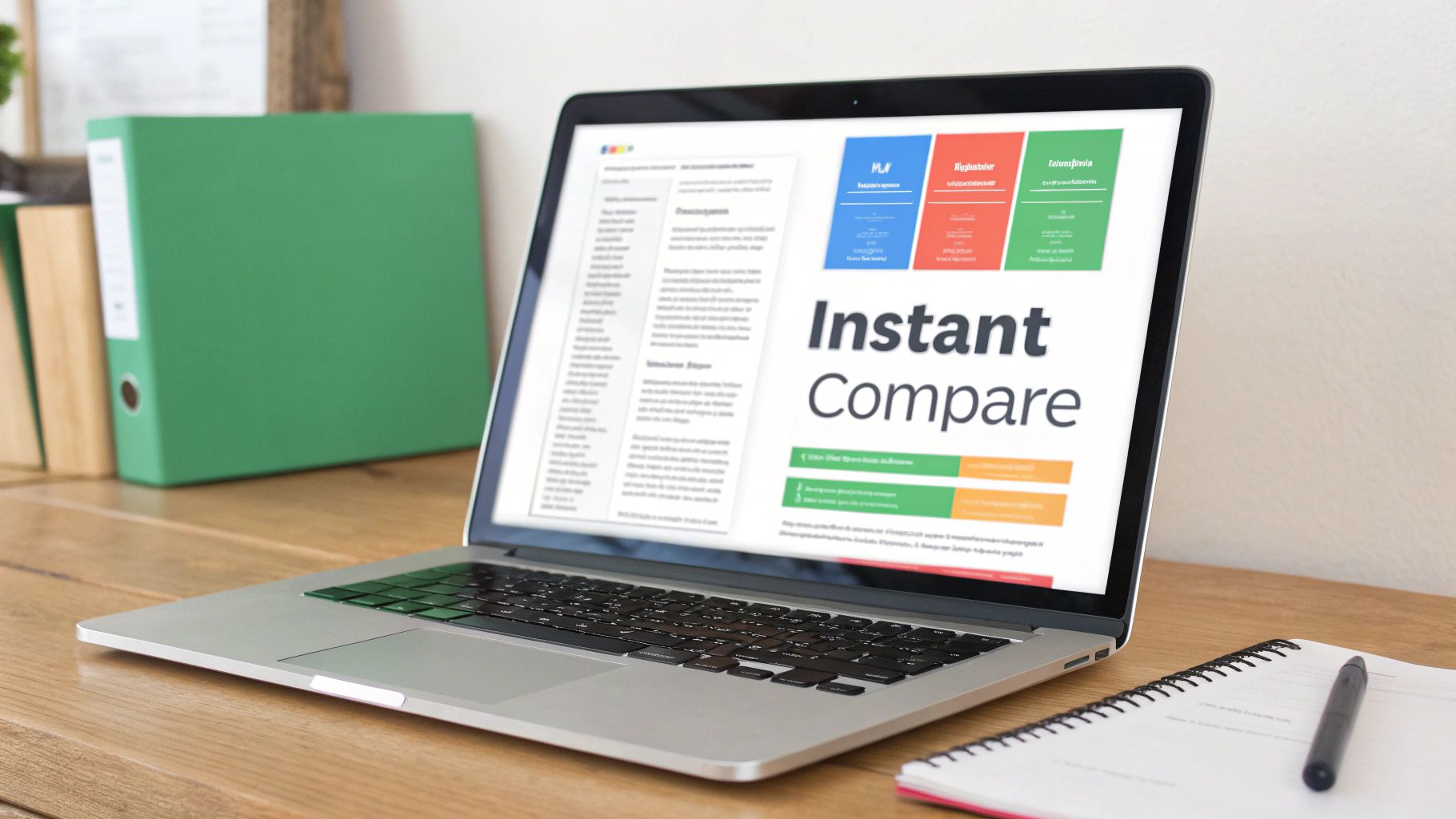
The two boxes for "Original PDF" and "New PDF" leave no room for confusion. It's designed to be obvious.
Step 1: Upload Your Documents
First things first, head over to an AI-powered comparison tool like PDFPenguin's Compare PDF page. You'll see two clear upload spots: one for your original (the "before") and another for the revised file (the "after").
You can either click to find the files on your computer or just drag them straight from your desktop into the boxes. The tool gets them ready for analysis right away.
Step 2: Kick Off the Comparison
With both files loaded, all that’s left is one click. Find the "Compare" button and hit it.
This is where the magic happens. The AI engine dives in, doing way more than a simple text scan. It’s mapping out the entire document—layout, structure, images, and text—to build a complete picture of every single difference between the two versions.
Step 3: Read the Color-Coded Results
In just a few seconds, you get a single, unified view showing all the changes, neatly highlighted in different colors. This visual system makes reviewing a breeze. Here’s what the colors usually mean:
- Green for Additions: Anything new—text, images, even whole paragraphs—that appears in the second version will be highlighted in green.
- Red for Deletions: Content that was in the original but got removed from the new version is marked in red.
- Blue for Style Changes: This is where AI really flexes. It catches the subtle stuff like font changes, shifted paragraphs, or other formatting tweaks and flags them in blue.
This simple color-coded system turns a painful, manual task into a quick visual check. Instead of hunting for edits, you can see the entire story of your document’s evolution at a glance. No change, big or small, gets missed.
Best Practices for Reviewing Document Changes
Once an AI tool flags every difference, the real work begins: the human review. Just seeing the changes isn't enough; you need a smart way to understand their impact. A solid review process ensures you catch not just the obvious edits but also the subtle shifts in wording that can change a document's entire meaning.
This is the point where technology hands the baton back to your expertise. Let’s break down how to handle this critical step without getting overwhelmed.
Prioritize Mission-Critical Changes
Don’t just start on page one and review chronologically. Instead, make a mental checklist and hit the most important sections first. This approach saves time and prevents you from missing a critical detail buried deep in the document.
Start by zeroing in on the high-impact areas:
- Numerical Data: Always check the numbers first—figures, dates, and percentages. A single misplaced decimal can create chaos in a financial report or a contract.
- Legal Clauses: Scrutinize any changes in sections covering liability, terms, or obligations. A few tweaked words can dramatically alter legal responsibilities.
- Key Findings: For research papers or business reports, jump straight to the executive summary, conclusion, and data-backed sections to make sure the core message is still intact.
By focusing on these critical zones first, you ensure the most significant parts of the document are verified while your attention is sharpest. This strategy is far more effective than a linear page-by-page review.
Verify Context and Collaborate Securely
A highlighted change only tells you what happened, not why. The next step is to understand the context and what knock-on effects it might have. A seemingly tiny edit, like removing a single word, can change the entire tone or meaning of a paragraph.
After your initial review, share the comparison report. Modern tools let you export a summary of all changes, creating a clear audit trail. This makes it easy to ask team members for clarification or get approval on specific edits, keeping everyone on the same page.
Focus on Security When You Compare PDF Files Online
Security is non-negotiable when you compare PDF files online, especially with sensitive information. The boom in online PDF comparison tools reflects the PDF market's projected growth from $2.86 billion in 2024 to $6.19 billion by 2032.
Legal teams, in particular, need secure tools to avoid compliance headaches, especially since 43% of shared PDFs are encrypted. Services like PDFPenguin address this by using HTTPS for secure transfers and automatically deleting your files after processing, ensuring your data stays private. You can find more details in this in-depth market analysis.
Common Mistakes to Avoid When Comparing PDFs
Even the best comparison tools can trip up if you’re not careful. A few common mistakes can give you messy, inaccurate results, leaving you more confused than when you started. Let’s walk through the main pitfalls so you can get a clean comparison every time.
One of the biggest culprits is file structure. Trying to compare a flattened PDF (where text and images are squashed into one layer) against a layered PDF is a recipe for disaster. A basic tool will see the entire file as "different" because the underlying code has changed, even if the visible text is identical.
Similarly, security features can stop a comparison dead in its tracks. If you try to compare a password-protected document without unlocking it first, the tool can't read the contents and will likely throw an error.
Overlooking False Positives
This one is a huge headache. A "false positive" happens when a tool flags a tiny, meaningless formatting change as a major edit. Imagine adding one word causes an entire paragraph to reflow. A simple comparison tool might highlight every single line in that paragraph as "changed."
The smartest tools know the difference between content and layout. They can tell when a paragraph has just shifted a bit versus when it has been completely rewritten. This is key to avoiding a screen full of useless highlights.
Without that intelligence, you’ll waste time chasing down dozens of “changes” that don’t actually matter.
Ignoring File Complexity and Size
Not all comparison tools are built the same, especially when it comes to heavy-duty files. If you throw a 100-page graphic design proof at a simple online tool, don’t be surprised if it crashes your browser or spits out gibberish.
- Graphically Heavy Files: Got a PDF packed with diagrams, charts, or high-res photos? You need a tool with enough muscle to process it all without timing out.
- Large File Sizes: Always check the upload limits. Many browser-based tools have a cap on file size, and large PDFs will simply fail to upload.
- Scanned vs. Digital: Trying to compare a scanned document to a digital one is pointless unless your tool has OCR. Without it, the software sees the scan as just one big picture, not as text it can actually read and compare.
A Few Common Questions
When you're comparing PDFs online, a couple of questions always come up, usually about security and what the tool can actually handle. Here are the quick answers you need.
Is It Safe to Compare Sensitive PDF Files Online?
It all comes down to the service you choose. A trustworthy tool like PDFPenguin puts your privacy first. We use secure HTTPS connections for all uploads and, more importantly, have automatic file deletion policies. This means your documents aren't just left sitting on a server somewhere.
As a rule of thumb, always check the privacy policy of any online tool before you upload something confidential. If you can't find clear security info, it's best to find another service.
Can Online Tools Compare Scanned PDFs or Images?
Yes, but this is where you separate the basic tools from the advanced ones. To compare scanned documents, you need a tool with Optical Character Recognition (OCR) built right in.
Most simple comparison tools only work with text-based PDFs. But an AI-powered service uses OCR to read the text inside a scan, allowing it to compare two scanned files or even a scan against a digital version. This is a game-changer for anyone in law, real estate, or finance who deals with paper trails.
A simple "diff checker" just pulls out raw text and compares it line by line, much like a tool a developer would use for code. It’s okay for basic text files, but it misses everything else—layout, tables, images, and formatting.
A real PDF comparison tool, especially one driven by AI, looks at the document as a whole. It understands both the text and the visual structure, so it can catch things like a moved paragraph, a swapped image, or altered numbers in a table. It gives you the full picture, not just a text dump.
Ready to stop guessing and start knowing? The PDFPenguin AI-powered Compare tool gives you a clear, color-coded breakdown of every change in seconds. See exactly what’s different and get it done faster. Try it now at https://www.pdfpenguin.net.