
Ever tried to send a 20 MB file, only to have it rejected by an email service with a 25 MB limit? It’s a common frustration, and the reason is surprisingly simple: your file isn't the only thing taking up space. Hidden data from email encoding can inflate your attachment's total size by up to 37%, pushing your message over the real, practical limit.
This guide will break down why this happens and show you how to get your files through successfully every time.
The Real Reason Your Email Attachments Fail
You've done everything right. You checked the file size, saw it was under the email provider's limit, and hit send. A few minutes later, you get that dreaded "message bounced" notification. What gives?
This isn't a bug—it's a fundamental part of how email was designed. The email attachment size limits you see advertised are almost always misleading. They refer to the total size of the entire email message after it's been processed, not just the size of the file you attached.
Think of it like packing a box. Your file is the item you're shipping, but you also have the box itself, the packing tape, and the shipping label. All that "packing material" adds extra weight. In the email world, this is a process called MIME (Multipurpose Internet Mail Extensions) encoding.
How Encoding Inflates Your File Size
Email systems were originally built for plain text. To send something complex like a PDF or an image, your email client has to convert all that binary data into a text-based format that email servers can actually understand.
This encoding process is essential, but it adds bulk.
As a rule of thumb, assume your attachment will be about one-third larger after encoding. This means a 15 MB file can easily balloon to 20 MB by the time it's ready to fly.
This concept map breaks down how your file grows before it even leaves your outbox.
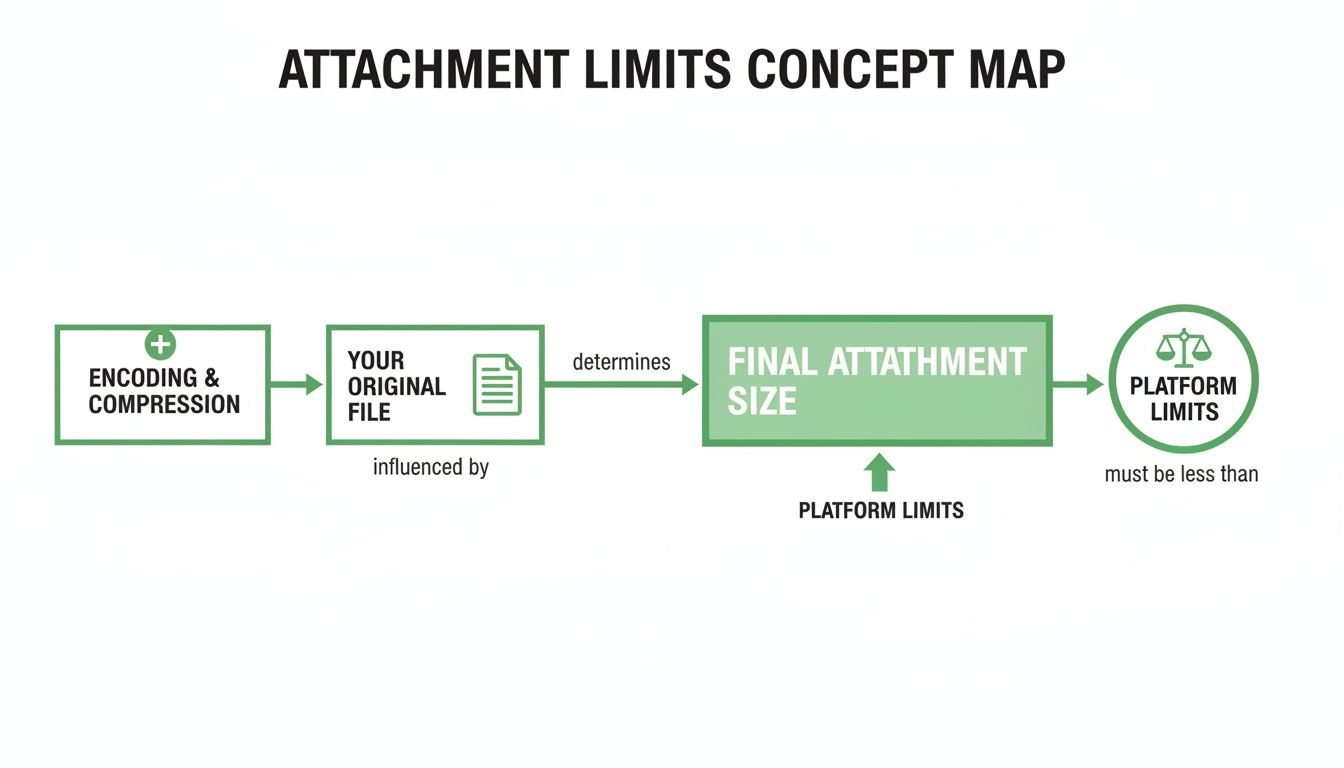
As you can see, the final size is your original file plus all the encoding overhead. This is why a provider's official limit and what you can actually send are two different things.
Email Provider Attachment Limits: Official vs. Practical
To make things clearer, here’s a quick-reference table that shows the difference between what major providers claim and what you can realistically attach.
| Email Provider | Stated Limit | Practical Limit (Approx.) |
|---|---|---|
| Gmail | 25 MB | ~18 MB |
| Outlook.com / Hotmail | 25 MB | ~18 MB |
| Yahoo Mail | 25 MB | ~18 MB |
| AOL | 25 MB | ~18 MB |
| ProtonMail | 25 MB | ~18 MB |
| iCloud Mail | 20 MB | ~15 MB |
These numbers aren't exact, but they're a safe guideline to avoid bounced emails. If your file is getting close to that practical limit, you'll need a different approach.
Our complete guide on how to email a PDF also dives into more strategies for managing oversized files and getting them where they need to go.
Why Do Outdated Attachment Limits Still Exist?
In an age of fiber-optic internet and unlimited cloud storage, getting a "file too large" error on an email can feel like a throwback to the dial-up era. It’s a fair question: why can a system that connects the entire globe choke on a file that fits on a tiny thumb drive? The answer goes all the way back to email’s original design.
Think of the email system as a global postal service built decades ago. It was engineered to be unbelievably efficient at one thing: delivering millions of small, lightweight letters (plain text) every single day. It was never designed to handle big, heavy packages like PDFs, high-res images, or videos. While the system has definitely been upgraded over the years, that core architecture hasn't really changed.
Built for Text, Not Terabytes
The protocol that runs the entire email show is called SMTP (Simple Mail Transfer Protocol). When SMTP was created, digital storage was incredibly expensive and internet bandwidth was painfully slow. Its job was simple: get text messages from one server to another, reliably. Attaching a file was a clever afterthought, essentially taping a package to the outside of a letter.
This old-school design has some major consequences for how we use email today:
- Server Strain: Every attachment you send has to be processed, stored, and forwarded by every single server along its path. Large files eat up a ton of storage and bandwidth, which can slow the whole system down for everyone else.
- Traffic Jams: A single person sending a massive file can create a bottleneck, delaying thousands of smaller, normal emails. Size limits are the system's traffic lights, keeping everything moving smoothly.
The Hidden Bloat of MIME Encoding
But here’s the real kicker: a technical process called MIME (Multipurpose Internet Mail Extensions) encoding. Because email was built only for text, any file that isn't plain text—from a simple photo to a complex report—has to be "translated" into a text-only format before it can be sent.
This conversion process is like translating a book into a new language where all the words are much longer. It always adds extra bulk.
MIME encoding can inflate your attachment's size by up to 37%. This is huge. It means your 18 MB presentation file actually looks more like 25 MB to the email server, pushing it right over that common 25 MB limit.
This "encoding tax" is the main reason you can’t seem to send a file that looks like it should be under the limit. These rules aren't just arbitrary; they’re a necessary evil baked into the very foundation of email, helping servers manage this hidden bloat to keep things stable and fast for billions of users.
The Hidden Costs Of Sending Large Attachments
Getting a "failed delivery" notification is annoying, but that's just the tip of the iceberg. The real trouble with oversized attachments happens quietly in the background, opening up some serious security holes and slowing your whole business down. When you send a massive file, you’re not just sending data—you’re creating a digital liability.
This all feeds into a problem known as digital hoarding. Inboxes and servers get clogged with huge, forgotten files. Think of it like a warehouse piled high with unmarked boxes; you have no idea what’s inside, but you’re still paying to store all of it. This isn't just messy—it's dangerous.
Wasted Resources and Slower Networks
Every single attachment, whether sent or received, eats up precious resources. It consumes space on your company's email server, drags down network performance while it's in transit, and clogs up the recipient's inbox. Multiply that by everyone in your organization, and the effect is massive.
The waste is even more shocking when you realize how few of these files are ever even used. Research shows that a staggering 94% of delivered email attachments are never opened. That means companies are burning resources to store nearly 3 gigabytes of useless data per employee every year, creating a huge drain on storage and bandwidth. You can dig into the full report on these findings at mxhero.com.
A Gateway for Security Threats
Beyond the waste, all this digital clutter creates a massive security blind spot. Once those attachments are sitting in someone's inbox, IT and security teams have no easy way to track or manage what’s inside them. This pile of unmanaged data is a goldmine for cyberattacks.
An inbox full of old, forgotten attachments is like leaving your company’s filing cabinets unlocked. It’s the perfect hiding place for malware and makes your systems much more vulnerable to ransomware attacks that can encrypt your data and hold it hostage.
This is exactly why IT departments put strict email attachment size limits in place. It isn't just about server speed; it’s a critical security move. By controlling the flow of large, untracked files, organizations shrink their attack surface and make it easier to comply with data protection rules. Finding smarter, safer ways to share files isn’t just a convenience—it's essential for keeping your business protected.
Proven Methods To Send Large Files Easily
So, you've hit that dreaded "file too large" error. Don't worry, it happens to everyone. Hitting a size limit doesn't mean your file is stuck—it just means that attaching it directly to an email isn't the right move.
Thankfully, there are a few simple and reliable ways to get your large files where they need to go. Let's walk through three proven techniques, from a quick fix for slightly oversized documents to the modern standard for sharing massive files.
Method 1: Compress Your Files
The simplest trick in the book is to make your file smaller. File compression intelligently shrinks your file by finding and rewriting redundant data more efficiently. This works especially well for PDFs, which often have bulky, unoptimized images or formatting that can be trimmed down without losing quality.
For example, a beautiful PDF proposal full of high-res images might be 30 MB—way over the limit for most email servers. A quick run through a compression tool can often slash its size by 50% or more, bringing it down to a send-friendly 15 MB.
The best tools, like PDFPenguin, give you simple presets like "Recommended Compression" that strike the perfect balance between size and quality. Your text stays crisp, and your images remain clear.
When should you use compression? It's the perfect fix for files that are just a little too big, usually in the 20-40 MB range. It's fast, the recipient doesn't need any special software, and the file stays in its original format. Our guide walks you through exactly how to compress a PDF in seconds.
Method 2: Split The File Into Smaller Parts
Another old-school but effective method is to chop your large file into smaller, bite-sized pieces. Think of it like taking apart a big piece of furniture to get it through a narrow doorway—you just reassemble it on the other side. Most operating systems have built-in tools that can create these "multi-part" archives.
You could take a 100 MB video file and split it into five 20 MB chunks. Then, you'd send each chunk in a separate email, clearly labeling them "Project Video Part 1 of 5," "Part 2 of 5," and so on. The person on the other end downloads all the parts and uses a common tool like 7-Zip or WinRAR to stitch them back together.
How to Split a File
- Right-click the file and look for an option like "Add to archive..."
- In the settings, find the option to "Split to volumes, size."
- Enter a size that's safely under the email limit, like 15 MB.
- The tool creates numbered files (
archive.part1.rar,archive.part2.rar). - Attach each part to a separate email and send them off.
While this works, it’s a bit clunky and puts extra work on your recipient.
Method 3: Share A Cloud Storage Link
This is, by far, the best and most professional solution. Instead of attaching the file at all, you upload it to a cloud service like Google Drive, Dropbox, or OneDrive and simply share a link to it in your email.
This method completely sidesteps email attachment size limits. Why? Because you're not actually sending the massive file—you're just sending a tiny bit of text that points to it. Your email stays small and gets delivered instantly, and your recipient can access the file in its full, original quality.
This approach is the gold standard for a few key reasons:
- No Size Restrictions: You can send files of any size, from hundreds of megabytes to gigabytes.
- Better Security: Control who can view, comment on, or download the file with link permissions.
- Easy Updates: Need to change the file? Just update the version in the cloud. The link automatically points to the latest one, so no need to send another email.
- Keeps Inboxes Clean: You're not clogging up your recipient's inbox with a huge download they might only need once.
Choosing The Right File Sharing Method
Knowing the different ways to get around email size limits is one thing, but picking the right one for your specific situation is the real secret to working smart. Each method—compression, splitting, and cloud links—has its own sweet spot. The best choice really boils down to your file’s size, your security needs, and how your recipient will actually use the file.
The right decision starts with a quick assessment. Are you sending a slightly oversized report to one person, or are you sharing a massive, confidential project file with an entire team?
Evaluating Your Sharing Needs
First, think about the file itself. For a document that's just a few megabytes over the limit, a quick compression is usually the fastest fix. It’s a simple, one-step process that solves the immediate problem without adding any extra hoops for you or the recipient to jump through.
But if your file is enormous—think a high-resolution video or a huge architectural plan—compression won't even make a dent. This is where cloud storage links are the obvious winner, since they take file size completely out of the equation.
The most important factor is the user experience for your recipient. A solution that’s easy for you but confusing for them creates more problems than it solves.
Next, think about security and collaboration. If a document has sensitive information, you need more control than a standard attachment can ever offer. A cloud link lets you set permissions, password-protect the file, and even revoke access later on. That's impossible once an attachment leaves your outbox.
Comparing Methods for Sending Large Files
To help you decide at a glance, we've put together a quick comparison of the three main methods for sending large files. This table breaks down what each method is best for, along with its pros and cons.
| Method | Best For | Pros | Cons |
|---|---|---|---|
| Compression | Moderately oversized files (20-40 MB) like PDFs and Office documents. | Fast, easy, and requires no special software for the recipient to open. | Not effective for already-compressed files like videos or very large files. |
| File Splitting | Very large files when cloud services are not an option. | Works for any file type and doesn't require an internet-based service. | Clunky and inconvenient for the recipient, who must download and reassemble all parts. |
| Cloud Links | Massive files, sensitive data, and collaborative projects. | The most secure and professional method, with no size limits and full access control. | Requires the sender to have a cloud storage account set up. |
In most professional and personal situations today, sharing a cloud link is the superior option. It's the most versatile, secure, and user-friendly choice by a long shot. File splitting, while it gets the job done, often creates a frustrating experience for the person on the other end.
If you do find yourself needing to break a document into smaller chunks, our guide explains everything you need to know about how to split a PDF the right way. Ultimately, choosing the best method ensures your files arrive safely and your workflow stays smooth.
Your Top Questions About Email Attachments, Answered
Even when you know the rules, a few tricky questions can pop up when you're trying to send a large file. Let's tackle some of the most common ones so you can send your documents with total confidence.
Do I Need to Worry About the Recipient's Email Limit?
Yes, absolutely. This is a classic "gotcha" that trips a lot of people up. Think of an email's journey like a chain—it's only as strong as its weakest link.
Your email doesn't just go from you to them. It has to pass through your email server, their email server, and maybe a few others in between. Each one has its own size rules. If your attachment is under your limit but over theirs, their server will just reject it. You'll get that frustrating "undeliverable" bounce-back message.
The safest bet is to aim for the lowest common denominator. Since most big email providers like Gmail and Outlook have a practical sending limit of around 18 MB once encoding is factored in, that's the magic number to stay under for direct attachments.
Are ZIP Files Actually Secure?
Zipping a file is a great way to bundle things together and save a little space, but it doesn't automatically make it secure. A standard, un-password-protected ZIP file is like putting documents in a clear plastic folder—anyone who gets it can open it instantly.
However, you can easily add a layer of security. Most compression tools let you add a password when you create the ZIP archive. This encrypts the contents, meaning the recipient needs the password to unlock and view the files inside. It’s a solid method for sending sensitive, but not highly confidential, information.
For the really important stuff? A cloud storage link with controlled permissions is always the more secure choice.
Do Cloud Storage Links Expire?
That's a great question, and the answer is: it's up to you. By default, links from services like Google Drive, Dropbox, or OneDrive don't expire. They'll work forever unless you manually delete the file or change the sharing settings.
But this is where cloud storage really shines—it gives you control. Many services let you:
- Set an Expiration Date: You can make a link stop working after a certain date. This is perfect for time-sensitive things like project proposals or event details.
- Password Protect the Link: Add another security checkpoint by requiring a password just to open the link itself.
- Revoke Access Instantly: You can manually kill a link at any time, cutting off access for everyone who has it.
This level of control is something a traditional attachment can never offer. Once an email attachment leaves your outbox, it's gone. With a cloud link, you're always in the driver's seat.
Ready to stop worrying about email attachment size limits for good? PDFPenguin offers a suite of powerful, browser-based tools to compress, split, and manage your documents in seconds. Get started for free and see how easy sending large files can be at https://www.pdfpenguin.net.