
Before you can extract invoice data from an image, you have to understand the why. Why are we even bothering with this? The answer is simple: manual processing is a huge, and often invisible, drain on your business. It's more than just typing; it's a slow leak of time, money, and accuracy that automation plugs instantly.
The Hidden Costs of Manual Invoice Processing
We’ve all seen it. An accounts payable team spends half their week squinting at JPGs and PNGs, meticulously typing invoice details into an accounting system. That kind of repetitive work isn't just boring—it's a direct path to burnout.
But the real impact hits the bottom line, hard.
Studies show that processing a single invoice manually costs a business around $15 on average. That number gets pretty scary when you realize that nearly 68% of companies are still keying in invoice data by hand. You can dig into more accounts payable statistics to see the full scope of the problem.
It's More Than Just Labor
The true cost goes way beyond the hourly wage of the person doing the typing. Every time a human touches the data, there's a new chance for error, which kicks off a whole chain of expensive problems.
- Costly Human Errors: A single mistyped number can lead to overpayments, underpayments, or paying the same bill twice. Fixing those mistakes eats up even more time with investigations, calls to vendors, and corrections in the books.
- Late Payment Penalties: Slow, clunky manual workflows often mean you miss payment deadlines. Those late fees add up fast, chipping away at your profits.
- Strained Vendor Relationships: Nobody likes getting paid late. Consistently missing due dates damages trust and can lead to worse payment terms or even losing a great supplier.
The real kicker? All these little issues add up to a big headache. Your financial forecasts get skewed, making it almost impossible to get a clear, real-time picture of your company’s cash flow and liabilities.
When you stick with manual methods, you're not just paying for labor. You're paying for mistakes, late fees, and broken relationships.
Recognizing these hidden costs is the first and most critical step. It’s what turns learning to extract invoice data from image files from a "nice-to-have" tech project into a smart, strategic move for your business. It's a direct investment in efficiency, accuracy, and financial health.
Prepping Your Image Files for Flawless Data Extraction
Great results always start with great inputs. The accuracy you get when you extract invoice data from image files is directly tied to the quality of the image itself. A few moments spent on preparation here can save you hours of manual corrections later.
Think of it this way: asking an Optical Character Recognition (OCR) tool to read a blurry, skewed photo is like asking someone to read a crumpled note in a dark room. They might get some words right, but a lot of it will be guesswork. The goal is to give the software a clean, clear document it can interpret without a single mistake.
This process, often called image preprocessing, is all about cleaning up the file so the text is primed for accurate recognition. It's a non-negotiable step for getting automation right.
Optimizing Image Capture and Quality
Before you even touch any software, start at the source. Capturing a high-quality image of your invoice is the single most important thing you can do for success. Whether you're using a phone or a scanner, the same rules apply.
- Lighting is Everything: Make sure the invoice is flat and evenly lit. You want to avoid shadows from your phone or overhead lights, since dark patches can easily hide important details from the OCR engine.
- Focus and Stability: A blurry image is an unreadable image. Period. Make sure your camera lens is clean and the picture is in sharp focus before you snap it. Hold your device steady to prevent any motion blur.
- Angle and Perspective: Capture the invoice straight-on. A skewed or angled photo distorts the text, making it much harder for software to recognize characters correctly. Lay the document on a flat, contrasting surface for the best results.
This is exactly why manual entry becomes such a headache—poor quality images are a huge part of the problem.
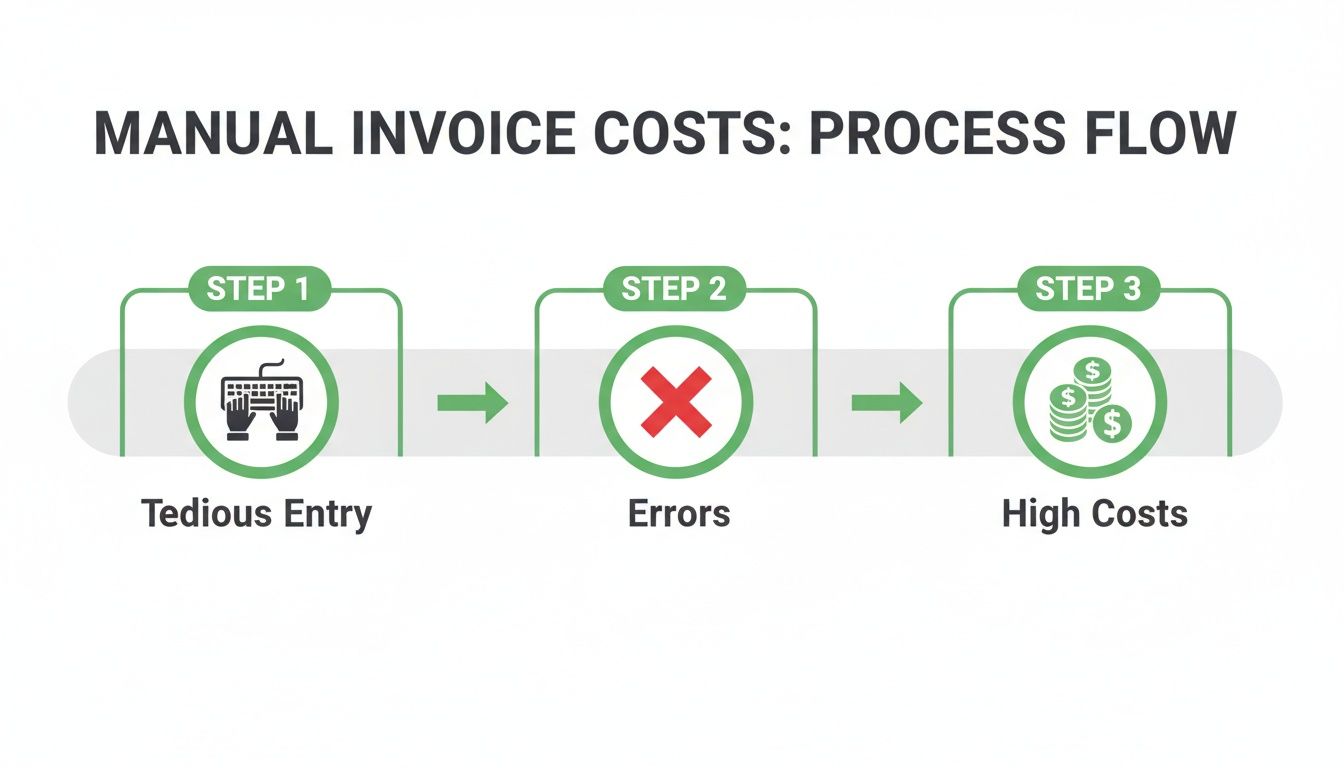
The diagram shows how tedious data entry leads directly to errors and inflated costs—a cycle that often begins with a bad photo or scan.
Standardizing for Consistency
Once you have a clear image—whether it’s a JPG, PNG, or even a HEIC file from an iPhone—the next move is standardization. OCR tools perform best when they work with a consistent format, and the industry standard here is a searchable PDF.
Converting your different image files into a single, optimized format creates a predictable foundation for your extraction tools. This simple act drastically reduces the chances of errors and failed recognitions.
Converting isn't just about changing the file extension. It's about creating a document that is ready for text recognition. This is where a reliable conversion tool comes into play. You can easily find tools online to convert a scanned document into PDF format, which locks in the image quality while making it universally accessible for any OCR software you choose.
This ensures every single invoice, regardless of its original format, enters your workflow ready for automated processing.
Finding the Right Tools for Invoice Data Extraction
Once your images are prepped and clean, it's time to pick your tech. This is the part where you actually extract invoice data from image files, and your options are all over the map—from simple text-reading tools to smart AI that understands what it's looking at.
The technology at the heart of all this is Optical Character Recognition (OCR). Think of OCR as a digital translator that scans an image, spots letters and numbers, and turns them into actual text you can copy and paste. It’s the starting block for any kind of automated data extraction.
But here’s the catch: basic OCR is a bit like a parrot. It can read the words, but it has no idea what they mean. It sees "October 3, 2025," on an invoice, but it doesn't know that's the invoice date. For that, you need something smarter.
OCR vs Intelligent Document Processing
This is where Intelligent Document Processing (IDP) comes in. Think of IDP as OCR with a brain. It’s a powerful combo of OCR, artificial intelligence (AI), and machine learning that doesn’t just read the text—it understands it.
An IDP system knows that the string of numbers next to the word "Total" is the total amount. It figures out that the company logo at the top belongs to the vendor. This ability to grasp context is what separates a simple tool from a full-blown automation powerhouse.
It’s no surprise that businesses are catching on. The global IDP market was valued at $1.70 billion in 2023 and is projected to skyrocket to $12.21 billion by 2030. That's a massive jump, and you can find more details on this growth over at Parseur.com.
Choosing Your Invoice Extraction Tool
So, what’s the right tool for you? It really depends on what you need. Are you processing ten invoices a month or ten thousand? How complex are they? What’s your budget? Let’s break down the main options.
Comparison of Invoice Data Extraction Tools
To help you navigate the options, here's a quick comparison of the different types of tools available. Each has its own strengths, so think about your specific needs—like technical skill, budget, and volume—when making a choice.
| Tool Type | Best For | Pros | Cons | Example Price Model |
|---|---|---|---|---|
| Standalone OCR | Low-volume, simple tasks, or getting started. | Straightforward, often free or low-cost, easy to use. | Lacks context; just gives you raw text, requires manual work. | Free, one-time fee, or low monthly subscription. |
| Data Extraction APIs | Developers building custom solutions or integrations. | Highly flexible, powerful, pay-as-you-go pricing. | Requires coding skills, can be complex to set up. | Per-page or per-API-call, with volume discounts. |
| All-in-One Accounting | Small businesses already using the software. | Seamlessly integrated, convenient, familiar interface. | Can be less accurate than specialized tools, limited features. | Included in existing software subscription (e.g., QuickBooks). |
| Dedicated IDP | High-volume, complex invoice processing at scale. | Highly accurate, fully automated, advanced integrations. | Higher cost, can have a steeper learning curve. | Monthly subscription based on document volume or features. |
Ultimately, the "best" tool is the one that fits your workflow. A freelancer might be perfectly happy with a simple OCR tool, while a large enterprise will get a much better return from a dedicated IDP platform.
Here's a closer look at what each type offers:
- Standalone OCR Tools: These tools do one thing and one thing only: turn images into text. They're a great starting point if your needs are simple. For a deeper dive, check out our guide on how to run OCR on a PDF.
- Data Extraction APIs: If you’re comfortable with code, APIs from providers like Google Vision AI or Amazon Textract give you an incredible amount of power to build your own custom extraction workflows.
- All-in-One Accounting Platforms: Software you might already be using, like QuickBooks Online or Xero, often has built-in features to pull data from uploaded invoices. It’s convenient because it’s already part of your financial world.
- Dedicated IDP Solutions: These are the heavy hitters. Companies that specialize in intelligent automation offer end-to-end platforms built for high-volume, messy, and complicated documents, complete with advanced tools for checking the data and connecting to other systems.
When you're weighing your options, keep these four things in mind: accuracy (how well does it handle different invoice layouts?), cost (is it a flat fee or per document?), ease of use (can your team actually use it without a week of training?), and integration (does it play nice with your other software?). Finding the right balance here is the secret to getting automation right.
Mapping Fields and Validating Your Data
Alright, you've prepped your images and picked your tool. Now for the magic trick: actually pulling the data out of the invoice. This is where the whole process goes from a neat idea to a real, time-saving workflow. It breaks down into two crucial parts: mapping the data to the right fields and then double-checking everything.
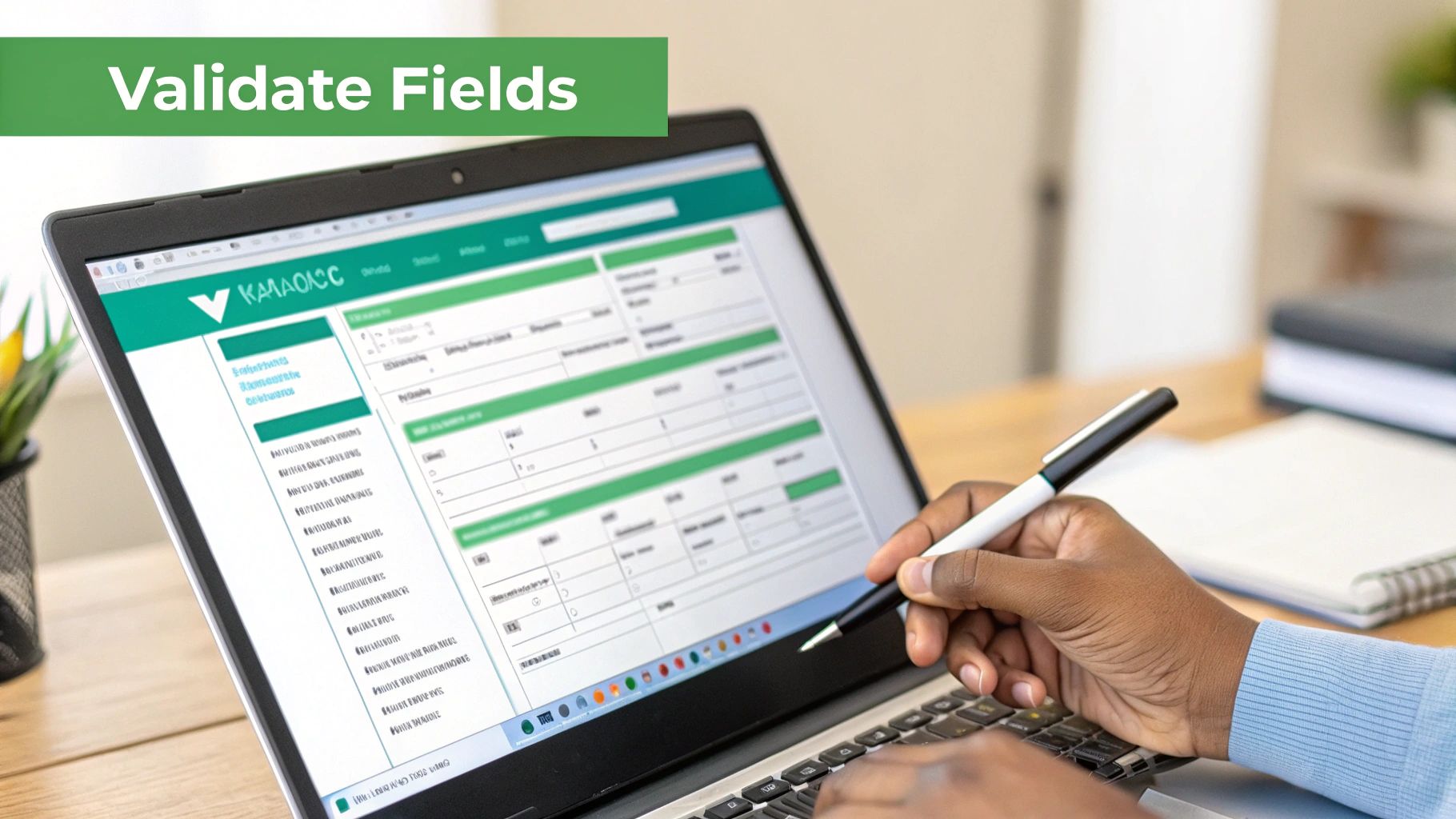
Most modern tools, especially the ones built on Intelligent Document Processing (IDP), are pretty smart. They use AI to figure out that the text next to "Vendor" is probably the supplier's name, or that the big number at the top is the invoice ID. They do a lot of the heavy lifting for you.
The Art of Field Mapping
Field mapping is just a fancy way of saying you're telling the software where each piece of text should go. Think of it like connecting the dots. You're linking the text "INV-12345" that the OCR found to the "Invoice Number" column in your spreadsheet.
While most good tools automate this, you should always know how to check their work. The usual suspects you'll always need to map are:
- Vendor Name: Who sent the bill.
- Invoice Number: The unique ID for this transaction.
- Invoice Date: When the invoice was created.
- Due Date: The deadline to pay up.
- Line Items: The nitty-gritty details—what you bought, how many, and for how much.
- Subtotal, Tax, and Total Amount: The final numbers.
For example, a tool will likely see "Tech Solutions Inc." and correctly tag it as the "Vendor." But what if an invoice uses weird wording like "Bill From"? A less sophisticated tool might get stuck, and you'll need to jump in and manually point it to the right place. It only takes a second.
Why Validation Is Non-Negotiable
Automation is great, but it's not perfect. Even the best OCR tech can hit over 95% accuracy on a clean, printed invoice, but that last 5% can hide some expensive mistakes. That's why having a "human-in-the-loop" to give it a final once-over is so important for keeping your finances clean.
Never trust automated data extraction blindly. A brief human review is the final quality check that protects your business from costly errors like overpayments, duplicate entries, or incorrect financial reporting.
This quick review is your safety net, catching the silly mistakes before they sneak into your accounting system.
Spotting Common OCR Errors
Your validation check doesn't need to be a deep dive. You'll quickly learn what to look for. Think of it as a quick scan for the most common slip-ups.
- Character Confusion: This is the big one. OCR engines are notorious for mixing up letters and numbers that look alike. Watch out for '1' being read as 'I', '0' as 'O', '5' as 'S', or '8' as 'B'. An invoice for $185.00 could easily become $IBS.OO if the scan quality is poor.
- Incorrect Decimal Placement: A tiny error with huge consequences. An amount like $1,250.00 could be misread as $125.00 or even $12.50, which will completely wreck your books. Always give the totals and line-item prices a second glance.
- Missed or Merged Fields: Sometimes, if an invoice layout is cramped, a tool might mash two fields together or skip one entirely. For instance, the street address and city might get merged into a single, messy line.
Once you've given everything a quick look and a thumbs-up, your data is ready to go. Many people export this clean data to a spreadsheet for analysis or to upload into their accounting software. If you're looking to make that last step even smoother, converting your data from a PDF to an Excel workbook is a massive time-saver, bridging the gap between raw information and usable financial insights.
Putting Your Extracted Invoice Data to Work
Extracting the data is a huge win, but it’s only half the battle. The real goal is to turn that raw information into something useful—structured, actionable data that fits right into your financial workflow. Now that your information is clean and validated, it's time to export it and put it to work.
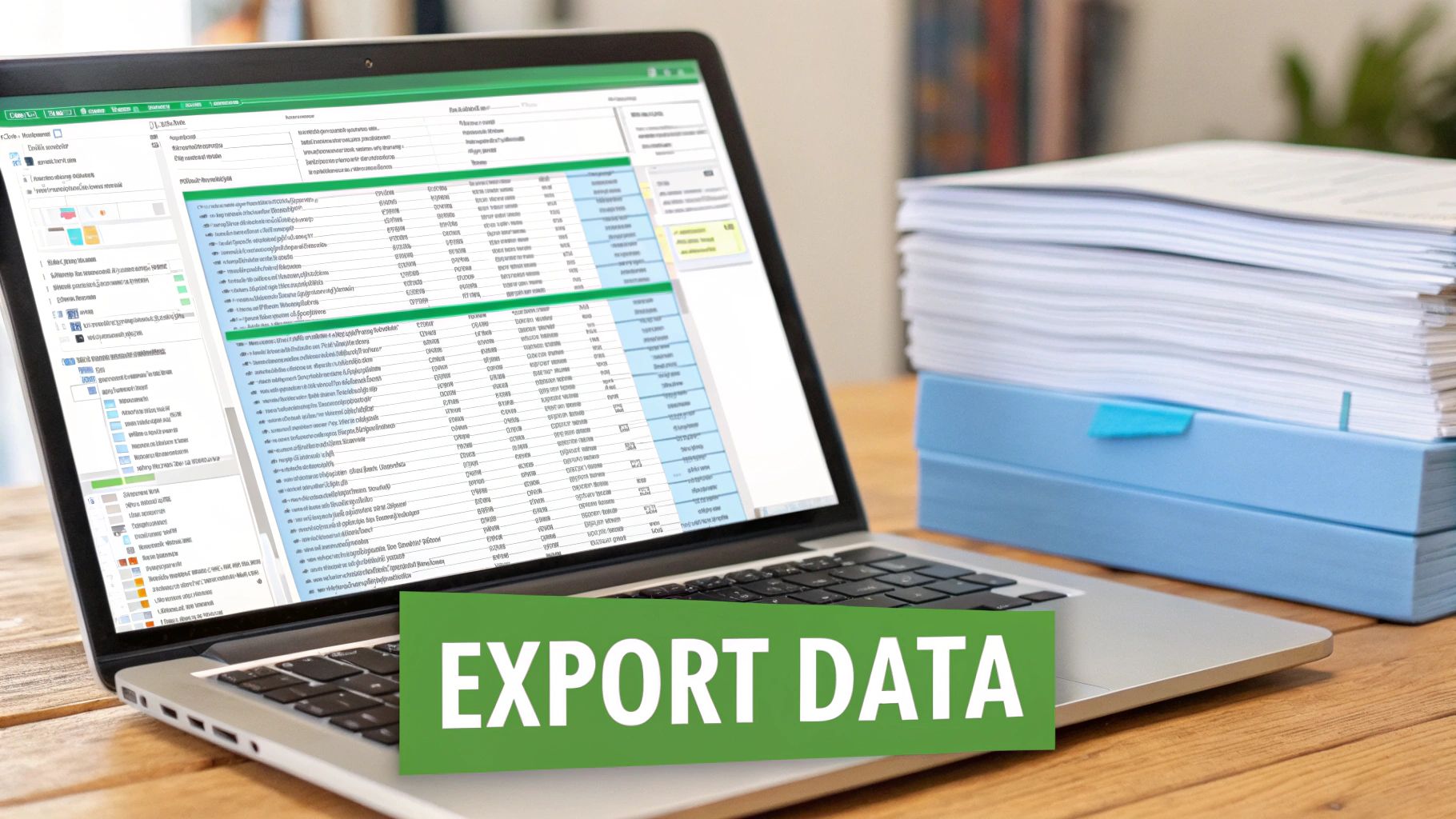
Most data extraction tools give you a few export options designed to play nicely with other systems. The most common and versatile formats are CSV (Comma-Separated Values) and Excel (XLSX). These spreadsheet-friendly files are pretty much universally compatible, which makes them perfect for almost any application you can think of.
Structuring Your Data for a Seamless Import
When you hit that export button, the structure is everything. Your aim is to create a file that your accounting software, like QuickBooks or Xero, can read without any hiccups. This means making sure your column headers match the fields your accounting system is looking for.
Before you export, take a second to configure the output. A well-structured file should look something like this:
- VendorName: The name of the company that sent the invoice.
- InvoiceNumber: The unique ID for that specific bill.
- InvoiceDate: The date the invoice was issued.
- DueDate: The final date for payment.
- TotalAmount: The complete amount due, including all taxes and fees.
- TaxAmount: Just the portion of the total allocated to tax.
Getting this structure right prevents frustrating import errors. Instead of manually typing in dozens of invoices, you can upload a single, organized file in a few clicks. This is the final step to fully extract invoice data from image files and make it a seamless part of your digital records.
Getting your data export right is a game-changer. It closes the gap between a static image and a dynamic entry in your financial system, knocking out the last big source of manual data entry and potential errors.
Best Practices for Digital Organization
Okay, the data is in your system. What about the original image files? Sloppy organization here can create a real headache down the road when you need to find a specific invoice for an audit or a vendor question. A consistent file naming convention is a simple but powerful habit to build.
A great format to follow is: VendorName_InvoiceNumber_InvoiceDate.pdf
So, an invoice from "Tech Solutions Inc." would be saved as: TechSolutionsInc_INV-12345_2025-10-03.pdf
This standardized naming makes your digital files instantly searchable. Combine this with a logical folder system (e.g., folders for each year, with subfolders for each vendor), and you’ve got yourself a clean, audit-ready archive. This final organizational step closes the loop, turning a messy stack of paper or image files into a tidy and efficient digital finance operation.
Common Questions About Invoice Data Extraction
Diving into automated invoice processing always brings up a few questions. As you start to extract invoice data from image files, you'll inevitably hit some weird edge cases.
Think of this as a quick field guide for the most common hurdles we see. Getting these details right is the difference between a smooth, hands-off workflow and one that needs constant babysitting.
Can These Tools Read Handwritten Invoices?
This is the big one. The short answer? Sometimes, but you should be very careful.
Modern OCR has made incredible leaps, but it still gets tripped up by the wild variations in human handwriting. Some advanced AI tools can make a decent guess at neat, block-printed text, but messy cursive is still a huge challenge.
For any handwritten invoices, a "human-in-the-loop" check isn't just a good idea—it's essential. The best move is always to ask your vendors for typed or digital invoices. It guarantees much higher accuracy.
While the tech is getting better, relying on OCR for handwritten financial data is a big risk. Studies show top-tier tools hit over 95% accuracy on printed text, but that number plummets with handwriting, opening the door to expensive mistakes.
Handling Complicated Invoice Layouts
Not all invoices are simple and clean. Some look like a chaotic mess of tables, logos, and tiny print. So what happens when your tool sees a format for the first time?
This is where Intelligent Document Processing (IDP) really outshines basic OCR.
- Template-Based OCR: Older systems needed rigid templates. If a vendor moved their logo or changed a column width, the whole thing would break.
- AI-Powered IDP: Modern tools use machine learning to understand the context. They don't just look for text at a specific coordinate; they learn to spot fields like "Invoice Number" or "Total Due" no matter where they are on the page. This makes them way more flexible.
What Is the Best Image Format for OCR?
You can extract invoice data from image files like JPGs, PNGs, and even iPhone HEICs, but the gold standard is a high-quality, searchable PDF.
Turning your images into PDFs first gives you two big wins. First, it standardizes everything, giving your OCR engine a consistent format to work with. Second, the conversion process often cleans up and sharpens the text.
A crisp, 300 DPI (dots per inch) black-and-white PDF will almost always give you better results than a blurry, colorful JPG. This simple prep step gives your tools the best possible source material, which directly boosts the accuracy of your entire workflow.
Ready to stop wrestling with image files and start extracting data effortlessly? PDFPenguin offers a suite of simple, browser-based tools to convert your JPGs, PNGs, and other images into optimized, high-quality PDFs perfect for any OCR system. Start streamlining your document workflow today at https://www.pdfpenguin.net.