
You've just snapped the perfect photos on your iPhone for a project, but when you go to share them, you hit a snag. The person on the other end can't open the files. It’s a common headache, and it's exactly why knowing how to quickly convert HEIC to PDF is a modern-day essential, turning incompatible images into a document anyone can open.
Why You Need a Reliable HEIC to PDF Convert Method
Ever tried to submit a project for school or send property photos from your iPhone, only to hear back that the HEIC files won't open on a Windows PC? You're definitely not alone. It’s a classic digital frustration for anyone living in a world with multiple devices.
While Apple’s High-Efficiency Image Container (HEIC) format is a champ at saving space on your phone, its limited compatibility creates a huge barrier when you need to share those files with others.
This exact scenario plays out every day:
- A student needs to compile research photos into a single, organized document for a professor who uses a PC.
- A real estate agent has to send a portfolio of property images to a client who can't view HEIC files on their computer.
- A freelancer wants to create a professional-looking invoice with embedded images, but the client's system rejects the format.
In all these cases, the space-saving HEIC format suddenly becomes a roadblock. The root of the problem is that Apple introduced HEIC back with iOS 11, but the rest of the tech world hasn't fully caught up, creating a massive compatibility gap. You can find more details on this file format challenge over at freeconvert.com.
The Universal Solution is PDF
This is where the Portable Document Format (PDF) saves the day. Think of it as a universal key that unlocks your images for anyone, on any device, no matter what.
Converting your HEIC files into a single PDF solves several problems at once. It locks in the layout, keeps your images in the correct order, and wraps everything up in a polished, professional package that everyone can open without needing special software.
The image below pretty much sums up that feeling of digital frustration when file formats just won't cooperate.

This captures the core reason why having a seamless heic to pdf convert method is so critical. Having a go-to tool for this task gets rid of a common source of stress and saves you a ton of time.
The Quickest Way to Convert HEIC Files Online
Ever been on a tight deadline and realized you have a folder full of HEIC photos that need to be in a single, shareable PDF? Downloading and installing software is the last thing you have time for. That's where a quick online tool becomes a lifesaver.
Browser-based converters are the perfect fix. They skip the installation hassle and work on any computer with an internet connection, making them ideal for last-minute submissions or for when you're using a device where you can't install new apps.
Instead of fumbling through complex menus, you just drag and drop your HEIC images right into the tool. You can even arrange them in the exact order you need for the final document before hitting "convert."
This method turns a messy folder of pictures into a polished, multi-page PDF in just a few clicks. It's a simple workflow that fits perfectly into a busy schedule.
The Power of a Dedicated Online Tool
Using a specialized tool like PDFPenguin gives you a huge advantage over generic file converters. The entire experience is built for speed and simplicity, letting you get your document ready without any guesswork. The interface is clean and straightforward, so you can focus on getting the job done.
With more people taking photos on their phones, HEIC files are everywhere. This has fueled a massive $2.5 billion annual market for tools to solve these exact compatibility headaches. PDFPenguin’s online heic to pdf convert tool cuts through the noise by processing files in real-time, often in under 5 seconds per image.
It can handle batch uploads of up to 100 files at once and maintains 100% original quality, so you don't have to worry about blurry images. For more on the latest trends in converter tech, check out this piece from Fotor.
Key Takeaway: Online converters aren't just convenient; they're powerful tools designed for efficiency. They do all the heavy lifting behind the scenes, making sure your images stay crystal clear while packaging them into a universally accepted PDF.
This is especially handy when you're on a public computer, like at a library or university lab, where installing your own software isn't an option.
A Practical Workflow Example
Let's say you're a student who just snapped photos of textbook pages and diagrams for an upcoming exam. You have 20 HEIC images on your laptop and need to combine them into a single study guide to share with your group.
Here’s how an online tool makes that happen in under a minute:
- Upload Your Files: Head to the converter and drag all 20 HEIC files from your folder right onto the webpage. You'll see thumbnails for each image pop up.
- Organize Your Pages: Simply drag and drop the thumbnails to reorder them. This is key to making sure your study guide flows logically.
- Start the Conversion: Once everything looks right, hit the "Convert" button. The tool instantly gets to work, merging your images into one file.
- Download and Share: In moments, your final PDF is ready to download. Now you can easily email it to your study group or upload it to a shared drive.
While PDF is often the goal, sometimes you just need a standard image file. For those cases, our guide on converting HEIC files to the widely compatible JPG format gives you the flexibility you need for any project.
What About Using Your Computer's Built-In Tools?
While online tools are fantastic for speed, sometimes you just want to handle things right on your own machine. Keeping your photos offline gives you an extra layer of privacy, and you don't need an internet connection—a huge plus when you're working on the go.
The good news is that both Windows and macOS have solid, built-in ways to convert HEIC to PDF without downloading any extra software. These native solutions are free, secure, and surprisingly good for most day-to-day tasks.
The Mac Method: Effortless HEIC Conversion
If you’re a Mac user, you’re in luck. The process is incredibly simple using the Preview app that comes with your computer. It’s a powerhouse for handling images and documents, and it makes combining a bunch of HEIC files into one PDF a total breeze.
Let's say you have a dozen HEIC photos from a recent event that you need to compile into a single report. Instead of converting them one by one, Preview lets you do it all at once.
- Open your images: Just select all the HEIC files you need, right-click, and choose "Open With" > "Preview." This pops all of them into a single Preview window.
- Get the order right: In the Preview sidebar, you'll see thumbnails for each photo. Simply drag and drop them into the exact order you want them to appear in the final PDF.
- Export as a single PDF: Once they're arranged perfectly, head up to the "File" menu and select "Print." In the dialog box that appears, look for the "PDF" button in the lower-left corner and choose "Save as PDF" from the dropdown.
That’s it. This quick workflow merges all your images into a clean, multi-page document, ready to share.
The Windows Method: Converting HEIC to PDF
For Windows users, getting from HEIC to PDF is almost as simple using the built-in Photos app and the "Print to PDF" feature. You might have to do a small, one-time setup, but after that, it's smooth sailing.
The very first time you try to open a HEIC file on Windows, you might see a prompt to install a codec. Don't worry—this is a free, official extension from Microsoft that teaches Windows how to read the HEIC format.
Heads-Up for Windows Users: You'll need the HEVC Video Extensions from the Microsoft Store to view and work with HEIC files. It’s a quick, one-time installation that unlocks support for the format across your entire system.
Once that’s installed, converting is easy:
- First, select one or more HEIC files in your folder.
- Then, right-click on them and choose "Print."
- In the printer selection dropdown, find and choose "Microsoft Print to PDF."
- Click "Print," and a new window will pop up, asking you to name your new PDF file and choose where to save it.
This method basically "prints" your images into a digital PDF document. It works great and even combines multiple photos into a single file if you select more than one. While these built-in tools don't have fancy features like compression options, they offer a secure, offline, and completely free way to get the job done.
Converting HEIC Files Right From Your Phone
Let's be real—you're not always at your desk when you need to send a document. You might be scanning receipts on a business trip or snapping photos of a project site for a report. In those moments, your phone is your office, and knowing how to quickly turn those HEIC photos into a PDF is a lifesaver.
Fortunately, both iPhone and Android have simple ways to get this done without ever touching a computer. These tricks are perfect for creating and sharing clean, professional documents in just a few taps.
For iPhone and iPad Users
If you're on an iPhone or iPad, you've already got everything you need. The best HEIC-to-PDF converter is already built right into your Photos app—no downloads required.
Imagine you just took five photos of a whiteboard brainstorm and need to email them to your team as a single file. Here's the surprisingly simple way to do it:
- Pick Your Photos: Open the Photos app, tap "Select," and choose all the HEIC images you want to group together.
- Open the Share Menu: Tap the "Share" icon (the little box with an arrow pointing up) in the corner.
- Find the Print Option: Scroll down the list of actions and tap "Print." Don't worry, you're not actually going to print anything.
- The Magic Gesture: You'll see a print preview. Now, just "pinch out" on the image thumbnail as if you're zooming in. Boom—that print preview instantly becomes a multi-page PDF.
- Save or Send It: From here, tap the "Share" icon again to save the PDF to your Files app, Airdrop it, or send it straight to your email or messaging app.
You can also use the Files app directly. Just select your photos, share them, and choose "Save to Files." This is great if you like to organize your images into folders before converting them.
Pro Tip: Instead of bombarding someone with a dozen individual HEIC files, bundle them into a single, multi-page PDF. It's cleaner, more professional, and way easier for the other person to open and review.
Solutions for Android Users
Android phones don't typically create HEIC files themselves, but you've probably received them from friends or colleagues using iPhones. When you need to turn those files into a PDF on your Android, you have a couple of great options.
You could head to the Google Play Store and find a third-party conversion app. But honestly, a faster way that doesn't eat up your phone's storage is to use a web-based tool like PDFPenguin.
Just open your phone's browser, upload the HEIC files, and download the finished PDF. No app installation needed. And if you discover you don't need a PDF but a different image format like JPG, our guide on converting HEIC files to other image types has you covered.
Pro Tips for a Better Image to PDF Workflow
Once you've got the basics down, a few small tweaks can make your entire HEIC to PDF process faster and way more professional. When you're constantly converting photos, these little habits add up, saving you a ton of time and cutting out common frustrations.
One of the biggest wins? Mastering batch processing. Instead of converting images one by one—which is a total drag—look for tools that let you upload and process dozens of photos at once. This is an absolute game-changer when you're putting together a big report, a client portfolio, or just an album from your last vacation.
Get Your Files in Order First
Before you even think about converting, take a minute to organize your files. Trust me on this. Getting the naming and ordering right from the start is the key to creating a PDF that’s actually easy for someone else to read.
Imagine sending a real estate client a property report where the photos are all jumbled up—kitchen, then attic, then backyard, then back to the kitchen. It looks sloppy and just creates confusion.
A quick file rename fixes all that. For example:
Property-01-Kitchen.heicProperty-02-Living-Room.heicProperty-03-Bedroom.heic
That simple step ensures your images line up perfectly in the final PDF, creating a multi-page document that tells a clear, logical story.
This decision tree gives you a quick visual on how to approach this on your phone.
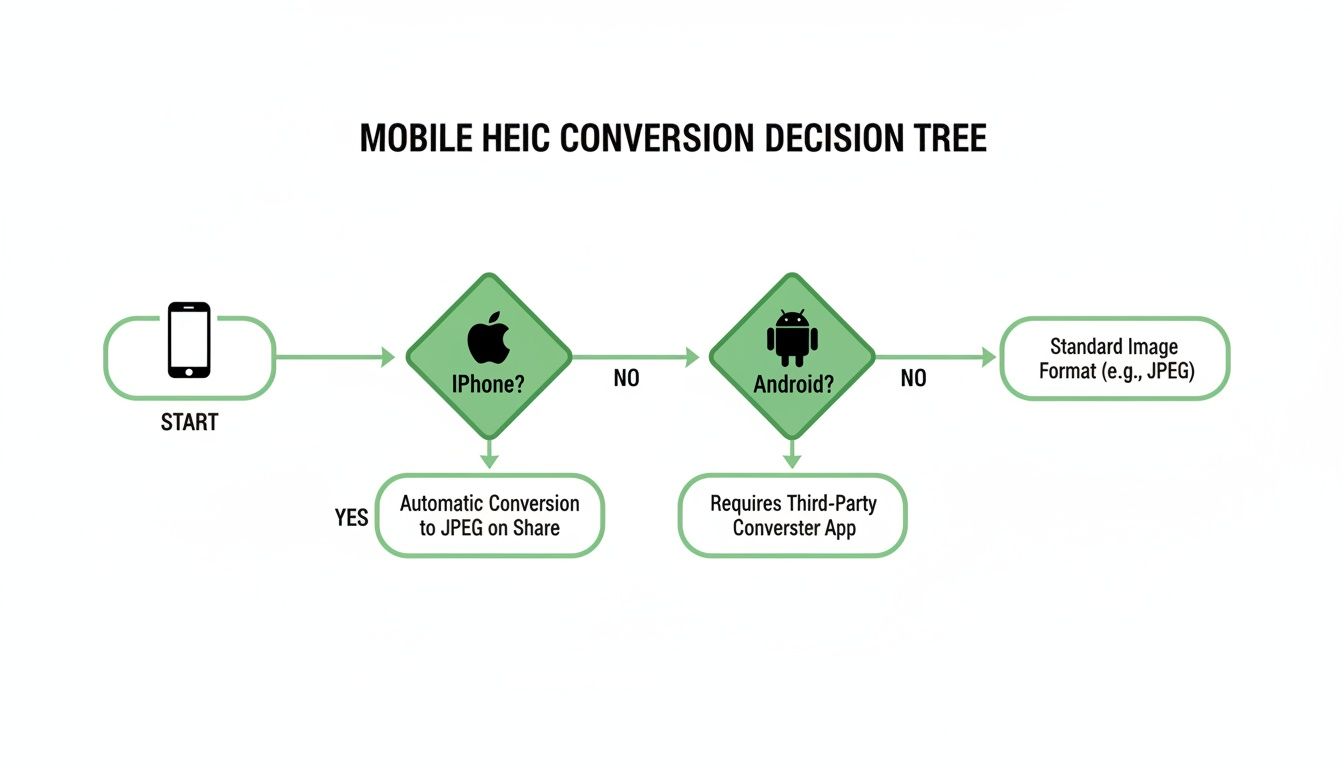
As you can see, iPhones have some built-in tricks, but both Android and iPhone users can just use a browser-based tool for a go-to solution that always works.
Strike the Right Balance Between Quality and File Size
Not every PDF needs to be a massive, high-resolution beast. Learning to adjust the image quality is a smart move for balancing visual clarity with a manageable file size. For a client proposal where every little detail matters, you’ll want to stick with maximum quality. But for a quick email attachment? A smaller, more compressed file is much more practical.
By tweaking the quality, you create a PDF that's fit for its purpose. It's the difference between sending a sleek, fast-loading attachment and a giant file that clogs up someone's inbox.
Plenty of online converters have quality settings built right in. Once you have a smaller PDF, you can always learn how to compress a PDF even more without sacrificing the important stuff.
Finally, let’s talk security. It’s a big deal. Data shows that 95% of users care a lot about privacy when they upload photos online. Sketchy converters can be a real risk—some audits reveal that a shocking 30% of free tools keep user files on their servers indefinitely.
That’s why you should stick with secure services like PDFPenguin, which use HTTPS encryption and automatically delete your files within seconds. Given that GDPR fines in the EU can average a staggering €4.5 million, using a compliant tool isn't just a good idea; it's a critical business practice. You can find out more about what makes for secure file conversions on cloudconvert.com.
Your Top HEIC to PDF Questions, Answered
As you start turning your HEIC photos into PDFs, a few questions always come up. Getting those sorted out is the key to making the whole process feel second nature. Let's tackle the most common ones so you can convert files with confidence.
Will Converting HEIC to PDF Ruin My Image Quality?
This is the number one concern, and the short answer is no, not if you use a good tool.
High-quality converters don’t re-compress your photos. Instead, they simply place the original, high-resolution image data inside a PDF wrapper. All the sharpness, color, and detail from your original photo stay perfectly intact.
You'll only see a drop in quality if you deliberately choose a high-compression setting to make the file smaller. Native methods, like using Preview on a Mac or the "Print to PDF" function on Windows, are also designed to keep your images looking crisp for nearly any use case.
Can I Combine a Bunch of HEIC Photos Into One PDF?
Absolutely! In fact, this is one of the main reasons people do it. Sending a single, multi-page PDF is so much cleaner and more professional than attaching a folder crammed with individual image files.
Pro Tip: Merging multiple images into a single PDF is a core feature of most conversion methods. It’s how you turn a chaotic collection of photos into an organized, easy-to-share document.
Both online tools and desktop apps are built for this. Online converters let you upload an entire batch of images, drag them into the right order, and then create a single PDF. On a Mac, Preview handles this beautifully, and on Windows, you can just select multiple images and use "Microsoft Print to PDF" to merge them all into one file.
Are Online HEIC to PDF Converters Safe?
This all comes down to the service you pick. Reputable online converters make your privacy and security a priority. They use HTTPS encryption—that’s the little lock icon you see in your browser's address bar—to protect your files during upload and processing.
More importantly, trustworthy sites have a clear privacy policy explaining that they automatically delete your files from their servers after a short time, usually within an hour. As a rule of thumb, stick with well-known converters. If a website doesn’t openly talk about its security practices, it's probably best to find one that does.
What’s the Real Difference Between HEIC and JPG?
It boils down to a simple trade-off: efficiency vs. compatibility.
HEIC (High Efficiency Image Container) is a modern format that stores photos at roughly half the file size of a JPG, all while keeping the same—or even better—image quality. It's fantastic for saving space on your phone or computer.
JPG, on the other hand, has been around forever. It’s universally supported by pretty much every device, app, and browser on the planet, no special software needed.
- HEIC is the winner for saving storage space.
- JPG is the undisputed champion for sharing and compatibility.
Ready to convert your files without the hassle? The PDFPenguin online HEIC to PDF converter is fast, secure, and incredibly easy to use. Try it for free today.