
Learning how to compress a PDF is surprisingly simple. You just need a good online tool to upload your file, pick a compression level, and download the smaller version. The whole thing takes seconds. It works by smartly optimizing images and other data inside the file, which drastically cuts down the size without you needing to install a thing.
Why You Actually Need to Compress a PDF
Ever tried to email an important report, only to get slapped with that "Attachment too large" error? It's a classic problem. Most email providers, like Gmail, cap attachments at a strict 25MB. This turns a simple task into a real headache.
But it’s not just about email. Huge PDFs are a pain to upload to web portals, they eat up your precious hard drive or cloud storage, and they’re a nightmare for anyone trying to download them on a shaky internet connection.
The Real-World Headaches of Big Files
Think about a student rushing to submit their design portfolio online right before the deadline. If their PDF is 50MB, it could take ages to upload on a shared network, putting their grade at risk. Or picture a real estate agent trying to send a beautiful property brochure full of high-res photos. If that file is too big, the client's email server might just reject it outright.
The real culprit? Uncompressed PDFs are often stuffed with massive images, embedded fonts, and other hidden data that inflate their size. Shrinking a PDF isn't just a technical trick—it's a massive productivity booster.
Learning how to compress your PDFs can solve these frustrating problems in a flash. It’s a simple skill that pays off in tons of situations:
- Send Emails That Actually Arrive: Make sure your contracts, presentations, or invoices land in someone's inbox instantly, without getting bounced back.
- Save Your Storage Space: Keep your files from hogging all the room on your computer or in your Google Drive or Dropbox accounts.
- Make Life Easier for Everyone: Let people download and open your documents quickly, even if they’re on their phone or have a slow connection.
In the end, knowing how to shrink a PDF is the first step to smarter, less frustrating document handling. It saves time, prevents logistical nightmares, and just makes everything work a whole lot smoother.
Your Quickest Method: How to Compress PDF Files Online
When you need to shrink a PDF right now, without installing a single piece of software, online tools are your best friend. Think of it like this: why download and install a bulky kitchen appliance just to toast one slice of bread? A simple, efficient toaster already on the counter gets the job done in seconds. Browser-based tools work the same way for your PDFs.
It’s an incredibly straightforward approach. You just visit a website, upload your document, pick a compression level, and download the smaller version moments later. This is an absolute lifesaver when you’re on a tight deadline and discover your final report is too big to email.
And this isn't just a niche trick—it's how most people handle oversized files. PDF compression has become the single most popular feature in online PDF toolkits, accounting for a massive 34% of all usage, according to industry statistics. This trend points to a worldwide need for quick, efficient document handling, especially as bloated files eat up storage and clog up our inboxes.
Navigating an Online PDF Compressor
Using an online tool is designed to be dead simple. Most platforms, including our own tool to compress your PDF documents, follow an easy drag-and-drop process.
- First, you upload your file. You can either drag it right onto the webpage or click a button to browse your computer.
- Next, you choose a compression setting. Most tools offer presets, which are just pre-configured settings that balance file size reduction with visual quality.
- Finally, you download the result. The tool works its magic on its servers and gives you a download link for the new, smaller PDF.
The real work happens behind the scenes. The compressor intelligently scans your PDF, hunting for ways to save space. It mainly focuses on optimizing images by reducing their resolution (while still looking great on-screen) and stripping out redundant, hidden data that makes files bigger than they need to be.
This flowchart helps visualize when an online tool is the right move.
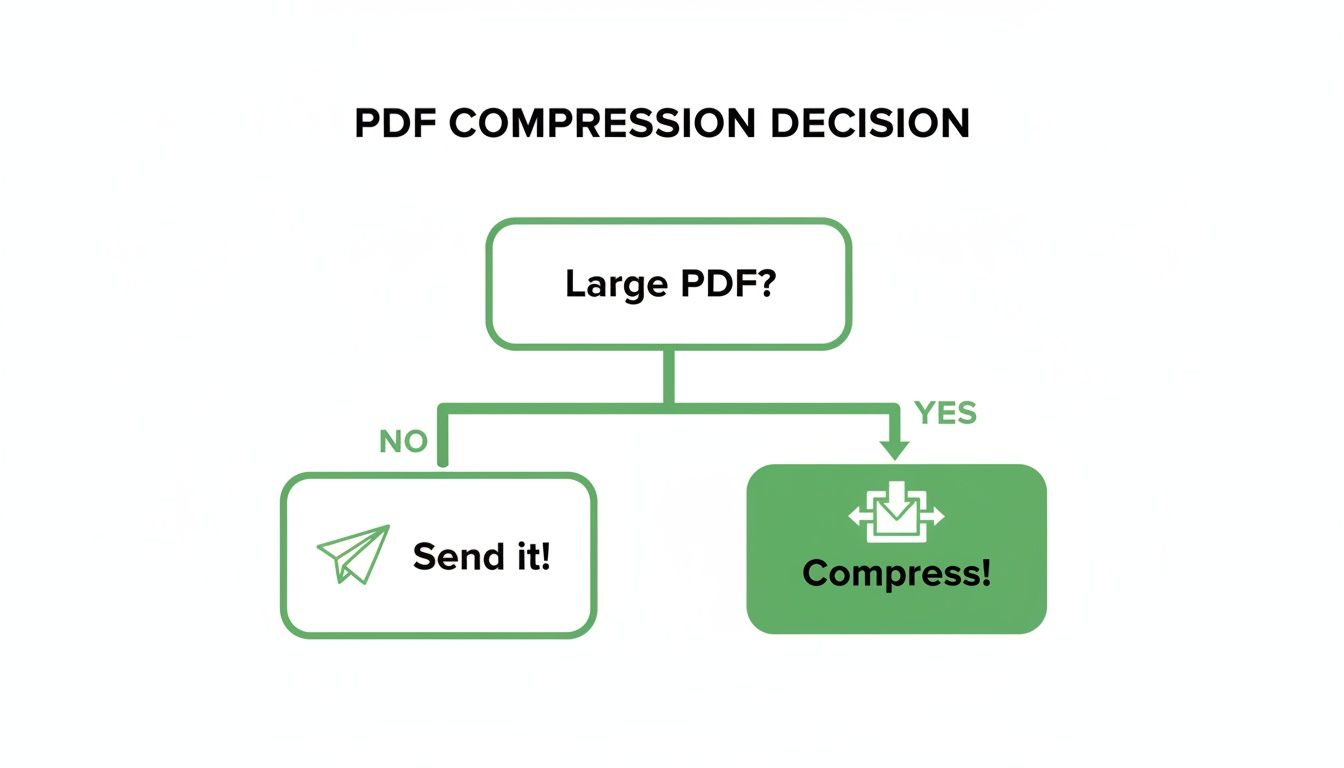
Honestly, the decision is usually a no-brainer. If your file is causing headaches, a quick online compression is almost always the best first step.
Choosing Your Compression Level
The key to getting a great result is picking the right compression preset for your specific need. This choice directly impacts the final file size and its visual quality. You're essentially making a trade-off between how small the file gets and how crisp the images and text remain.
To help you decide, here’s a quick guide to the typical options you'll encounter.
Choosing Your Online Compression Level
| Compression Level | Best For | File Size Reduction | Quality Impact |
|---|---|---|---|
| Basic / Low | Emailing text-heavy documents, forms, contracts. | Moderate (~30-50%) | Minimal. Text is perfect; images are slightly optimized. |
| Recommended / Medium | Everyday use: reports, presentations, web uploads. | Significant (~50-70%) | Very Low. Excellent balance; nearly unnoticeable on-screen. |
| Maximum / High | Archiving, freeing up storage space. | Extreme (~70-90%+) | Noticeable. Best for documents where image clarity isn't critical. |
Most of the time, the "Recommended" setting is your safest bet. It delivers a huge reduction in file size with virtually no noticeable drop in quality for on-screen viewing.
Consider these common scenarios:
- Emailing a Contract: Basic compression is all you need. The main goal is getting under that 25MB attachment limit, and text quality is the top priority.
- Uploading a Photo-Heavy Portfolio: Here, you might lean toward a Recommended or even Low setting to preserve as much image detail as possible while still making the file manageable.
- Archiving Old Invoices: For long-term storage, Maximum compression is perfect. The files will take up minimal space on your drive, and pristine image quality isn't a concern.
Using Desktop Software for More Control
While online tools are perfect for a quick squeeze, sometimes you need more power and precision. That's where dedicated desktop software comes in. Working offline means you never have to upload sensitive documents to a third-party server, giving you peace of mind for confidential contracts, financial records, or client data.
Desktop applications like Adobe Acrobat Pro offer a level of granular control that browser-based tools just can't match. You’re no longer stuck with simple presets; instead, you can fine-tune every single aspect of the compression to get the perfect balance between file size and quality.
This kind of control is crucial in professional workflows. The market for PDF editors, which includes these powerful compression features, was valued at $2.86 billion in 2024 and is projected to hit $6.19 billion by 2032. This growth is fueled by industries like finance and healthcare that rely on secure, lightweight PDFs for fast, encrypted sharing. You can learn more about the growth of the PDF market.
Advanced Features of Desktop PDF Compressors
Desktop software unlocks a whole suite of advanced features that are non-negotiable for serious or high-volume tasks. These tools go way beyond basic compression and give you direct control over the guts of your file.
Here are a few key features that really set them apart:
- Batch Processing: Imagine you need to compress an entire folder of 100 project reports. Doing that one by one online would be a nightmare. Desktop software lets you apply the same settings to hundreds of files at once, saving a massive amount of time.
- Fine-Tuning Image Resolution (DPI): You can get super specific, telling the software the exact Dots Per Inch (DPI) for images. For instance, you could downsample all images to 72 DPI for web use or 150 DPI for standard printing, giving you total command over the final look.
- Metadata Removal: PDFs often carry hidden data like author names, keywords, and creation dates. Desktop tools can strip out this extra baggage, which not only shrinks the file but also boosts your privacy.
- Font Management: Un-embedding unused fonts can slash file sizes, especially in documents with lots of custom typography. Some tools even let you substitute fonts to trim the file down even more.
When Desktop Software Is the Right Choice
So, how do you choose? It really comes down to what you're trying to do. If you’re a designer sending print-ready proofs or a legal professional archiving case files, the precision of a desktop app is a must-have.
Pro Tip: Always keep a backup of your original, uncompressed PDF before you start tweaking. While these tools are powerful, they make permanent changes. You'll want that original file to fall back on if you get a little too aggressive with the compression.
You should seriously consider a desktop solution if you regularly:
- Work with highly sensitive or confidential documents.
- Need to compress a large number of files all at once.
- Require precise control over image quality and resolution.
- Handle complex PDFs with embedded fonts, layers, or interactive forms.
A lot of PDFs actually start out as a collection of images. For workflows that involve turning pictures into a single document before compression, check out our guide on how to convert images to a high-quality PDF. Getting this first step right can make your whole process smoother when using these powerful desktop tools.
Use Your Computer's Built-In Tools
Sometimes, the best tool for the job is the one you already have. You might not need to search for a website or download new software to shrink a PDF. Your computer’s operating system—whether it’s macOS or Windows—has free, built-in features that can handle basic compression just fine.
These native tools are perfect for those one-off situations where you just need to get a file size down quickly. They offer a secure, offline way to do it, which is a huge plus if you're working with sensitive documents. Your file never leaves your computer.
While they don’t give you the fine-tuned control of a dedicated tool like PDFPenguin, they’re surprisingly good for a quick fix.
On macOS? Preview Is Your Best Friend
If you’re on a Mac, you’re in luck. The Preview app, which you already use for viewing images and PDFs, has a handy—if slightly hidden—compression feature. It works like a charm for text-heavy documents or files with simple graphics.
The whole process takes just a few clicks. First, open your PDF in Preview. Then, head up to the File menu and choose Export. A dialog box will pop up, and you’ll see a dropdown menu labeled Quartz Filter.
This is the magic step. Just select “Reduce File Size” from that menu and save a new copy. I've seen this simple trick cut a file's size by 50% or more, making it small enough to email without a second thought.
What Preview is doing here is applying a standard set of rules to downsample the images in your document. It's an all-or-nothing approach, so you can't tweak the settings. But for everyday tasks, it’s often all you need.
On Windows? "Print to PDF" Is a Clever Workaround
Windows users have a nifty trick up their sleeves, too, using a feature that’s been around for years: Microsoft Print to PDF. It’s not a compression tool in the traditional sense. Instead, it acts like a virtual printer, letting you “re-print” your document into a brand-new, and often much smaller, PDF file.
This process rebuilds the file from the ground up, which often strips out bloated data and messy code from previous edits.
Here’s the game plan:
- Open your big PDF in any program you like—a web browser like Chrome or Edge works, as does Adobe Reader.
- Bring up the Print menu. The quickest way is usually hitting Ctrl+P.
- In the list of available printers, find and select “Microsoft Print to PDF.”
- Before you hit the final button, click into the print settings or properties. Sometimes you’ll find options to lower the quality or print in grayscale, which will shrink the file even more.
- Click “Print,” then just choose where to save your new, smaller PDF.
This method is great for those strange, bloated files that have been edited and saved a dozen times. The results can vary, but it’s a solid, software-free way to compress a PDF right from your desktop.
Advanced Techniques for Maximum Compression
Sometimes, the standard compression presets just don't cut it. When you absolutely need to shrink a file down to its smallest possible size—say, for archiving a huge project or emailing a massive product catalog—you have to roll up your sleeves and go beyond the basics.
Think of it like being a document surgeon. Instead of a one-size-fits-all approach, you get to dive in and target the specific elements that are making your file so heavy. This is especially true for complex PDFs loaded with high-resolution images, fancy embedded fonts, or interactive fields.
Getting Granular With Optimization
To really master PDF compression, you need to know what’s hogging all the space. Desktop software like Adobe Acrobat Pro gives you the power to dissect your file and make these surgical trims. Here are the most effective moves you can make.
- Downsample Images Aggressively: This is your biggest weapon. For any document that will only be viewed on a screen, dropping the image resolution to 72 DPI (Dots Per Inch) is a game-changer. You’ll shave off a massive amount of data with almost no noticeable loss in quality on a monitor.
- Switch Images to Grayscale: Color information is data-heavy. If the images in your PDF don't strictly need color—like scanned receipts or simple diagrams—converting them to grayscale can lead to some seriously impressive file size reductions.
- Strip Out Embedded Fonts: Custom fonts look great, but they are a classic cause of file bloat. By un-embedding non-essential fonts, you tell the viewer’s computer to use a system substitute, which can instantly lighten the load.
- Flatten Everything: Interactive form fields, annotations, and comments all carry extra data. Flattening a PDF merges all these elements into one static background layer, stripping out the code that makes them editable and interactive.
When to Go Nuclear (And When Not To)
Heads up: these techniques are powerful, but they can be destructive. Flattening a form means no one can fill it out digitally anymore. Aggressively downsampling an image makes it look pixelated and awful if someone tries to print it professionally.
My rule of thumb? Always, always work on a copy of your original file. Never perform these actions on your only version.
For certain industries, this isn't just a neat trick—it's a core part of the workflow. Publishers digitizing old archives and companies distributing e-books use algorithms like FlateDecode or JBIG2 to slash file sizes by 60-90%. When a single uncompressed scan can be 10-100MB, you can see why these methods are non-negotiable.
This level of control is particularly vital when you’re dealing with scanned documents, which are often just a series of giant images stitched together.
If that’s part of your daily grind, you might want to check out our guide on how to convert scanned documents to a searchable PDF to learn how to optimize them right from the start. Getting comfortable with these settings will completely change how you handle large, complex files.
Got Questions About PDF Compression? We've Got Answers
Even when the tools are simple, a few questions always pop up. Here are some quick answers to the most common things we get asked about shrinking PDFs.
Will Compressing My PDF Ruin the Quality?
This is the big one, and the short answer is: it depends. Most online tools, including ours, use what’s called “lossy” compression. It’s a smart process that reduces the quality of images in ways the human eye usually won’t even notice on a screen. For a text-heavy document like a report or a resume, you probably won't see any difference at all.
Where you need to be careful is with extreme compression settings. If you crank it all the way up, you might start to see some fuzziness or pixelation in your images. The trick is finding that sweet spot. For most everyday needs—emailing a form, uploading a report—a standard compression level gives you a much smaller file with no real-world loss in quality.
A good rule of thumb? Always open and check your compressed file before sending it off. If you’re compressing something like a design portfolio where image quality is everything, stick to a lower compression setting just to be safe.
Can I Compress a PDF That’s Password-Protected?
Usually, no. To work their magic, compression tools need to open up the file and see what’s inside. A password puts up a wall, blocking that access. If you try to upload an encrypted PDF, you’ll almost always get an error message.
Here’s the right way to do it:
- First, remove the password from your original PDF (you’ll need the password to do this, of course).
- Next, compress the unlocked file with your tool of choice.
- Finally, add password protection back to the new, smaller PDF if you still need it.
Some high-end desktop software like Adobe Acrobat Pro can sometimes handle this in one go if you enter the password upfront, but for online tools, it’s a three-step dance.
What's the Best Way to Compress a Bunch of PDFs at Once?
If you’re dealing with a whole folder of files, you need batch processing. For this, desktop software is the clear winner. Programs like Adobe Acrobat are built for heavy lifting, letting you drag an entire batch of PDFs in and apply the same compression settings to all of them at once. It’s a massive time-saver for big projects.
A few premium online services offer batch compression, but they often have strict limits on how many files you can do or the total upload size. For serious, high-volume work, nothing beats the power and reliability of a desktop app.
Will Compression Break the Search Function (Ctrl+F)?
Good news: standard compression should not mess with your PDF’s text searchability (also known as the OCR layer). A well-designed tool focuses on shrinking images and cutting out junk data in the background. It leaves the text layer completely alone. That means you can still hit Ctrl+F (or Cmd+F) and find what you need.
The only time you might run into trouble is with super-aggressive settings that “flatten” a PDF. This process can essentially turn the whole document into one big image, which wipes out the searchable text. Just to be sure, always pop open the final file and search for a random word to confirm everything’s still working as it should.
Ready to shrink your PDFs the easy way? With PDFPenguin, you can get smaller files in seconds, right in your browser. Pick your compression level, download your file, and get on with your day. Try it for free now at https://www.pdfpenguin.net.