
Organizing research papers really comes down to one thing: building a system that’s structured enough to rely on but flexible enough to grow with you. It's about moving away from a desktop littered with randomly named PDFs and creating a searchable, logical digital library. The whole point is to spend less time digging for files and more time actually thinking.
Build Your Digital Library The Right Way
The secret to taming the chaos of research isn't some magical app—it’s a solid system. Before you download another article, taking a moment to lay this groundwork is what prevents the digital mess that plagues so many of us. Your first big decision is choosing the core philosophy for your library. It boils down to two main approaches: a rigid folder hierarchy or a flexible tag-based system.
Folders Versus Tags: A Core Decision
Think of a folder-based system like a physical filing cabinet. It's hierarchical, and a paper can only live in one folder at a time. This method is fantastic when your research topics are distinct and don’t really overlap. For example, a historian might create top-level folders for "18th Century" and "19th Century," with subfolders for specific events. Clean and simple.
On the other hand, a tag-based system is flat and inclusive. A single paper can have multiple tags, letting it show up in different "virtual" folders all at once. This is a lifesaver for interdisciplinary work. A data scientist could tag one paper with "NLP," "Transformer Models," and "Project Chimera," finding it through any of those lenses.
Honestly, most experienced researchers land on a hybrid approach. You can use broad top-level folders for major projects or fields, then lean on a reference manager's detailed tags for the really granular stuff. It's the best of both worlds.
The most important thing is that you build your own system. You have to own it. You might find it easier to adopt someone else’s system, but you should be intentional about every habit you acquire. Be prepared to iterate.
Folder-Based vs Tag-Based Organization Systems
Still not sure which way to lean? Here's a quick comparison to help you decide which philosophy fits your research style.
| Feature | Folder-Based System (Hierarchical) | Tag-Based System (Non-Hierarchical) | Best For |
|---|---|---|---|
| Structure | Rigid, tree-like structure. One location per file. | Flexible, flat structure. Multiple tags per file. | Folders: Clearly defined, separate projects. Tags: Interdisciplinary research with lots of overlap. |
| Findability | You must know the path to the file. | You can find a file through multiple related concepts. | Folders: When you think "Where did I put it?". Tags: When you think "What was this about?". |
| Setup Time | Quick to set up initially. | Takes more initial thought to create a consistent tagging scheme. | Folders: Getting started quickly. Tags: Long-term projects that will evolve. |
| Scalability | Can become unwieldy with complex, overlapping topics. | Highly scalable; new connections can be added easily. | Folders: Smaller, contained libraries. Tags: Large, ever-growing libraries. |
Ultimately, your choice depends on how you think. If your brain works in neat outlines, folders might feel more natural. If you thrive on connecting disparate ideas, tags are probably your best friend.
Designing a Scalable Structure
Having a robust system has never been more critical. Global scientific output is exploding—peer-reviewed articles grew from roughly 1.8 million in 2008 to 2.6 million in 2018. That’s a nearly 4% increase every year. A simple, manual folder system that worked for a handful of papers will quickly collapse under that kind of volume.
Here’s how to map out a structure that can actually keep up:
- Establish a Master Folder: First things first, create a single home for everything on your computer or cloud drive. Call it "Research Library" or "Bibliography." This is your single source of truth.
- Define Smart Sub-Categories: Inside that master folder, create sub-folders that make sense for how you work. Some common strategies are organizing by:
- Project:
Project_Alpha,Project_Beta - Status:
To_Read,Reading,Completed - Theme:
Machine_Learning,Cognitive_Psychology
- Project:
- Handle Physical Documents: Don't let paper copies break your beautiful digital system. Scan them immediately. If you have older, non-searchable scans, our guide on how to convert scanned documents to PDF can get them fully integrated and searchable.
This initial setup gives you a clean framework. By consciously choosing your core philosophy—folders, tags, or a mix—you lay a foundation that prevents future clutter and makes finding what you need feel effortless.
Create A Naming System That Actually Works
If your desktop is a graveyard of files named Paper_Final_v3.pdf or Article_Download_123.pdf, you’re not alone. But let’s be honest—that chaos creates headaches later, turning a simple search into a full-blown archaeological dig.
The single most effective change you can make is adopting a standardized naming convention. This isn't about some overly complex system you'll ditch in a week. It’s about a simple, repeatable format that makes every paper instantly identifiable, even outside your reference manager.
The Anatomy Of A Perfect Filename
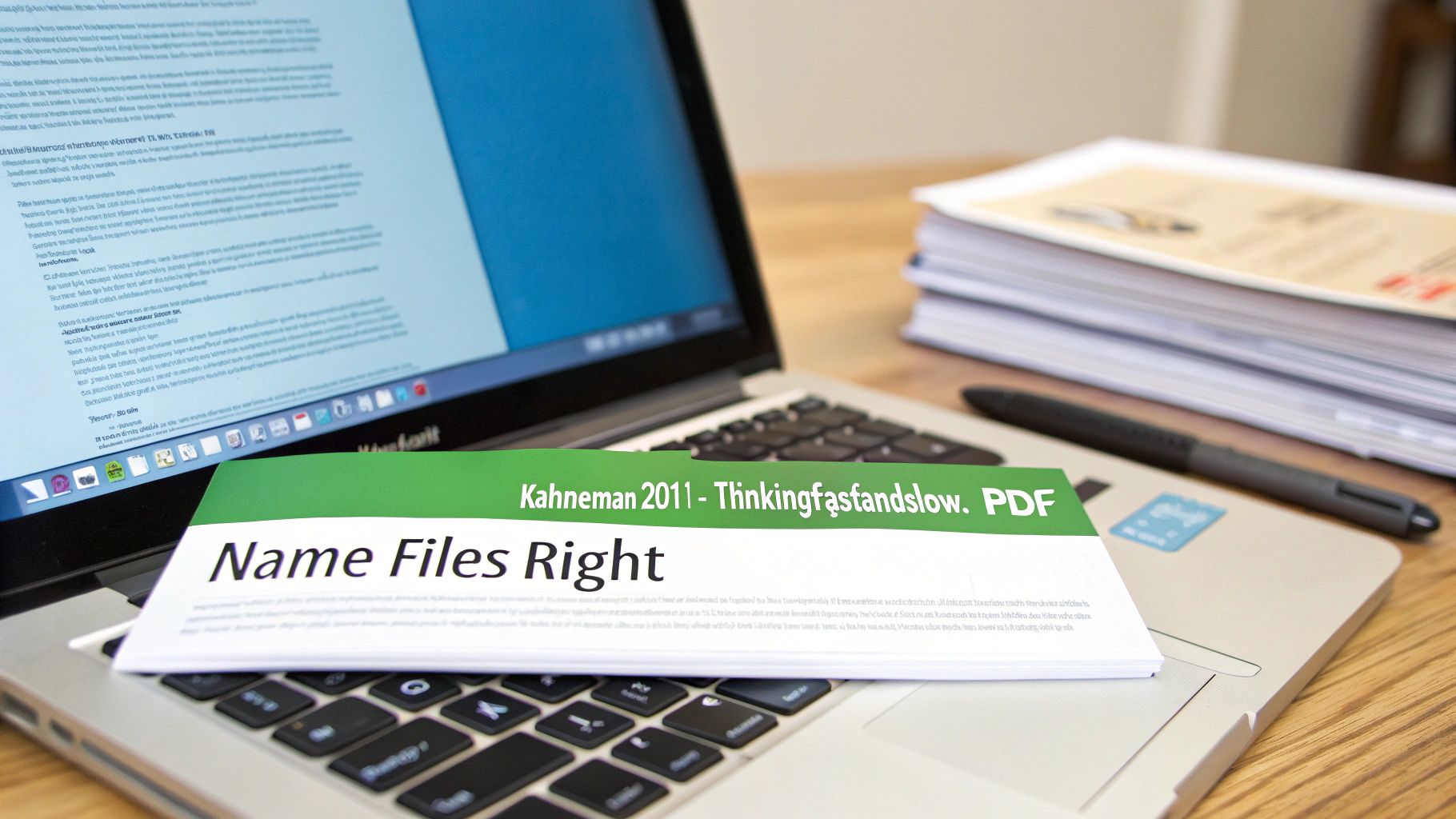
A great filename gives you context at a glance without being a paragraph long. After years of trial and error, I’ve landed on a structure that strikes the perfect balance: AuthorYear-ShortTitle.pdf.
This format is easy to read and, just as importantly, sorts chronologically in any folder. That’s a huge win when you’re trying to trace how an idea has evolved over time.
Let's use a real-world example. Say you just downloaded Daniel Kahneman's seminal paper on behavioral economics. Instead of leaving it with a generic download name, you’d rename it:
Kahneman2011-ThinkingFastAndSlow.pdf
Instantly, you know the author, year, and topic. No clicking required. For papers with multiple authors, you can use et al or list the first two, like this: TverskyKahneman1974-JudgmentUnderUncertainty.pdf.
A consistent naming convention is the foundation of your entire library. It’s a small habit that saves you countless hours of frustration over your academic career.
The key is to pick one format and stick to it. That 30-second investment when you save a new paper will transform your digital library from a mess into a powerhouse.
Go Beyond Filenames With Metadata
While a clean filename is your first line of defense, the real power comes from metadata—the data about your data. This is where a reference manager like Zotero or Mendeley becomes your command center.
When you import a PDF, these tools automatically pull in a ton of useful information:
- Authors: The full list, not just the first one.
- Title: The complete, unabridged title.
- Publication: Journal, conference, or book source.
- Year: The official publication year.
- Abstract: A searchable summary of the paper.
- DOI (Digital Object Identifier): A permanent link to the article.
This metadata makes your entire library searchable not just by author or title, but by any keyword in the abstract. A global review on SAGE Journals confirmed that metadata completeness and standardized file naming are the top factors for making research findable and reusable.
Customize Your Metadata For Personal Workflow
The magic really happens when you add your own custom metadata. Think of it as creating a personalized index for your own brain. This turns a simple collection of papers into a dynamic knowledge base that maps directly to your projects.
Here’s a look at the Zotero style repository, which shows just how many citation formats rely on accurate metadata to work properly.
This highlights why well-organized metadata is so crucial—it’s the engine that powers accurate citations.
You can add your own layers of information right inside your reference manager. Here are a few custom metadata fields I use all the time:
Read-Status: A simple tag like 'To Read', 'Skimmed', or 'Read-Deeply'.Project_Tag: Link papers to specific projects, like 'Project_Alpha' or 'Thesis_Chapter_2'.My_Notes: A field for a one-sentence summary, like "Key methodology for my experiment."Rating: A 1-5 star rating to quickly spot the most important papers on a topic.
By combining a standard filename with rich, custom metadata, you create a powerful, two-layer system. The filename makes the file itself easy to find, while the metadata makes the ideas inside discoverable.
Choose Your Reference Manager Wisely
Think of your reference manager as the command center for your entire research library. It’s way more than a glorified folder for PDFs. It’s the engine that grabs metadata, syncs your work across devices, and plugs directly into your writing software to build citations and bibliographies on the fly.
Picking the right one isn't about finding the tool with the longest feature list. It's about matching its design to how you actually work. The best system is always the one you'll use without a second thought.
Match The Tool To Your Research Scenario
Instead of just comparing features, let’s look at this from a practical standpoint. Which of these sounds most like you?
- You're a grad student on a budget. You need something powerful, free, and flexible enough to handle anything. Zotero is almost certainly your best bet. It’s open-source, has a massive community, and you can customize it to do pretty much anything.
- You're part of a large, collaborative lab. Your team needs to share libraries, annotate PDFs together, and stay on the same page. Mendeley or EndNote (if your institution provides a license) are strong contenders. Mendeley shines with its built-in social and collaborative tools, while EndNote is a long-standing industry standard for big research groups.
- You just want something that looks good and works smoothly. If a clunky interface will make you give up, a more modern option like Mendeley might be worth it for its polished feel.
The core difference often comes down to philosophy. Zotero is built on open-source principles, giving you ultimate control. Mendeley, owned by Elsevier, is tightly integrated into the publishing world. EndNote is the premium, enterprise-level solution that many universities buy for their researchers.
Your reference manager isn’t just storage—it’s your research command center. Get it right, and you’ll spend less time hunting for papers and more time engaging with the ideas that actually matter.
Getting Started: A Practical Zotero Setup
Because it's free, powerful, and endlessly flexible, Zotero is a fantastic starting point for just about anyone. Let's walk through the essential setup to build your command center from scratch.
First things first, head to the official Zotero website and download the desktop app. This is where your entire library will live locally on your computer.
Next, and this is the magic part, install the Zotero Connector. It's a browser extension that lets you grab sources with a single click. Find a journal article, a book on Amazon, or even a news report, click the Zotero icon in your browser, and it instantly pulls all the metadata—and the PDF, if available—straight into your library.
Now, let's get syncing. Create a free Zotero account online. Open the desktop app, find the "Sync" tab in the preferences, and log in. This does two critical things: it syncs all your metadata (titles, authors, notes) across your devices for free, and it backs up your library to the cloud.
Finally, set up file syncing. Zotero gives you 300 MB of free storage for your PDFs, which is plenty to get started. In the "Sync" preferences, make sure "Sync attachment files in My Library using Zotero" is checked. If you ever hit that limit, you can pay for more Zotero storage or set up a workaround to sync your files using a service like Google Drive or Dropbox.
With those four pieces in place, you have a fully functional system. Every paper you find can be saved with one click, your library is backed up, and it's available on any computer you use. You've just automated the most boring part of research.
3. Develop An Efficient Research Workflow
Alright, you've got your digital library organized and your reference manager is ready to go. So what's next? This is where we move from just storing papers to actually engaging with them. A PDF isn't just a file to be tucked away; it's your digital desk, your workspace for thinking. Building a smooth process for reading, annotating, and pulling out key insights is what turns a simple collection into a powerful knowledge base.
This isn't about speed-reading everything you download. It's about developing a system to interact with each paper so that you can instantly recall its main points weeks or even months down the line.
Master Your PDF Toolkit
Before you even dive into the content, it pays to know how to handle the files themselves. You won't always be dealing with a single, perfectly formatted article. Sometimes you'll get a massive PDF of conference proceedings or need to bundle a few related papers together for a literature review.
Knowing your way around these basic file manipulations is a core skill. For example, you might need to:
- Merge PDFs to group all the essential papers for one project into a single, easy-to-review document.
- Split PDFs to pull out one specific chapter or article from a larger file, keeping your library focused.
- Compress PDFs to shrink file sizes, which is a lifesaver when you're sharing with collaborators or syncing to a cloud service with a tight storage limit.
Having a few go-to browser tools for these jobs is far better than downloading clunky software. It keeps your workflow quick and seamless.
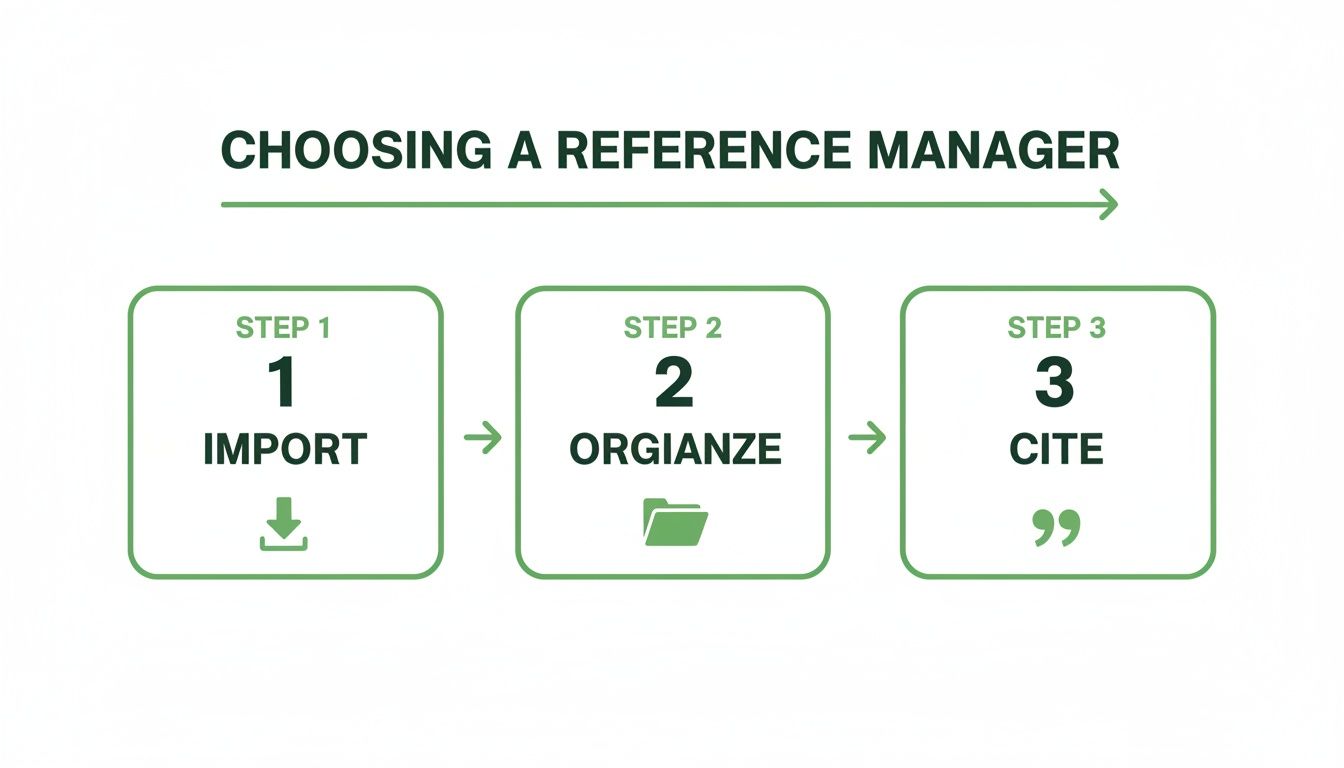
This visual shows the basic flow within a reference manager—from getting papers in, to organizing them, and finally to citing them in your own writing.
Create A Smart Annotation System
The key here is to treat annotation as a conversation with the text, not just a highlighting spree. You aren't just marking what seems important; you're filtering information through the lens of your own research questions.
A color-coded system is a brilliantly simple but effective place to start. By assigning a specific meaning to each color, you create a consistent visual language that helps you quickly find what you're looking for later.
Here’s a simple system you can steal and adapt:
- Yellow: Core arguments & key findings. This is the "Aha!" section of the paper.
- Blue: Methodology & data. Use this for specific techniques, datasets, or experimental setups.
- Green: Definitions & important terminology. Great for flagging concepts you need to remember or use.
- Red/Pink: Questions, criticisms, or points of confusion. These are the spots you need to revisit or think more about.
This structured approach makes reviewing a paper later incredibly efficient. You can scroll through a document and immediately see where the author lays out their methods versus their main conclusions, saving you from having to re-read entire sections just to find one piece of information.
From Highlights To Actionable Notes
Highlighting is just step one. The real magic happens when you consolidate those annotations into a summary that connects the paper's ideas back to your own work. Most modern reference managers let you extract all your highlights and notes from a PDF into a single, clean text file.
This feature is a total game-changer. Instead of isolated ideas trapped inside a PDF, you get a structured summary of your entire reading session. From there, you can add your own brief summary at the top by answering a few key questions:
- What’s the main question this paper is trying to answer?
- What is its core contribution or finding?
- How does this connect to what I'm working on right now?
When you're facing a particularly dense or long document, getting an initial overview can be a huge help. You can learn more about how to summarize a PDF using AI tools to quickly get the gist before you commit to a deep read. This mix of smart annotation and focused note-taking creates a powerful feedback loop, dramatically shortening the path from reading to writing.
Automate And Protect Your Research Library
Your digital library is one of your most valuable professional assets, built paper by paper over months or years. A single hard drive failure or an accidental deletion can wipe out all that work in an instant. Protecting it isn't just a good idea—it's essential.
At the same time, a few simple automations can save you countless hours. Imagine a workflow where every new paper is captured, renamed, and organized correctly without you lifting a finger. These small, upfront investments in your system compound over time, freeing you up to focus on the research itself.
The 3-2-1 Rule For Researchers
The gold standard for data protection is the 3-2-1 backup rule. It’s a dead-simple framework designed to make sure your data survives just about any disaster scenario.
Here’s how it works:
- Keep three copies of your data.
- Store them on two different types of media.
- Make sure one of those copies is stored off-site.
Let's translate this into a practical plan for your research library. This isn’t some complex enterprise solution; it's a concrete system you can set up this afternoon using tools you probably already have.
A solid backup strategy is the difference between a minor inconvenience and a catastrophic loss of work. Here's a sample implementation of the 3-2-1 rule that any researcher can follow.
Sample 3-2-1 Backup Strategy for Researchers
| Copy Number | Storage Location | Method/Tool | Update Frequency |
|---|---|---|---|
| Copy 1 | Your computer's internal drive | Main working library folder | Daily (live) |
| Copy 2 | External hard drive (local) | Time Machine (macOS) or File History (Windows) | Automatic, hourly/daily |
| Copy 3 | Cloud storage (off-site) | Google Drive, Dropbox, or OneDrive | Automatic, continuous sync |
This layered approach protects you from everything from a corrupted file to a stolen laptop. Don’t forget that your reference manager's sync feature is another crucial layer. Zotero and Mendeley automatically sync your library's metadata (titles, authors, notes) to their servers. Even if you lose all your files, the entire structure of your library is safely stored online.
Create A "Watched Folder" To Automate Imports
One of the most powerful yet underused features in most reference managers is the "watched folder." This is just a regular folder on your computer that your software monitors. Any PDF you drop into it gets automatically imported into your library.
This simple feature completely transforms your workflow. Instead of manually importing every paper, you just save downloads directly to your watched folder. The next time you open your reference manager, the new papers are already there waiting for you.
Combine this with automatic renaming rules, and you have a powerhouse. You can set up a system where a new PDF isn't just imported, but is instantly renamed to your AuthorYear-ShortTitle convention and tagged with "To Read."
Setting up a watched folder takes two minutes, but it eliminates thousands of clicks over the course of a project. It’s the closest thing to a self-organizing library you can get.
Secure Your Most Sensitive Research
If you’re working with pre-publication manuscripts, proprietary data, or sensitive information, you need an extra layer of security. While your backup strategy protects against data loss, it doesn't stop someone from accessing your files if a device is compromised.
For these critical documents, password protection is a simple but effective defense. You can learn exactly how to make a PDF password protected to ensure your most important work stays confidential.
By pairing a solid backup plan with clever automation, you create a research library that’s both resilient and efficient—a system that supports your work instead of getting in the way.
Common Questions About Organizing Research
Even the best-laid plans run into a few snags. When you're overhauling your research workflow, questions are bound to pop up. Here’s some straightforward advice for the most common hurdles I see people face.
What Is The Best Software To Organize Research Papers?
This is the million-dollar question, but the honest answer is: there's no single "best" one. The right tool is the one that fits your workflow, not someone else's.
It really comes down to your context. Are you a grad student working solo, or are you collaborating with a dozen researchers across different universities?
- Zotero is my go-to recommendation for most people. It's free, open-source, and has a massive community behind it. If you value flexibility and don't have a big budget, start here.
- Mendeley shines when it comes to collaboration. Its social features and really solid PDF annotation tools make it a great choice for teams who need to work on papers together.
- EndNote is the powerhouse, a premium tool that many universities provide for free. It’s legendary for its massive library of citation styles and its tight integration with Microsoft Word.
My advice? Try before you buy. The free versions of Zotero and Mendeley are more than powerful enough to give you a real feel for how they work. Give them a spin before you commit your entire library to one system.
How Do I Handle Papers That Fit Into Multiple Categories?
Ah, the classic organization problem. This is exactly why a tag-based system is so much more powerful than a rigid folder structure. You'll drive yourself crazy duplicating files, and your library will become a mess.
The smart move is to use tags in your reference manager. Let’s say you have a paper on using AI to analyze medical scans. Instead of trying to decide if it belongs in the "AI" folder or the "Medical Imaging" folder, just tag it with Machine Learning, Medical Imaging, Project Alpha, and To Read.
Now, that single file can appear in multiple "virtual" folders without you having to make a single copy.
If you absolutely must use a folder-only system, put the file in its main category. Then, in the other relevant folders, create a shortcut (or an alias on Mac) that points back to the original file. This keeps things tidy while still letting you find the paper from multiple places.
The goal is to create connections without creating clutter. A paper can be relevant to many ideas, but the file itself should only live in one place.
How Can I Organize My Research Notes With The Papers?
This is so critical. If your notes are disconnected from your papers, you just have a pile of PDFs, not a knowledge base. You need to bridge that gap.
Most modern reference managers, like Zotero, have note-taking features built right in. You can create "standalone notes" for broad ideas or, more powerfully, "child notes" that are directly attached to a specific paper. When you start writing your own work, having your thoughts linked directly to the source is a game-changer.
For more heavy-duty note-taking, a dedicated app like Obsidian or Notion is the way to go. You can write extensive, linked notes in your app of choice and then simply paste the link to your note into a custom field in your reference manager.
This approach creates a powerful "second brain" that's directly wired into your research library. The key is making the path from your thoughts back to the source material as frictionless as possible.
At PDFPenguin, we're all about making your document workflows simpler and faster. Our browser-based tools let you merge, split, compress, and compare PDFs in seconds, helping you build and manage your research library with ease. Get started for free at https://www.pdfpenguin.net.