
Ever found yourself with a massive 100-page report when all you really need is Appendix B? Or maybe you've scanned a stack of invoices into one giant, clumsy file. We've all been there. Learning how to separate PDF pages is the perfect fix, turning an unwieldy document into the exact pages you need. It’s a simple skill that lets you extract, share, and archive just the relevant stuff, making your workflow a whole lot smoother.
Why Separating PDF Pages Is an Everyday Necessity
In a world running on digital documents, the PDF is king. By 2025, it's expected that a staggering 98% of businesses will use PDFs for communicating with the outside world. With over 2.5 trillion of these files already floating around, huge, multi-section documents are just part of the daily grind. This makes page separation a fundamental task for everyone from professionals to students.
The need to split a PDF pops up more often than you'd think. It’s not some niche technical trick—it’s a practical move that boosts efficiency and brings clarity to your work.
Not sure where to start? This quick decision tree can point you in the right direction.

As you can see, the main choice boils down to the quick convenience of an online tool versus the rock-solid security of an offline app you install yourself.
To help you decide even faster, here's a quick comparison of the most common methods.
A Quick Look at PDF Splitting Methods
This table compares common methods for separating PDF pages, helping you find the right fit based on your need for speed, security, and specific features.
| Method | Best For | Cost | Software Required |
|---|---|---|---|
| Online Tools | Quick, one-off tasks on non-sensitive files | Free | None (Browser) |
| OS Apps (Preview) | Mac users needing basic, secure splitting | Free | Built into macOS |
| Adobe Acrobat | Professionals needing advanced editing features | Paid Subscription | Yes |
| CLI Tools | Developers and power users comfortable with code | Free | Yes (Terminal) |
Each method has its place. An online tool is perfect for grabbing a few pages from a public report, while something like Adobe Acrobat is overkill if you're not already paying for it.
Common Scenarios for Splitting PDFs
Think about these everyday situations where separating pages is a lifesaver:
- Submitting Assignments: Your professor only wants Chapter 3 of your research paper, not the whole 80-page draft.
- Client Reporting: Sending a client just the executive summary from a dense analytics report is direct, professional, and respects their time.
- Legal Documentation: You need to isolate a single signed page from a lengthy contract to use as evidence. This is a daily task in legal fields.
- Invoice Management: When you scan five invoices into one PDF, you have to separate them for proper bookkeeping and payment processing.
Being able to quickly pull a single page or a small selection from a large PDF is one of the most underrated productivity hacks. It saves time, cuts down on confusion, and makes sure everyone has the exact information they need—nothing more, nothing less.
Ultimately, mastering this is all about control. Just like you might combine different documents into one for a complete picture, splitting them lets you create a targeted, focused file. On that note, if you ever need to do the opposite, you can check out our guide on how to merge PDF files.
Get Instant Results with a Free Online PDF Splitter
Ever been in a rush and needed to split a PDF right now? Forget downloading and installing software. When you're on a borrowed laptop or just need a quick fix, an online PDF splitter is your best friend. It’s the fastest way to get the job done without any setup.
Think about it: you can instantly pull a single chapter from an ebook, send just the relevant section of a business proposal to a colleague, or grab one page from a hundred-page report. It’s all about getting the exact pages you need in a few clicks.
The Simple Splitting Process
Most online tools, like our own PDFPenguin splitter, are designed to be dead simple. There’s no complicated interface to learn. You upload your file, pick the pages you want, and hit download. You don't need to be a tech wizard to figure it out.
The best part is the visual feedback. You see thumbnails of your pages, so you know exactly what you’re grabbing. No more guesswork or downloading the wrong section.
The interface below shows you what to expect. You get a clear preview of your document right in your browser.
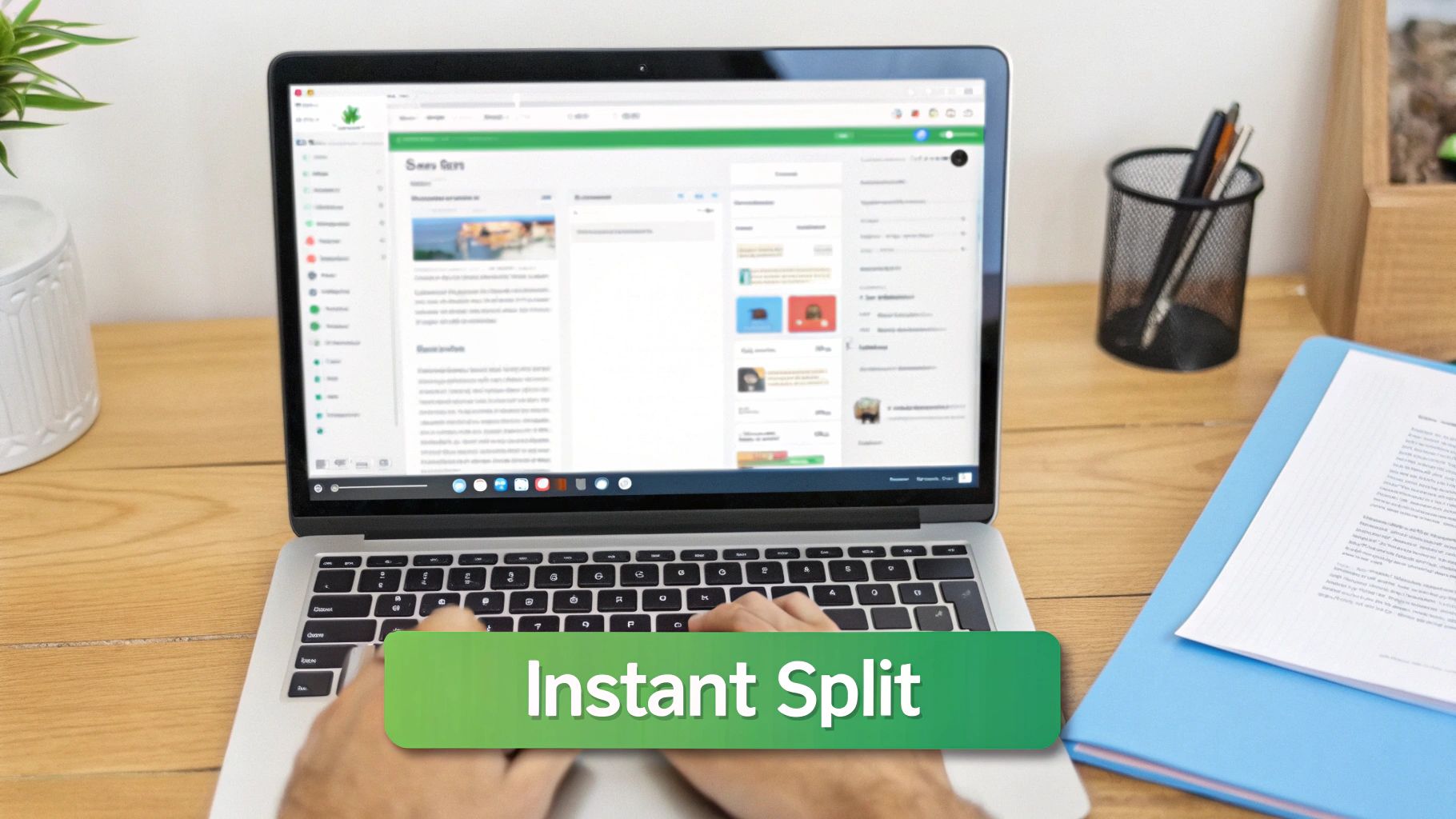
As you can see, you can either extract a specific range into one new file or break every page out into its own individual PDF. Those clear thumbnails make the whole process practically mistake-proof.
Mastering Your Page Selection
While the process is easy, knowing your options gives you more power. A good online tool doesn't just offer one way to split a file. Different tasks call for different approaches.
Here are the most common ways to separate your pages:
- Extract a Page Range: This is your go-to for grabbing a continuous block of pages, like pulling pages 5-10 from a user manual.
- Select Specific Pages: Perfect for hand-picking non-consecutive pages. Imagine you need pages 2, 7, and 15 from a report for a quick summary.
- Split Every Page: This option automatically creates a new PDF for every single page in your document. It's a lifesaver for individually archiving invoices, forms, or scanned receipts.
The real beauty of a free online PDF splitter is its universal access. If you have an internet connection, you have a powerful document tool ready to go—on any device, with any operating system.
This flexibility is why online tools are so useful for everyday tasks. Whether you're isolating a single signed page from a contract or breaking a massive project file into manageable chunks, the right tool gets it done in seconds. No downloads, no hassle.
Use Your Computer's Built-In Tools to Split PDFs
Sometimes, the best tool for the job is one you already have. Before you go searching for new software, it's worth remembering that both macOS and Windows have their own ways to separate PDF pages—offering a secure, offline, and completely free alternative.
These built-in options are perfect when you’re dealing with sensitive information, like client contracts or personal financial statements. They let you keep your files from ever touching the internet, getting the job done without any extra cost or installation hassle.
Separating PDF Pages on a Mac with Preview
If you're a Mac user, you're in luck. The Preview app, which comes standard on every Mac, is a surprisingly powerful tool for simple document edits. Splitting pages with it is incredibly simple and visual.
Just open your PDF in Preview. From the View menu, click on Thumbnails. A sidebar will pop up showing a small image of every page in your document. From there, you can literally just click and drag the page you want onto your desktop.
Preview instantly creates a new PDF containing only the pages you dragged out. This drag-and-drop method is one of the fastest and most intuitive ways to pull a single page from a huge document.
Need to grab a few pages at once? No problem.
- For a consecutive block of pages: Click the first thumbnail, hold the Shift key, and then click the last one in the range. Everything in between gets selected.
- For specific, non-consecutive pages: Hold down the Command key and click each individual page thumbnail you want to include.
Once your pages are highlighted, just drag the whole group to your desktop. A brand-new PDF will appear with only the pages you chose. It’s a clean, efficient process that uses the tools already at your fingertips.
A Clever Workaround for Windows Users
Windows doesn’t have a direct equivalent to Preview's drag-and-drop trick, but it offers a smart workaround using a feature you already use all the time: printing. The Microsoft Print to PDF function acts like a virtual printer that saves a document as a new PDF file instead of sending it to a physical machine.
This trick works from any app that can open a PDF, including browsers like Chrome or Edge, or even Adobe Reader. Just open your PDF and hit the print command (Ctrl + P).
Look for the printer destination dropdown and select Microsoft Print to PDF. Instead of printing everything, find the Pages option and choose Custom. Here, you can type in exactly which pages you want to separate—for instance, "2-4" for pages two through four, or "2, 5, 7" for a few specific ones.
Once you click "Print," Windows will just ask you where to save your new, smaller PDF. You’ve effectively "printed" your selection into a brand-new file, giving you a simple way to split PDFs without needing any extra software.
Master Advanced Splitting with Adobe Acrobat Pro
When your job depends on wrangling complex documents, the basic "pull-out-a-page" tools just don't cut it. For professionals in legal, design, or admin roles who need absolute control, Adobe Acrobat Pro is the industry heavyweight. It turns separating PDF pages from a simple task into a powerful, automated workflow.
This is way beyond just plucking out a few pages. It's about strategically dismantling a massive document with surgical precision. Imagine you're handed a 500-page financial report. Instead of manually clicking through and saving pages for each department, Acrobat lets you set up rules to do the whole job for you.
Unlocking the Organize Pages Toolset
The magic happens inside the Organize Pages tool. Once you open your PDF and click it, you’ll find a toolbar at the top with a Split option. This is where you unlock the features that let you divide your document in some seriously smart ways.
For power users, splitting a PDF by bookmarks is a total game-changer. Think about it: you can break down a perfectly structured annual report or legal file into its individual chapters or exhibits with a single click. Even better, each new file is automatically named after its bookmark.
This is a step up from just selecting page ranges. But before diving deep into splitting, it helps to have a solid grasp of the basics. If you want to brush up, check out our guide on how to edit PDF documents with various tools.
Advanced Splitting Methods
Acrobat Pro isn’t a one-trick pony. It offers several splitting methods designed for specific professional scenarios, each one giving you a different way to handle large, complicated files.
Here are the most powerful options you'll find:
- Split by Number of Pages: Perfect for breaking a long manuscript or technical manual into manageable chunks. You can tell Acrobat to create a new file every 10 pages, for instance.
- Split by File Size: This is a lifesaver when you need to email a huge file that keeps getting bounced for being over the attachment limit. You can set Acrobat to split the document into files no larger than 5 MB each.
- Split by Top-Level Bookmarks: This is the most efficient method for well-organized documents. If your PDF has bookmarks for every chapter or section, Acrobat uses them to create separate, logically named files automatically.
Once you set your splitting rule, you can also dig into the Output Options. This lets you choose the destination folder and, more importantly, create a custom file naming scheme. You can add labels or separators to the original filename, making sure all your new documents are perfectly organized and easy to find. It’s this level of automation that separates a pro tool from the basic online splitters.
Navigating Security, Privacy, and Quality Concerns
When you need to split a PDF, it's easy to just pick the first tool that pops up. But choosing a tool involves more than just speed and features, especially when you’re handling sensitive information online.
Uploading a file to a random website means you’re handing your data over to a third party. That data could be anything from a harmless recipe to a high-stakes business contract. A little caution goes a long way.
Protecting Your Privacy with Online Tools
First things first: always check for a secure connection. Look for the little padlock icon in your browser's address bar. This means the site uses HTTPS encryption, which scrambles your data as it travels between your computer and the server. It’s your first line of defense against anyone trying to snoop on your files during the upload.
But what happens to your files after you’re done? That’s the most important question. A trustworthy service will have a crystal-clear privacy policy explaining what it does with your data. The gold standard? Automatic file deletion.
Reputable online PDF services, including PDFPenguin, are built with privacy in mind. They are designed to automatically delete your uploaded files from their servers within a few hours, ensuring your documents don't linger indefinitely.
This automatic cleanup is a non-negotiable feature for me. It provides peace of mind that your sensitive information isn’t just sitting on a server you don’t control.
Maintaining Document Quality and Integrity
After you split a PDF, the new, smaller files need to look just as sharp as the original. A common worry is that the process will mess up the quality, leaving you with blurry images or fuzzy text.
Good news: splitting pages is almost always a lossless process. It doesn't re-compress or alter the content on the pages. Think of it as simply copying and pasting the page data into a new digital container.
Still, you’ll want to do a quick spot-check to make sure other key elements made the jump:
- Hyperlinks: All your clickable links should still work perfectly in the new documents.
- Bookmarks: If your original PDF had a handy table of contents, those bookmarks should carry over if the relevant pages are included.
- Form Fields: Any fillable form fields should stay interactive and not get flattened into static, un-editable images.
What if your file is locked for editing? That’s a different ballgame. If you have the credentials and need to work with a protected document, check out our guide on how to unlock a PDF for editing for some helpful strategies.
Common Questions About Separating PDF Pages
Even with a great tool, splitting up a PDF can sometimes throw you a curveball. It’s frustrating when a small snag holds up your work, so let’s tackle some of the most common questions people run into.
Think of this as your go-to cheat sheet for getting unstuck and back to what you were doing.
Can I Separate Pages from a Password-Protected PDF?
This is a big one. The answer really depends on what kind of password is on the file.
If the PDF needs a password just to open and view it (an "owner password"), you have to know that password. No legitimate tool can or should get around this layer of security.
However, sometimes you can open a file but can't edit, print, or copy from it. That's a permissions password. To split pages from a file like this, the tool will ask for that specific password to unlock the restrictions. Without it, the document stays locked down.
How Do I Split a Large PDF into Multiple Equal Files?
Ever need to break a massive document into bite-sized chunks? For example, turning a 100-page manual into ten separate files, each with 10 pages. This is a classic task, but it’s usually a feature found in more advanced software like Adobe Acrobat Pro.
In Acrobat, the "Organize Pages" tool lets you set rules like:
- Split by page count: Create a new PDF every 10 pages.
- Split by file size: Break the document into files no larger than 5 MB each.
Most free online tools, on the other hand, make you do this by hand. You’d have to extract pages 1-10, then go back and extract 11-20, and so on. It’s doable, but it gets old fast with a big document.
Will Separating PDF Pages Reduce the File Size?
Yes, definitely. When you pull out just a few pages, the new file is naturally going to be much smaller because it contains less information.
If you extract 10 pages from a 100-page document, the new file will be roughly 10% of the original's size, assuming the pages have similar content (like all text or all images).
One thing to remember: splitting a PDF doesn't actually compress the content on the pages themselves. It just removes the other pages. If your new, shorter PDF is still too large to email, your next step should be to run it through a dedicated PDF compression tool.
This two-step workflow—split first, then compress—is a game-changer. You get a document with only the pages you need, and it's optimized to be as small as possible.
What Is the Difference Between Splitting and Extracting?
These terms get thrown around a lot, and most of the time they mean the same thing. But there's a small difference that can be helpful to know.
-
Extracting Pages: This usually means you’re cherry-picking specific pages to create one single new file. For example, pulling pages 3, 8, and 12-15 to make a short summary document.
-
Splitting a Document: This typically refers to breaking an entire document into multiple new files based on a set rule. For instance, splitting a 20-page PDF so that every single page becomes its own separate file.
Honestly, most modern tools have blended these features together. A good "Split PDF" tool will let you do both—either grab a custom range into one new file or divide the whole thing into many. It’s all about giving you the flexibility you need for the task at hand.
For a fast and simple solution to all your PDF needs, PDFPenguin offers a suite of easy-to-use browser-based tools. Split, merge, compress, and organize your documents in seconds without any software installation. Get started for free at https://www.pdfpenguin.net.