
When you need to get something done with a PDF, your first instinct might be to reach for a popular tool like iLovePDF. It’s simple, well-known, and gets the job done. But what if there’s a faster, more secure alternative for the specific tasks you handle every day? This guide digs into the details, comparing iLovePDF with a focused competitor like PDFPenguin to help you find the right tool for your workflow.
Choosing Your Go-To Online PDF Editor
We’ll break down how each platform performs on the things that actually matter: core editing features, speed, data security, advanced tools, and overall value. The goal is to give you a clear picture of which tool fits your needs, whether you're just merging a few pages or handling sensitive contracts that demand privacy.
The market for PDF editors has exploded, hitting a value of USD 2.64 billion as everyone from legal teams to students moves their work online. iLovePDF rode that wave perfectly, earning a stellar 4.71 out of 5 user rating from 346 reviews thanks to its incredibly simple drag-and-drop tools that even longtime Adobe Acrobat users find refreshing.
Initial Comparison: iLovePDF vs. PDFPenguin
At a glance, both tools want to make your life easier, but they come at it from different angles. iLovePDF is like a Swiss Army knife, offering a huge collection of single-purpose tools on one big dashboard. On the other hand, the PDFPenguin online PDF editor is built for a more focused, streamlined experience.
For most people, the choice comes down to a simple trade-off: do you want a massive toolkit for every possible PDF task, or a faster, more secure workflow for the tasks you do most often?
Here’s a quick look at how they stack up:
| Feature | iLovePDF PDF Editor | PDFPenguin |
|---|---|---|
| Primary Strength | A massive suite of over 20+ separate tools | Speed and privacy for core professional tasks |
| User Interface | Icon-heavy, task-based dashboard | Clean, workflow-focused design |
| Security Focus | Standard server-side processing | Emphasis on browser-based processing |
| Advanced Features | Huge range of conversion and organizing tools | AI-powered document comparison |
| Best For | Casual users who need a wide variety of tools | Professionals who value speed and data privacy |
The iLovePDF homepage makes its value proposition clear right away. You’re greeted with a grid of icons, making it easy to jump straight to a specific function.
This layout is perfect if you think in terms of specific actions, like "I need to compress a PDF" or "I need to add page numbers."
Comparing Core PDF Editing Features
When you're picking an online PDF tool, it's the core features that make or break your daily workflow. Both the iLovePDF PDF editor and PDFPenguin can handle the basics—merging, splitting, and compressing documents. But how they do it reveals some big differences that can either speed you up or slow you down. Let's look past the feature list and see how they stack up in the real world.
First, it’s worth understanding just how big of a player iLovePDF is. This snapshot gives you a quick look at its massive user base and global reach.
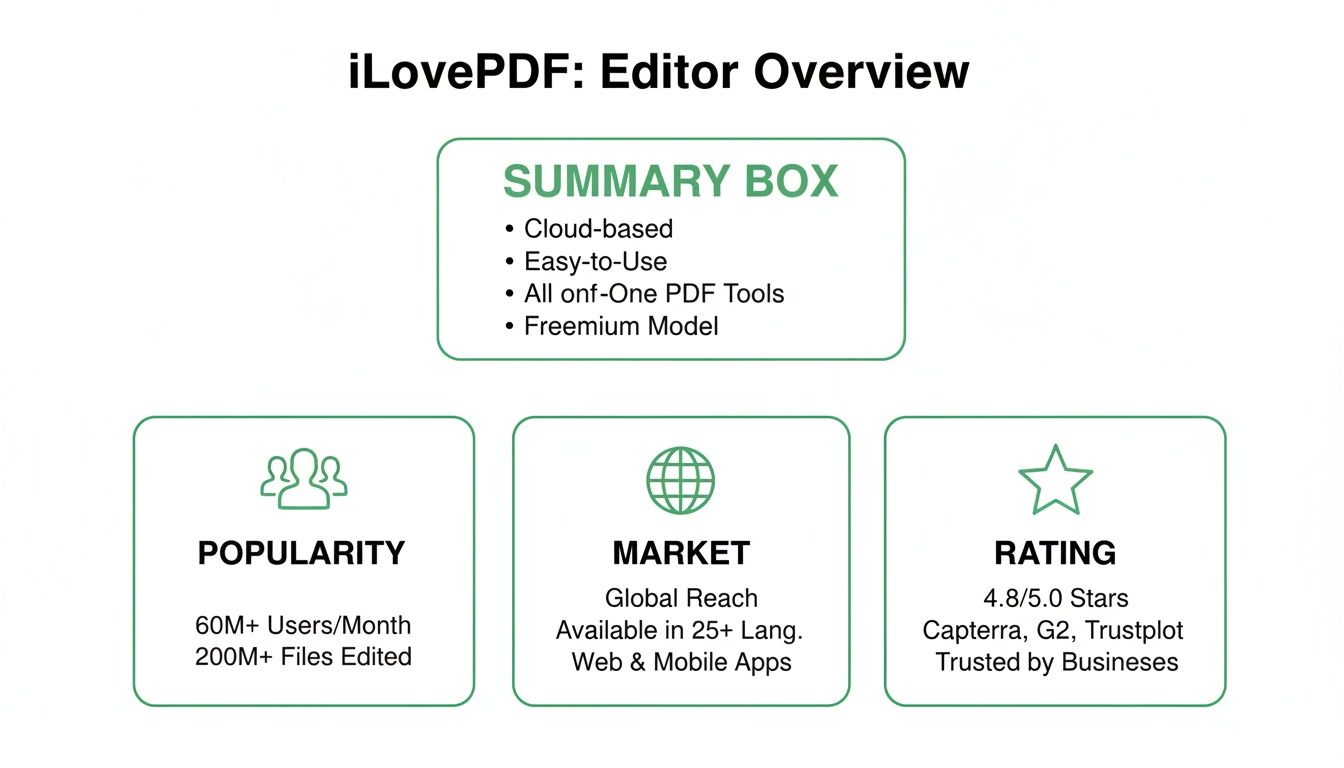
There's no question iLovePDF is a titan in this space, trusted by millions for a reason. But let's get into the specifics of how it compares.
Merging and Splitting Documents
Stitching multiple files into one PDF is a task we all face. With the iLovePDF PDF editor, the process is simple: upload your files, drag them into order, and hit "Merge." It handles a high volume of files well, and its visual previews make reordering easy.
PDFPenguin uses a similar drag-and-drop system but is built for speed. Where iLovePDF can sometimes feel a bit sluggish with lots of large files, PDFPenguin’s browser-first processing often feels quicker and more responsive.
But the real difference shows up when you need to split a document.
-
iLovePDF's Approach: You get two main choices. You can extract a range of pages (like pages 5-10) or break every single page into a separate PDF. This works great if you're just trying to pull out a single chapter from a report.
-
PDFPenguin's Approach: Here, you get much finer control. You can cherry-pick individual, non-consecutive pages (like 2, 8, and 15) and pull them into a single new file. This is a huge time-saver when you need to build a custom document from a larger source.
If you frequently build custom reports by pulling specific pages from a larger document, PDFPenguin's precise splitting tool gives it a clear edge over iLovePDF's more general, range-based options.
Compressing Files and Quality Control
Shrinking a PDF is always a trade-off between file size and quality. The iLovePDF PDF editor simplifies this with three preset levels: Extreme, Recommended, and Low Compression.
This is perfect for most people. Need to email a big presentation? "Recommended" usually gets the job done without turning your images into a pixelated mess. If size is all that matters, "Extreme" will crush it down, even if it means sacrificing some clarity.
PDFPenguin, on the other hand, gives you a granular slider for compression. This lets you dial in the exact balance between size and quality. For a designer sending a portfolio, the ability to nudge the compression just enough to meet an email limit while keeping images crisp is a game-changer.
If you want to master these core skills, our guide on how to edit PDF documents covers everything from quick text edits to more advanced structural changes.
Ultimately, your choice comes down to what you need. iLovePDF's presets are fantastic for quick, everyday tasks where "good enough" is perfect. But for professionals who need that extra bit of precision over the final output, PDFPenguin’s more nuanced tools for splitting and compression offer a much better fit.
Evaluating User Experience And Workflow Speed
A PDF tool's real value isn't just its feature list—it's how fast and intuitively you can get things done. When a deadline is looming, a clunky interface is the last thing you need. This is where the user experience (UX) and raw speed of the iLovePDF PDF editor and PDFPenguin really start to diverge.
iLovePDF greets you with a massive, icon-heavy dashboard. It's fantastic for discovery. If you need to do something specific once in a while, like adding page numbers or converting a file, you'll find the tool in seconds. Everything is laid out right in front of you, making it a powerful hub for anyone tackling a wide variety of PDF tasks.
The downside? For common, repetitive jobs like compressing a file to email, this design forces extra steps. You have to find the "Compress PDF" icon, click it, upload your file, pick a compression level, process it, and then finally download. Each step is easy, but it can feel a bit disjointed.
The First Impression: A Look At The Interface
PDFPenguin takes a different route, focusing on a more streamlined, workflow-first approach. The entire interface is built to reduce clicks and guide you through a logical set of actions in one cohesive space. The goal is to make the journey from upload to download feel like one smooth, uninterrupted motion.
The design pulls your attention straight to the file upload area, so you don't waste time hunting for the right tool on a busy dashboard. It’s a subtle but critical difference for professionals who live and die by their efficiency.
A Practical Workflow Comparison
To see how these different design philosophies work in the real world, let’s look at a super common task: taking a large report, compressing it for email, and downloading the result.
Workflow Efficiency At A Glance
This table breaks down the simple task of compressing a PDF, showing how different UI philosophies can add or remove steps from your daily routine.
| Task Step | iLovePDF PDF Editor | PDFPenguin |
|---|---|---|
| 1. Initial Action | You have to find and click the "Compress PDF" tool from a big grid of icons. | You land on a page with one clear action: upload your file. No searching is needed. |
| 2. File Upload | A new page loads, where you can finally select or drag and drop your file. | Your file can be dropped right onto the homepage, which kicks off the compression workflow. |
| 3. Processing | You choose a compression level, and the file is sent to the server to be processed. | Compression often happens right in the browser, which means less time spent waiting on uploads and downloads. |
| 4. Download | You're taken to another page to grab the final compressed file. | The download starts almost instantly on the same screen as soon as the file is ready. |
While both tools get the job done, PDFPenguin consistently requires fewer clicks and page loads. Over the course of a busy day with multiple documents, that saved time really adds up.
For anyone who performs the same handful of PDF tasks over and over, a workflow-focused tool like PDFPenguin will almost always feel faster and more efficient than one that makes you navigate a big menu every single time.
This isn't just our take. User reviews often highlight iLovePDF's incredible simplicity, giving it a 9.6 out of 10 for ease of use, which is a huge win for students and small business owners. G2 comparison data also shows it beats competitors like PDF-XChange Editor in file export options (9.4 vs. 8.8), a key feature for legal teams. You can explore more user comparisons to see what fits your specific needs.
Ultimately, the best experience comes down to how you work. For varied, one-off tasks, the iLovePDF PDF editor offers unmatched versatility. But for high-frequency, core tasks where every second counts, PDFPenguin’s focused design gives it a clear edge in speed.
Analyzing Security And Data Privacy
When you’re dealing with documents—especially ones with personal data, client info, or financial records—security isn't just a nice-to-have. It’s everything. How an online PDF editor handles your files determines how exposed they are, and this is where iLovePDF and PDFPenguin take fundamentally different paths.
Knowing where your documents go is the first step to making a smart choice. It all comes down to two models: server-side versus browser-based processing.

Server-Side vs Browser-Based Processing
Most online tools, including iLovePDF, run on a server-side processing model. When you upload a file, it travels from your computer to their servers. Their powerful machines do the heavy lifting—like merging or compressing—and then send the finished file back for you to download.
PDFPenguin, on the other hand, is built with a client-side processing philosophy for most of its tools. This modern approach uses the power of your own computer to get the job done right inside your web browser. Your files never leave your device, which massively cuts down the risk of being intercepted or accessed by anyone else.
For anyone working in law, finance, or healthcare, this is a huge deal. Browser-based processing means sensitive data never leaves your control, which is exactly what you need to meet strict data policies and compliance standards like GDPR.
This single architectural choice changes everything, from security risks to how files are deleted. Let’s look at what that means for you.
File Retention And Deletion Policies
When a tool uses servers, you have to trust that the company will delete your files responsibly. The iLovepdf pdf editor is very clear and transparent here.
-
iLovePDF's Policy: Their security page states that all files are automatically and permanently deleted from their servers within two hours of being processed. It's a solid policy designed to minimize your data's exposure.
-
PDFPenguin's Policy: Since most tasks happen in your browser, there's often no file on a server to delete. For the few tools that need server power (like complex conversions), files are wiped almost instantly after the job is done.
Both platforms also protect your data with strong TLS (Transport Layer Security) encryption during transfers. It’s the same standard banks use, ensuring that even if a file were intercepted on its way to a server, it would be unreadable.
A Practical Security Comparison
Think about a paralegal preparing confidential legal documents. Here’s how the two platforms stack up in that scenario.
| Security Aspect | iLovePDF PDF Editor | PDFPenguin |
|---|---|---|
| Data Location | Files are uploaded to iLovePDF servers for processing. | Many tasks are processed locally in your browser; files do not leave your computer. |
| File Deletion | Files are automatically deleted from servers within two hours. | Files are either never uploaded or deleted immediately after server-side tasks. |
| Encryption | Uses strong TLS encryption for all file transfers. | Also uses strong TLS encryption for any necessary server communication. |
| Risk Profile | Low, but files are temporarily stored on a third-party server. | Minimal, as sensitive data often remains on the user's local device. |
While iLovePDF is a secure, ISO 27001 certified platform, its server-based architecture just comes with a different risk profile. For anyone working under a zero-trust security policy, PDFPenguin’s browser-first approach offers a clear advantage. Ultimately, the right choice comes down to your organization's security rules and how comfortable you are with cloud processing.
Advanced Tools for Pros: Where PDFPenguin Pulls Ahead
When you move beyond simple, one-off tasks, the right advanced features can make all the difference. For anyone working in law, finance, or compliance, specialized tools aren't just a nice-to-have—they're what saves you from hours of tedious manual work and costly mistakes. This is where the gap between an all-rounder like iLovePDF and a specialist like PDFPenguin becomes crystal clear.
iLovePDF has a massive library of individual tools, and its advanced features are mostly about doing those core tasks at scale—think batch processing a folder of images. That's fantastic for high-volume, repetitive work. But PDFPenguin introduces a game-changing feature built specifically for professionals who live and die by the details in their documents.
AI-Powered Document Comparison
If you're in a legal or compliance role, you know the anxiety of trying to spot the difference between two versions of a contract. Hunting for a single changed word or a deleted clause line-by-line is not just slow; it's a recipe for human error. One missed detail can change the meaning of an entire agreement.
PDFPenguin tackles this head-on with its AI-powered Compare PDF tool. It completely automates the review process.
-
How it Works: You just upload two versions of a PDF. The tool’s AI scans them both and spits out a third document that highlights every single change. It flags everything from altered text and numbers to deleted phrases and new clauses.
-
Real-World Use: Imagine a paralegal who needs to confirm that only pre-approved changes were made to a draft agreement. Instead of spending an hour manually checking, they can get it done in minutes. Or an auditor comparing financial statements to pinpoint discrepancies without drowning in numbers.
The iLovePDF pdf editor simply doesn't have a tool for this. Its focus is on doing things to documents—merging, converting, editing—not on deep analytical comparison.
For any professional whose job is built on version control and meticulous review, PDFPenguin’s AI Compare tool is a massive win. It’s a compelling reason to choose it over a more generalized platform because it shifts the work from just processing documents to truly understanding them.
Batch Processing for High-Volume Workflows
Admin pros often get stuck processing dozens, or even hundreds, of files at once. Whether you're compressing a folder full of images for a presentation or converting invoices from Word to PDF, doing them one by one is a huge time-sink.
Both platforms handle batch processing, but they do it in ways that reflect their core philosophies.
-
iLovePDF's Approach: The platform lets you dump a whole folder of files into most of its tools. You can drag 50 JPGs into the converter and get 50 individual PDFs back in one go. For users who need to apply one action to many files, this is a major strength.
-
PDFPenguin's Approach: The focus here is on a smooth, continuous workflow. While it handles multiple files just fine, its real advantage is in how fast the whole process feels. Fewer clicks and page reloads make batch tasks feel more integrated and a lot quicker.
So, if you're an office manager preparing 50+ separate reports for a meeting, iLovePDF's powerful, tool-by-tool batch processing is a perfect fit. But if you need to quickly merge a few files and then immediately compress the result, PDFPenguin’s streamlined flow will feel far more intuitive.
Making The Right Choice For Your Workflow
Choosing the right PDF tool isn't about finding one "best" option. It's about matching a platform's strengths to what you actually do every day. The choice between the iLovePDF PDF editor and PDFPenguin really comes down to a simple trade-off: breadth versus focus. Your daily routine will quickly reveal which one feels less like a tool and more like a partner.
There's a reason iLovePDF is a household name for millions. It's a massive, accessible library of over 20 different tools. Think of it as the ultimate digital toolbox for people whose PDF needs are all over the place.
When To Choose The iLovePDF PDF Editor
This platform shines when your PDF tasks are unpredictable. Its biggest advantage is its sheer versatility, making it the perfect fit for a few key groups.
- Students and Casual Users: Need to merge lecture notes on Monday, convert an image for a project on Tuesday, and add page numbers to a report on Friday? iLovePDF's all-in-one dashboard is built for exactly that. There’s no learning curve for these one-off jobs.
- High-Volume Batch Processors: If you're an admin who needs to convert 50 Word files to PDF at once or compress an entire folder of images, its batch processing is a lifesaver. It’s built to handle repetitive, single-action tasks reliably.
If your mindset is "I just need something that can do everything," then iLovePDF is your answer. It's a dependable generalist designed to have a tool for almost any PDF problem you can think of.
When To Choose PDFPenguin
PDFPenguin was built for a different type of work—one that demands speed, security, and precision for a handful of core professional tasks. It trades iLovePDF's huge feature list for a faster, safer, and more focused experience.
It’s the clear winner in a few specific professional scenarios.
- Legal and Compliance Professionals: For anyone reviewing contracts or sensitive agreements, the AI-powered document comparison tool is a game-changer. It turns hours of tedious manual checking into a task that takes seconds, slashing the risk of human error.
- Security-Conscious Organizations: Teams in finance, healthcare, or any field handling confidential information get a huge win from its browser-based processing. Keeping sensitive files off third-party servers isn't just a feature; it's a critical security advantage.
- Workflow-Driven Power Users: If your job involves the same few PDF tasks over and over again, PDFPenguin’s streamlined interface will save you real time. It’s designed to minimize clicks and page loads, getting you from start to finish faster.
In the end, it all comes down to your main use case. For occasional, varied tasks where you just need something that works, the iLovePDF PDF editor is a great choice. But for professionals who need specialized tools, absolute security, and a more efficient workflow, PDFPenguin is the smarter pick. To see how its features line up with your budget, you can check out the PDFPenguin pricing plans.
Answering Your Final Questions
When you're comparing tools like the iLovePDF PDF editor and PDFPenguin, a few questions always pop up. Here are some straight answers to help you decide with confidence.
Are Online PDF Editors Safe for Confidential Files?
It really comes down to how they're built. Many platforms, including iLovePDF, upload your files to their servers to do the work. They lock things down with strong encryption and delete files within two hours, which is great for everyday tasks.
But if you're handling truly sensitive documents—think legal contracts, financial reports, or medical records—a browser-based tool like PDFPenguin gives you an extra layer of security. Because it processes files on your computer instead of a server, your data never leaves your machine.
The bottom line: While iLovePDF is secure for most things, client-side tools that keep your files local offer the highest level of privacy for confidential work.
How Does AI Document Comparison Actually Work?
Think of it as an automated proofreader that never gets tired. Instead of you having to read two versions of a document side-by-side, hunting for tiny changes, an AI does it for you in seconds.
You just upload both files, and the algorithm instantly flags every difference. It catches things like:
- Added or removed text: No more missing a sneaky new clause or a deleted sentence.
- Changed words or numbers: Spots subtle edits to dates, amounts, or key terms.
- Formatting shifts: Highlights layout changes that could alter the document's meaning.
The tool then gives you a clean report showing every single discrepancy. It's a game-changer for anyone in legal or compliance who can't afford to miss a thing.
Can I Use These Tools Without Making an Account?
Yep! Both the iLovePDF PDF editor and PDFPenguin let you do a lot without ever signing up. You can get straight to merging, compressing, splitting, and making basic edits on either platform. They’re perfect for those quick, one-and-done jobs.
Signing up usually just gets you higher limits, access to more powerful tools, or features like a document history.
What’s the Catch With the Free Versions?
Free versions are awesome, but they do have limits designed to encourage users to upgrade. With iLovePDF, you might run into caps on how many tasks you can do per hour or the size of the files you can upload. If you’re processing a bunch of huge documents back-to-back, you'll probably hit that wall.
PDFPenguin's free plan is generous but might limit access to its most advanced features, like the AI document comparison, or cap how many times you can use it. The real value is that both give you the essential tools for everyday PDF problems without asking for a credit card.
Ready to see how a faster, more secure PDF workflow feels? Give PDFPenguin a try and see how our browser-based tools and smart features can save you time while keeping your data safe. Get started for free at https://www.pdfpenguin.net.