
There's nothing more frustrating than being on a deadline and hitting a wall because the document you need to edit is a locked PDF. It’s a productivity killer. Whether you're trying to fix a simple typo or rework an entire contract, the need to turn a static PDF into something you can actually work with is a daily reality for millions.
It’s the digital equivalent of being handed a stone tablet when you need a whiteboard.
We’ve all been there. Maybe you’re a student trying to pull a quote from a research paper but can't copy the text. Or you're a marketer who needs to update a product brochure that was only saved as a PDF—recreating it from scratch would be a colossal waste of time. The core problem is the same: the content is trapped.
Why Converting PDF to Word Is So Essential
This isn't just a niche problem; it spans nearly every professional field. A reliable pdf to to word converter is a must-have tool for anyone who handles documents. Legal teams, for example, spend their days redlining contracts, a task that's flat-out impossible with a static PDF. HR departments constantly need to update employee handbooks and policy documents, which requires direct access to the text.
The demand is huge. In fact, PDF to Word conversion is the third most-used feature in popular document management tools, accounting for 16% of all actions. It’s right behind compressing files (34%) and e-signing (19%), proving just how critical this function is for over 40 million monthly users worldwide. If you're curious about these trends, you can dive deeper into PDF usage statistics.
At the end of the day, this isn't just about editing. It's about getting your time back. A good conversion turns a frustrating roadblock into a flexible asset, letting you focus on the actual content, not the container it's stuck in.
Common Scenarios for PDF to Word Conversion
A look at the most frequent use cases for converting PDFs across different professions and daily tasks.
| User Role | Primary Task | Benefit of Conversion |
|---|---|---|
| Students & Researchers | Extracting quotes and data from academic papers | Avoids manual retyping, saving hours of work |
| Administrative Staff | Updating internal forms, memos, or reports | Allows for quick edits without recreating documents |
| Legal Professionals | Redlining contracts and tracking changes | Enables collaborative review and version control |
| Content Creators | Repurposing content from old brochures or guides | Quickly moves text into new formats like blogs or articles |
These examples just scratch the surface, but they all point to the same need: efficiency and control.
Ultimately, knowing how to quickly convert a PDF is a fundamental digital skill. It removes one of the most common bottlenecks in modern workflows. The key is finding a tool that’s fast, accurate, and works right in your browser without any fuss.
A Practical Walkthrough: From PDF to Word in Seconds
Let’s be honest, converting a PDF to Word shouldn't feel like a chore. You just want to get in, get it done, and get back to your work. With a good browser-based tool, that’s exactly what you get—a fast, simple way to turn a locked document into something you can actually edit. No software downloads, no installations, just a few clicks.
The whole process kicks off the second you land on the converter page. The best ones are clean and straightforward, with one clear job: get your file uploaded. No hunting through confusing menus or wondering which button to press.
Getting Your File Uploaded
First things first, you need to get your PDF into the tool. You’ll usually see two super simple options:
- Click a big, obvious button like "Upload PDF" to find the file on your computer.
- Just drag the PDF from your desktop and drop it right onto the webpage (my personal favorite for speed).
This part is designed to work for everyone, whether you're on a Windows PC, a Mac, or even a Chromebook. Since it's all online, you can start the conversion on your computer at the office and download the final Word doc on your laptop at home. It just works.
The interface is typically clean and focused, immediately telling you what to do without any extra fluff.
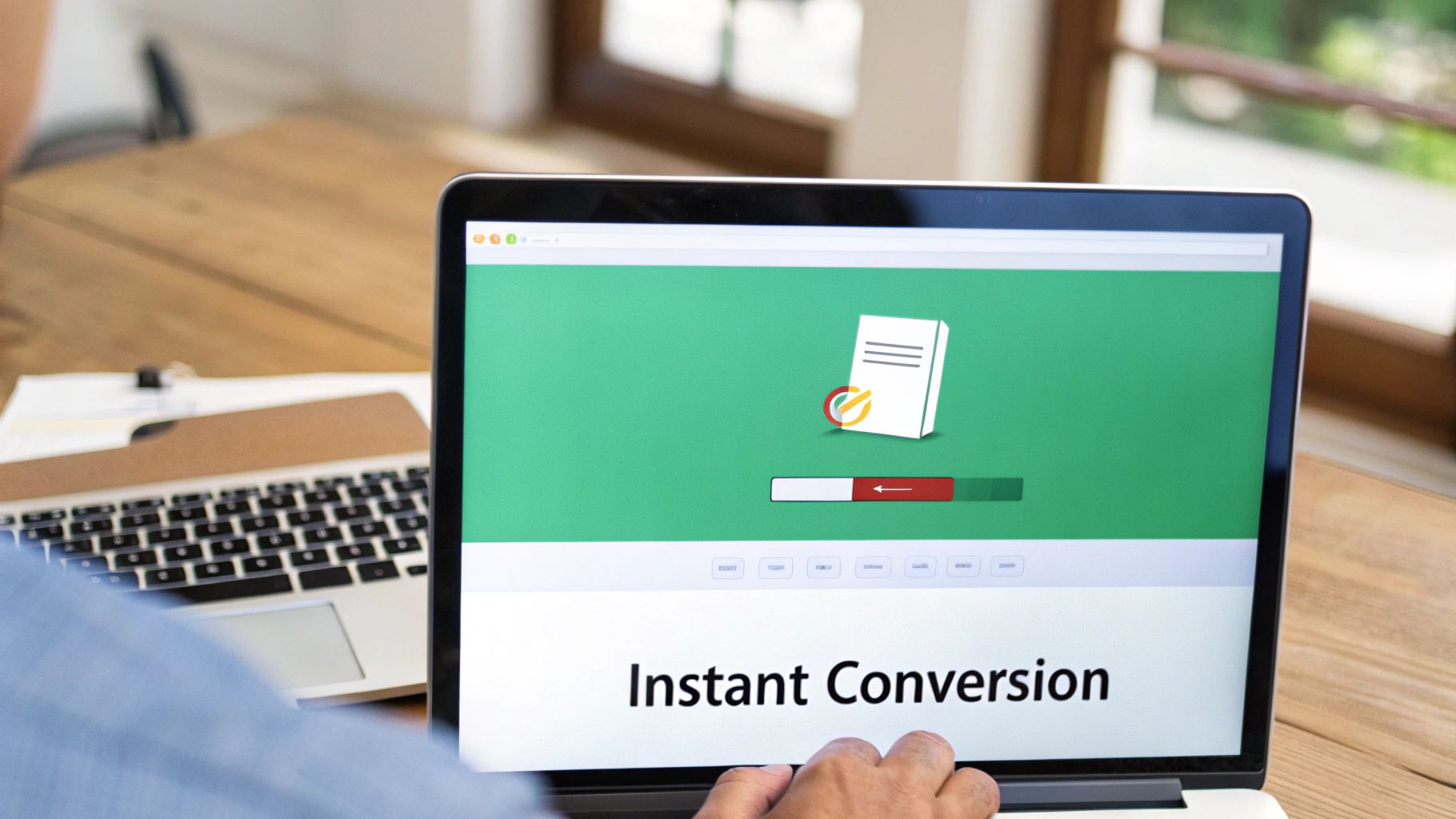
This kind of uncluttered design is key. It gets you from point A to point B without any friction, which is exactly what you want.
The Magic Behind the Conversion
Once your file is uploaded, the tool takes the wheel. You’ll see a progress bar as the service gets to work, analyzing everything in your PDF—text blocks, images, tables, and columns—and carefully rebuilding it into a native .docx format.
For most documents, this whole process takes just a few seconds. If you have a massive report with tons of complex formatting, it might take a moment longer, but you can see its progress in real-time. There are no settings to mess with or options to pick. It’s a true one-click solution.
This hands-off approach comes with some major perks:
- No Maintenance: Forget software updates or compatibility headaches. The tool is always up-to-date.
- Use It Anywhere: Convert files from any device with a browser, including your phone or tablet.
- Security First: Reputable online services use HTTPS encryption to protect your files during the upload and download. They also have policies to automatically delete your documents from their servers, usually within a few hours.
The real value here is speed. A browser-based converter turns a task that could take an hour of manual reformatting into something that’s done in less than a minute. It’s efficiency at its best.
When the conversion is finished, a "Download" button pops up. One click saves the new Word document to your device. You can open it right away in Microsoft Word, Google Docs, or any other word processor and start making your edits. All done—no sign-ups, no software to manage, just a perfectly editable document ready to go.
Handling Scanned Documents with OCR Technology
Standard PDF to Word converters are brilliant for documents created digitally, but what happens when your PDF is basically just a picture of text? Think about a contract you’ve scanned, a page from a physical book, or even a photo of a receipt you snapped with your phone. In these cases, the file doesn’t actually contain any text data—it's just an image.
This is where most basic converters fall flat. You’ll end up with a Word document, but it will just contain an uneditable picture of your text. The real solution here is a technology called Optical Character Recognition, or OCR.
Simply put, OCR acts like a digital detective for your documents. It scans the image, identifies the shapes of letters and numbers, and intelligently reconstructs them into actual, editable text. It’s what turns a "flat" picture into a living document you can search, copy, and change.
How OCR Turns Pictures Into Words
The process is surprisingly clever. The OCR engine analyzes all the pixels in the image, recognizes patterns that match characters, and then pieces them together to form words and sentences. It's the same tech that lets you deposit a check just by taking a picture with your banking app.
When built into a PDF to Word tool, OCR is a total game-changer. Suddenly, you can take a 50-page scanned report and have it ready for edits in Word in a matter of seconds, no clunky software installations required.
For a deeper dive into how this works in practice, check out our guide on how to https://pdfpenguin.net/ocr-pdf.
Getting The Best Results From Your Scans
Here’s the thing: the quality of your final Word document depends almost entirely on the quality of the scan you start with. Garbage in, garbage out. To get the highest accuracy, just follow a few simple tips.
- Start with a High-Resolution Scan: Always aim for at least 300 DPI (dots per inch). A clearer image gives the OCR software much more data to work with, which drastically cuts down on errors.
- Ensure Good Lighting: Shadows or glare on the page are the enemy. Make sure you have even, consistent lighting when you scan so the software can distinguish characters properly.
- Keep it Straight: A skewed or crooked document can easily confuse an OCR engine. Just make sure the paper is lying flat and aligned correctly on the scanner.
Many modern offices already have multifunction devices perfect for this. An ultimate laser printer scanner guide can help you figure out how these all-in-one machines can fit into your workflow.
Key Takeaway: While OCR is powerful, it isn’t magic. It can struggle with messy handwriting, blurry images, or heavily stylized fonts. For the best results, always start with the cleanest, sharpest scan possible. This one simple step can save you a ton of time fixing things up later.
How to Keep Your Formatting Perfectly Intact
We’ve all been there. You convert a PDF to Word, open the new file, and your heart sinks. The text is a jumbled mess, images are all over the place, and your perfectly structured tables look like they’ve been through a blender.
The moment of truth in any pdf to to word conversion is seeing if your document survived the trip.
The good news? A perfect conversion isn't about luck. It's about a few smart strategies you can use before and after you convert. The most common formatting disasters happen with complex layouts—think financial reports with intricate tables, newsletters with multiple columns, or academic papers with footnotes and charts. These are usually the first things to break.
But here’s the key: the quality of your Word document is directly tied to the quality of your original PDF. A clean, well-structured source file is the best way to avoid a manual cleanup nightmare.
Pre-Conversion Checks for a Flawless Result
Before you even think about uploading your file, a quick 60-second check can make all the difference. The goal is to give the conversion tool a clean, simple roadmap to follow.
Here are a few things to look for in your source file:
- Avoid Text in Images: If your PDF has text baked into an image (like a slogan in a logo), a standard converter won't see it as text. Make sure all your text is actually selectable. If you can't change the source, you'll need a tool with OCR.
- Simplify Complex Tables: Got tables nested inside other tables? This kind of structural complexity can easily trip up a converter. If you can, simplify them in the source file first.
- Standard Fonts Work Best: While custom fonts look great, they can cause issues. Sticking to universal fonts like Arial, Times New Roman, and Calibri gives you a much higher chance of a perfect conversion.
Taking a minute to review these points can save you an hour of headaches later. You're setting your conversion up for success from the very start.
The core principle is simple: the more straightforward your PDF's structure, the more accurate your Word document will be. Think of it as tidying up a room before you move the furniture—it just makes the whole process smoother.
Post-Conversion Cleanup Tips
Even the best tools might require a few minor tweaks. The goal isn’t to avoid all adjustments but to make them quick and painless.
And for this, Microsoft Word has a fantastic, often-overlooked feature: the Show/Hide Formatting Marks tool. It’s the button that looks like a paragraph symbol (¶).
Clicking this reveals all the invisible characters in your document—spaces, paragraph breaks, and tabs. This is a lifesaver for spotting common conversion glitches, like:
- Extra Paragraph Breaks: Sometimes converters add extra line breaks between paragraphs. With formatting marks on, you can spot and delete them in seconds.
- Spaces Instead of Tabs: If table columns look slightly off, it’s probably because the converter used a bunch of spaces instead of a single tab. This tool makes finding and fixing that a breeze.
Once you’ve done your initial conversion, you might need to make other changes like rearranging text or adding new sections. For tasks like that, a tool like the PDFPenguin online editor can handle any final touches you need.
By combining a clean source file with a few simple post-conversion checks, you can reliably turn even complex PDFs into perfectly formatted, editable Word documents every single time.
Comparing Your PDF to Word Converter Options
When you need to get text out of a PDF, a quick online tool usually does the trick. But knowing the full landscape of pdf to to word converters helps you pick the right tool for the job, every time. The options really boil down to three main types, each with its own set of pros and cons.
The whole world is moving to digital-first workflows, and that's reflected in the explosive growth of the PDF software market. It was valued at USD 2.15 billion in 2024 and is expected to rocket to USD 5.72 billion by 2033. It's clear that getting document management right is a huge deal for everyone.
Built-in Word Processor Features
A lot of people don't realize this, but both Microsoft Word and Google Docs can open and convert PDFs right out of the box. You just open a PDF file like you would any other document, and they do their best to turn it into something you can edit.
It’s a super convenient method for simple, text-heavy documents. But—and it's a big but—they often choke on complex formatting. If your PDF has lots of images, tables, or columns, you might find the result is a jumbled mess.
This flowchart can help you visualize when to use which method, based on how complicated your document's layout is.
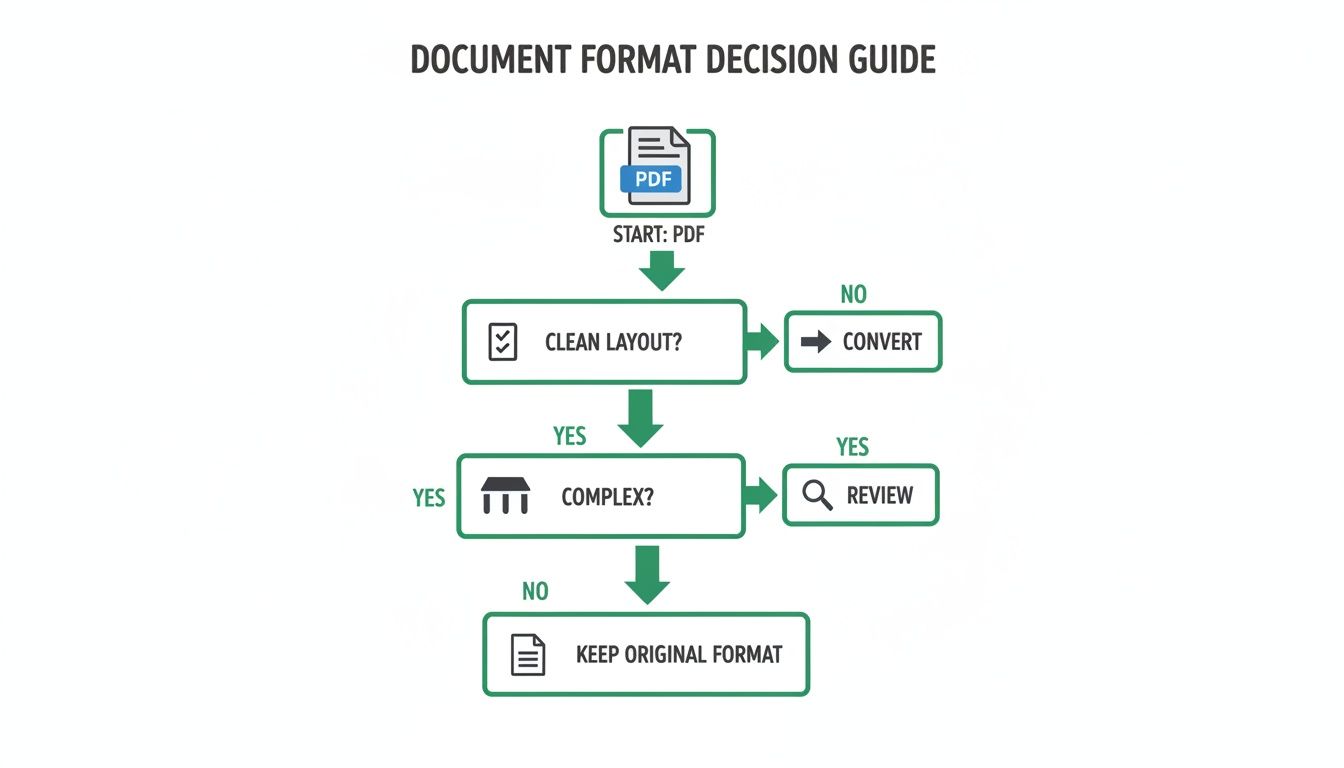
The takeaway is pretty clear: for a simple text file, a direct import works fine. For anything more complex, you need a more powerful tool to make sure your formatting stays intact.
A Comparison of PDF Conversion Methods
To help you choose the best tool for your specific needs, here’s a quick feature-by-feature comparison of your main options.
| Conversion Method | Best For | Cost | OCR Included? | Key Benefit |
|---|---|---|---|---|
| Online Converters (like PDFPenguin) | Most everyday users; balanced formatting & ease of use | Free | Often included | Fast, no installation, high-quality results |
| Built-in Word Processor Features | Simple, text-only documents | Free (with software) | No | Extremely convenient, no extra steps needed |
| Dedicated Desktop Software (like Adobe) | Professionals needing daily, advanced PDF editing | Paid subscription | Yes (advanced) | Unmatched accuracy & comprehensive features |
Ultimately, the best choice depends on what you're trying to accomplish. For most people, a dedicated online tool hits that sweet spot between power and simplicity.
Dedicated Desktop Software
On the other end of the spectrum, you have the heavy hitters like Adobe Acrobat Pro. This kind of desktop software is the gold standard for anything and everything PDF. It offers incredible conversion accuracy and a huge suite of advanced features, including top-notch OCR for turning scanned documents into editable text.
The catch? It’s expensive and complicated. These tools usually require a monthly subscription and a software installation, which is overkill for someone who just needs an occasional conversion. They're built for professionals who live and breathe PDFs every day. If you're curious about the features of different editors, we've got a review of other popular PDF editors you can check out.
Specialized Online Converters
This is where tools like PDFPenguin shine. They offer the perfect middle ground between convenience and power. Since they run right in your browser, there’s nothing to install, and you get fast, high-quality conversions.
These tools are built for one specific job, which means they often give you much better results than the built-in features of Word or Docs, especially if your PDF has a mix of text and images.
The biggest advantage of a dedicated online tool is its focus. It does one thing—convert your PDF to Word accurately and securely—and it does it extremely well, making it the ideal choice for most everyday users.
When you're weighing your options, exploring a dedicated PDF to Word resource can point you toward a fast and accurate solution. At the end of the day, it all comes down to your needs. If you want quick, reliable results without the commitment, a browser-based tool is almost always the smartest move.
Common Questions About PDF to Word Conversion
Even with a great tool, converting a PDF to Word for the first time can feel a bit like a leap of faith. Let's tackle the biggest questions you probably have, so you can convert your files with total confidence.
Will Converting a PDF to Word Ruin the Formatting?
This is the number one worry for just about everyone, and for good reason. The honest answer is: it depends. But a high-quality converter will do an excellent job keeping your original layout intact.
Modern tools are surprisingly good at rebuilding tables, keeping images in place, and preserving multi-column text. That said, super complex documents might have a few tiny shifts. The best way to get a perfect pdf to to word conversion is to start with a well-structured PDF in the first place.
Are Online PDF to Word Converters Safe to Use?
Security is a huge deal, and any reputable online service knows it. When you upload a file, the entire process should be protected with HTTPS encryption, meaning your data isn't just floating around in the open.
The most important thing to look for is an automatic deletion policy. This means the service permanently scrubs your files from their servers after a short window—usually just a few hours.
Always glance at the privacy policy of any online tool. A trustworthy service will be upfront about how it handles your files and won't ask for personal info just to convert a document.
Can I Edit a Scanned PDF After Converting It?
Yes, but there's a catch! You can only edit it if the converter has Optical Character Recognition (OCR) technology. This is the magic ingredient.
A standard converter will just dump an image of your scanned page into a Word doc, which is useless for editing. An OCR-powered tool, on the other hand, actually "reads" the text in that image and rebuilds it as editable text, tables, and paragraphs in your Word file. The final result depends on how clean the original scan was, but without OCR, you’re not going to be able to edit anything.
Do I Need to Install Any Software for This?
Nope, and that's one of the best parts about using a browser-based converter. You can do everything—upload, convert, and download—from any device with an internet connection, whether it's your computer, tablet, or phone.
This approach keeps your devices clean from extra software and makes the whole process incredibly fast and simple for anyone, anywhere.
Ready to convert your PDFs without the usual headaches? The PDFPenguin online toolkit makes it simple, secure, and fast. Try it now for free at https://www.pdfpenguin.net and get your editable Word document in seconds.