
Finding the best way to compare Word documents really comes down to what you need in the moment. The choice between sticking with Microsoft Word's built-in tools or reaching for something more powerful depends on how complex your document is, who you’re working with, and whether you need a perfect audit trail.
Getting it right means you can track every single revision with confidence, whether you're just tweaking a simple memo or redlining a high-stakes legal contract.
Choosing the Right Method to Compare Word Documents
When you need to compare Word documents, you’ve got three main paths to choose from. Each one is built for different situations, and the trick is matching the tool to the job. Figuring this out upfront saves you from version-control headaches and makes sure every change gets spotted.
Here are the main ways to get it done:
- Microsoft Word's Built-in Tools: Perfect for quick, simple comparisons and real-time collaboration right inside the app you're already using.
- Third-Party Software: Designed for teams that need serious version control, detailed reports, and tools that plug into other project management systems.
- AI-Powered PDF Comparison: The best option when formatting and layout absolutely cannot change. This gives you the most precise visual and text analysis possible.
This flowchart makes it easy to see which path is right for your specific needs.
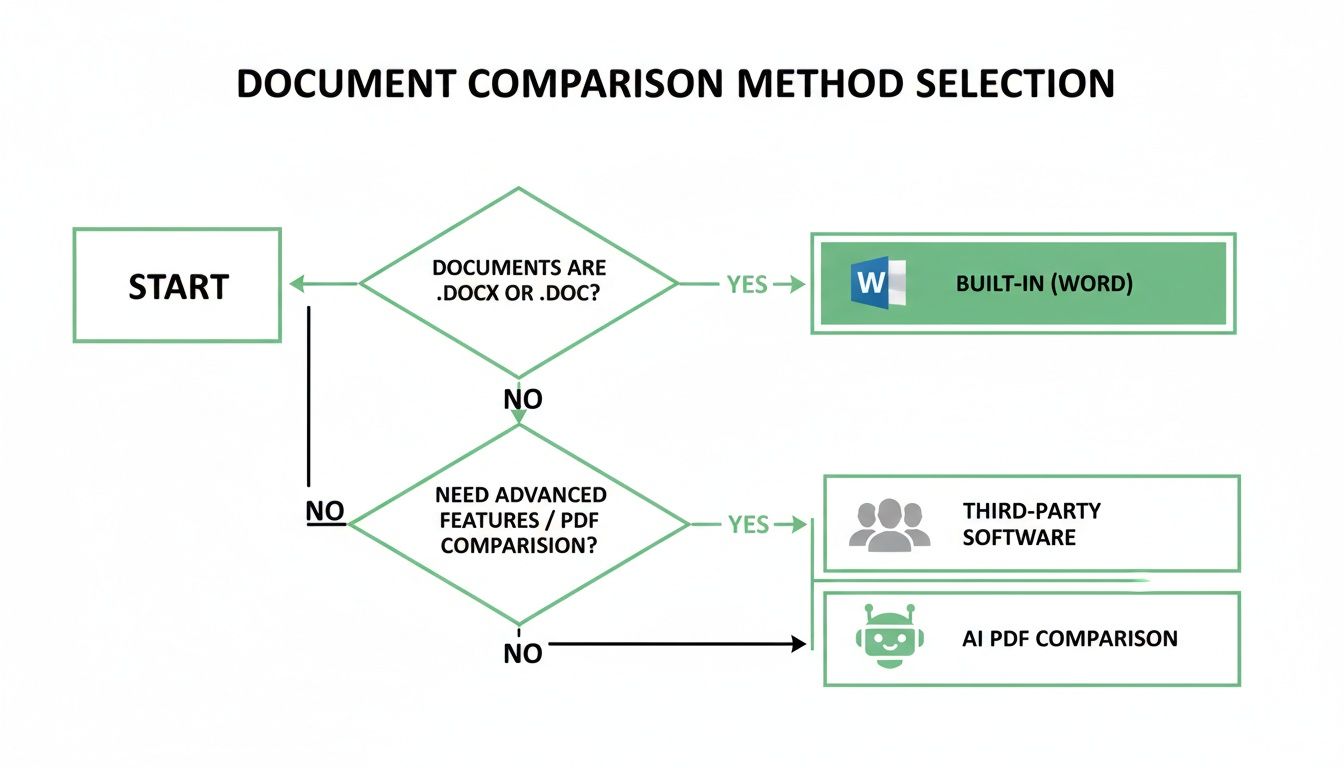
As you can see, it all depends on what you value most: convenience inside Word, advanced features for your team, or flawless accuracy with AI.
Comparing Your Options
Each method strikes a different balance between accessibility, power, and precision. A quick breakdown shows where each one shines. For example, Word’s native 'Compare' feature is fantastic for internal drafts, but it can sometimes get tripped up by complex layouts with lots of tables or images.
You can see for yourself how AI handles those challenges when you compare PDF files online.
To make the decision even simpler, here's a quick look at the core strengths of each approach.
At-a-Glance Comparison of Document Review Methods
| Method | Best For | Key Benefit |
|---|---|---|
| Built-in MS Word Tools | Quick edits, internal drafts, and live collaboration. | No extra software needed; deeply integrated into Word. |
| Third-Party Software | Complex team workflows and version control. | Centralized management and advanced collaboration features. |
| AI PDF Comparison | Final reviews, legal documents, and graphic-heavy files. | Unmatched accuracy in detecting all text and formatting changes. |
Ultimately, picking the right tool ensures you’re working efficiently and catching every single change, every single time.
Mastering Word's Built-In Comparison Tools
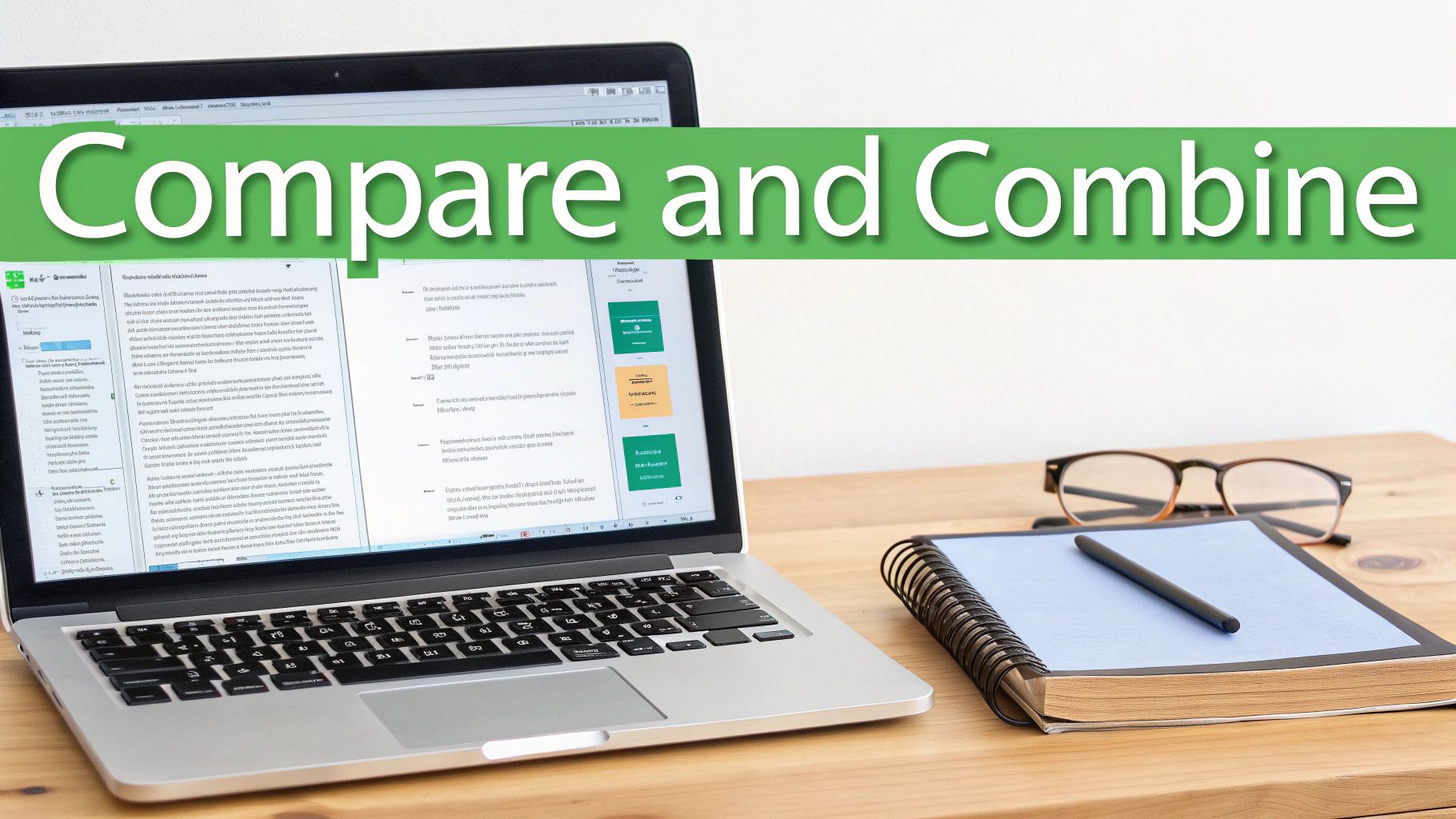
Microsoft Word is packed with powerful, built-in tools to help you compare documents without ever leaving the app. The two most important features are Compare and Combine, and you'll find them right in the Review tab. They offer a simple way to see exactly what’s different between two versions of a file, which can save you a ton of time and prevent mistakes on collaborative projects.
The best part? Word doesn't mess with your original files. When you run a comparison, it creates a brand-new document that neatly highlights every single change, from a simple typo fix to major formatting updates.
Using the Compare Feature Step-by-Step
To get started, you just need two versions of a document: the original and the revised copy. The goal is to generate a third document that shows you exactly what was added, deleted, or changed.
- Open Word and go to the Review tab.
- Click the Compare button, then choose Compare... from the menu.
- A dialog box will pop up. Select your Original document and your Revised document.
- Click OK.
Word then opens a new, detailed view designed for a side-by-side analysis. It presents a summary of changes on the left, a merged "redline" document in the middle, and your two original files on the right. This lets you see the changes in context without altering your source files.
Distinguishing Compare from Track Changes
It’s easy to mix these two up since they both live in the Review tab, but they serve very different functions. Knowing when to use each one is key to a smooth workflow.
Track Changes is for live collaboration. It records edits in real-time as you and your team work on a single document. Compare, on the other hand, is for reviewing changes between two separate, existing files after the fact.
Think of it this way: use Track Changes while you're actively writing and editing with others. Use Compare when someone sends you a revised version back, and you need a quick, clean report of what they altered.
If you really want to get the hang of it, learning how to redline a document in Word using these tools is a great next step. Making that distinction will make your review process much more efficient.
When AI PDF Comparison Beats Word for Accuracy
Word's built-in tools are great for everyday edits, but sometimes you need a level of precision they just can't deliver. This is where a simple workflow change—converting your Word documents to PDF before comparing—becomes a game-changer. When the formatting, layout, and visual details are just as important as the text, an AI-powered PDF comparison tool is your best bet for flawless accuracy.
The reason is simple: Word documents are fluid. They can look different depending on the version of Word you're using, how fonts load, or how images render. A PDF, on the other hand, is a static snapshot. It’s like a digital photograph of your document, ensuring what you see is what everyone else sees, every single time. This makes it the only reliable format for a final check where even a tiny visual mistake could be a big problem.
Lock in Your Formatting and Layout
The biggest win with the PDF method is its ability to preserve the document's visual integrity. This is non-negotiable in high-stakes situations where a shifted margin or an altered image could derail an entire project.
Think about these scenarios:
- Final Contracts: Before anyone signs, you have to be 100% sure that page breaks, clause numbers, and margins haven't moved an inch.
- Reports with Graphics: When your document is full of charts and images, AI can spot subtle changes in color, size, or position that Word's text-focused tools would completely miss.
- Comparing Across Word Versions: If one file was made in Word 2013 and the other in Microsoft 365, comparing them as PDFs avoids any weird artifacts or rendering glitches from the software itself.
Turning your files into a universal format like PDF creates a stable, unchanging baseline. This guarantees that the differences you see are actual content changes, not just random errors caused by different software versions.
How to Compare Word Docs Using an AI PDF Tool
Switching to this method is fast and adds a serious layer of confidence to your reviews. It just takes two quick steps: convert your Word files to PDF, then let an AI tool like PDFPenguin do the heavy lifting.
- Convert to PDF: Open both your original and revised Word documents. For each one, go to
File > Save Asand choose PDF as the file type. This gives you two visually perfect, locked-in versions of your work. - Upload and Compare: Head over to an AI PDF comparison tool. You’ll see a simple interface where you can upload both your original and revised PDF files.
- See the Results: The AI gets to work, processing both documents and showing you a side-by-side view that highlights every single difference—text, images, and tables—with pixel-perfect accuracy.
This is what it looks like in PDFPenguin—a clear, color-coded comparison that makes every change impossible to miss.
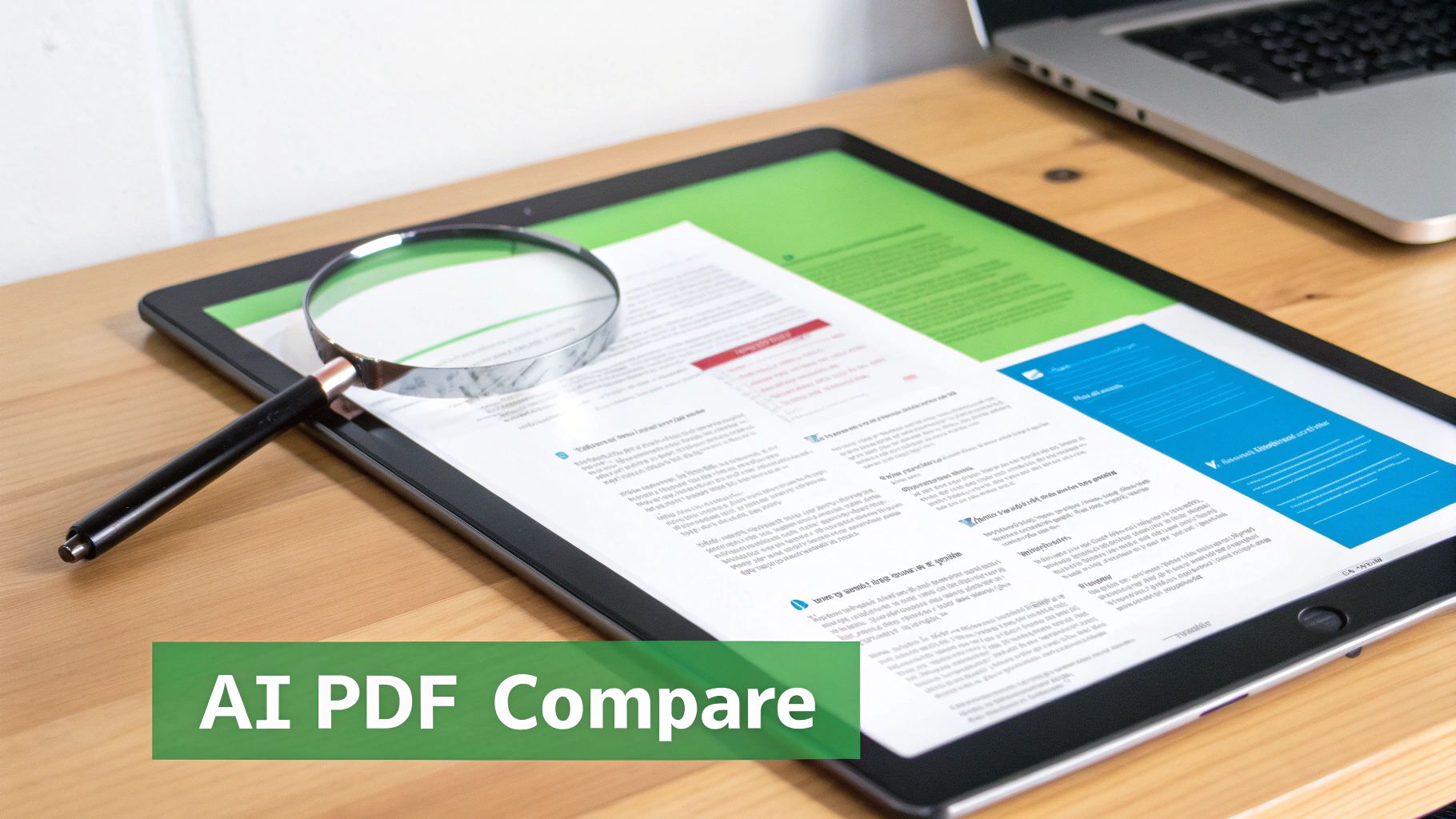
The side-by-side results take all the guesswork out of it, clearly showing what's been added or deleted so you can approve changes knowing you haven't missed a thing. If you want to dive deeper into how this works, check out the concepts behind Intelligent Document Processing. This is the technology that allows tools to "read" and understand not just the text but the entire structure of a document, leading to far more reliable results than old-school comparison methods.
Exploring Third-Party Document Comparison Software
While Microsoft Word’s built-in tools are great for quick, simple comparisons, they often hit a wall in professional settings. This is where specialized third-party software comes in, offering the kind of power, control, and integration that high-stakes workflows demand. These platforms do more than just find differences—they’re built to solve real operational headaches.
Think about a legal team juggling dozens of contract revisions. They need more than a simple redline. They need a bulletproof audit trail, airtight version control, and a way to manage feedback from multiple people without creating a complete mess. That’s exactly the problem these dedicated tools are designed to solve.
Why Invest in a Specialized Tool?
The decision to look beyond Word usually happens when its features just can't keep up anymore. Third-party solutions are made to handle the common pain points that pop up in professional environments, like ensuring compliance, securing sensitive data, or plugging into the document systems you already use.
These tools are a game-changer in offices where:
- Version Control is Critical: When multiple people are editing a document, it's easy to lose track of what's what. Tools like Simul Docs automatically track every version, creating a clear history of how a document evolved.
- Collaboration is Central: Platforms such as Workshare are built for team reviews, with features that make giving and getting feedback way smoother than anything "Track Changes" can do.
- Integration is Necessary: Many businesses run on document management systems (DMS). Specialized software often connects directly to these platforms, letting you compare files inside your company’s existing workflow.
Investing in a third-party tool isn’t about replacing Word. It's about building a more controlled, secure, and efficient system around your entire document review process.
The market has plenty of options, with platforms like Simul Docs, Workshare, ComparePro, and WinMerge built for pros who need these advanced features. There are also browser-based tools like Diffchecker and Draftable for anyone who needs a quick comparison without installing software.
Comparing the Investment
While these tools offer powerful features, they also come with costs and require some team training. For many, a simpler approach—like converting documents to PDF and running them through an AI-powered comparison—is a highly effective and budget-friendly alternative. You can learn more about how to compare PDF files online, a method that often provides incredible accuracy for final reviews.
Ultimately, if your team is constantly battling version chaos, security worries, or slow review cycles, a specialized tool could be a very smart investment.
Practical Comparison Workflows for Professionals
Knowing how to compare Word documents is one thing. Integrating the right method into your actual day-to-day work is something else entirely. A smart, structured approach saves time, ensures accuracy, and prevents those tiny errors that can turn into big problems.
The truth is, the best workflow always depends on the context. A one-size-fits-all solution just doesn't cut it.

A legal team wrestling with contracts has completely different needs than an academic team collaborating on a research paper. By tailoring your comparison strategy, you can build a review process that’s not just efficient, but rock-solid.
Workflow for Legal and Compliance Teams
In law and compliance, precision is non-negotiable. A single misplaced comma can change everything, so a bulletproof comparison workflow is essential. The best approach is a two-stage process that blends Word’s speed with the undeniable proof of an AI-powered PDF analysis.
- During Internal Drafts: For the initial back-and-forth, Track Changes is perfect for live collaboration. When comparing distinct versions, like a draft sent to opposing counsel and the one you get back, Word's Compare feature (especially the "legal blackline" option) creates a clean, official record. This keeps things moving fast within a familiar environment.
- Before Final Signing: Once everyone agrees on a final version, the game changes. Both parties should convert their "final" Word doc to a PDF. Run those two PDFs through an AI comparison tool to guarantee no last-minute changes—accidental or intentional—slipped in. This gives you an indisputable audit trail before anyone signs.
This two-tiered process is the gold standard for mitigating risk. You use Word for its agility during drafting and then lock things down with the immutability of a PDF for the final, high-stakes verification.
Workflow for Academic and Research Settings
Collaboration is the lifeblood of academia, whether it's peer reviews, co-authoring papers, or giving student feedback. The goal here is clarity, constructive criticism, and keeping a transparent record of who contributed what.
A typical academic workflow looks like this:
- Peer Review: A researcher shares their manuscript as a Word doc. Reviewers turn on Track Changes to suggest edits and leave comments in the margins, creating a clear dialogue.
- Revision Submission: The author incorporates the feedback and creates a new, revised version of the document.
- Verification: The supervising professor or journal editor uses Word's Compare feature. This gives them a quick, clean summary of every change made between the original and the revision, confirming all feedback was addressed.
Workflow for Corporate and Marketing Teams
For corporate teams managing brand guidelines, marketing copy, or company policies, the priorities are consistency, clarity, and tight version control.
- Initial Creation: A team member drafts a document—let's say, a new press release or an internal policy update.
- Multi-Stakeholder Review: The draft gets sent around. Instead of using Track Changes, which can get chaotic with five or six reviewers, each person makes their edits on a separate copy.
- Consolidation: The document owner uses Word’s Combine feature to merge all the feedback from those different copies into one master document. This centralizes every suggestion for a final, streamlined review.
For an even safer final check before publishing, a quick conversion with a Word to PDF tool locks in the content. In sectors like finance and compliance, these kinds of workflows aren't just a good idea—they're often a mandatory part of the approval process.
Common Questions About Comparing Documents
When it's time to compare two versions of a Word doc, a few questions always pop up. Getting the right answers saves a ton of frustration and makes sure you catch every single revision. Whether you’re collaborating in real-time or just checking a final draft, knowing which tool to use is half the battle.
This section tackles the most common questions head-on, giving you straightforward answers to help you master your workflow. From understanding Word's built-in features to knowing when it's smarter to just use a PDF, these insights will make your decision-making crystal clear.
What’s the Difference Between Compare and Track Changes?
It's easy to mix up Word’s Compare feature and Track Changes, but they’re built for completely different jobs. Think of them as tools for different points in the editing process.
Track Changes is for live, active collaboration. It’s what you turn on when you’re in the middle of editing a document with others. It marks up changes as they happen, right inside a single file, making it perfect for those messy first drafts and review rounds where everyone is adding their two cents.
Compare, on the other hand, is for looking back at what happened. You use it to find the differences between two separate, finished files after all the edits have been made. It creates a brand-new, third document—often called a "legal blackline"—that gives you a clean, final report of every single change. It's the perfect tool when someone sends you back a revised version and you need to see exactly what’s different from your original.
Can I Compare Two Word Documents With Different Formatting?
Yes, you can, but this is where Word's own tools often start to struggle. The Compare feature does its best to flag formatting changes—things like different fonts, spacing, or paragraph styles. But in a complex document, this can create a sea of redlines that’s more confusing than helpful.
For documents where the visual layout is absolutely critical, you need a more reliable approach.
- Word's Weakness: It can get bogged down flagging dozens of tiny, unimportant formatting shifts.
- A Better Way: Convert both files to PDF and then use an AI comparison tool.
This method compares the final, visual look of the document, guaranteeing that what you see is a true side-by-side of the changes, not just a jumble of formatting notes.
When Should I Use a PDF Comparison Tool Instead of Word?
You should switch over to a PDF comparison tool the moment visual and formatting accuracy become your top priorities. It's the only way to go for final, "as-is" versions of documents that need to be locked down and checked with 100% certainty.
Here’s when a PDF tool is the smarter choice:
- Final Contract Reviews: To ensure no weird formatting has shifted before you sign.
- Reports with Lots of Graphics: Where AI can spot subtle changes in charts and images that Word would miss.
- Cross-Platform Comparisons: To create a standardized, indisputable record of changes that looks the same on every device.
How Can I Compare Documents Without Microsoft Word?
No Word, no problem. You still have some great options. Google Docs has a solid "Version history" feature that lets you compare different saved versions of a document side-by-side.
Another incredibly effective method is to use a free, browser-based tool to compare PDF files. Just save or export your documents as PDFs, then upload them to an online platform. This way, you don't have to install any software, it works from any device, and you get a quick, clean comparison of any two files.
Ready for a smarter, more accurate way to compare your most important documents? PDFPenguin's AI-powered Compare tool spots every difference in text and formatting, giving you complete confidence in your final reviews. Try PDFPenguin for free and see the difference.