
Entonces necesitas convertir un archivo de texto plano en un PDF compartible y de aspecto profesional. ¿Cuál es la forma más rápida? Simplemente usa la función integrada de Imprimir en PDF de tu computadora. Es una herramienta sorprendentemente poderosa y confiable que funciona sin conexión en casi cualquier máquina: simplemente abre tu archivo .txt, presiona Imprimir y elige "Guardar como PDF".
Tu guía rápida para convertir TXT a PDF
Si bien la función de impresión integrada es fantástica para un trabajo rápido y único, no es tu única opción. Dependiendo de si necesitas más control sobre el formato, estás trabajando en una computadora compartida o estás convirtiendo docenas de archivos a la vez, hay una mejor herramienta para el trabajo.
Este sencillo árbol de decisiones muestra la opción más común: para velocidad y simplicidad, quédate con las herramientas integradas de tu computadora.
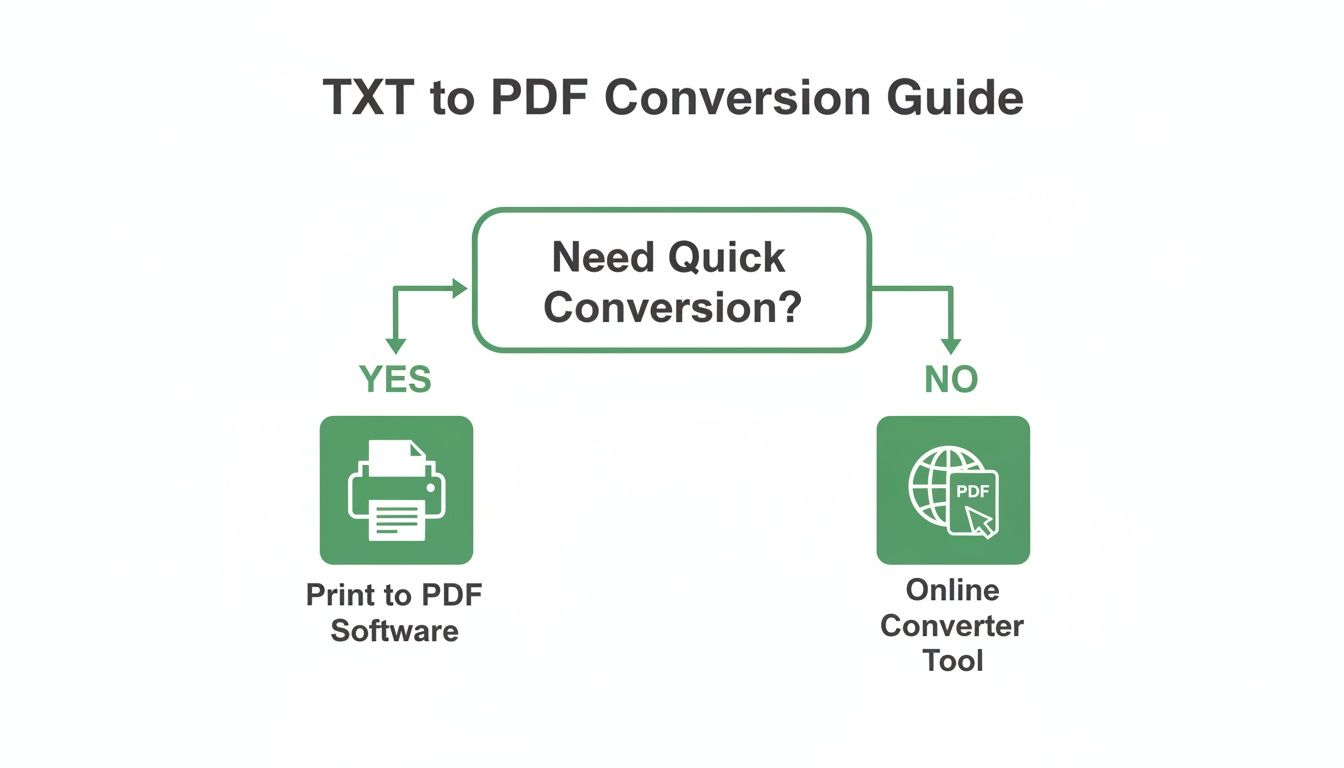
Como muestra el gráfico, los métodos fuera de línea son tu mejor amigo para la velocidad pura. Pero cuando estás lejos de tu computadora principal o necesitas algunas opciones adicionales, las herramientas en línea ofrecen una comodidad increíble.
Cuándo usar un convertidor en línea
Digamos que estás en una computadora de la biblioteca o simplemente prefieres una interfaz simple de arrastrar y soltar. En ese caso, un convertidor en línea seguro es tu mejor apuesta. Estas herramientas basadas en navegador no requieren instalación y a menudo te brindan características adicionales, como ajustar márgenes o cambiar la orientación de la página antes de convertir.
Elegir la herramienta adecuada se reduce a equilibrar la comodidad con el control. Para tareas sencillas, tu sistema operativo es suficiente. Para necesidades más complejas o cuando estás en movimiento, una herramienta web dedicada ofrece mayor flexibilidad.
Muchas personas encuentran las herramientas en línea más intuitivas la primera vez que las prueban. Nuestra guía sobre cómo usar PDFPenguin cubre cómo simplificamos este tipo de tareas de documentos. Este artículo cubrirá ambos caminos, para que puedas dominar cómo convertir un archivo .txt a un PDF sin importar la situación.
Los métodos de conversión de TXT a PDF más rápidos
Si solo estás buscando la solución más rápida, esta tabla desglosa las mejores opciones de un vistazo.
| Método de Conversión | Mejor Para | Ventaja Clave |
|---|---|---|
| SO "Imprimir en PDF" | Conversiones rápidas de un solo archivo en tu propia PC | No se necesita internet; 100% privado y rápido |
| Convertidores en Línea | Comodidad en cualquier dispositivo; características adicionales | Arrastrar y soltar simple; sin instalación de software |
| Procesadores de Texto | Cuando necesitas editar o formatear el texto | Control total sobre fuentes, diseño y estilo |
| Línea de Comandos (CLI) | Conversión por lotes de cientos de archivos a la vez | Imbatible para automatización y tareas masivas |
Cada método tiene su lugar. La función de impresión de tu sistema operativo es el caballo de batalla universal, pero saber cuándo agarrar una herramienta más especializada te ahorrará una tonelada de tiempo.
Entonces, ¿por qué molestarse en convertir a PDF de todos modos?
Seamos honestos, los archivos .txt son excelentes para anotar notas rápidas o tomar código sin procesar. Son el equivalente digital de una nota adhesiva: simple, rápido y funcional. Pero cuando es hora de compartir esa información como un documento terminado, esa simplicidad se convierte en una responsabilidad importante.
Piénsalo de esta manera: enviar un archivo .txt es como entregarle a alguien un montón de ingredientes crudos. Enviar un PDF es como presentar un pastel completamente horneado. Tienes cero control sobre cómo se ve un archivo de texto plano en la pantalla de otra persona. La fuente puede cambiar, los saltos de línea pueden estropearse y tu diseño cuidadosamente organizado puede convertirse en un muro de texto ilegible. Simplemente no se ve profesional.
Bloquea tu formato
La mayor victoria para el PDF es el formato universal. Un PDF es esencialmente una instantánea de tu documento. Congela todo en su lugar (fuentes, márgenes, imágenes y espaciado) para que se vea exactamente igual para todos, cada vez.
Ya sea que tu colega lo abra en una Mac, una PC con Windows o su teléfono, lo que ves es lo que obtienen.
Imagina que acabas de terminar un currículum o una factura crítica. Si lo envías como un archivo .txt, toda esa alineación y estructura cuidadosa podría perderse por completo, haciéndote lucir descuidado. Convertirlo a PDF asegura que tu arduo trabajo valga la pena y que el documento llegue con el pulido profesional que merece.
Un PDF es una promesa: el documento que creaste es el documento que verá tu destinatario. Para cualquier cosa oficial (informes, propuestas, documentos legales), esa consistencia no es solo agradable de tener, es esencial.
Agrega una capa de seguridad muy necesaria
Más allá de simplemente verse bien, los archivos PDF ofrecen características de seguridad con las que los archivos de texto plano ni siquiera pueden soñar. No puedes evitar que alguien abra, edite o copie el contenido de un archivo .txt. Para cualquier cosa sensible, eso es un factor decisivo.
Con un PDF, de repente tienes control real:
- Protección con Contraseña: Bloquea el archivo para que solo las personas con la contraseña puedan abrirlo. Esto es perfecto para informes confidenciales o información personal.
- Control de Permisos: Puedes ir un paso más allá y bloquear a las personas para que no impriman, copien texto o realicen cambios. Tu documento permanece exactamente como pretendías.
Estas características son la razón por la que aprender a convertir un simple archivo .txt en un PDF seguro y estable es una habilidad tan práctica. Es el paso final para crear un documento que esté listo para el mundo real.
Usando convertidores en línea para resultados instantáneos
A veces solo necesitas una conversión rápida sin la molestia de descargar software. Tal vez estás en una computadora de la biblioteca o tomando prestada la computadora portátil de un amigo. Aquí es donde brillan las herramientas basadas en navegador. Ofrecen una experiencia simple de arrastrar y soltar que hace el trabajo en segundos.
Imagina que tienes un informe guardado como un archivo .txt pero el portal de envío solo acepta archivos PDF. En lugar de meterte con la configuración, puedes simplemente saltar a un servicio como PDFPenguin, subir tu documento y descargar el PDF terminado.
Muchas de estas herramientas en línea también te brindan opciones prácticas para ajustar la orientación de la página o los márgenes antes de finalizar el archivo, un nivel de control que no siempre obtienes con una función básica de "Imprimir a PDF".
Priorizando la seguridad y la privacidad
Por supuesto, subir archivos a un sitio web aleatorio requiere un poco de confianza. No todos los servicios son iguales, y es inteligente pensar en la seguridad de tus datos, especialmente si el documento contiene información sensible.
Aquí hay qué buscar en un servicio confiable:
- Cifrado SSL: La dirección del sitio web siempre debe comenzar con
https://. Esto es no negociable. Significa que tu conexión es segura y tu archivo está protegido durante la carga. - Una Política de Privacidad Clara: Las plataformas de buena reputación son directas sobre cómo manejan tus datos. Si no puedes encontrar fácilmente su política de privacidad, eso es una señal de alerta.
- Eliminación Automática de Archivos: Los mejores servicios indican claramente que eliminan tus archivos de sus servidores después de poco tiempo, generalmente solo unas pocas horas.
La privacidad de tus datos lo es todo. Un convertidor en línea confiable hace de la seguridad una característica central, utilizando cifrado y políticas de datos transparentes para proteger tus archivos desde el momento en que los subes hasta el momento en que se eliminan permanentemente.
Las plataformas establecidas construyen su reputación sobre prácticas de seguridad sólidas. Algunas incluso van tan lejos como para obtener la certificación ISO 27001 y procesar millones de archivos al año sin vender nunca datos de usuarios. Con el 62% de las empresas priorizando la privacidad, elegir una herramienta segura es crítico. Puedes leer más sobre estos estándares de seguridad y su importancia para tu tranquilidad.
Este compromiso asegura que la comodidad no tenga el costo de tu confidencialidad.
Convirtiendo archivos TXT con tu sistema operativo
Probablemente no necesites buscar software especial para convertir un archivo de texto en un PDF. Lo más probable es que tu computadora ya tenga todo lo que necesitas integrado, ya sea que estés en Windows, macOS o Linux.
Este enfoque es mi opción para conversiones rápidas. No solo es gratis e instantáneo, sino que también es completamente privado ya que tus archivos nunca salen de tu máquina.
El arma secreta aquí es la función universal "Imprimir en PDF". Piensa en ello como una impresora virtual que, en lugar de escupir papel, guarda tu documento como un PDF limpio y universalmente legible. Es un truco confiable que uso todo el tiempo para todo, desde fragmentos de código hasta notas rápidas.
Usando Imprimir en PDF en Windows
En cualquier PC moderna con Windows, hacer un PDF a partir de un archivo de texto es muy simple. Puedes hacer esto desde casi cualquier programa que abra un archivo .txt, incluido el Bloc de notas básico que viene con el sistema operativo.
Primero, abre tu archivo .txt en el Bloc de notas, WordPad o incluso Microsoft Word. Los siguientes pasos son siempre los mismos:
- Ve a Archivo > Imprimir en el menú de la aplicación.
- En el cuadro de diálogo de impresión, busca la lista de impresoras.
- Simplemente selecciona "Microsoft Print to PDF" de esa lista.
- Haz clic en el botón Imprimir.
En lugar de enviar un trabajo a una impresora física, Windows solo te preguntará dónde quieres guardar tu nuevo PDF brillante. Es perfecto para convertir rápidamente archivos de registro o notas en un formato que cualquiera pueda abrir. Si bien es excelente para texto plano, si estás trabajando con un documento con más formato, nuestra guía sobre convertir documentos de Word en PDF de alta calidad te cubre.
La verdadera belleza de 'Imprimir en PDF' es que está en todas partes. Es una función de todo el sistema, lo que significa que cualquier programa que pueda imprimir un documento también puede crear un PDF.
Creando PDF nativamente en macOS
Si estás en una Mac, el proceso es aún más fluido. La opción "Guardar como PDF" está integrada directamente en el diálogo de impresión del sistema operativo, por lo que está disponible en casi cualquier aplicación, incluida la predeterminada TextEdit.
Simplemente abre tu archivo .txt en TextEdit y dirígete a Archivo > Imprimir. Mira en la esquina inferior izquierda de la ventana de impresión, donde encontrarás un pequeño menú desplegable etiquetado "PDF".
Haz clic en eso y elige "Guardar como PDF." Desde allí, solo nombras tu archivo y eliges un lugar para guardarlo. Fácil.
Si bien estas herramientas integradas son fantásticas para la mayoría de las tareas diarias, vale la pena mencionar que el software dedicado puede ofrecer una mayor fidelidad para documentos complejos. Por ejemplo, Adobe Acrobat ha sido un estándar de oro desde 1993, en el que confían el 80% de las empresas Fortune 500 por su precisión. Pero honestamente, para convertir un archivo de texto simple en un PDF, las opciones gratuitas e integradas son más que suficientes. Si tienes curiosidad, puedes explorar una reseña de diferentes herramientas de conversión y sus características para ver qué más hay disponible.
Formato avanzado y consejos de conversión por lotes
Pasar de un proceso simple de hacer clic y convertir es lo que separa una exportación rápida de un documento genuinamente profesional. Lograr que el diseño y el texto se muestren perfectamente asegura que tu PDF final sea legible, pulido y esté listo para lo que necesites.
Uno de los inconvenientes más comunes que veo es la codificación de caracteres. Si alguna vez has abierto un archivo y has visto símbolos extraños como †en lugar de un apóstrofe, eso es una discrepancia de codificación. Esto sucede todo el tiempo con archivos de texto que contienen caracteres especiales, acentos o idiomas que no son inglés.
Cuando conviertas, asegúrate de que tu herramienta esté configurada en UTF-8. Es el estándar universal que renderiza prácticamente todos los caracteres correctamente.
Ajustando tu diseño de PDF
Controlar el aspecto y la sensación de tu texto es crucial. Antes de presionar ese botón final de "convertir", tómate un momento para mirar la configuración de diseño. Por lo general, puedes encontrar estos en el cuadro de diálogo "Imprimir" o en el menú de opciones de tu convertidor.
- Tamaño y Orientación de la Página: No te quedes solo con el predeterminado. Cambia entre tamaños estándar como A4 o Carta, y elige Vertical u Horizontal para ajustar mejor tu contenido.
- Márgenes: Este es un pequeño ajuste con un gran impacto. Agregar un poco de espacio en blanco extra alrededor de tu texto ajustando los márgenes lo hace mucho más fácil para los ojos.
- Fuentes y Tamaño: Los archivos
.txtbásicos no almacenan información de fuentes, pero muchos convertidores te permiten elegir una durante el proceso. En caso de duda, una fuente limpia y legible como Arial o Times New Roman es siempre una apuesta segura.
El objetivo no es solo poner texto en un contenedor. Es crear una pieza de comunicación bien diseñada. Un buen formato hace que tu información sea más accesible y se vea mucho más profesional.
Automatizando con conversión por lotes
Seamos honestos: convertir manualmente docenas o cientos de archivos de texto uno por uno es una pesadilla. Aquí es donde la conversión por lotes se convierte en un salvavidas absoluto. Es el proceso de convertir una carpeta completa de archivos en una sola vez, perfecto para archivar registros, compilar informes o agrupar repositorios de código.
Las herramientas de línea de comandos en Linux, o el software especializado en Windows y macOS, están diseñados para este tipo de trabajo. Por ejemplo, un script simple puede recorrer cada archivo .txt en un directorio y escupir un PDF correspondiente sin que tengas que mover un dedo. Este enfoque automatizado ahorra una cantidad masiva de tiempo y mantiene todo consistente.
Una vez que tengas un gran lote de archivos PDF, también podrías encontrar útil nuestra guía sobre cómo comprimir un PDF para mantener esos tamaños de archivo manejables.
Preguntas comunes sobre la conversión de TXT a PDF
Cuando estás convirtiendo un archivo de texto simple en un PDF, siempre parecen surgir algunas preguntas. La gente a menudo se pregunta sobre la calidad, el tamaño y la seguridad del documento final. Hacer bien estos detalles te ayuda a elegir el mejor método de conversión para el trabajo.
¿Se verá mi PDF igual que el archivo de texto?
Esta es la gran pregunta. ¿Será el PDF una copia perfecta de mi archivo .txt? En su mayor parte, sí. Todo tu texto y saltos de línea básicos estarán allí.
Pero recuerda, los archivos .txt son increíblemente simples; no almacenan ningún dato de formato como estilos de fuente, colores o tamaños de margen específicos. Entonces, cuando lo conviertes, la herramienta tiene que tomar algunas decisiones ejecutivas. Aplicará una fuente y un diseño predeterminados, que pueden verse un poco diferentes de cómo aparecían en el Bloc de notas o TextEdit.
¿De qué tamaño será mi PDF?
Otra pregunta común es sobre el tamaño del archivo. ¿El PDF será mucho más grande que el archivo de texto original? Será más grande, pero generalmente no mucho. Un archivo de texto plano es tan ligero como puede ser un archivo: es solo una secuencia de caracteres.
Un PDF, por otro lado, es un contenedor mucho más complejo. Tiene que incrustar información de fuentes, metadatos (like the author and creation date), y una estructura de página definida. Toda esa información extra agrega un poco de sobrecarga.
Por ejemplo, un pequeño archivo
.txtde 10 KB podría convertirse en un PDF de 30-40 KB. Es un salto porcentual notable, pero el archivo final sigue siendo increíblemente pequeño y perfecto para enviar por correo electrónico o compartir en línea.
¿Puedo proteger con contraseña mi PDF convertido?
Absolutamente, y esta es una de las mejores razones para convertir un archivo de texto en primer lugar. Tu función básica e integrada de "Imprimir en PDF" en Windows o macOS generalmente no te dará opciones de seguridad. Está diseñada para conversiones rápidas y sin lujos.
Sin embargo, muchos convertidores en línea y editores de PDF dedicados te permiten agregar una contraseña directamente en el proceso de conversión. Esto te permite controlar quién puede abrir el documento, una característica crucial que los archivos de texto plano simplemente no tienen. Es un paso simple que agrega una capa de seguridad muy necesaria para cualquier información sensible.
Para una forma rápida, segura y fácil de usar de manejar todas tus conversiones de documentos, consulta las herramientas en PDFPenguin. Nuestros convertidores basados en navegador facilitan la gestión de tus archivos PDF sin descargas. https://www.pdfpenguin.net