
When you're trying to compare two documents, what you're really doing is hunting for differences. You need a rock-solid way to spot every single change between two versions, making sure nothing—from a single comma to an entire paragraph—slips through the cracks. For things like contracts, research papers, or financial reports, accuracy isn't just a nice-to-have; it's everything.
Why Document Comparison Is a Critical Skill
Think about it: in almost any professional field, documents don't just appear in their final form. A legal agreement, a business proposal, or a research paper goes through countless drafts. It gets passed around, edited, reviewed, and approved by a whole team of people. Being able to accurately compare those versions is the foundation of the entire review process.
Without a good method for tracking changes, you’re stuck with manual proofreading. And let's be honest, that’s a slow, painful process that’s practically begging for errors. Your eyes can easily skim past a tiny wording tweak that completely changes a contract's meaning or a deleted number that messes up a whole report. The fallout can be huge, leading to legal fights, financial losses, or just a bad hit to your professional reputation.
The Shift from Manual to Automated Review
The old-school method of printing two documents and holding them side-by-side is dying out for a reason. It’s not just inefficient; it’s a real business risk. A single missed edit could lead to expensive compliance issues or grind a project to a halt.
The real challenge isn’t just finding what’s different. It’s making sure only the right things were changed. A good comparison process protects your document’s integrity and gives you a clear, easy-to-follow history of every single edit.
This is why we've seen a massive move toward automated tools. In today's fast-moving world, comparing document versions has become an essential task. The Global Document Version Comparison AI market was valued at $1.1 billion and is expected to hit $6.3 billion by 2033, growing at a compound annual growth rate (CAGR) of 21.7%. That incredible growth shows just how much businesses are relying on AI-powered tools to automate spotting changes and cut down on the human errors that used to be unavoidable. You can learn more in the Document Version Comparison AI market report.
The Real-World Impact of Accurate Comparison
Getting good at comparing documents pays off in very real ways, no matter what industry you're in. Just look at these examples:
- Lawyers: Can be sure that all the changes they negotiated in a contract actually made it into the final draft, heading off future disputes.
- Researchers: Can track edits from co-authors or peer reviewers to keep their research papers accurate and consistent.
- Financial Analysts: Can double-check that updates to financial reports or spreadsheets are correct before sending them off to stakeholders.
Ultimately, this skill isn't just about spotting differences. It’s about managing risk, working more efficiently, and making sure everyone is on the same page. In the next sections, we’ll dive into the specific methods and tools that help you do this with total confidence.
Choosing Your Comparison Method
Picking the right way to compare your documents is the first, and most important, step in any review. Your choice directly impacts how fast, accurate, and secure your workflow will be. What works for a quick once-over on a short memo is definitely not the right tool for a high-stakes legal contract.
For decades, the only option was manual comparison—literally reading two versions side-by-side. Professionals would print out drafts, lay them next to each other, and hunt for changes line by line. It seems simple enough, but this old-school method is loaded with risks that just don't fly in today's fast-paced world.
The Pitfalls of Manual Comparison
Relying on the human eye for detail is a gamble. Studies have shown that even the most focused proofreaders can miss up to 25% of errors, a number that skyrockets with fatigue, complex documents, or tight deadlines. It’s incredibly easy to overlook a misplaced comma in a contract or a single wrong digit in a financial report—small mistakes that can have huge consequences.
On top of that, it's just slow. A detailed, side-by-side review of a 20-page document can easily eat up hours, creating massive bottlenecks. This makes manual comparison a terrible fit for any environment where getting things done quickly matters. One of the most common ways to track changes is by redlining a document, a process that is notoriously difficult and messy to do by hand.
This chart can help you decide if you even need a formal comparison process.
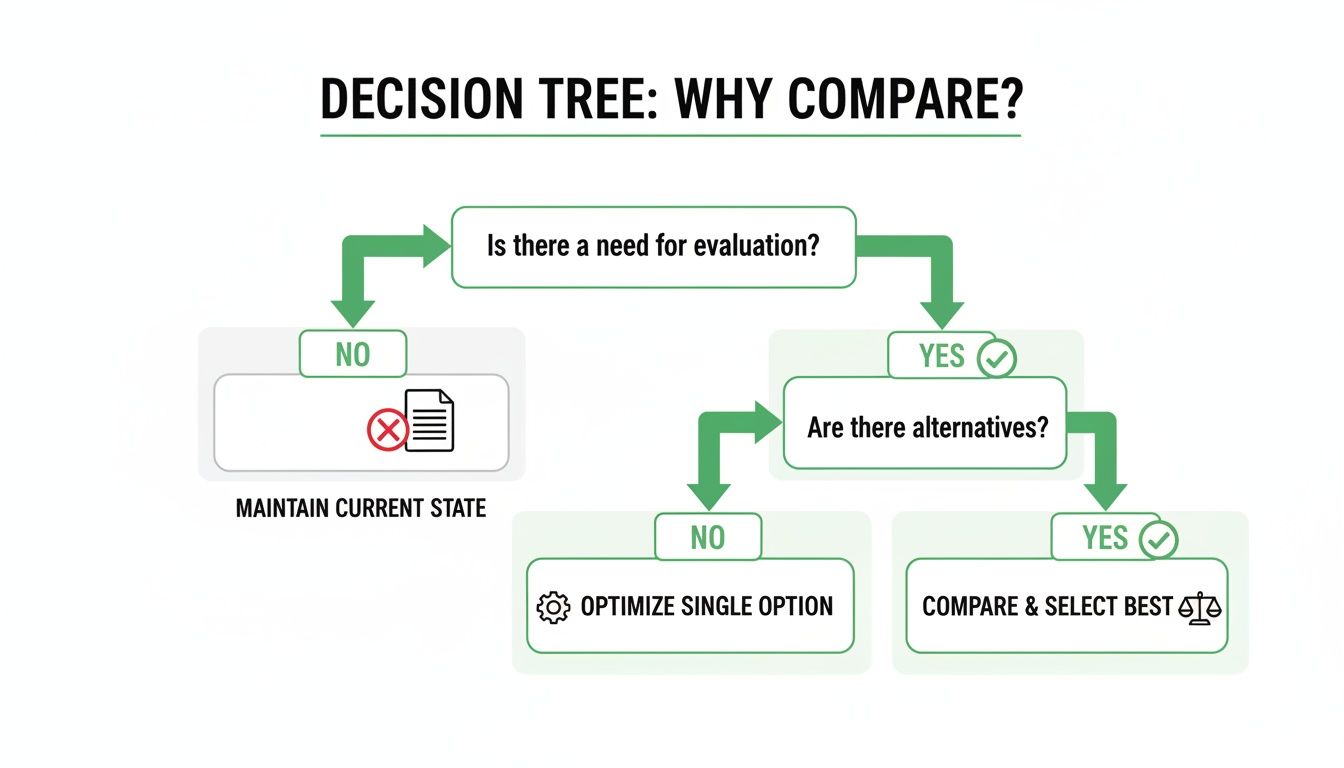
As the flowchart shows, if you're collaborating or dealing with anything official, a structured comparison is the only way to guarantee accuracy.
Automated Tools: A Smarter Approach
Automated comparison tools are a game-changer. They programmatically scan files to catch every single difference, taking human error completely out of the equation. These tools typically come in two flavors: built-in software features and dedicated online comparison tools.
Features like "Compare" in Microsoft Word are handy if you live inside that ecosystem. They offer a basic level of comparison, showing you insertions, deletions, and formatting tweaks. The problem is, they’re usually limited to specific file types and can get tripped up by complex layouts, tables, or images.
Dedicated online tools are the more powerful and flexible option. These platforms are built specifically for comparing documents with extreme precision, and they often support a much wider range of formats, including PDFs. They use advanced algorithms and sometimes even AI to give you a clear, easy-to-read report of all changes. To learn more, check out our guide on how document artificial intelligence is making these tools even smarter.
Key Insight: Moving to automated comparison isn't just about saving time—it's about fundamentally improving accuracy and reducing risk by taking human error out of the picture.
Comparing the Methods Side by Side
So, how do you choose? To make it easy, here's a breakdown of how each method stacks up.
The right choice depends on what you're working on. For a quick, low-stakes check, one method might be fine. For anything important, another is clearly better. This table provides a quick overview to help you decide.
Document Comparison Methods at a Glance
| Comparison Method | Best For | Accuracy | Speed | Security Risk |
|---|---|---|---|---|
| Manual Proofreading | Very short, simple text files with almost no changes. | Low | Very Slow | Low (if offline) |
| Built-in Software | Quick checks of Word documents in a secure, internal setting. | Medium | Fast | Low (local files) |
| Dedicated Online Tools | Complex PDFs, legal contracts, and any high-stakes document. | High | Very Fast | Varies by provider |
As you can see, dedicated online tools deliver the best mix of speed and accuracy, making them the go-to for most professional tasks. While a manual review might be fine for trivial things, any document that matters deserves the reliability that only an automated solution can offer. Just be sure to check the tool’s security policies, like data encryption and file deletion, to keep your information safe.
How to Compare Different File Formats
Picking the right comparison method isn't a one-size-fits-all deal. A Word document, a PDF, and a spreadsheet are built differently, so what works for one won't work for another. Knowing the difference is the key to getting a fast, accurate comparison every time.
Your process has to match the file format. A simple text file is a world away from a complex PDF with images and tables, and if you treat them the same, you're bound to miss critical changes or run into frustrating errors.
Comparing PDF Documents
PDFs are the gold standard for final, shareable documents, but that "locked" format makes them a nightmare to compare by hand. You can't just open two versions side-by-side and hope to spot a subtle shift in a table or a tiny text change. It’s slow, tedious, and a recipe for missing something important.
This is where specialized tools are a lifesaver. With remote work and paperless offices becoming the norm, the demand for good comparison tools has exploded. Consider this: 78% of digital agreements use PDFs, and with an estimated 290 billion PDF files created globally each year, the need for an efficient way to check them is obvious. You can find valuable insights on PDF trends at PDFa.org to see just how big this is.
AI-powered comparison tools cut right through these problems. They analyze the deep structure of a PDF, pinpointing differences in:
- Text and Formatting: Highlighting any added, deleted, or restyled text.
- Images and Graphics: Spotting if an image was moved, resized, or swapped out.
- Tables and Layouts: Catching shifts in complex data that the human eye would almost certainly miss.
Things get even trickier with scanned or image-based PDFs. For those, you absolutely need a tool with optical character recognition (OCR) built-in. To see how that works, check out our guide on how to OCR a PDF.
Comparing Microsoft Word Documents
Microsoft Word has a native "Compare" feature that’s a decent starting point. You can find it under the "Review" tab, and it merges two .docx files into a new document showing every change in a "redline" view, much like Track Changes. For simple text edits, it’s often good enough.
But it has its limits. The built-in tool can get tripped up by documents with complex formatting—think intricate tables, embedded charts, or heavy styling. When the layout is just as important as the text, Word's comparison can spit out a confusing mess that makes your job harder, not easier.
For a quick check on a straightforward text document, Word’s native tool is fine. But for contracts, reports, or manuscripts where formatting integrity is non-negotiable, a dedicated comparison tool will give you a much cleaner and more reliable result.
Comparing Plain Text and Code Files
When you're comparing plain text (.txt) or code files (.py, .js, .html), the focus shifts completely from visual layout to pure content. For a developer or writer, a single misplaced comma can break everything. Trying to spot that manually is next to impossible.
For these files, diff tools are the industry standard. These are specialized programs that analyze files line-by-line and show you a clear, side-by-side view of what changed.
Here’s the typical process:
- Line-by-Line Analysis: The tool breaks each file down into individual lines.
- Highlighting Changes: It uses color-coding to show you what’s been added (usually green), deleted (usually red), or modified.
- Side-by-Side View: Both versions are displayed next to each other, so you can see exactly where things are different.
This method is incredibly precise, making it the go-to for software development, technical writing, or any work where textual accuracy is everything.
Comparing Spreadsheets Like Excel
Comparing spreadsheets is a whole different ballgame because the most important changes might be completely invisible. A number in a cell might look the same, but the formula calculating it could be totally different. A quick visual scan would miss that—and that kind of mistake can have huge consequences.
When comparing Excel files, you need a tool that looks at:
- Cell Values: The actual numbers and text you see.
- Formulas: The calculations running in the background.
- Formatting: Changes to cell colors, fonts, or conditional formatting rules.
Specialized spreadsheet comparison tools are built to dig into all these layers. They can flag a formula change that seems fine on the surface but could throw off your entire budget, giving you a level of certainty a manual check never could.
A Step-by-Step Guide to Comparing PDFs
Trying to compare two PDFs side-by-side manually is a recipe for a headache. You scan back and forth, your eyes blur, and you just know you’re missing something important. But browser-based tools have turned this painful chore into a simple, two-click process.
Using an AI-powered tool like PDFPenguin’s makes spotting every single difference fast and completely intuitive. You can finally fly through your review and approval cycles with total confidence.
Here’s a quick walkthrough of how it works, from uploading your files to reading the AI-generated report. You'll see just how easy it is to make a smart comparison tool part of your daily workflow.
Step 1: Prepare and Upload Your PDFs
First thing's first: grab the two PDFs you need to compare. Pro tip—give them clear names like "Contract_v1.pdf" and "Contract_v2_revised.pdf". It’s a tiny habit that saves you from accidentally comparing the wrong documents, which can lead to costly mistakes.
Once you have your files, head over to the PDFPenguin Compare tool. You’ll see two upload boxes—one for the original document and one for the revised version. Just drag and drop each file into its spot, or click to browse your computer and find them.
The interface is clean and simple, so you know exactly what to do.
This straightforward design gets you started in seconds, with no confusion or extra steps.
Step 2: Run the Comparison and Get Your Results
With both documents uploaded, just hit the "Compare" button. That’s when the AI engine kicks in, meticulously scanning both PDFs. It looks at everything—text, images, and even layout changes—to pinpoint every discrepancy between the two versions.
The whole thing is incredibly fast, usually taking just a few seconds. The ability to automatically extract data from PDF pitch decks and other dense documents is a core principle behind what makes modern tools so quick and accurate.
Once it’s done, you’ll see a side-by-side view of your documents with every change neatly highlighted using a color-coded system.
The color-coded summary is where the AI really shines. It visually groups the changes, letting you see the scope of the revisions at a glance without having to read every single line.
Step 3: Read the Color-Coded Differences
Understanding the visual report is the final—and most important—step. The logic is designed to be intuitive so you can understand it instantly.
Here's what the colors usually mean:
- Green: This highlights text or other elements that have been added to the new document.
- Red: This shows you what’s been deleted from the original version.
- Blue or Yellow: This often points out content that’s been modified or moved, like a rephrased sentence or a shifted image.
This system lets you zero in on what actually matters instead of wasting time hunting for edits. For a closer look at how it works, check out our guide on how to compare two PDFs online. By following these simple steps, you can compare any document with confidence and make sure every single revision is accounted for.
Real-World Scenarios for Document Comparison
Document comparison isn't just some tech-nerd feature; it's a critical safety net in dozens of professions. The need to compare documents comes down to one thing: the stakes are high. A tiny, overlooked change can trigger massive consequences.
From legal contracts to academic papers, knowing exactly what’s been tweaked between versions is non-negotiable. Let's look at how professionals use comparison tools to dodge risks, stay compliant, and just get their work done faster.
Legal Teams and Contract Negotiations
For a lawyer, a contract is a minefield. One wrong word can change who owes what, potentially costing millions. During negotiations, drafts fly back and forth, and manually tracking every redline is a recipe for disaster.
Think about a 50-page merger agreement after a dozen revisions. A sneaky change to an indemnity clause or a shifted payment date is easy for the human eye to miss. An automated comparison tool flags every single modification, making sure the final version is exactly what was agreed upon. This heads off future lawsuits that could spring from a simple oversight.
In the legal world, "close enough" gets you sued. Automated comparison is like an impartial witness, verifying the final language matches the agreement and protecting everyone from honest mistakes or intentional trickery.
It’s not just for contracts, either. Legal teams use comparison tools for:
- Compliance Checks: Ensuring internal policies match up with new regulations.
- Litigation Filings: Making sure court documents are perfect before they're submitted.
- Due Diligence: Spotting discrepancies in financial records during a merger.
Academics and Collaborative Research
In academia, integrity is everything. A research paper often has multiple authors, peer reviewers, and editors all making changes over months. Keeping a clean audit trail is the only way to ensure the final publication is accurate.
Imagine a team of scientists co-authoring a climate change study. The lead author needs to see exactly what a co-author changed in the methodology section, or how a reviewer rephrased a key finding. A comparison tool ends the version control nightmare where important feedback gets lost or overwritten. It ensures every contribution is considered, making the final paper stronger.
Business Professionals and Financial Reporting
In business, accuracy equals trust. Financial reports, quarterly statements, and investment proposals are documents where a tiny error can have a huge ripple effect.
Take a CFO’s office prepping a quarterly report. Drafts get passed between finance, legal, and communications. A comparison tool lets the final reviewer instantly confirm that revenue figures were updated, a legal disclaimer was added, and a forward-looking statement was tweaked. This check is crucial before the report goes public, preventing misinformation and keeping regulators happy.
The demand for these features is why the PDF reader software market, valued at USD 1,958.2 million, is growing at a 13.30% CAGR. Users need more than just a viewer. For more on this, check out this market analysis on PDF software.
Document Comparison: Your Questions Answered
As you start comparing documents, a few questions are bound to pop up. Is one method better than another? Can you compare a Word doc to a PDF? And what about security?
Here are some straightforward answers to the most common questions we hear.
What’s the Most Accurate Way to Compare Two Documents?
For anything important, the most accurate method is using a dedicated, AI-powered comparison tool. While your eyes might be good enough for a quick email, they’re not reliable for spotting tiny but critical changes in contracts, reports, or manuscripts.
It’s just too easy to miss a swapped number, a subtle change in wording, or a removed comma that changes the whole meaning.
Automated tools don’t get tired or distracted. They scan both files and flag every single addition, deletion, and modification. AI-driven tools go even further, intelligently spotting changes in tables or layouts, giving you a level of accuracy that manual checks just can't match.
Think of it this way: for a high-stakes document like a legal agreement or a financial statement, a manual review is a gamble. An AI-powered tool gives you proof, ensuring nothing gets missed.
This kind of precision isn't just for peace of mind—it's essential for compliance, audits, and protecting yourself from costly mistakes.
Can I Compare Two Documents in Different Formats?
Yes, but not directly. Most comparison tools need both files to be the same type—a PDF against a PDF, or a Word doc against a Word doc. Trying to compare a PDF to a Word file directly usually gives messy, unreliable results.
The best approach is to convert one of the files first. For example, turn the Word document into a PDF. Once they’re both in the same format, a proper comparison tool can give you a clean, accurate report of all the differences. It’s a simple extra step that makes all the difference.
How Can I Compare Documents Securely Online?
When you’re handling sensitive information, security is everything. Always choose an online tool that takes privacy seriously.
Here’s what to look for:
- HTTPS Encryption: Make sure the site uses HTTPS (look for the lock icon in your browser). This encrypts your files during upload and download, so no one can intercept them.
- A Clear Privacy Policy: Reputable services will tell you exactly how they handle your data.
- Automatic Deletion: The best tools automatically and permanently delete your files from their servers after a short period. This means your confidential documents aren’t just sitting on someone else’s computer.
If a website doesn’t tick these boxes, don’t use it. It’s not worth the risk.
Why Not Just Use “Track Changes” in Microsoft Word?
Track Changes in Microsoft Word is great for collaborating on a single document as it evolves. But it has one huge limitation: it only works if someone remembered to turn it on before making edits.
What happens if a colleague sends you a revised version and forgot to enable it? Or if you just have two final drafts, like Proposal_v1.pdf and Proposal_v2.pdf? In those cases, Track Changes is useless.
That’s where a true document comparison tool comes in. It’s built to analyze two separate files after the fact, no matter how the changes were made. It gives you a clean, side-by-side report of what’s different, saving you from a world of frustration.
Ready to compare your documents with speed, accuracy, and security? The PDFPenguin Compare tool uses advanced AI to instantly highlight every difference between two PDFs, so you can review and approve files with total confidence. Try it for free today at https://www.pdfpenguin.net.