
If you’re still manually typing information from invoices into your accounting software, you know the pain. It’s slow, tedious, and feels like a massive time sink. But the real problem isn't just the wasted hours—it’s the hidden costs that quietly eat away at your bottom line.
Using Optical Character Recognition (OCR) and smart AI tools is the modern way to pull data from PDF invoices and turn it into something useful, like a clean CSV or JSON file. This isn't just about saving time; it's about eliminating the costly mistakes and delays that come with doing things by hand.
The Hidden Costs of Manual Invoice Data Entry
That growing stack of invoices isn't just a to-do list; it's a source of friction that slows your entire business down. Manual data entry seems manageable at first, but it creates a domino effect of financial and strategic problems that can seriously undermine your company's health.
The most obvious hit is to your wallet. Manual processing is sluggish, making it tough to pay bills on time. This leads to late payment fees that add up fast. Even worse, you miss out on early-payment discounts. Many suppliers offer a 1-2% discount for paying quickly, a valuable margin that’s almost impossible to grab when you're stuck in manual-entry quicksand.
The Ripple Effect of Inaccurate Data
Beyond late fees, manual errors pollute your accounting systems with "dirty data." One tiny typo in an invoice number or total can cause a payment mismatch, forcing someone to spend hours tracking down the mistake. These little errors don't just mess up one transaction; they corrupt your financial reports and make forecasting a guessing game.
When you can't trust your data, you can't make smart decisions. This leads to a bunch of operational headaches:
- Delayed Financial Insights: Bad data slows down closing the books, leaving your leadership team with an outdated picture of the company's financial health.
- Strained Vendor Relationships: Constant payment mistakes or delays can wreck the trust you have with your suppliers, which could lead to worse payment terms down the road.
- Wasted Brainpower: Your team ends up fixing typos instead of focusing on what really matters, like analyzing financial trends or planning for growth.
The real problem isn't just the time you spend typing. It's the compounding cost of the errors it creates. Every mistake takes more time to fix, hurts your financial accuracy, and brings the whole accounts payable workflow to a crawl.
Ultimately, choosing to extract invoice data by hand means accepting all these headaches as the cost of doing business. But in today’s world, that’s a huge competitive disadvantage. While you’re stuck fixing errors, other companies are using automated tools to process faster, get more accurate data, and see their financial status in real-time. Moving past manual entry isn't just a nice-to-have—it’s essential for staying in the game.
Preparing Invoices for Flawless Data Extraction
Before you even think about extracting invoice data, the quality of your source documents will make or break your efforts. Feeding a blurry, crooked, or weirdly formatted file into even the smartest OCR system is just asking for a headache. It's like cooking—good ingredients give you a good meal. Proper prep work here ensures a much better result down the line.
The usual suspects behind bad data extraction are low-quality scans and a jumble of different file types. One vendor might email a perfect PDF, but the next sends a grainy photo snapped with a phone (a JPG). Each variation throws a new curveball at your software, upping the odds of errors in crucial fields like invoice numbers or totals.
When manual work and bad data creep in, the costs add up fast.
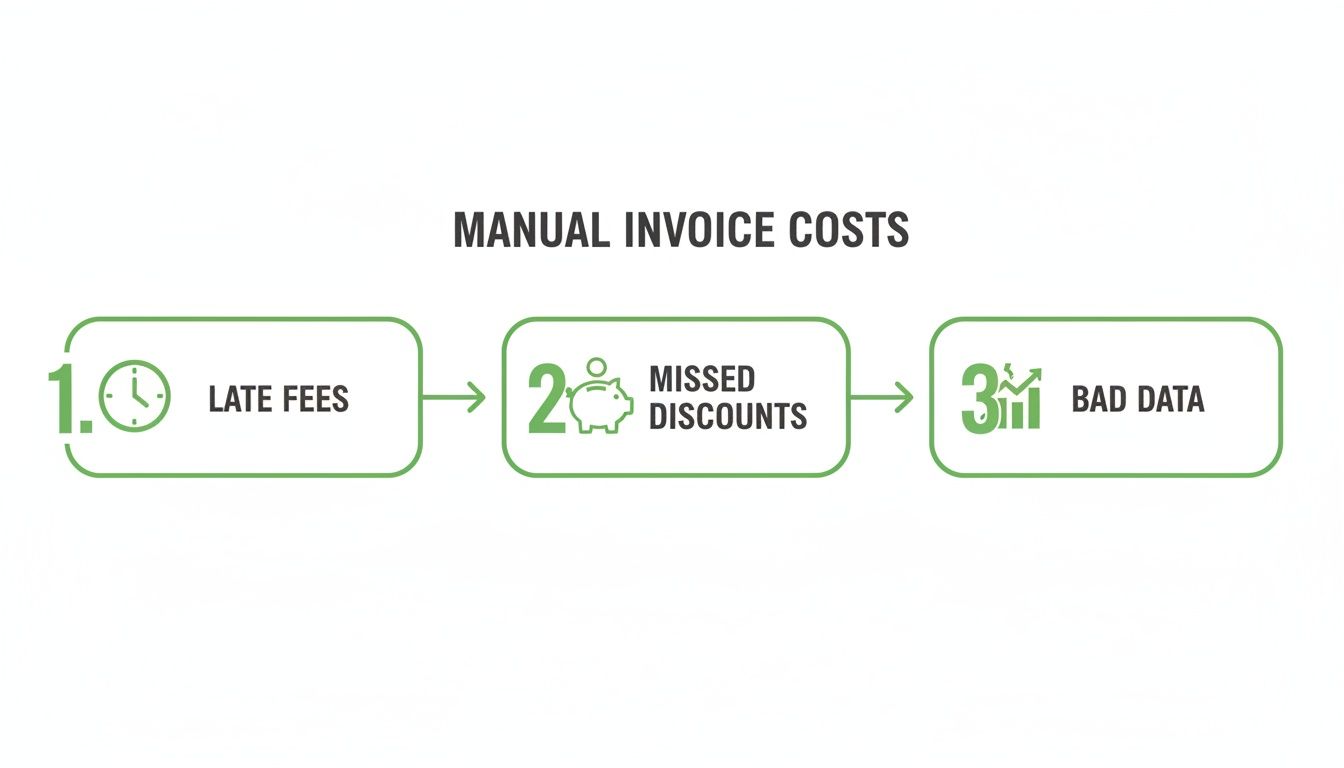
Things like late fees, missed early-payment discounts, and bad data aren't just hypotheticals—they’re the direct result of friction and errors that happen when you skip the document prep stage.
Standardize Your Files for Consistency
The first real step is to get all your incoming invoices onto a level playing field. Your mission is to turn every document—whether it’s a JPG, PNG, or even a HEIC image from an iPhone—into a standard, high-quality PDF. A clean PDF gives OCR engines the consistent layout and clear text they need to work reliably.
Picture this common scenario: you receive a folder full of scanned invoices, all saved as individual image files. Instead of tackling them one by one, you can convert them all into a single, multi-page PDF. This organizes the batch and standardizes it for your extraction tool. If you’re dealing with a lot of scans, learning how to properly convert scanned documents to PDF is a core skill that pays off big time in accuracy.
The single biggest improvement you can make to your data extraction accuracy happens before the extraction tool even sees the file. Clean, standardized PDFs are the secret weapon for avoiding OCR errors.
Split, Compress, and Organize
It’s also common for vendors to send one massive PDF containing dozens of invoices. Trying to pull data from a file like that is a mess. The software can easily get confused about where one invoice ends and the next begins.
Here’s a simple but powerful pre-processing workflow I use:
- Split Multi-Invoice PDFs: Use a tool to break up large PDFs into individual files, so each file contains just one invoice. This keeps data from one invoice from spilling over and getting assigned to another.
- Compress Large Files: High-res scans create huge files that are slow to upload and process. Compressing them shrinks the file size without hurting the text quality needed for OCR. You're looking for that sweet spot where the file is small but the text is still perfectly crisp.
- Name Files Logically: Get into the habit of using a consistent naming system, like
VendorName_InvoiceDate_InvoiceID.pdf. It sounds simple, but this makes it so much easier to track, troubleshoot, and archive documents later.
Think of this as your pre-flight checklist. By spending a few minutes to standardize, split, and compress your invoices, you’re knocking out the most common reasons for failure right from the start. This builds a reliable foundation, letting your software extract invoice data with the highest possible accuracy.
Choosing Your Invoice Data Extraction Method
Trying to figure out how to pull data from invoices can feel overwhelming, but it really comes down to two main paths. The right one for you depends entirely on the kinds of invoices you get and how much they vary from one vendor to the next.
One route is template-based Optical Character Recognition (OCR). Picture it like creating a stencil for a specific invoice layout. You manually tell the system exactly where to find key info—like the invoice number, date, and total amount.
This approach works like a charm when your invoices are all cookie-cutter copies. If you get hundreds of invoices from one major supplier and their layout is always the same, a template-based system is incredibly fast and accurate.
But that’s also its biggest flaw. The moment a vendor tweaks their invoice design—even just moving the date to the other side—the template breaks. You’re then stuck manually creating a new stencil for that layout, which becomes a nightmare when you're juggling dozens of different suppliers.
The Move to Smarter Automation
The rigid nature of templates has pushed everyone toward a much more flexible solution: Intelligent Document Processing (IDP). Instead of depending on fixed locations, IDP uses machine learning and AI to actually understand what it's reading.
IDP doesn’t just see letters and numbers; it recognizes what they mean. It knows that "INV-12345" sitting next to the words "Invoice Number" is the data you need, no matter where it shows up on the page. This is what makes it so useful for any business trying to extract data from invoices with AI automation coming in all sorts of unstructured formats.
You can get a deeper look at how this all works in our guide to document artificial intelligence.
This shift isn't just a small trend. The Data Extraction market now makes up a massive 28.6% market share of AI-powered invoice management. That growth is all thanks to new AI that lets businesses process wildly different invoice formats more accurately than ever before.
Comparing Your Options Side by Side
To make the right call, you have to look at the trade-offs. What’s perfect for a small shop with a handful of consistent vendors just won't work for a bigger company processing thousands of unique invoices a month.
The best method isn't always the most high-tech one—it's the one that fits your specific invoice volume, variety, and budget. For most modern businesses, the flexibility of IDP is a much smarter long-term investment.
To help you decide, let's break down how these two approaches stack up in the real world.
Comparison of Invoice Data Extraction Methods
This table compares the key characteristics of different methods used to extract invoice data, helping you choose the best fit for your operational needs.
| Method | Best For | Accuracy | Setup Effort | Scalability | Cost |
|---|---|---|---|---|---|
| Template-Based OCR | Standardized, high-volume invoices from a few sources. | High (for known templates), Low (for variations). | High initially (template for each layout). | Poor. Every new format needs a new template. | Low to Moderate |
| Intelligent Processing (IDP) | Diverse, unstructured invoices from many sources. | High (adapts to new layouts automatically). | Low. The AI model is pre-trained. | Excellent. Scales easily without manual setup. | Moderate to High |
Ultimately, while template-based OCR still has its place for very specific, unchanging workflows, IDP is clearly where things are headed. Its ability to learn and adapt makes it a far more reliable and scalable solution for any business looking to truly automate how they extract invoice data and get their accounts payable process under control.
Mapping Fields and Parsing Data Like a Pro
So, your OCR tool has finished its job and spit out a giant block of raw text. Now what? This is where the real work begins, in a process called field mapping. It’s the crucial step where you teach your software how to connect that jumble of text to the neat, organized data fields you actually need—things like Invoice Number, Due Date, and Total Amount.
Think of it like giving your software a treasure map. The OCR found all the words on the page, but now you need to draw lines to show it which words are the treasure. This is what turns a messy text file into a clean row in a spreadsheet or a new entry in your accounting system.
Creating Your Data Treasure Map
At its core, field mapping is all about telling your extraction tool what to look for and where to put it. In the early days, this meant manually drawing a box around the "Invoice No." on a sample invoice and labeling it. Thankfully, modern Intelligent Document Processing (IDP) tools are much smarter. They've been trained on millions of invoices, so they can already guess where most fields are with surprising accuracy.
Your job is to fine-tune those guesses and account for all the quirky variations. One vendor might call it "Grand Total," while another says "Amount Due." Your mapping rules have to be flexible enough to know they’re the same thing.
You'll want to make sure you're mapping all the essentials:
- Vendor Information: Name, address, and contact info.
- Key Identifiers: Invoice Number and Purchase Order (PO) Number.
- Important Dates: Invoice Date and Due Date.
- The Money: Subtotal, Tax Amount, and of course, the Total Amount.
- Line Items: This is a big one. You need the description, quantity, unit price, and total for each item.
Handling Variations and Setting Rules
Let's be honest: invoices are messy and inconsistent. A date can be written as MM/DD/YYYY, DD-MON-YY, or Month Day, Year. This is where parsing rules become your best friend. You’re not just showing the system where the data is, but also telling it how to understand it.
You can set up a rule, for instance, to recognize all those different date formats and automatically standardize them into a single format like YYYY-MM-DD. This is a lifesaver for keeping your data clean and your reporting accurate. And when invoices arrive directly in your inbox, looking into advanced AI email parsing capabilities can automate this whole process even further.
The goal isn’t to build a perfect map for every single invoice layout out there. It's to create a flexible set of rules that can find the right data even when a vendor changes their template. That’s the difference between a brittle, high-maintenance system and a truly robust one.
Another trick I always recommend is setting up data validation logic. This is your automated quality check. By creating a few simple rules, you can have the system flag potential errors for you, adding an extra layer of confidence.
For example, a classic validation rule is to check if the line item totals plus the tax actually add up to the grand total. If they don't, the system flags the invoice for a quick human look instead of pushing bad data through. This simple check can prevent huge accounting headaches later on. It’s a proactive way to extract invoice data you can actually trust.
How to Validate and Export Your Structured Data
Pulling text from a PDF is a great first step, but the real magic happens next. The job isn't done until that data is clean, accurate, and ready to power your business. This final stage—validation and export—is what turns a messy pile of extracted text into a genuinely useful asset.
The best way I’ve found to guarantee accuracy without slowing everything down is with a human-in-the-loop (HITL) approach. This isn't about having someone manually re-type every invoice. Far from it. It’s a smarter system where the AI does the heavy lifting and just flags the few entries it's not 100% sure about for a quick human check.
Imagine the software pulls a total amount, but it has low confidence because of a coffee stain on the original document. It simply highlights that one field. Your accounts payable clerk can then glance at the invoice snippet on their screen and either confirm the number or type in the correct one. It takes seconds. This blend of machine speed and human oversight is the key to trustworthy automation.
Strengthening Your Data Confidence
A good validation screen is crucial here. It should show the extracted data right next to the source document, making it dead simple to compare. You shouldn't have to hunt for anything; you should be able to approve or fix flagged data with a single click.
This process also creates a powerful feedback loop. Every time a person makes a correction, they’re actually teaching the AI model. Over time, it gets smarter, and its accuracy improves. The more you use the system, the less you'll have to step in.
The goal of validation isn't to create more work—it's to build trust. By pointing human attention only where it's needed, you can process thousands of invoices with total confidence, knowing that errors are caught before they ever touch your financial systems.
The demand for reliable systems like this is exploding. The invoice processing software market is expected to grow from USD 40.82 billion in 2025 to a staggering USD 87.95 billion by 2029. This isn't just a niche tool anymore; it’s becoming essential. You can dig into the numbers in this in-depth market report.
From Raw Data to Actionable Insights
Once your data is validated, it’s time to get it into a format you can actually use. The two most popular and versatile options are CSV and JSON. The right choice really just depends on what you plan to do next.
Exporting to CSV (Comma-Separated Values):
- Best For: Analyzing data in spreadsheets, creating financial reports, or doing bulk uploads.
- How It Works: A CSV file is basically a simple table. Each invoice gets its own row, and each piece of data (like
Vendor Name,Invoice Date,Total Amount) gets its own column. - Real-World Use: You can pop a CSV open in Microsoft Excel or Google Sheets to immediately sort, filter, and analyze spending. For anyone looking to perfect this workflow, our guide on converting PDF files to Excel has some great tips.
Exporting to JSON (JavaScript Object Notation):
- Best For: Integrating with other software and building automated workflows.
- How It Works: JSON is a lightweight format that’s perfect for sending data between different applications. It uses a simple key-value structure (e.g.,
"invoice_number": "INV-54321") that software can easily understand. - Real-World Use: JSON is the native language of APIs. You can use it to automatically push validated invoice data straight into your accounting software or ERP system, completely cutting out manual data entry.
By getting validation right and choosing the correct export format, you complete the journey. You've successfully turned a static PDF invoice into clean, structured data that’s ready to fuel smarter decisions and more efficient workflows.
Automating and Securing Your Extraction Workflow
Once you’ve nailed extracting data from a single invoice, the real win is getting yourself out of the equation. True efficiency isn’t about clicking buttons faster; it’s about building a smart, secure system that processes invoices on its own. This is how you go from handling a few documents a week to thousands without breaking a sweat.
The easiest first step? Batch processing. Instead of feeding your tool one PDF at a time, just drop an entire folder of invoices in and let it get to work. Right away, you’ve turned a manual chore into a background task, freeing up your team for work that actually matters.
Connecting Your Systems With APIs
For a truly set-it-and-forget-it workflow, you’ll need to use Application Programming Interfaces, or APIs. Think of an API as a translator that lets your invoice software talk directly to your other business tools, cutting out the manual busywork of moving files around.
Imagine a process that runs entirely on its own:
- An invoice hits a dedicated email address as a PDF attachment.
- An API trigger automatically forwards that PDF to your extraction tool.
- The data is extracted, checked for errors, and saved as a JSON file.
- Another API call pushes that clean data directly into your accounting software.
This is the kind of integration that turns the need to extract invoice data from a nagging task into a smooth, continuous flow. No more downloading attachments or uploading CSVs. The whole system just runs.
Prioritizing Data Security and Privacy
As you start automating the flow of financial documents, security has to be your top priority. Invoices are packed with sensitive data—bank details, confidential pricing, and personal contact info. Protecting it isn’t just good practice; it's a fundamental responsibility.
Automation and efficiency are powerful, but they mean nothing without a foundation of trust and security. Your workflow must be designed to protect sensitive financial data at every single step, from ingestion to archival.
First, make sure all data is sent over secure connections like HTTPS. This encrypts everything in transit, stopping anyone from snooping. Next, check that your extraction tool uses encryption at rest, which keeps the stored files and data scrambled and safe on the server.
Finally, set up a clear data retention policy. Decide exactly how long you need to keep original invoices and the extracted data for audits or records, then create rules to delete them securely when the time is up. This shrinks your data footprint and lowers your risk. A secure workflow makes sure that your push for efficiency is also a step toward smarter data governance.
Common Questions About Invoice Data Extraction
Even with the best tools, jumping into automated invoice extraction can feel like a big leap. You're bound to have questions. Let's tackle a few of the most common ones I hear from businesses making the switch.
How Accurate Is This, Really?
This is usually the first question, and it's a good one. Can a machine really beat a human at reading an invoice? When it comes to consistency, the answer is a resounding yes. Modern Intelligent Document Processing (IDP) systems often hit over 95% accuracy on standard fields.
Think about it: an AI doesn't get tired after lunch or start making typos on the 100th invoice of the day. Manual entry is prone to human error, but an automated system just keeps going with the same level of precision.
What About Messy Files and Weird Formats?
Another big concern is file type. Invoices don't always arrive as perfect, clean PDFs. You get blurry JPGs from a phone camera, multi-page PNGs, or low-quality scans. A good extraction workflow is built for this messy reality.
The best systems will automatically convert all those different image formats into an optimized PDF before the extraction even starts. This gives the OCR engine the cleanest possible slate to work from, dramatically improving the results.
Can It Connect to My Existing Software?
Absolutely. The whole point of automation is to make your life easier, not to create another data silo you have to manage. Most businesses worry about adding yet another complicated step, but modern tools are designed to plug right into what you're already using.
With APIs, you can build a direct pipeline that sends clean, structured data straight into your:
- Accounting software like QuickBooks or Xero
- Enterprise Resource Planning (ERP) systems
- Cloud storage like Google Drive or Dropbox
The goal isn't just to pull data off a page; it's to get that data where it needs to go without anyone having to touch it. A truly successful setup automates the flow from the moment an invoice lands in your inbox to its final entry in your accounting system.
This technology is only getting better. The market for AI-driven invoice processing is projected to grow from USD 2.8 billion to a staggering USD 47.1 billion by 2034. That explosive growth is proof that this isn't just a trend—it's a fundamental shift in how businesses operate. You can read more about the global trends in AI invoice processing to see where things are headed.
Ready to stop chasing down invoices and start building a smarter workflow? PDFPenguin gives you simple, powerful tools to prepare your documents for flawless data extraction. Compress, convert, and organize your PDFs in seconds, right from your browser. Give it a try for free at https://www.pdfpenguin.net.