
Ever tried to send a photo from your iPhone, only to have the other person say they can't open it? That’s the HEIC dilemma in a nutshell. Converting your HEIC images to PDF is the fastest way to fix these compatibility headaches for good, making your photos universally shareable and professional.
Why Converting HEIC to PDF Solves Your Sharing Headaches

HEIC (High-Efficiency Image Container) is Apple's default photo format, and for good reason—it’s brilliant at saving space without sacrificing quality. The problem? Outside the Apple ecosystem, it’s a different story. Many Windows PCs, Android phones, and older devices just can’t open HEIC files without special software. This is where converting HEIC to PDF becomes an essential skill.
The Universal Language of Documents
Think of PDF (Portable Document Format) as the universal translator for the digital world. It doesn't matter what operating system someone is using—Mac, Windows, Android, or Linux—a PDF looks exactly the same everywhere. That consistency is its superpower.
When you turn a HEIC photo into a PDF, you're not just changing the file type. You're packaging it into a format that everyone can open, view, and print without any hassle.
Bridging the Compatibility Gap
Apple rolled out the HEIC format back in September 2017, slashing photo file sizes by up to 50% compared to traditional JPEGs. But even years later, its adoption outside of Apple products has been slow. Many users on other platforms still run into frustrating dead ends when they receive a HEIC file.
This technology gap is precisely why a reliable heic to pdf workflow is so valuable. It saves you time, prevents frustrating back-and-forth emails, and ensures your images get seen.
When to Convert HEIC to PDF: Common Scenarios
The benefits really click when you see them in everyday situations. Here’s a quick look at why this conversion is so practical for school, work, or just sharing memories.
| Scenario | Problem with HEIC | Why PDF Is the Solution |
|---|---|---|
| Academic Submissions | University submission portals often don't recognize HEIC files, causing upload errors. | PDF is the standard format for academic documents, ensuring your work is accepted and viewable. |
| Professional Reports | Sending individual HEIC files for a client report looks unprofessional and can be hard to organize. | A multi-page PDF compiles all property photos or project images into one polished, easy-to-read document. |
| Legal/Financial Archiving | Archiving photos of receipts or contracts as HEIC risks them being unreadable on future systems. | PDF is the archival standard. It preserves the image perfectly and is easy to store, search, and manage. |
| Simple Photo Sharing | Family members with Android phones or Windows PCs can't open the vacation photos you sent. | A PDF ensures everyone can see the images exactly as intended, regardless of their device. |
Ultimately, turning your photos into a PDF solves more than just a technical problem—it makes your digital life easier and more professional.
For example, a student submitting photographic evidence for an assignment can bundle everything into one clean PDF. A real estate agent can create a polished property portfolio for a client. Even just sending vacation photos to family becomes effortless, especially if you're worried about email attachment size limits.
The bottom line is simple: converting HEIC to PDF isn't just a workaround. It's about ensuring your images are accessible, professional, and universally compatible for anyone, on any device.
By embracing this simple conversion, you take back control over your files and put an end to the compatibility chaos. It's a small step that solves a big, common problem.
The Easiest Way to Convert HEIC to PDF Online

When you just need to get the job done, an online converter is your best friend. Forget installing software, running updates, or figuring out your operating system's quirks. If you need to turn a HEIC file into a PDF fast, doing it in your browser is the simplest path forward.
The real magic is that it works anywhere. On your office Windows machine, a school Chromebook, or even a friend's Mac—the steps are exactly the same. That universal access means you have a reliable solution no matter where you are.
How the Conversion Works
We designed tools like PDFPenguin to be dead simple. The goal is to get you from a bunch of HEIC photos to a clean PDF in a few clicks, with zero learning curve.
It all starts with a simple drag-and-drop. You can grab a single HEIC or an entire folder and just drop them onto the page. This is a huge step up from the one-by-one approach you’re stuck with using most built-in "Print to PDF" options.
Just look at how clean the PDFPenguin interface is—no guesswork needed.
The big "Select HEIC files" button and drag-and-drop area tell you exactly what to do.
Features That Actually Make a Difference
A good online tool does more than just switch the file type; it solves real problems.
One of the biggest wins is the ability to merge multiple HEIC files into a single PDF. Say you’re a real estate agent with a dozen property photos. Instead of firing off twelve separate attachments, you can combine them into one polished, professional portfolio that’s easy for a client to scroll through.
Here are a few other things that save you a headache:
- Batch Conversion: Got a whole folder of vacation photos? Upload them all at once. It’s a massive time-saver compared to converting them individually.
- File Reordering: Before you hit convert, you can drag the images into the right sequence. This is a lifesaver for creating how-to guides or organizing event photos chronologically.
- No Software Clutter: Since it all happens in the cloud, you don’t burn through disk space or have to manage another app on your computer.
The real power here isn't just the conversion. It’s the control you get over the final document. Merging, reordering, and batch processing are what separate a quick fix from a genuinely useful workflow.
What About Privacy and Security?
Uploading personal photos online can feel sketchy, and you're right to be cautious. Any reputable service puts your data security first.
Look for tools that use HTTPS encryption. This scrambles your files during upload and download, keeping them safe from prying eyes.
More importantly, check the privacy policy. A trustworthy tool like PDFPenguin has a strict data retention policy, automatically deleting your files from its servers within an hour or so. Your private photos shouldn't be sitting on a remote server forever.
When an Online Tool Is Your Best Bet
While built-in tools are handy, an online converter shines in a few key situations. If you work with all sorts of image types, our guide on how to convert images to PDF online for free is a great resource.
An online tool is the clear choice when:
- You’re on a public or shared computer and can't install software.
- You have a huge batch of HEICs and need them converted now.
- You want to combine multiple photos into one clean PDF document.
- You’re not on a Mac or iPhone and need a reliable way to handle HEIC files.
In these cases, the convenience and power of a browser-based tool make the heic to pdf conversion totally painless.
Using Your Built-In Tools on Mac and iPhone
If you're an Apple user, you're in luck. You don’t need any special software to handle a quick HEIC to PDF conversion. Your Mac, iPhone, and iPad already have everything you need built right in, making it a breeze to get the job done in seconds.
This approach is perfect for those one-off tasks where hunting for a website or downloading a new app feels like a waste of time. The tools are already part of your daily workflow, so there's nothing new to learn.
Converting HEIC to PDF on Your Mac
On a Mac, you have a couple of ridiculously easy options. The go-to method for most people is using the Preview app—the same one that probably opens your images by default.
Just open your HEIC image in Preview, head up to the File menu, and select Export as PDF. That’s it. You’ll get a save window where you can name your new file and pick where to put it. It’s incredibly fast for turning a single image into a clean, universal PDF.
Another great trick is to use the "Print" function, which works across almost every app on your Mac.
- Open your HEIC file in Preview or the Photos app.
- Go to File > Print (or just hit Command+P).
- Look for the little PDF dropdown menu in the bottom-left corner of the print window.
- Click it and choose Save as PDF.
This "Print to PDF" method is a real power move because it works for almost any file type, not just HEICs. It's a handy skill for all kinds of document tasks. For those of you managing photo collections, knowing the ins and outs of creating a shared album on iPhone is also super helpful, especially when you have a bunch of HEICs from an event.
Turning HEIC Photos into PDFs on iPhone and iPad
Since your iPhone is probably where most of your HEIC files live, it makes sense that you can convert them right there. The process uses the same "Print to PDF" logic, but it’s cleverly tucked away in the Share Sheet.
Let's say you just snapped a few photos of whiteboard notes from a meeting and need to email them as a single document. Here’s how you do it:
- Open the Photos app and select the HEIC images you want to use.
- Tap the Share icon (the little box with an arrow pointing up).
- Scroll down the list of options and tap Print.
- Here’s the magic part: on the print preview thumbnail, use two fingers to pinch outwards as if you're zooming in. This gesture instantly turns the print job into a PDF.
- Tap the new Share icon that appears, and you can save the PDF to your Files app, email it, or send it through any messaging app.
This pinch-to-PDF trick is a complete game-changer for mobile work. It feels like a secret handshake, but once you know it, you'll find yourself using it all the time to create PDFs from photos, websites, and notes.
The Limits of Built-In Tools
While these built-in methods are fantastic for quick jobs, they do have their downsides. They’re great for one or two photos but quickly become clunky and slow when you need to convert a whole batch of images.
Trying to merge a dozen HEIC files into a single, correctly ordered PDF can be a real headache. There's no simple drag-and-drop interface to reorder twenty images before you create the PDF. You also miss out on advanced options like adjusting image quality or setting a specific page size. And if you also need to convert your HEICs to a more common image format, check out our guide on the HEIC to JPG conversion process.
When your needs go beyond a simple, one-off conversion—especially for batch processing or merging lots of photos—a dedicated online tool will give you a much smoother and more powerful experience.
Practical Solutions for Handling HEIC on Windows
If you’re a Windows user, getting a HEIC file can feel like hitting a digital brick wall. Your PC just doesn't know what to do with it, even though iPhones spit them out by default. The good news? It's an easy fix, and you've got a couple of great options to get things working smoothly.
Enabling Native HEIC Support
First things first, you need to teach Windows how to read these files. If you've ever tried to open a HEIC and gotten an error, it’s because your system is missing the right instructions, or codec.
Microsoft offers an official fix right in its own store. Just grab the HEIF Image Extensions. It’s a tiny add-on that lets Windows see and open HEIC and HEIF files, just like it does with a normal JPG. Once it’s installed, you’ll see thumbnails in your folders and be able to open the images in the Photos app.
This is a fantastic one-time setup for viewing photos, but it doesn't solve the conversion problem on its own. For that, you’ll need a little workaround.
Using the Built-In Print to PDF Feature
With the extensions installed, you can now use a trick that’s already built into Windows: the Microsoft Print to PDF feature. It’s a clever way to turn almost anything into a PDF, including your newly-visible HEIC files.
Here’s how it works:
- Open your HEIC image in the Windows Photos app.
- Hit the printer icon or press Ctrl+P to bring up the print menu.
- Under the "Printer" dropdown, choose Microsoft Print to PDF.
- Click "Print." Windows will then ask you where to save your new PDF.
This method is perfect for converting one or two images in a pinch. But its limits become obvious once you’re dealing with a whole folder of photos. It’s not built for bulk work, and trying to merge multiple images into a single, organized document is a clunky and frustrating process.
The "Print to PDF" function is a useful trick to have in your back pocket for a quick, one-off conversion. But for anything more than a handful of files, you’ll want a tool designed for the job.
Windows Native Tools vs. Online Converters
When you need to get serious, the difference between the native Windows method and a dedicated browser-based tool like PDFPenguin becomes crystal clear. One is a simple workaround; the other is a true workflow solution. The right choice really just depends on what you need to get done.
To make it simple, here’s a quick comparison of the two approaches.
Windows HEIC to PDF Method Comparison
| Feature | Windows 'Print to PDF' | PDFPenguin Online Tool |
|---|---|---|
| Setup Required | Requires one-time HEIF extension install. | None. Works instantly in any web browser. |
| Batch Conversion | Not supported. Files must be processed individually. | Fully supported. Upload entire folders at once. |
| Merging Files | Not possible. Each conversion creates a separate PDF. | Yes. Merge multiple HEICs into one multi-page PDF. |
| File Reordering | Not applicable. | Yes. Drag and drop to reorder images before converting. |
| Accessibility | Limited to your configured Windows PC. | Accessible from any device with an internet connection. |
The verdict is pretty clear. If you regularly handle lots of photos—say, you’re a designer building a portfolio or a project manager documenting site progress—an online tool is far more efficient. The ability to upload, reorder, and merge an entire folder of HEIC images in one go saves a massive amount of time and hassle.
While the built-in Windows method is a good trick to know, an online converter gives you the speed and flexibility needed for modern document workflows.
Mastering Advanced HEIC to PDF Workflows
Simple, one-off conversions are fine, but what happens when you’re staring down a folder with dozens, or even hundreds, of HEIC files? This is where a real workflow becomes a necessity, not a luxury. For anyone in real estate, legal services, or project management, converting images one by one is a guaranteed way to lose a huge chunk of your day.
It's time to move beyond basic tools and build a strategy for volume. The goal is to take a folder brimming with HEIC images—property photos, evidence files, or project progress shots—and turn it into a single, organized, and professional multi-page PDF.
The Power of Batch Processing and Merging
The heart of an efficient workflow is batch processing. Instead of that tedious open-save-repeat cycle, you can upload an entire collection of HEIC files at once. This alone cuts your manual effort way down, but the real magic happens when you combine it with merging.
Merging lets you consolidate all those separate images into one cohesive document. Picture a real estate agent creating a property portfolio. Instead of emailing a client twenty different image files, they can deliver a single, polished PDF that’s easy to flick through and looks far more professional.
This streamlined process, shown below, proves that handling a big batch of HEIC files can be simple with the right approach.
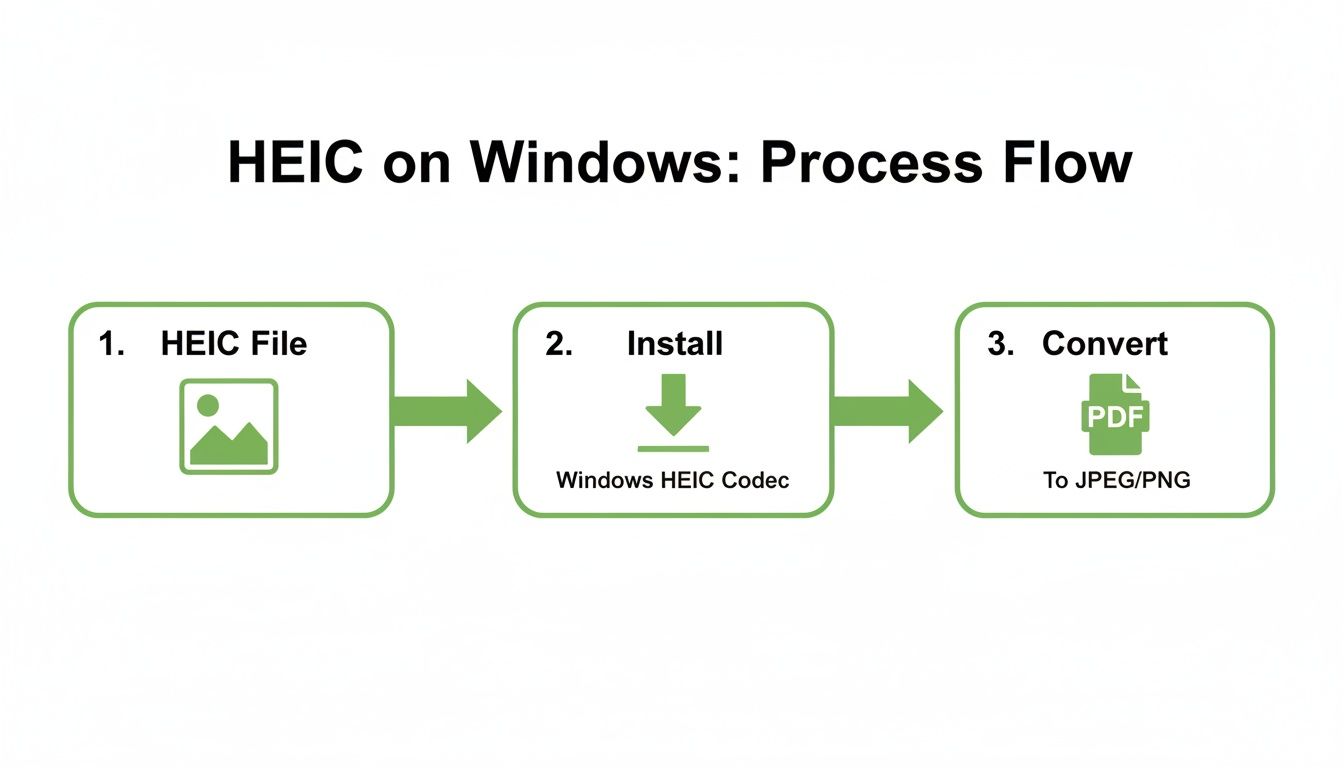
The diagram shows a simple, three-stage process. It makes clear that even on a system without native HEIC support, getting from a messy folder of images to a clean PDF is straightforward.
Preserving Order and Quality at Scale
When you’re merging a bunch of images, controlling their order is everything. A good online tool like PDFPenguin lets you drag and drop the uploaded files into the exact sequence you need before you finalize the PDF. This is absolutely essential for creating things like:
- Chronological reports: Documenting an event or project timeline where the order of photos tells the story.
- Instructional guides: Arranging step-by-step visual instructions so they actually make sense.
- Cohesive portfolios: Presenting your work in a logical, curated flow that makes the best impression.
On top of that, maintaining image quality is non-negotiable. Advanced converters take the original high-resolution HEIC data and embed it directly into the PDF without adding nasty compression. Your sharp, detailed iPhone photos stay just as crisp inside the PDF as they were on your phone.
Advanced Security for Sensitive Documents
For many pros, document security is the number one concern. In fields like legal and compliance, where the integrity of a document is paramount, HEIC to PDF workflows have become incredibly common. This trend shot up as 85% of U.S. law firms started using iPads for fieldwork. A recent survey even found that 62% of legal professionals were hitting HEIC compatibility roadblocks every month, causing frustrating delays.
Online tools like PDFPenguin solve this by letting you merge unlimited HEIC files into password-protected PDFs that are also compliant with archival standards like ISO 19005.
Password protection is a game-changer for advanced workflows. It lets you encrypt the final PDF, making sure only people with the password can open and see what’s inside. This is vital when you're sharing sensitive client information, confidential reports, or private legal evidence.
Once you have your secure PDF, you can make it even more useful. A smart next step is to learn how to make a PDF searchable. This adds another layer of utility, turning a simple image archive into a powerful, accessible resource where you can find what you need with a quick keyword search. An advanced workflow isn’t just about converting files; it’s about creating a final document that is secure, professional, and dead simple to use.
Got Questions About HEIC to PDF? We Have Answers.
Let's be honest, file formats can be confusing. The HEIC to PDF conversion is simple, but it raises some important questions about quality, security, and why it’s even necessary in the first place.
Here are the answers to the most common questions we get. We'll clear up the confusion so you can convert your files with confidence.
Will Converting My HEIC Photos to PDF Ruin the Quality?
This is the number one concern, and for good reason. The short answer is no, not if you use a quality converter. Your high-resolution iPhone photos will look just as crisp and vibrant inside the PDF as they did on your phone.
Think of the PDF as a protective wrapper for your photo. It doesn't actually re-compress or alter the image data itself; it just embeds it into a universally accepted container. This is a huge deal for photographers, designers, or real estate agents where every pixel matters.
The key is that a PDF preserves the original image fidelity. You get the best of both worlds: the pristine quality of your HEIC photo and the go-anywhere compatibility of a PDF.
So, you can stop worrying. Your memories and professional shots are safe.
Is It Safe to Upload My Photos to an Online Converter?
A totally valid question, especially with personal photos. The safety of an online tool comes down to two critical features you should always look for.
First, check for HTTPS encryption. That little lock icon in your browser's address bar means your files are scrambled during upload and download. It’s the same security standard banks and online stores use, making it impossible for anyone to intercept your data.
Second, look for a transparent privacy policy. A trustworthy service like ours automatically deletes your files from its servers after a short time (usually an hour). This ensures your photos aren't just sitting on a server somewhere. Always pick a tool that’s upfront about how it handles your data.
Can I Combine a Bunch of HEIC Files into a Single PDF?
Absolutely. In fact, this is one of the biggest reasons to use a dedicated online tool instead of your computer’s built-in functions. Trying to merge multiple files on a Mac or PC can be a clunky, multi-step process. Online converters are built for exactly this.
The process is as simple as dragging a whole folder of images right into the tool. From there, you can merge them into a single, multi-page PDF. It’s perfect for things like:
- Creating a photo album from your last vacation.
- Building a report with inspection photos.
- Submitting a project with multiple images as one file.
Plus, you can usually drag and drop the images to reorder them before you create the final document, giving you total control.
Why Won’t My PC or Android Just Open HEIC Files?
This is a classic case of a new technology not being universally adopted yet. HEIC was created by the MPEG group and pushed by Apple because it’s incredibly efficient—it can store high-quality photos at roughly half the file size of a JPEG.
But because it’s so closely tied to the Apple ecosystem, Windows and Android haven't fully baked it in. Newer software versions are slowly adding support (sometimes with a free extension you have to download), but it's still hit-or-miss.
That’s exactly why converting HEIC to PDF is the most reliable way to share your images. A PDF just works, everywhere, for everyone, no questions asked.
Ready to turn your HEIC files into high-quality, shareable PDFs? With PDFPenguin, you can convert and merge your images in seconds on any device—no software needed. Our tool is fast, secure, and totally free. Give it a try at https://www.pdfpenguin.net.