
Turning a photo into a PDF is one of those simple tech tricks everyone should know. You can do it for free using online tools or even the built-in features on your computer and phone. The quickest way is often your device's "Print to PDF" function—it works for single or multiple images like JPGs, PNGs, and HEICs without needing any extra software.
Why Bother Converting an Image to a PDF?
Sure, a JPG or PNG is fine for sharing a quick photo, but there are plenty of times when a PDF is not just better—it's essential. The whole point of converting an image to a PDF is to tap into the format's strengths in professionalism, security, and organization. It takes a simple picture and turns it into a proper, shareable document.
Common Real-World Scenarios
Imagine you're a freelancer, and a client sends you a signed contract as a quick phone picture. Forwarding that image file feels a bit unprofessional, right? Sending it back as a clean PDF looks much better. Or think of a student who takes screenshots of lecture slides—combining them all into a single, easy-to-read PDF study guide is a game-changer.
A classic example is when you need to organize receipts for taxes. Instead of a shoebox full of crumpled paper (or a folder full of random image files), you get a clean digital archive.
The benefits are super practical:
- Universal Compatibility: PDFs just work. They open correctly on any device, ensuring your document looks exactly how you intended for everyone who sees it.
- Multi-Page Organization: You can bundle multiple images—like pages of a report, a series of invoices, or several receipts—into one single, cohesive file. No more sending 15 separate attachments.
- Enhanced Security: Need to protect sensitive info? PDFs can be password-protected and encrypted. You can't do that with a standard JPG.
- Professional Formatting: The format locks in a consistent, business-ready look that’s perfect for official submissions, from job applications to legal documents.
This simple flowchart breaks down when a PDF is your best bet.
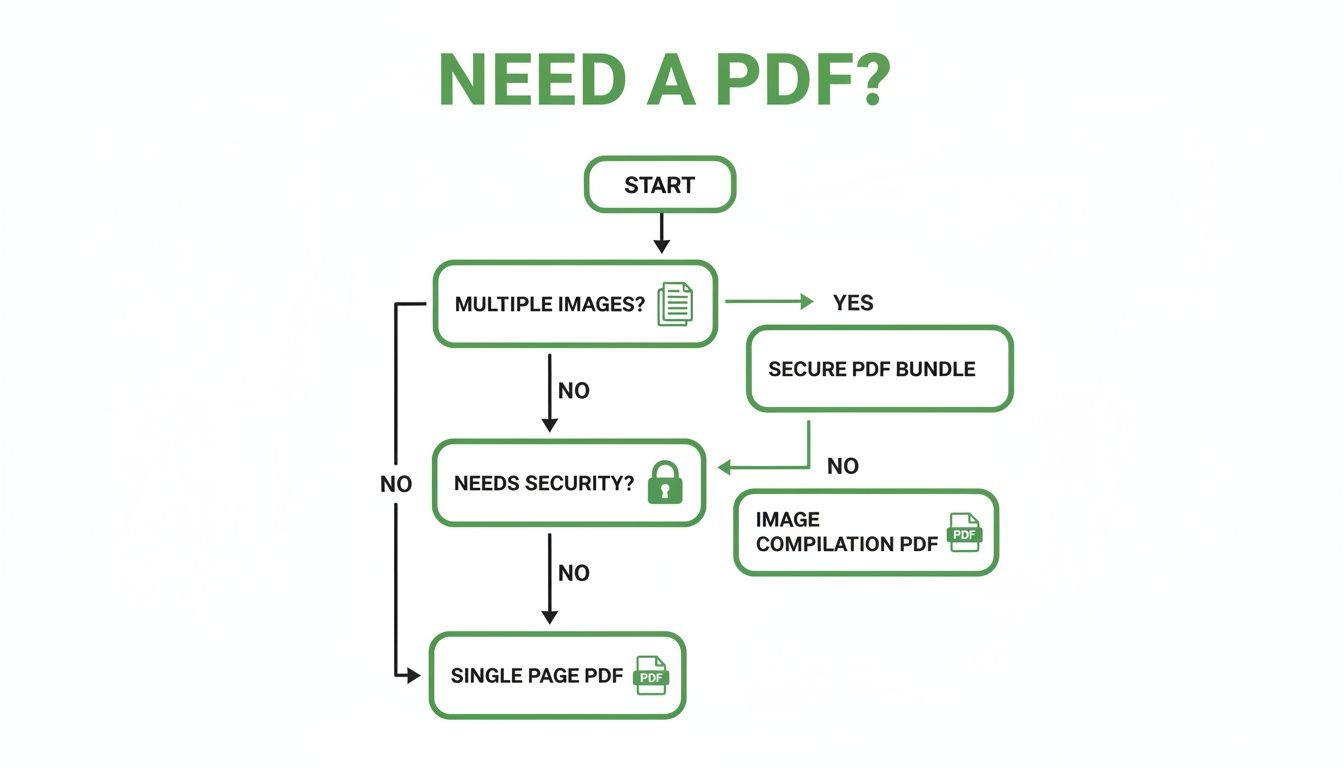
As you can see, if you're dealing with multiple images or have any security concerns, a PDF is the way to go.
The demand for these simple but powerful tools is booming. The global Image to PDF Converter market, valued at $1.12 billion, is expected to nearly double to $2.67 billion by 2033. This huge growth just shows how much we're all moving toward digital-first workflows.
Using Online Tools for Quick Conversions
Ever need to turn an image into a PDF right now? When you don't have time to download software, online tools are your best friend. They work in any browser, are ridiculously easy to use, and get the job done in seconds. Perfect for that one-off task or when you're on a computer that isn't yours.
This is for those real-world moments. You just finished a meeting and snapped a photo of the whiteboard brainstorm. Or you need to upload a picture of your driver's license for a verification form. Installing a whole application for that? No thanks. A browser-based tool handles it instantly.
The Drag-and-Drop Workflow
Most online converters have figured out that you just want to get in and get out. You land on the site, find the upload box, and drop your files in. Tools like PDFPenguin are built specifically for this—a clean, simple interface without any confusing clutter.
This screenshot of the PDFPenguin homepage shows you exactly what I mean. It’s impossible to get lost.
The layout funnels you right to the main event: getting your files uploaded.
Where these tools really flex their muscles is with multiple images. You can grab a whole batch of JPGs or PNGs and upload them all at once. From there, you just drag the thumbnails around to get them in the right order for your final, multi-page PDF. If you're working with those funky HEIC files from an iPhone, a dedicated HEIC to PDF converter makes life even easier.
Key Advantages of Web-Based Converters
The number one reason to use an online service is convenience. There's nothing to download, nothing to update, and you never have to worry about compatibility. The conversion happens on their servers, so it doesn't even bog down your computer.
But with convenience, you have to think about privacy. Good services encrypt your files and delete them automatically, but it's smart to be mindful.
For super-sensitive stuff—think financial records or personal ID—it’s always safest to use an offline method built into your operating system. Your files never leave your computer, so there’s zero risk of them being seen by a third party.
That said, for the huge majority of everyday tasks, online tools offer a mix of speed and simplicity that’s tough to beat. They’re fantastic for:
- Quick Submissions: Turning a photo of a signed form into a clean document.
- Compiling Visuals: Bundling a bunch of screenshots into a single guide.
- Archiving Records: Converting photos of receipts or invoices into one organized PDF.
Ultimately, it’s a trade-off between speed and sensitivity. For most images, an online converter is the fastest way to get your PDF. You can upload, reorder, convert, and download the finished file in under a minute.
Converting Images to PDF on Your Computer
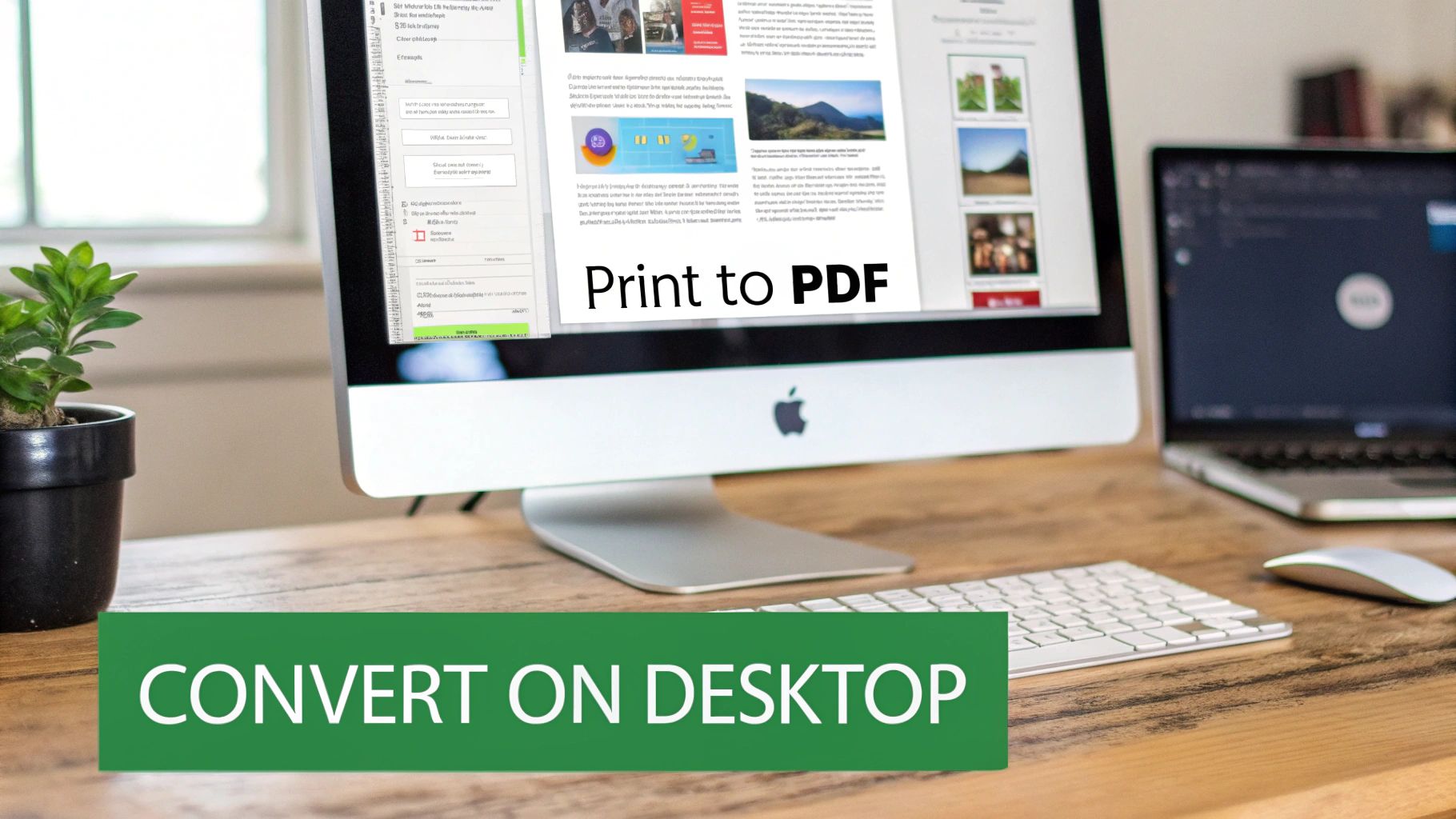
While online tools are lightning-fast, sometimes you just need to handle things offline. Maybe you're dealing with sensitive documents or simply prefer to keep files on your own machine. Good news—both Windows and macOS have powerful, built-in features that let you convert images to PDFs without an internet connection or any extra software. It’s the best approach for privacy, ensuring your files never leave your device.
The whole world of digital documents is booming. The Document Imaging Market was valued at a huge USD 169.1 billion back in 2025 and is expected to skyrocket to USD 534.6 billion by 2035. That massive growth, detailed in these document market trends and insights on futuremarketinsights.com, shows just how much we rely on simple, secure tools for everyday tasks like creating PDFs.
This trend makes it clear: people need reliable ways to manage their documents. And thankfully, your computer already has you covered.
For Windows Users: The "Print to PDF" Trick
If you're on a Windows PC, the process is surprisingly simple. It’s built around a feature you’ve probably seen but maybe never used for this exact purpose: Microsoft Print to PDF. Think of it as a virtual printer that saves your file as a high-quality PDF instead of spitting out paper.
This little trick works great for a single image or for bundling a bunch of photos into one document.
Here’s how you do it:
- First, head to the folder with your image(s) in File Explorer.
- Select the images you want to convert. You can hold the Ctrl key to pick them one by one or use Shift to grab a whole group.
- Right-click on any of the selected images and choose Print.
- In the "Print Pictures" window that pops up, find the "Printer" dropdown menu and select Microsoft Print to PDF.
- From here, you can tweak the paper size, quality, and how the images fit on the page. If you've selected multiple images, each one will get its own page.
- Click Print, give your new file a name, choose where to save it, and you're done!
For macOS Users: Finder and Preview Have You Covered
Mac users have a couple of equally slick, built-in options for turning images into PDFs. The absolute easiest is using a Quick Action right from Finder, which is a lifesaver for batch jobs.
Using Finder’s Quick Actions
This is the fastest method by far for combining several images into a single PDF.
- In a Finder window, select all the images you want to include in your PDF.
- Right-click on your selection.
- Hover over Quick Actions, then click Create PDF.
Just like that, macOS will create a new PDF in the same folder, with all your images neatly arranged in alphabetical order. And if you need to shuffle those pages around later, our guide on how to merge PDF files for free can help you out.
Pro Tip: Need more control? If you want to reorder pages or make adjustments before converting, the Preview app is your best friend. Just open one image in Preview, drag the rest of your images into the thumbnail sidebar, and arrange them however you like. When you're ready, go to File > Export as PDF.
Both Windows and macOS give you robust, secure, and totally free methods to handle your image-to-PDF conversions. They’re the perfect choice when privacy is a top priority or you're just not connected to the web.
How to Convert an Image to PDF on Your Phone
Let's be honest, your phone is your office, camera, and scanner all rolled into one. Whether you're sending back a photo of a signed contract from the field or submitting a picture of your homework, knowing how to create a PDF on the fly is a must-have skill.
Thankfully, both iPhones and Androids have slick, built-in methods that save you from downloading another app.
The best part? It's all done locally on your device. When you're dealing with sensitive images, like a photo of your ID, this native approach means your files are never uploaded to a random server. It’s a huge win for privacy that most online tools can't offer.
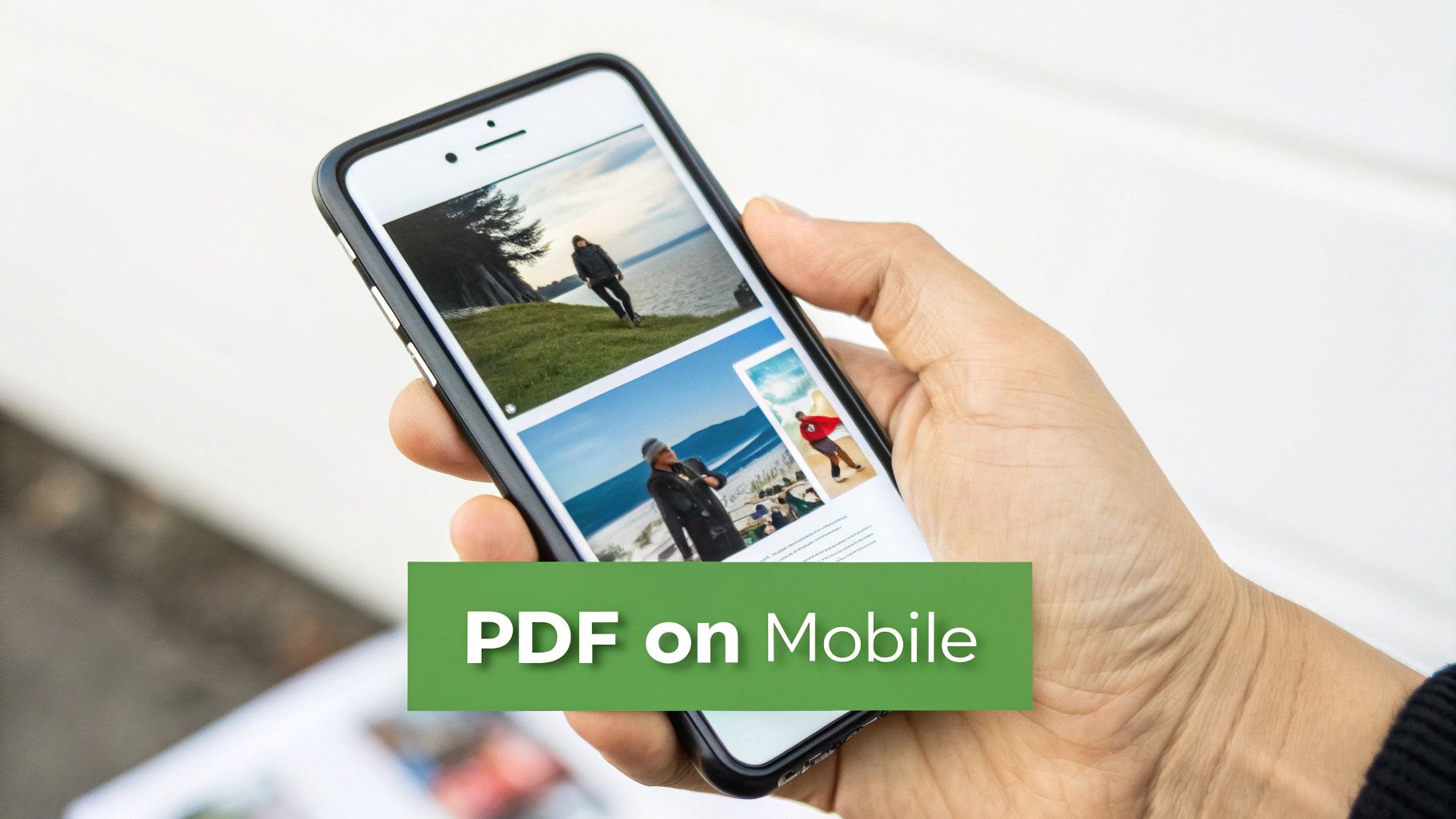
Here's how to get it done on both platforms.
Creating a PDF on an iPhone or iPad
iOS has a clever—almost hidden—way to make a PDF using the "Print" function in its Share Sheet. It's a quick workaround that turns one or more photos into a perfect PDF.
Here’s the breakdown for an iPhone:
- Open the Photos app and pick the image (or images) you need. Just tap "Select" in the top-right to grab multiple photos.
- Tap the Share icon (the little box with an arrow pointing up) at the bottom left.
- Scroll down the list and tap Print. You'll land on a "Print Options" screen.
- Now for the magic trick: don't actually pick a printer. Instead, use a pinch-out gesture (like you're zooming in) on the little image preview at the bottom. It will pop open into a full-screen PDF.
- From this new screen, hit the Share icon again. Now you can save the PDF to your Files, email it, or send it anywhere you want.
This little trick works beautifully with Apple’s default HEIC image format, too. The built-in iOS process handles the conversion seamlessly. If you want to dive deeper into that specific file type, check out our guide on how to convert HEIC to PDF.
Making a PDF on an Android Device
Android users have a similar trick up their sleeves, usually called "Print to PDF" or "Save as PDF." It functions just like the feature on a Windows computer. The exact steps might look a little different depending on who made your phone (like Samsung versus Google), but the idea is the same.
Let's walk through it using Google Photos, since that's what most people use:
- Open Google Photos and select the image or images you want to convert.
- Tap the Share button.
- Look for the Print option in the sharing menu. You may need to scroll a bit to find it.
- At the top of the next screen, you’ll see a dropdown menu where you'd normally select a printer. Tap it and choose Save as PDF.
- You can adjust things like paper size or orientation if you need to, then tap the PDF icon or a "Save" button.
- Finally, pick where you want to save the document, give it a name, and hit Save.
This native "Print to PDF" feature is one of the most powerful, underused tools on modern smartphones. It lets you create professional, secure documents in seconds without needing to run back to a computer for a simple task.
Once you master these built-in functions, you'll be ready to handle document tasks from anywhere, whether you're on an iPhone or an Android.
Pro Tips for High-Quality Conversions
Knowing how to turn an image into a PDF is just the first step. The real goal is to create a clean, professional-looking document that’s easy to read and share. After all, the final PDF is only as good as the images you start with.
Let's dig into a few practical tips to make sure your PDFs always look sharp.
The most important rule? Quality in, quality out. A blurry, low-resolution photo will always become a blurry, low-resolution PDF. Always try to use the original, highest-quality version of your image. A picture taken in good, even lighting without weird shadows or glare will give you a much cleaner result.
This is a game-changer when you're snapping photos of documents like receipts, invoices, or contracts with your phone. Make sure the paper is flat and your camera is positioned directly above it to avoid skewed text and wonky angles.
Balancing File Size and Image Quality
One of the best things about PDFs is that they create a single, shareable file that isn't massive. Most conversion tools give you compression settings, which shrink the file size by slightly reducing image quality. This is a trade-off you’ll have to manage.
For example, if you're just emailing a quick update, a smaller file is perfect. But if it's a portfolio piece that someone might print, you'll want to prioritize quality over a tiny file size. Good tools often offer presets like "Email Quality" or "Print Quality" to make this choice simple.
If you want more control over that balance, it's worth learning how to compress a PDF without losing quality for the best of both worlds.
Organizing Multi-Page Documents
When you're combining several images into one PDF, the order is everything. A jumbled report or a set of instructions with mixed-up steps is just confusing and unprofessional.
Before you hit that convert button, always take a moment to double-check the sequence of your images. Most tools let you drag and drop the thumbnails to get them in the right order. It only takes a few seconds, but it makes a huge difference in how useful the final document is.
Remember this simple rule: Quality in, quality out. A little preparation before you convert an image to a PDF prevents common issues like unreadable text, massive file sizes, and confusing page layouts.
One last thing: look for a tool that offers Optical Character Recognition (OCR). This incredible feature scans your images for text and makes the words inside your final PDF searchable. It's a lifesaver for archiving documents, allowing you to find a specific receipt or contract just by searching for a keyword.
Burning Questions About Turning Images into PDFs
Even with the best tools, you’ll probably have a few questions pop up. We get it. Converting images isn't always a one-click-and-done deal. This section is your go-to cheat sheet for the most common questions we hear, so you can get the perfect PDF every time without any guesswork.
Can I Combine a Bunch of JPGs into a Single PDF?
Yes, you absolutely can! In fact, this is one of the main reasons people convert images to PDF—to bundle a bunch of separate files into one clean, organized document.
It's surprisingly easy:
- With an online tool: A converter like PDFPenguin lets you drag and drop a whole folder of images. You'll see little thumbnails of each one, which you can drag around to get the order just right before hitting convert.
- On your computer: If you're on Windows, just select all the images you want in File Explorer, right-click, and choose "Print." Then, select "Microsoft Print to PDF" as your printer. On a Mac, the "Create PDF" Quick Action in Finder does the same thing instantly.
This is perfect for creating things like a project portfolio, a multi-page expense report from receipt photos, or a scanned contract.
Does Converting an Image to a PDF Ruin the Quality?
That’s a big concern for a lot of people, and the short answer is: it depends on your settings. If you start with a high-resolution photo, you're going to get a sharp-looking PDF.
The catch is compression. The conversion process often compresses the image to keep the final PDF from being massive, which is great for emailing. The trick is finding the right balance. Good converters give you presets like "Web," "Email," or "Print" quality to control how much it shrinks. Your computer's built-in "Print to PDF" feature usually uses a standard, one-size-fits-all compression that’s fine for most things but maybe not for a high-end design portfolio where every pixel matters.
How Do I Get a HEIC Photo from My iPhone into a PDF?
Ah, the classic iPhone problem. HEIC is a great format, but not everything plays nice with it. Luckily, this is an easy fix.
Your fastest route is using an online converter that knows how to handle HEIC files. Just upload it, and the tool does the work. Or, you can do it right on your iPhone. Open the photo, tap the Share button, and choose "Print." On the preview screen, just pinch-out with two fingers. iOS will instantly turn the HEIC into a PDF that anyone can open, no matter what device they're on.
When you're dealing with sensitive stuff like financial records or a photo of your driver's license, security is everything. Reputable online tools use encryption (HTTPS) and automatically delete your files after a short time. But for maximum security, nothing beats using your computer's built-in, offline tools. That way, your files never even touch the internet.
Ready to convert your images with a tool that’s fast, secure, and incredibly easy to use? PDFPenguin offers a suite of browser-based tools to handle all your document needs without any downloads. Try PDFPenguin for free and simplify your workflow today!