
Splitting a PDF is way easier than it sounds. You can get instant results with a free online tool like PDFPenguin, use built-in apps like Preview on Mac or "Print to PDF" on Windows for quick offline tasks, or go with professional software like Adobe Acrobat for more complex jobs. The best method really just depends on what you need to do, but a solution is always just a few clicks away.
Why Splitting PDFs Is a Modern Productivity Skill

We've all been there. Staring at a massive, multi-page PDF trying to find one specific piece of information. It's a common bottleneck in any digital workflow. Imagine digging through a 100-page report for a single chart, or trying to send a huge project file when your colleague only needs the executive summary.
This is where knowing how to split a PDF becomes less of a tech trick and more of a core productivity skill.
By breaking down large documents into smaller, focused chunks, you make information easier to find, share, and secure. It’s a simple move with huge benefits that pop up in all sorts of professional and academic situations.
Real-World Scenarios Where Splitting Shines
The need to break up a PDF isn't a rare occurrence; it happens all the time. Here are a few everyday examples:
- Project Management: A project manager can pull out specific sections from a master plan to share with different teams. Marketing gets the campaign brief, engineering gets the technical specs—no one has to wade through irrelevant info.
- Legal and Finance: A paralegal might need to separate individual contracts from a large batch of signed documents for easier filing. Or an accountant can extract specific invoices from a consolidated monthly statement.
- Academic Work: Students can isolate a single chapter from a huge textbook PDF for focused studying or pull key articles from a lengthy academic journal to use in a research paper.
The core benefit is crystal clear: splitting PDFs transforms cluttered, oversized documents into focused, purpose-driven files. This simple step streamlines communication, cuts down file transfer times, and just makes everything more organized.
Our reliance on PDFs is massive and still growing. Did you know that 98% of businesses use them for external communication? With over 2.5 trillion PDFs floating around and billions more created each year, managing them well is non-negotiable.
Just think about it: splitting a 50-page financial report before sending it for review can shrink email sizes by up to 70%, which means faster approvals. For a deeper dive into these numbers, you can check out the full PDF statistics.
Split Any PDF Online in Seconds with PDFPenguin
Ever tried to send just one chapter of a huge report, or pull out a single signed page from a long contract? We’ve all been there. Fumbling with clunky software just to split a PDF is a drag. That’s where a good browser-based tool comes in. It’s fast, it’s secure, and it gets the job done without any installations.
PDFPenguin's online tools are built to make this process painless. You just upload your file, pick how you want to break it apart, and download your new, smaller PDFs. Best of all, it works on any computer—Windows, Mac, Linux, you name it.
The Right Way to Split for Any Task
Not all splitting tasks are the same. Sometimes you need a specific section, other times you need to pull out a few random pages. That’s why PDFPenguin isn’t just a one-trick pony; it gives you a few different ways to slice up your documents.
Here are the three main options and when you should use each one:
- Split by Page Range: This is your go-to when you need a continuous chunk of a document. Think about grabbing Chapter 3 (pages 45-68) from a textbook or extracting just the appendix from a business proposal.
- Extract Specific Pages: Perfect for when you need to cherry-pick pages that aren't next to each other. For example, you could pull just the signature pages (like page 3, 11, and 24) from a long agreement without the rest of the document.
- Split Every Page: This mode takes one big PDF and turns it into many single-page PDFs. It's incredibly useful for things like breaking down a 12-page invoice bundle into individual files for easier processing.
The PDFPenguin Split PDF tool walks you through these choices with a clean, simple interface, so you always get the exact files you need.
The demand for tools like this is exploding. The global market for PDF software was already valued at USD 1.85 billion, and it's growing like crazy—especially in the Asia-Pacific region, which is seeing a massive 14.4% annual growth rate. It just goes to show how essential simple, effective document tools are for getting work done.
Choosing Your PDFPenguin Split Method
Not sure which tool is the right fit? This quick table breaks it down to help you decide in a snap.
| Your Goal | Best Tool to Use | Example Scenario |
|---|---|---|
| Isolate one complete section. | Split by Page Range | Grabbing just the "Q3 Financials" section (pages 15-22) from an annual report. |
| Grab a few specific pages. | Extract Specific Pages | Pulling out only the cover sheet, signature page, and a specific exhibit from a contract. |
| Break a document into individual pages. | Split Every Page | Turning a 20-page scanned expense report into 20 separate PDFs for each receipt. |
At the end of the day, picking the right method just depends on what you're trying to accomplish. Each tool is designed to save you a few clicks and a lot of headaches.
Your Security and Privacy Come First
Let's talk about the elephant in the room: security. Uploading documents online can feel a bit sketchy, right? That's a valid concern, and it’s why reputable services like PDFPenguin use HTTPS encryption for all file transfers. From the moment you upload your file, it's scrambled and protected.
One of the biggest advantages of a good online tool is what happens after you’re done. Your files aren’t kept on our servers forever. They're automatically and permanently deleted after a short period, so your private information stays private.
This security-first approach means you get all the convenience of an online tool without the data anxiety. You can confidently split sensitive documents knowing they won't be left hanging around on some server. It's this blend of simplicity and security that makes online PDF tools a trusted part of millions of peoples' daily workflow.
How to Split PDFs Using Your Computer's Built-In Tools
Sometimes, the best tools are the ones you already have. Before you start hunting for new software, it's worth knowing that both macOS and Windows come with surprisingly powerful features for splitting PDFs right out of the box.
These built-in methods are perfect when you need to work offline or want to keep sensitive files from ever touching the internet. They offer a secure and simple way to manage your documents without any extra cost or installation.
Splitting a PDF on a Mac with Preview
If you’re a Mac user, the Preview app is your secret weapon for all things PDF. It’s way more than just a viewer; it’s a capable editor that makes splitting documents incredibly intuitive. The whole process is based on a simple drag-and-drop.
Here's how to get it done:
- Open Your PDF: Just double-click your file, and it should open in Preview by default.
- Show Thumbnails: Go to the "View" menu and select "Thumbnails." This opens a sidebar showing a mini-image of each page.
- Select and Drag: Click the thumbnail of the page you want to separate. To grab multiple pages, just hold down the Command (⌘) key while clicking. Once they're selected, drag the thumbnails out of the sidebar and drop them onto your desktop.
And that's it. Preview instantly creates a new PDF file containing only the pages you dragged out. It’s an unbelievably fast method for grabbing a single page or a small group of pages from a larger file.
I use this trick all the time to pull just the final signed page from a long client contract. Instead of saving the entire 30-page document, I can create a new, lightweight file named "ClientName_SignedAgreement.pdf" in about five seconds.
How to Split a PDF on Windows with Print to PDF
Windows users have an equally powerful, though slightly different, tool at their disposal: Microsoft Print to PDF. This feature acts like a virtual printer, but instead of printing on paper, it "prints" a new PDF file. It's a clever workaround for extracting specific pages from any document.
You can access this function from almost any application that can open a PDF, including browsers like Microsoft Edge or Google Chrome.
Using the Print Dialog
Here’s the step-by-step:
- Open your PDF in a browser or another PDF reader.
- Go to File > Print (or just hit the shortcut Ctrl+P).
- In the "Printer" or "Destination" dropdown menu, select Microsoft Print to PDF.
- Look for the "Pages" section, choose "Custom" or "Pages," and enter the page range you want to extract. For example, type
5-10to get pages five through ten, or3, 7, 12to pull out just those specific pages. - Click the "Print" button.
A "Save As" window will pop up, asking you to name your new, smaller file. This method essentially creates a brand-new PDF that includes only the pages you specified, making it an excellent way to split documents on any Windows machine.
Going Pro: Advanced Splitting with Adobe Acrobat
Sometimes, the free online tools and built-in apps just don't cut it. For heavy-duty workflows in legal, finance, or publishing, you need more horsepower. That's where a premium tool like Adobe Acrobat Pro comes in. It’s the industry standard for a reason, moving way beyond simple page extraction into automated, rule-based splitting that can save you hours of manual work.
When you’re staring down a massive report or a complex contract, you need to break it down methodically. Acrobat is built for exactly these kinds of professional demands, letting you set specific rules to split documents automatically.
Take a look at the 'Split Document' dialog inside Acrobat's 'Organize Pages' toolset. It's packed with options that give you total control.
You can see settings for splitting by page count, file size, or even top-level bookmarks—all designed to automate what would otherwise be a tedious job.
Granular Splitting Methods in Acrobat
Acrobat’s real power is in how it handles structured, professional documents. Instead of clicking page by page, you can define rules that the software applies instantly. This is a huge time-saver for repetitive tasks.
Here are a few of the most powerful methods:
- Split by Number of Pages: Got a 300-page manuscript that needs to go out for review in smaller chunks? Instead of manually creating six different files, you can tell Acrobat to create a new PDF every 50 pages. Perfect for batch processing.
- Split by File Size: This one is a lifesaver for getting around email attachment limits. If your company’s server rejects anything over 10MB, you can have Acrobat automatically split a large presentation into chunks that all fall under that limit. No more bounced emails.
- Split by Top-Level Bookmarks: For well-structured reports, legal filings, or e-books, this feature is incredible. If your document has bookmarks for "Chapter 1," "Chapter 2," and so on, Acrobat can automatically generate a separate PDF for each bookmarked section.
This bookmark-based splitting is a favorite among legal professionals. A paralegal can take a huge discovery binder and, with one click, create individual, neatly named files for each exhibit, ready to be shared with the team.
Putting Advanced Splitting into Practice
To get to these features, you’ll head to the Tools center and open the Organize Pages toolset. From there, just click the "Split" option in the top toolbar. That’s what opens the dialog where you can set your method, choose a destination folder, and even define how the new files are named.
Of course, mastering tools like Acrobat involves more than just splitting. Learning how to properly edit PDF documents can give you even more control over the final output. Ultimately, investing in a professional tool is less about the one feature and more about automating your entire workflow, ensuring your documents are always perfect, and saving yourself a ton of time.
What to Do After You Split a PDF
Alright, you’ve successfully split your PDF. But don't close that browser tab just yet. The next step is just as important: actually managing the new files you just created. Without a smart approach, you can quickly end up with a downloads folder full of confusingly named documents, which kind of defeats the whole purpose.
Taking a few seconds to organize things now will save you a ton of time and headaches later. Think of it as setting up a clean, digital filing cabinet. It ensures every new file is easy to find, properly secured, and ready for whatever you need it for.
Create a Clear Naming Convention
One of the best habits you can get into is creating a consistent way to name your files. A generic name like "Document_Split_1.pdf" is a recipe for disaster when you're trying to find it a week from now. A structured name, on the other hand, gives you context at a glance.
A simple system I like to use looks like this: OriginalName_Section_Date.pdf.
OriginalName: The name of the source document (e.g.,Q3-Financial-Report).Section: What this specific new file contains (e.g.,Marketing-Budget).Date: The date of the split or the document version (e.g.,2024-10-26).
Put it all together, and you get something like Q3-Financial-Report_Marketing-Budget_2024-10-26.pdf. Anyone on your team can see what that file is without even having to open it.
Pro Tip: Consistency is everything. Whatever system you pick, stick to it. A well-organized digital space is a productive one, making it so much easier to find exactly what you need, when you need it.
This flowchart can also help you figure out the best way to split larger, more complex documents based on your specific goal.
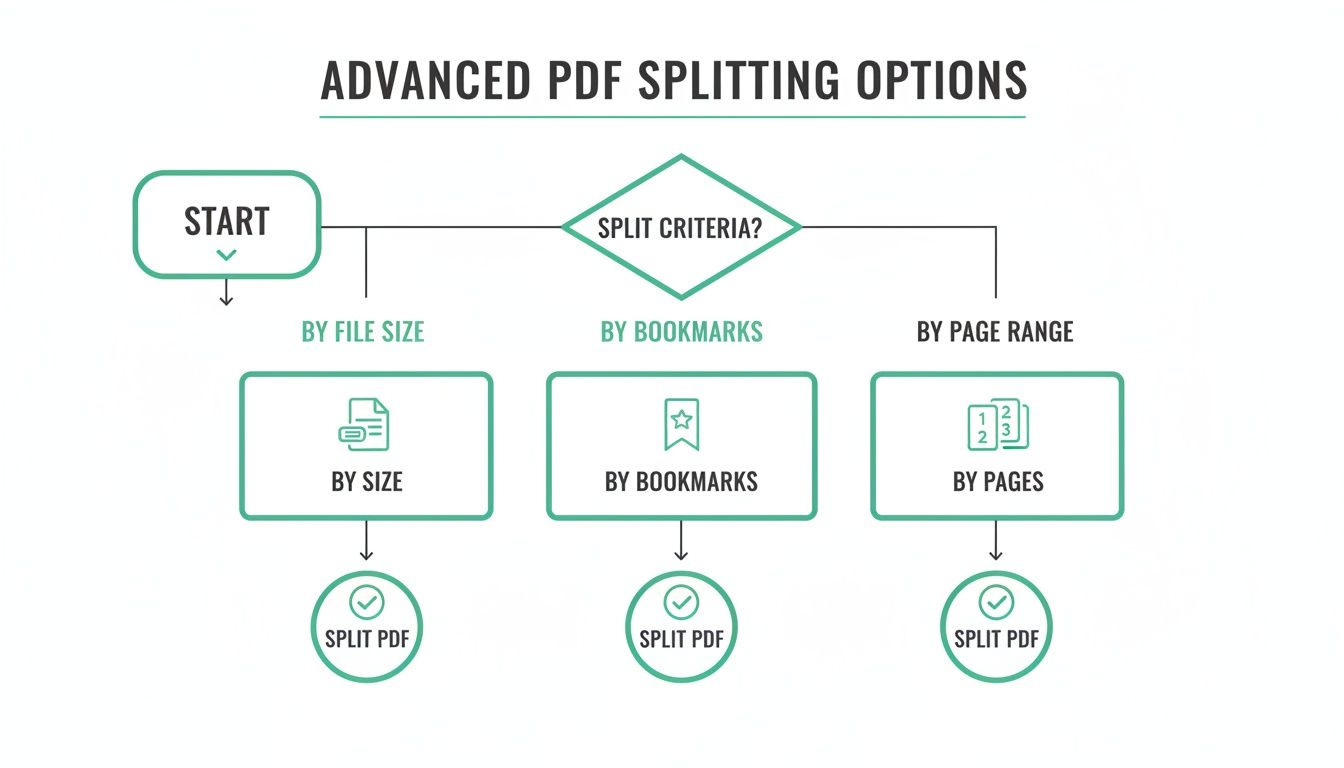
It’s a handy visual guide that breaks down whether you should split by file size, bookmarks, or a specific page range.
Verify and Secure Your Files
Once you split a document, take a moment to double-check the results. It sounds obvious, but you’d be surprised how often people skip this. Quickly open each new file to make sure all the pages you need are there and in the right order. This simple check can prevent you from accidentally sending an incomplete report or a contract with missing pages.
Security is another big one. If the original, unsplit PDF contained sensitive information that's no longer needed in the smaller files, it's a good practice to securely delete it. Don’t just drag it to the trash; use a secure deletion method to make sure that data is truly gone. If your new files are still on the large side, you might also want to learn how to reduce PDF file size to make them easier to send and store.
Beyond just managing the files themselves, you can streamline your workflow even further. For instance, if you're working with legal documents, using a tool like a chat with PDF legal tool can help you pull information out of your newly split files much faster. Building these little habits into your routine makes handling PDFs feel professional and completely effortless.
Common Questions About Splitting PDFs
When you first start splitting PDFs, a few questions always pop up. Getting the right answers can save you a ton of headaches. Here are the most common ones we hear, answered straight up.
Are Online PDF Splitters Safe to Use?
The short answer is yes, but only if you stick with a service that takes security seriously.
A trustworthy tool like PDFPenguin uses HTTPS encryption for all file transfers. Think of it as a secure tunnel between your computer and the server, so no one can peek at your files while they're uploading or downloading.
The other huge factor is automatic file deletion. Your documents shouldn't sit on a server forever. We permanently delete them after a short time. For ultra-sensitive stuff, though, nothing beats an offline tool like Mac's Preview app, since the file never leaves your machine.
Does Splitting a PDF Ruin the Quality?
Nope, not at all. Splitting a PDF doesn't reduce its quality one bit.
The process is more like cutting and pasting than it is like re-saving a photo. It simply takes the original pages and puts them into new files without re-compressing or changing anything.
- Text stays perfectly sharp.
- Images and graphics keep their original resolution.
- Vector shapes won't get blurry or pixelated.
Your new, smaller PDFs will look just as crisp as the original document they came from.
Can I Put PDFs Back Together After I Split Them?
Absolutely. Splitting is completely reversible. Think of it as deconstructing a document, not destroying it.
Most PDF toolkits, including ours, have a "Merge PDF" tool designed for exactly this. You just upload the separate PDF files, drag them into the right order, and click a button to combine them back into a single, seamless document. It's perfect for piecing together custom reports or rearranging chapters in a manual.
Splitting and merging are two sides of the same coin. You can break a big document down to work on specific parts, then reassemble it into a new, improved version. It gives you total control.
What if My PDF Is Password-Protected?
If a PDF has a password that stops you from editing it, you'll need to enter it before you can split the file.
Any decent tool, whether online or on your desktop, will prompt you for the password to unlock the document first. Once you type it in, the restrictions are lifted, and you can split it just like any other file.
If you have the password but just want to get rid of the lock for good, you can use a tool like PDFPenguin’s "Unlock PDF" first. That will remove the password layer, making it easier to edit, split, or merge later on.
Ready to manage your documents without the hassle? PDFPenguin gives you a full suite of simple, secure, and fast browser-based tools to split, merge, compress, and convert your files. Try PDFPenguin for free today!