
Ever tried to post a slick page from a report on Instagram, or pop a vital chart into an email, only to be told PDFs aren't allowed? It’s a common roadblock, and it’s exactly why knowing how to quickly convert a PDF to a JPG is such a lifesaver. Turning your document into a universally loved image format unlocks a whole new level of freedom for sharing your work.
Why Bother Converting a PDF to a JPG?
The need to flip a PDF into a JPG usually pops up when you least expect it, but it solves a very real problem: compatibility. PDFs are the gold standard for official documents, no doubt. But their rigid structure can be a real pain for more creative or casual uses. A JPG, on the other hand, is lightweight, flexible, and plays nicely with just about every app and platform out there.
Think about these everyday situations:
- Social Media: You can't just upload a multi-page PDF brochure to your Instagram feed or Facebook page. Converting key pages into sharp JPGs lets you share testimonials, product features, or event flyers that people can actually see.
- Website Graphics: Trying to embed a PDF directly onto a webpage is clunky and slows everything down. A JPG version, however, slips right in like any other image, making for a much smoother user experience. It's also a great way to avoid hitting email attachment size limits when sharing.
- Presentations: Instead of making your team download and open a separate PDF, you can drop a crisp JPG of a chart or graph straight into your PowerPoint slide or Word doc. Simple.
Making Work and School Life Easier
For anyone handling reports, invoices, or client-facing documents, this conversion is practically a daily ritual. This is where tools like Smallpdf shine by making the process a simple drag-and-drop affair.
In a fast-paced office, that kind of efficiency is gold. In fact, some research shows that 68% of office workers are converting documents every single week. They often cite JPG’s incredible compatibility—it opens in nearly 99% of image viewers, a clear winner over the 85% rate for PDFs.
The real win here isn't just changing a file extension. It's about making information more accessible. Converting a PDF to a JPG breaks down the barriers, letting your content be seen and shared effortlessly, no matter the platform.
Students get it, too. Turning lecture slides or textbook pages into a series of JPGs makes them super easy to import into note-taking apps like OneNote or Notability. You can mark them up, add your own notes, and turn static learning materials into something genuinely useful for studying.
How to Convert Files with Smallpdf PDF to JPG
Getting started with the Smallpdf PDF to JPG converter is pretty intuitive, whether you're on your computer or using the mobile app. The whole process comes down to a few quick clicks, so you can grab your image files without wrestling with complicated settings.
First thing's first: you need to get your PDF into the tool. On a desktop, the quickest way is the drag-and-drop feature. Just find your PDF, click and hold, then drag it right into the upload box on the Smallpdf website.
If you prefer, you can also hit the "Choose Files" button. This opens up a standard file browser so you can pick a document from your computer, Google Drive, or Dropbox, which is super helpful if your files live in the cloud.
Choosing Your Conversion Method
Once your PDF is uploaded, Smallpdf gives you two clear choices. This is where you tell the tool exactly what you need. Your options are:
- Convert entire pages: This is your go-to when you need every single page of your PDF turned into an individual JPG. Say you have a 10-page report—this setting will spit out 10 separate JPGs, one for each page.
- Extract single images: Think of this as the surgical option. If your PDF has images embedded in it—like charts, photos, or logos—this pulls them out directly. It grabs the images themselves, preserving their original quality without the text or layout around them.
For example, imagine a designer sends you a PDF proof with a few logo variations inside. Using "Extract single images" is way more efficient than converting each page and then manually cropping the logos. You can also check out our guide on a privacy-first PDF to image tool that handles similar tasks.
After you've made your choice, just click the "Choose option" button to move forward, and the tool starts processing your file.
The real power of a tool like this is how it adapts to what you need. Whether you're converting a full document for a presentation or just pulling a single graphic for a website, having these distinct options saves a ton of time and hassle.
Downloading Your Final JPG Files
The conversion itself is usually lightning-fast, often finishing in just a few seconds. When it's done, you'll see a preview of your shiny new JPGs. If you converted a multi-page document, you can download the images one by one or grab them all at once in a handy ZIP file.
This batch download feature is a massive time-saver for big documents. Instead of clicking "download" twenty times for a twenty-page file, one click gets you a neat, compressed folder with everything inside.
A typical digital workflow involves all sorts of file changes. Besides turning PDFs into images, knowing how to handle other common tasks, like how to convert Word to PDF, is key to managing documents well.
Smallpdf also lets you save your converted files directly back to Google Drive or Dropbox, which is great for keeping your cloud workflow seamless. From start to finish, the entire Smallpdf PDF to JPG process is built for speed and simplicity.
Getting the Perfect Image Quality
Ever converted a PDF to a JPG only to end up with a blurry, pixelated mess? It’s a common frustration, but the final image quality isn’t random. It comes down to the quality of your original PDF and the settings you choose during conversion.
Getting a crisp, professional-looking image is easier than you think once you understand what's happening behind the scenes.
The single most important factor is the resolution of your source document. If your PDF was created with low-resolution images, no converter on earth can magically invent detail that was never there. It's like trying to blow up a tiny thumbnail photo—all you'll get is a bigger version of the fuzz.
So, rule number one: always start with the highest-quality PDF you can get your hands on. It’s the foundation for a great-looking JPG.
What Is DPI and Why Does It Matter?
DPI stands for Dots Per Inch, and it’s a simple measure of image resolution. A higher DPI means more dots (or pixels) are packed into every inch of the image, which translates to a sharper, more detailed result.
Think of it as information density. More dots = more detail.
You don't always need the highest DPI, though. The right level depends entirely on where the image will be used:
- For Web & Screens (72-96 DPI): This is the sweet spot for anything viewed on a monitor. It keeps file sizes small so websites and social media posts load quickly, without sacrificing much clarity on screen.
- For Standard Printing (150 DPI): Perfect for everyday office printing. Think internal reports or documents where readability is key, but you don't need photo-grade quality.
- For High-Quality Printing (300 DPI): This is the gold standard for professional print jobs like flyers, brochures, or photos. At 300 DPI, every detail will be tack-sharp.
A key concept here is the difference between Vector vs Raster Graphics. PDFs often contain vector elements (which can scale infinitely), while JPGs are always raster (pixel-based). This conversion process is where quality can be lost if you don't choose the right DPI.
Finding the Balance: Quality vs. File Size
It’s tempting to just crank the resolution up to the max, but that’s not always the best move. A high-DPI image creates a much larger file, which can be a pain to upload, email, or load on a webpage.
The trick is to match the resolution to its final destination. Sending a document in an email? A 150 DPI JPG is likely more than enough. If your file is still too big, you can learn how to compress a PDF before you even start the conversion process.
This trade-off is something professionals and students navigate all the time. For example, data shows 78% of compliance teams convert audit documents at a high-quality 150-300 DPI to ensure every detail is legible and error-free. On the other hand, 48% of students prefer smaller file sizes when converting textbook pages to JPGs for annotating on their tablets.
By thinking ahead about how your image will be used, you can strike the perfect balance between a crystal-clear result and a manageable file size.
Discovering a Faster Browser-Based Alternative
Let's be honest, tools like Smallpdf are solid for a straightforward PDF to JPG conversion. But the process can feel a bit sluggish: upload your file, wait for their server to do the work, and then download it back. If you’re like me and value speed and privacy, there’s a better way.
This is where modern, browser-based tools like PDFPenguin completely change the game.
What really makes PDFPenguin different is that the conversion from PDF to JPG happens right inside your web browser. Your document never even leaves your computer. This client-side approach gives you two massive wins: it’s incredibly fast, and it’s completely private. No more waiting for uploads and downloads.
The final quality of your JPG depends on a few key things, and getting them right is crucial. This graphic breaks down what you need to keep an eye on.
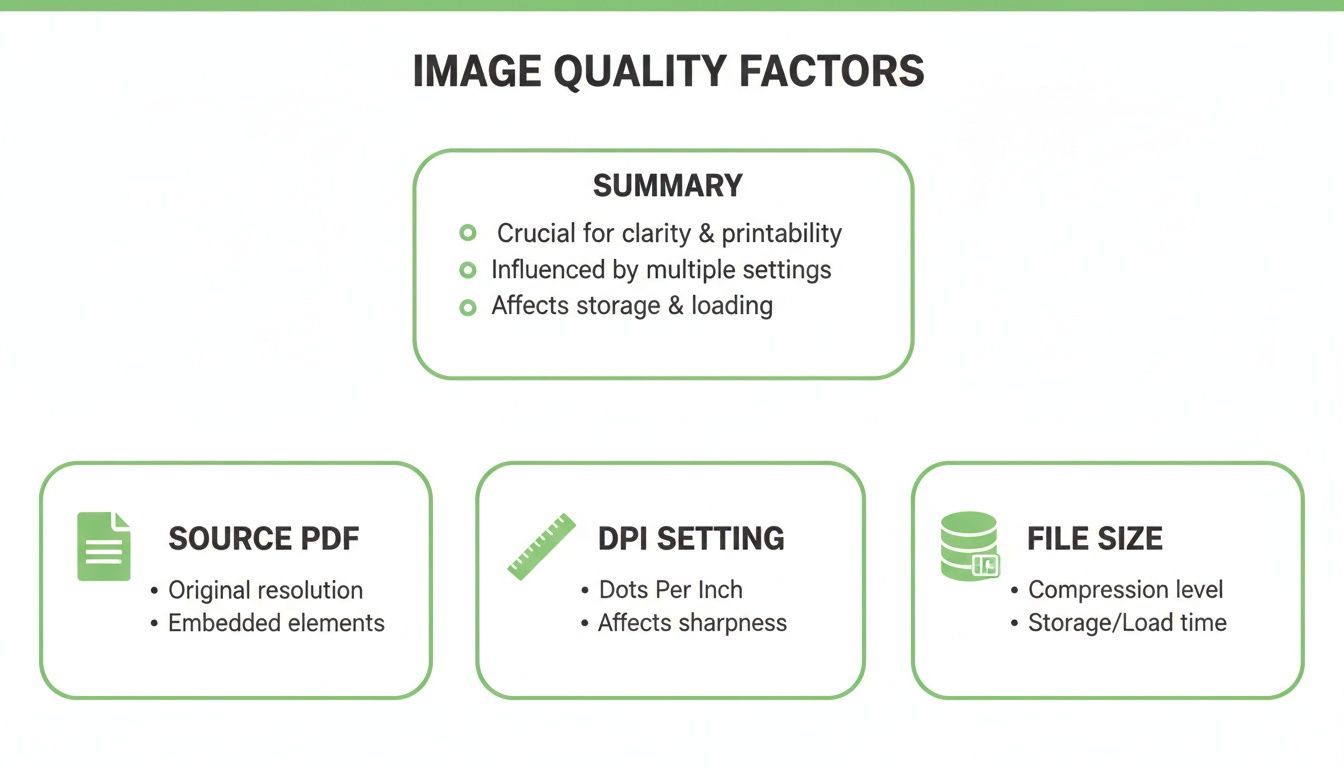
As you can see, the quality of your original PDF, the DPI you choose, and the final file size are all connected.
The Power of an All-in-One Workflow
Real efficiency isn't just about one quick conversion. It’s about having all the tools you need in one place. Think about it: instead of using one site to convert a PDF, another to compress it, and a third to merge it, an integrated platform just makes life easier. PDFPenguin was built around this idea, offering a full suite of tools in one clean, simple interface.
Here’s how that plays out in the real world:
- Prep Before Converting: Need to add a cover page to a report before turning it into images? Use the Merge tool first, then immediately convert the final PDF to JPGs.
- Optimize After Converting: Realize your new JPGs are huge because the original PDF was bloated? Jump back, use the Compress tool on the source file, and create smaller, web-friendly images on the next go.
- Verify Document Changes: Working with a legal contract? Use the AI-powered Compare tool to spot differences between two PDF versions before converting the final, approved version to an image.
For anyone handling sensitive info—like contracts, financial reports, or academic research—keeping that document off third-party servers is a big deal. Browser-based processing makes that possible. It’s a critical security practice that shouldn't be overlooked.
When a Browser-Based Tool Is the Smarter Choice
So, how do you decide between a traditional cloud service and a browser-based one? It all comes down to what you need in the moment. If you're converting a huge batch of non-sensitive files, a tool like Smallpdf will get the job done just fine.
But a browser-based alternative like PDFPenguin is the clear winner in a few key scenarios:
- When Privacy Is Non-Negotiable: You're handling confidential client data, financial statements, or personal records. Keeping it local is the only safe option.
- When Speed Is Everything: You need a file converted now, without waiting for upload and download cycles to complete.
- When Your Internet Is Unreliable: A spotty connection can interrupt cloud-based tools. Local processing means your conversion will finish no matter what.
To give you a clearer picture, here’s a quick comparison of how Smallpdf and PDFPenguin stack up for converting PDFs to JPGs.
Smallpdf vs. PDFPenguin PDF to JPG Conversion
| Feature | Smallpdf | PDFPenguin |
|---|---|---|
| Processing Location | Cloud-based (server-side) | Browser-based (client-side) |
| Privacy | Files are uploaded to servers | Files stay on your device |
| Speed | Depends on upload/download speeds | Nearly instant |
| Batch Processing | Yes (Pro feature) | Yes (Free) |
| Ad-Free Experience | No (Free version has ads) | Yes (100% ad-free) |
| Sign-Up Required | For advanced features/limits | Never required |
| Integrated Tools | Yes (full suite) | Yes (full suite) |
Ultimately, choosing the right tool means understanding what’s happening behind the scenes. By knowing when to prioritize speed and security, you can build a workflow that’s not just effective but also keeps your sensitive information safe.
Solving Common PDF to JPG Conversion Issues
Even with a great tool, converting a PDF to a JPG doesn’t always go perfectly. We've all been there—you end up with a blurry image, the colors look off, or an error message just stops you cold. The good news is, most of these problems are easy to fix once you know what’s causing them.
More often than not, a poor-quality JPG comes from a low-resolution source PDF. If the original document already has pixelated images or was saved at a low quality, the JPG version is going to inherit those flaws. A quick trick is to zoom in on your PDF before you convert it. If it looks fuzzy, your final JPG probably will too.
Dealing with Complex or Large Files
Ever tried converting a huge, graphics-heavy PDF only to watch the tool time out or freeze? It’s a common headache. Large files, especially those over 100 pages or filled with high-resolution vector graphics, can sometimes choke online converters. The process might stall, or worse, you get a bunch of JPGs with missing pieces.
Here’s how to get ahead of that:
- Split the PDF: If you’re working with a massive document, break it into smaller chunks first. It’s way more reliable to convert a few 20-page sections than to throw a 200-page beast at the tool all at once.
- Compress Before Converting: Run your PDF through a compression tool before you start the conversion. This can shrink the file size dramatically without a noticeable drop in quality, making the whole process much smoother.
Taking a minute to prep the file like this can save you a ton of frustration and help the Smallpdf PDF to JPG tool work its magic.
Remember, the goal here is to create a usable image. If your source file is fundamentally broken—like it’s corrupted or password-protected—no converter can magically fix it. Always make sure your PDF is clean and accessible before you begin.
Troubleshooting Password and Permission Errors
Another roadblock you might hit is a locked or restricted PDF. You’ll know this is the problem if you can open the file and view it just fine, but the converter throws a permission error. This just means the document’s owner has set restrictions that prevent editing or extracting content.
In this case, there’s no clever workaround. You absolutely need the password or permission from the file’s creator to unlock it for conversion. Trying to force a protected file through a converter will almost always fail. If you run into unexpected errors, it’s always a good idea to check the PDF’s properties for any security restrictions.
Frequently Asked Questions
When you're converting sensitive documents, a few questions are bound to pop up. Is it safe? Can it handle a big batch of files? What if I only need one page? Let's clear up some of the most common queries about turning PDFs into JPGs with tools like Smallpdf.
Are Online PDF to JPG Converters Safe to Use?
This is the big one, and for good reason. The short answer: yes, if you stick with reputable services. Tools like Smallpdf use 256-bit SSL encryption for all file transfers, which is the same security standard your bank uses.
This encryption keeps your documents safe while they’re being uploaded and downloaded. More importantly, these platforms have strict policies to automatically delete your files from their servers, usually within an hour. This means your data isn't just sitting around in the cloud.
For an extra layer of privacy, look for tools that do all the work right in your browser. This approach, used by alternatives like PDFPenguin, means your files never even touch a server, completely removing the risk of a data breach on their end.
How Can I Convert Multiple PDFs into JPGs at Once?
Nobody has time to convert files one by one. It's a huge drag on productivity. Thankfully, batch processing is a standard feature on most modern converters. With a tool like Smallpdf, you can just drag and drop a whole folder of PDFs right into the window.
The tool handles them all in one go. When it's done, you can download the JPGs individually or—my personal favorite—grab them all in a single, tidy ZIP file. This is a lifesaver for tasks like:
- Archiving a whole year's worth of invoices as images.
- Turning every chapter of a textbook into individual JPGs for a study guide.
- Processing a batch of client reports for a slide deck.
It turns a tedious, repetitive chore into a simple, two-click task.
Can I Convert Just a Single Page from a Large PDF?
Absolutely. You definitely don’t need to convert a 100-page report just to get your hands on that one chart on page 42.
When you upload a multi-page PDF to a converter, you'll typically see an option to extract pages instead of converting the entire file. This takes you to a thumbnail view where you can see every page at a glance. Just click the one you need, and the tool will turn only that specific page into a JPG. It gives you precise control and saves a ton of time.
Ready for a faster, more private way to manage your documents? With PDFPenguin, you can convert, compress, and edit your files directly in your browser—no uploads required. Experience the difference today at https://www.pdfpenguin.net.