
¿Alguna vez te has encontrado ahogándote en un mar de archivos PDF separados para un solo proyecto? He estado allí. Tienes facturas, informes y recibos dispersos por todo tu escritorio. Aprender cómo fusionar archivos PDF es la habilidad única que convierte ese caos digital en un solo documento limpio. Ya sea que estés armando un portafolio, un trabajo de investigación o un informe de gastos, combinar tus archivos hace que todo sea más fácil de compartir, archivar y leer.
Por qué fusionar PDF simplificará tu flujo de trabajo
Imaginemos que eres un gerente de oficina reuniendo el informe de gastos mensual. Tienes diez recibos PDF diferentes de tu equipo. En lugar de enviar una carpeta zip confusa o una larga cadena de archivos adjuntos, puedes combinarlos todos en un documento profesional. Es un pequeño cambio que marca una gran diferencia.
Sin embargo, esto no es solo un problema de oficinistas. Un estudiante puede fusionar notas de clase, artículos y resúmenes de tareas en una guía de estudio única. Un abogado puede combinar contratos, pruebas y correos electrónicos de clientes en un archivo de caso organizado, asegurándose de que nada se pierda en la confusión.
Beneficios clave de combinar archivos PDF
Yendo más allá de simplemente ordenar tu escritorio, fusionar PDF ofrece algunas ventajas prácticas reales que mejorarán genuinamente la forma en que manejas los documentos.
Esto es lo que notarás de inmediato:
- Intercambio simplificado: Enviar un archivo se ve más profesional y es mucho más fácil de manejar para la otra persona. No más correos electrónicos de "¿Recibiste los cinco archivos adjuntos?".
- Organización mejorada: Un solo documento fusionado es mucho más fácil de nombrar, archivar y encontrar más tarde. Se deshace de la confusión de versiones y el desorden digital.
- Revisión eficiente: Cuando todo está en un solo lugar, revisar o agregar notas es un proceso fluido y lineal. Puedes dejar de alternar entre una docena de ventanas diferentes para encontrar lo que necesitas.
- Archivado seguro: Almacenar un archivo completo es más seguro y confiable para tus registros. Asegura que toda la historia se mantenga unida, reduciendo el riesgo de perder una pieza del rompecabezas.
Introduciendo una solución más simple
Si bien hay muchas formas de fusionar PDF, las herramientas basadas en navegador han hecho que el proceso sea increíblemente simple. Ya no necesitas descargar software torpe o descubrir una interfaz complicada. Una herramienta como PDFPenguin te permite combinar archivos directamente en tu navegador, de forma segura e instantánea.
Fusionar PDF se trata fundamentalmente de crear una única fuente de verdad. Cuando todos miran el mismo documento consolidado, la colaboración se vuelve más clara y los errores se minimizan.
Esta guía te guiará a través de los pasos prácticos de cómo fusionar archivos PDF utilizando diferentes métodos, comenzando con las herramientas en línea más fáciles. Nos centraremos en consejos prácticos que hacen el trabajo rápido. Una vez que veas cómo unos pocos clics pueden ahorrarte tanto tiempo y frustración, te preguntarás por qué lo hiciste de otra manera. Empecemos.
Combina PDF en segundos con la herramienta en línea de PDFPenguin
¿Alguna vez has necesitado fusionar un puñado de archivos PDF pero no querías descargar e instalar nuevo software? Una herramienta en línea es tu mejor apuesta. Olvídate de configuraciones complejas o preocuparte si el programa incluso se ejecutará en tu computadora. Una solución basada en navegador como PDFPenguin te brinda un camino directo desde documentos dispersos hasta un archivo organizado en solo unos pocos clics.
Esto es perfecto cuando estás en una computadora compartida en una biblioteca o un espacio de coworking, o si simplemente quieres mantener tu propio dispositivo limpio. Todo el proceso ocurre directamente en tu navegador web, por lo que puedes hacerlo desde cualquier lugar.
Tu camino simple hacia un PDF combinado
Empezar con PDFPenguin es increíblemente fácil. La interfaz fue diseñada para ser intuitiva, por lo que puedes combinar tus documentos sin buscar a tientas a través de menús confusos.
Así es como funciona:
- Selecciona tus archivos: Primero, toma los documentos que deseas fusionar. Puedes hacer clic en el botón "Seleccionar archivos" para buscar en tu computadora o, mi ahorrador de tiempo favorito, simplemente arrastra y suelta tus PDF directamente en la página.
- Organiza tus documentos: Una vez que se cargan, verás pequeñas miniaturas de cada PDF. Aquí es donde tomas el control. Simplemente haz clic y arrastra las miniaturas para ponerlas en el orden exacto que necesitas para el documento final.
- Refinar y finalizar: ¿Notas que una página está de lado? No hay problema. Puedes rotar páginas individuales que están en la orientación incorrecta o incluso eliminar un archivo que agregaste por error. Este poco de control asegura que tu PDF fusionado sea perfecto incluso antes de crearlo.
- Fusionar y descargar: Con todo en su lugar, simplemente presiona el botón "Fusionar PDF". La herramienta hace su magia en segundos y te da un enlace de descarga para tu nuevo documento combinado.
Es así de simple. Puedes pasar de una carpeta de informes desorganizados a un solo PDF pulido en menos de un minuto.
Más que solo un fusionador
Si bien la velocidad y la simplicidad son geniales, una buena herramienta en línea ofrece más. PDFPenguin no se trata solo de pegar archivos juntos; se trata de darte la flexibilidad para crear un documento profesional y seguro.
El verdadero poder de un gran fusionador de PDF radica en su capacidad para darte un control total sobre la salida final. No se trata solo de combinar archivos; se trata de elaborar un documento único y coherente que esté perfectamente ordenado y listo para su audiencia.
Por ejemplo, imagina que eres un estudiante compilando un trabajo de investigación. Tienes tu borrador principal, un PDF separado con tus gráficos y otro con tu bibliografía. Con la herramienta Fusionar PDF de PDFPenguin, puedes subir los tres, arrastrar la bibliografía hasta el final, colocar los gráficos justo en el medio y crear un documento único y cohesivo listo para enviar.
La seguridad y la privacidad están integradas
Entregar tus documentos a un sitio web puede sentirse un poco arriesgado, por lo que la seguridad debe ser una prioridad máxima. PDFPenguin toma tu privacidad en serio desde el momento en que subes.
- Cifrado HTTPS: Todas las transferencias de archivos están protegidas con cifrado HTTPS. Esto significa que tus datos están revueltos y seguros en su viaje entre tu computadora y nuestros servidores.
- Eliminación automática de archivos: No guardamos tus archivos para siempre. Una vez que se completa tu fusión, los documentos originales y el PDF combinado final se eliminan automáticamente de nuestros servidores después de un corto período.
Este enfoque en la seguridad significa que puedes fusionar con confianza documentos confidenciales como estados financieros, contratos de clientes o registros personales sin preocuparte de que tus datos permanezcan en línea. Esta necesidad de herramientas seguras basadas en la nube está creciendo rápidamente. De hecho, el mercado global de software de fusión de PDF se valoró en USD 1.5 mil millones en 2023 y se espera que se duplique con creces para 2032, impulsado por las pequeñas empresas que buscan simplificar sus operaciones. Puedes profundizar en las tendencias del mercado de software de fusión de PDF para obtener más información.
Un vistazo rápido a las características clave
Para darte una imagen más clara, analicemos las principales ventajas de usar una herramienta como PDFPenguin para fusionar tus archivos.
Descripción general de las características de la herramienta de fusión de PDFPenguin
Aquí tienes un resumen rápido de lo que obtienes al fusionar archivos con nuestra herramienta en línea.
| Característica | Beneficio para ti |
|---|---|
| Basado en navegador | No se necesitan descargas ni instalaciones. Accede desde cualquier dispositivo con un navegador. |
| Arrastrar y soltar | Sube y reordena fácilmente tus archivos con una interfaz visual simple. |
| Rotación de página | Corrige la orientación de páginas individuales antes de finalizar la fusión. |
| Procesamiento seguro | Tus archivos están protegidos con cifrado HTTPS y se eliminan automáticamente. |
| Fusión rápida | Combina incluso archivos grandes en solo unos segundos, ahorrándote un tiempo valioso. |
En última instancia, saber cómo fusionar archivos PDF rápidamente con una herramienta en línea confiable es una habilidad imprescindible para gestionar documentos de manera eficiente. Es una forma rápida, segura y fácil de usar de poner orden en tu papeleo digital.
Explorando métodos fuera de línea para fusionar tus archivos PDF
Si bien las herramientas en línea son increíblemente convenientes, hay momentos en los que solo necesitas fusionar PDF sin conexión a Internet. Tal vez estés trabajando en un vuelo, lidiando con Wi-Fi irregular o manejando documentos confidenciales que absolutamente no pueden salir de tu máquina local.
Para esos momentos, los métodos fuera de línea ofrecen una alternativa confiable y segura.
La buena noticia es que tanto macOS como Windows tienen formas poderosas de combinar tus documentos sin abrir nunca un navegador. Vamos a ver cómo manejar esta tarea común directamente desde tu escritorio.
Este diagrama de flujo puede ayudarte a decidir cuándo quedarte con una herramienta fuera de línea frente a usar una basada en navegador como PDFPenguin.
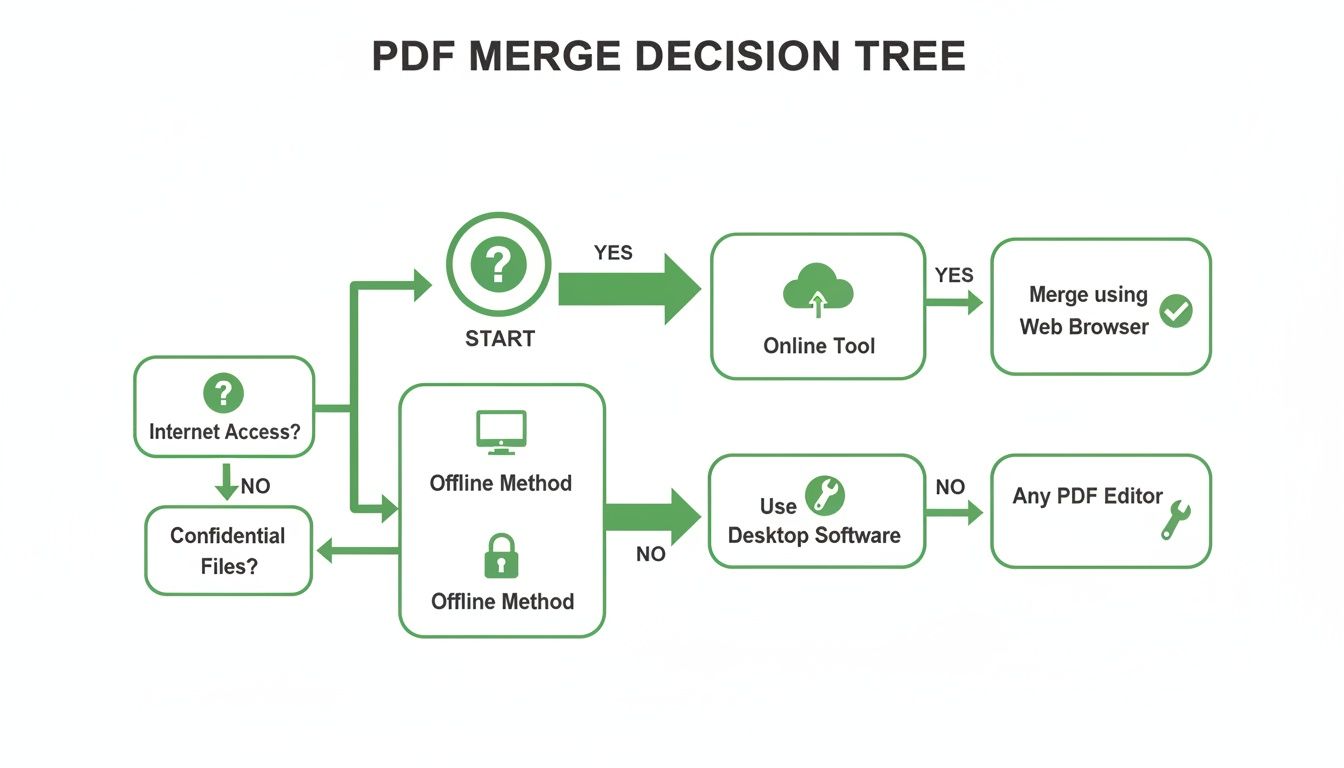
En última instancia, la elección se reduce a tu necesidad inmediata de acceso a Internet y cuán confidenciales son tus documentos.
Cómo fusionar PDF en un Mac usando Vista Previa
Si eres usuario de Mac, estás de suerte. Ya tienes un editor de PDF sorprendentemente robusto integrado directamente en tu sistema operativo: Vista Previa. Es mucho más que un simple visor de archivos; es una herramienta capaz de combinar múltiples PDF en un solo documento cohesivo utilizando una interfaz simple de arrastrar y soltar.
Consejo Profesional: Siempre trabaja con copias. Debido a que Vista Previa guarda los cambios automáticamente, es inteligente duplicar tus archivos originales primero. De esta manera, tus documentos fuente permanecen intactos. Simplemente abre un PDF, ve a Archivo y selecciona Duplicar.
¿Listo para fusionar? He aquí cómo.
- Abre tus documentos: Encuentra los PDF que deseas combinar en Finder. Ábrelos todos manteniendo presionada la tecla Comando mientras seleccionas cada archivo, luego haz clic derecho y elige "Abrir con Vista Previa".
- Muestra las miniaturas: En una de las ventanas de Vista Previa, ve al menú Visualización y selecciona Miniaturas. Esto abre una barra lateral que muestra una pequeña vista previa de cada página. Haz esto para todos los PDF que tengas abiertos.
- Arrastra y suelta para fusionar: Ahora la magia. Haz clic en una miniatura en la barra lateral de un PDF y simplemente arrástrala a la barra lateral de miniaturas de otro. Verás un signo más verde que muestra dónde irá la página. Incluso puedes seleccionar múltiples páginas manteniendo presionado Comando mientras haces clic.
- Reordenar y guardar: Una vez que todas las páginas estén en la barra lateral de un documento, puedes arrastrar las miniaturas hacia arriba o hacia abajo para ponerlas en el orden perfecto. Cuando estés contento con ello, simplemente guarda el archivo. Vista Previa lo guarda automáticamente como tu nuevo documento fusionado.
Esta función nativa de Mac es perfecta para fusiones rápidas y seguras sin necesitar ningún software de terceros.
Cómo fusionar PDF en una PC con Windows
A diferencia de macOS, Windows no viene con una herramienta integrada diseñada específicamente para fusionar PDF. Si bien el navegador Edge puede verlos y anotarlos, no puede combinarlos. Esto significa que deberás recurrir a una aplicación de terceros.
Hay muchas opciones disponibles en la Microsoft Store, desde aplicaciones gratuitas de un solo propósito hasta suites completas de pago como Adobe Acrobat. Para una solución sencilla y sin costo, una aplicación como PDF Merger & Splitter es una opción popular.
Al elegir una herramienta fuera de línea para Windows, prioriza la simplicidad y la seguridad. Una buena aplicación debería hacer una cosa bien (fusionar tus archivos) sin agrupar características innecesarias o pedir permisos excesivos.
Aquí tienes el flujo de trabajo general que puedes esperar con la mayoría de estas herramientas:
- Instala la aplicación: Primero, busca e instala un fusionador de PDF confiable desde la Microsoft Store.
- Agrega tus archivos: Inicia la aplicación y busca un botón "Agregar PDF" o "Seleccionar archivos" para abrir tu Explorador de archivos y seleccionar tus documentos.
- Organiza el orden: La aplicación enumerará los archivos que has agregado. La mayoría tendrá botones "Mover hacia arriba" y "Mover hacia abajo" o te permitirá arrastrarlos y soltarlos en la secuencia correcta.
- Inicia la fusión: Una vez que tus archivos estén en orden, haz clic en el botón "Fusionar" o "Combinar". El software procesará los archivos y te pedirá que guardes el nuevo PDF único en tu computadora.
Si bien requiere un paso de instalación adicional, usar una herramienta fuera de línea dedicada en Windows te brinda una forma confiable de fusionar PDF en cualquier momento y en cualquier lugar.
Combinando PDF en tu dispositivo móvil
La necesidad de fusionar documentos no se detiene cuando estás lejos de tu escritorio. Tanto iOS como Android tienen formas de combinar PDF directamente desde tu teléfono o tableta, lo cual es increíblemente útil para tareas sobre la marcha.
Para usuarios de iPhone y iPad, la aplicación nativa Archivos es todo lo que necesitas.
- Abre la aplicación Archivos y encuentra tus PDF.
- Toca el menú de tres puntos en la parte superior derecha y elige "Seleccionar".
- Toca cada PDF que quieras fusionar, asegurándote de seleccionarlos en el orden en que quieres que se combinen.
- Toca el menú de tres puntos en la parte inferior derecha y elige "Crear PDF". Un nuevo PDF fusionado aparecerá justo en la misma carpeta.
En Android, el proceso puede variar según el fabricante, pero muchas aplicaciones de administración de archivos ofrecen una funcionalidad similar. Si la tuya no lo hace, un viaje rápido a Google Play Store revelará docenas de aplicaciones gratuitas altamente calificadas diseñadas específicamente para fusionar PDF. El flujo de trabajo suele ser igual de simple: selecciona tus archivos, ordénalos y toca fusionar.
Consejos profesionales para gestionar tus PDF combinados
Saber cómo fusionar PDF es un gran comienzo, pero el trabajo no siempre termina una vez que tienes un solo archivo. Crear el documento combinado es a menudo solo el comienzo.
Lo que haces a continuación (optimizar, asegurar y refinar ese archivo) es lo que convierte una simple fusión en un activo pulido, profesional y seguro. Cubramos algunos consejos profesionales que marcarán la diferencia.
Reduce el tamaño de tu archivo sin perder calidad
Acabas de fusionar una docena de escaneos de alta resolución en un solo portafolio, y ahora el tamaño del archivo es masivo. Intentar enviarlo por correo electrónico es imposible. Este es un problema súper común, pero la solución es fácil.
Usar una herramienta de compresión es el siguiente paso perfecto. Un buen compresor reduce inteligentemente el archivo optimizando las imágenes y eliminando datos redundantes, todo mientras mantiene tu texto nítido y legible. Después de fusionar, puedes pasar el nuevo documento a través de un compresor y hacerlo lo suficientemente pequeño como para adjuntarlo a cualquier correo electrónico.
Esto es invaluable para compartir documentos de manera eficiente. Aprende más en nuestra guía sobre cómo comprimir un PDF.
El objetivo de la compresión no es solo hacer un archivo más pequeño; es hacerlo más portátil. Un PDF bien comprimido mantiene su aspecto profesional mientras es fácil de compartir, descargar y almacenar.
Asegura tu documento con una contraseña
No todos los documentos fusionados están destinados a la visualización pública. Si has combinado informes financieros confidenciales, contratos de clientes confidenciales o registros privados de empleados, agregar una capa de seguridad es imprescindible.
La protección con contraseña es la forma más directa de controlar quién ve tu archivo. Al establecer una contraseña, garantizas que solo las personas autorizadas puedan abrir y ver el contenido. Para cualquier documento que contenga información privada o patentada, este es un paso no negociable.
Aquí por qué es tan importante:
- Confidencialidad: Mantiene los datos confidenciales lejos de miradas indiscretas cuando los compartes o almacenas.
- Cumplimiento: En campos como el derecho y las finanzas, a menudo se requiere cifrado para cumplir con las regulaciones de la industria.
- Tranquilidad: Saber que tu documento está bloqueado te da confianza al enviarlo.
Dividir y extraer páginas cuando sea necesario
Solo porque hayas fusionado documentos no significa que tengan que quedarse así para siempre. Podrías encontrarte en una situación en la que solo necesitas compartir una sección específica de un gran informe que acabas de crear.
En lugar de enviar el archivo completo de cien páginas, puedes usar una herramienta Dividir PDF para sacar solo las páginas relevantes. Esto es perfecto para cuando un cliente solicita solo la factura final de un archivo de proyecto fusionado o cuando necesitas tomar un solo capítulo de un libro electrónico combinado.
Esto te da una flexibilidad increíble, permitiéndote adaptar tus documentos fusionados para diferentes audiencias sin tener que empezar de nuevo.
Comparando métodos de fusión de PDF
Elegir la herramienta adecuada depende de lo que necesites. Una fusión rápida en línea para un proyecto escolar tiene requisitos diferentes a combinar contratos legales confidenciales. Aquí tienes un desglose rápido para ayudarte a decidir.
| Método | Mejor Para | Ventaja Clave | Posible Inconveniente |
|---|---|---|---|
| Herramientas en Línea (PDFPenguin) | Tareas rápidas y cotidianas y colaboración | Accesible en cualquier lugar, no se necesita software | Requiere conexión a Internet |
| Herramientas integradas del SO (Windows/macOS) | Fusiones simples y fuera de línea en tu propia computadora | Gratis y preinstalado | Carece de funciones avanzadas como reordenar |
| Adobe Acrobat Pro | Profesionales que necesitan edición avanzada | Conjunto completo de funciones, alta seguridad | Costo de suscripción costoso |
| Aplicaciones Móviles | Fusionar sobre la marcha | Conveniente para flujos de trabajo de teléfono/tableta | El tamaño de la pantalla puede dificultar el reordenamiento |
| Línea de Comandos (p. ej., Ghostscript) | Desarrolladores y flujos de trabajo automatizados | Potente, programable y eficiente | Requiere conocimiento técnico para usar |
Para la mayoría de las personas, una herramienta en línea confiable ofrece el mejor equilibrio entre simplicidad y potencia. Pero para tareas especializadas, conocer las otras opciones es increíblemente útil.
Verifica la precisión con una herramienta de comparación de IA
Cuando fusionas diferentes versiones de un documento (digamos, un primer borrador y una versión revisada), ¿cómo puedes estar seguro de que no se perdió o cambió información crítica? Verificarlo manualmente, línea por línea, es tedioso y una receta para errores.
Aquí es donde una herramienta de comparación impulsada por IA es un salvavidas. Puedes subir tanto el original como la versión fusionada final, y la herramienta resaltará automáticamente cada diferencia. Esto es un cambio de juego para los profesionales legales que revisan revisiones de contratos o para equipos que colaboran en un informe, asegurando una precisión total.
El formato PDF está en todas partes. Una plataforma importante ve a más de 100 millones de usuarios diarios abriendo 400 mil millones de PDF cada año. Para los profesionales que manejan archivos confidenciales, la seguridad es clave; se informa que un 43% de los PDF compartidos externamente están cifrados. Las herramientas de fusión que incluyen estas características posteriores a la fusión aseguran que tu flujo de trabajo sea tanto fluido como seguro. Puedes profundizar en las estadísticas y tendencias de uso de PDF para ver cuán esenciales se han vuelto estos documentos.
Solución de problemas comunes de fusión de PDF
Incluso la tarea más simple puede tener un inconveniente. Has alineado tus PDF, estás listo para combinarlos y de repente... un error. Es un momento frustrante, pero la buena noticia es que la mayoría de los problemas de fusión de PDF son sorprendentemente fáciles de solucionar.
Caminemos a través de los obstáculos comunes que podrías enfrentar y cómo eliminarlos en segundos.
El problema del archivo protegido con contraseña
Arrastras todos tus archivos al fusionador, haces clic en el botón y recibes un mensaje de error. ¿El culpable más común? Un PDF protegido con contraseña. Por razones de seguridad, la mayoría de las herramientas no pueden tocar un archivo bloqueado, lo que detiene todo el proceso en seco.
Esto sucede todo el tiempo con documentos oficiales como extractos bancarios, informes confidenciales o recibos de sueldo. La solución no es rendirse, es solo un paso extra rápido.
- La solución: Si tienes la contraseña, solo necesitas desbloquear el archivo primero. Usa una herramienta de desbloqueo para eliminar la protección, lo que te da una versión limpia y sin restricciones lista para fusionar.
- La forma PDFPenguin: Puedes manejar esto aquí mismo. Antes de fusionar, simplemente pasa el archivo bloqueado a través de un desbloqueador. Tenemos una guía completa sobre cómo desbloquear un PDF para editar que lo desglosa paso a paso.
Una vez que esté desbloqueado, arrastra la nueva versión a tu cola de fusión, y se combinará perfectamente con el resto de tus documentos.
Lidiando con PDF corruptos o dañados
Otro dolor de cabeza es el error de "archivo corrupto". Esto puede ser causado por cualquier cosa, desde una descarga incompleta hasta un error cuando se creó el archivo por primera vez. Un PDF corrupto puede parecer normal a primera vista, pero sus datos internos están rotos, por lo que las herramientas de fusión no pueden leerlo.
Cuando un fusionador de PDF golpea un archivo corrupto, es como una máquina tratando de armar un rompecabezas con una pieza faltante. El proceso se detiene porque no puede dar sentido a los datos incompletos.
La solución más fácil es volver a descargar el archivo desde su fuente o pedirle a la persona que lo envió una copia nueva. Si eso no es posible, algunas herramientas de reparación de PDF podrían salvar el documento reconstruyendo su estructura rota.
Arreglando problemas de formato y orientación
¿Alguna vez fusionaste un montón de archivos solo para descubrir que el documento final es una mezcla caótica de páginas verticales y horizontales? El informe está vertical, pero los gráficos y tablas están todos de lado. Se ve poco profesional y hace que el documento sea doloroso de leer.
Esto no es un error técnico, sino una falta de coincidencia de formato. La mayoría de los fusionadores básicos simplemente unen los archivos tal cual, sin molestarse en verificar si las orientaciones se alinean.
- La solución: La mejor manera de manejar esto es arreglar la orientación antes de fusionar. Una buena herramienta te permitirá previsualizar cada archivo cargado y rotar cualquier página de lado con un solo clic.
- La ventaja de PDFPenguin: Aquí es donde una interfaz inteligente marca la diferencia. En la herramienta de fusión de PDFPenguin, ves una miniatura de cada página. Si una está volteada de manera incorrecta, simplemente haz clic en el botón de rotar en la ventana de vista previa antes de finalizar la fusión.
Tomarse un segundo para verificar esto garantiza que tu documento combinado esté perfectamente formateado y listo para usar. Este tipo de versatilidad se está volviendo esencial, con el mercado de software de fusión de PDF en América del Norte solo valorado en USD 740.48 millones en 2024. A medida que las firmas electrónicas se vuelven más comunes, la necesidad de crear un documento único, limpio y correctamente formateado es más crítica que nunca. Puedes aprender más sobre el crecimiento del mercado de PDF para ver hacia dónde se dirigen las cosas.
Preguntas comunes sobre fusionar PDF
A medida que te familiarizas con la fusión de PDF, algunas preguntas tienden a surgir una y otra vez. Para asegurarnos de que te sientas seguro, hemos reunido algunas respuestas rápidas y sencillas a las cosas que escuchamos con más frecuencia. Aclaremos cualquier duda persistente.
¿Es seguro fusionar PDF confidenciales en línea?
Absolutamente, pero solo si utilizas un servicio que toma tu privacidad en serio. La clave es buscar herramientas que utilicen cifrado HTTPS (piensa en ello como un túnel seguro y privado que protege tus archivos mientras los cargas y descargas). Cuando usas una herramienta confiable, tus datos están revueltos y son ilegibles para cualquier otra persona.
Un servicio de buena reputación también será muy claro sobre cuánto tiempo guardan tus archivos. Las mejores herramientas eliminan automáticamente tus documentos de sus servidores poco tiempo después de que hayas terminado. Esto significa que tus archivos confidenciales, como informes financieros o contratos de clientes, no se quedan simplemente en un servidor en algún lugar. Siempre verifica estas características de seguridad antes de subir algo sensible.
¿Puedo cambiar el orden de mis archivos antes de fusionar?
Sí, ¡y deberías esperarlo! Cualquier fusionador de PDF decente está construido exactamente para esto. Las buenas herramientas en línea te brindan un diseño visual simple donde puedes ver una miniatura de cada documento que has subido.
Desde allí, simplemente arrastras y sueltas los archivos en el orden perfecto. Este control es crucial cuando estás construyendo un informe, una presentación o un portafolio que necesita fluir lógicamente. Puedes alinear todo correctamente antes de presionar el botón de fusión.
La capacidad de reordenar archivos no es solo una característica adicional, es esencial para crear un documento coherente. Convierte un revoltijo de archivos separados en un solo PDF pulido.
¿Fusionar PDF reducirá su calidad?
No, el proceso de fusión en sí no degradará la calidad de tu texto o imágenes. Combinar PDF es más como unir páginas que volver a guardarlas. La herramienta simplemente toma las páginas existentes de tus archivos fuente y las ensambla en una nueva sin alterar el contenido original. La resolución de tu texto e imágenes permanece exactamente igual.
Sin embargo, si tu documento fusionado final es masivo, podrías decidir comprimirlo para que sea más fácil de enviar por correo electrónico o compartir. Una buena herramienta de compresión te dará opciones para equilibrar el tamaño del archivo y la calidad visual, asegurando que tu documento permanezca nítido y legible incluso después de haber sido reducido.
¿Tengo que instalar software para fusionar PDF?
Para nada. Si bien el software de escritorio clásico como Adobe Acrobat requiere que instales un programa, las herramientas basadas en navegador hacen el trabajo directamente en una página web sin descargas. Esto es una gran ventaja por algunas razones:
- Sin instalación: Olvídate de descargar instaladores o usar un valioso espacio en el disco duro.
- Funciona en todas partes: Puedes fusionar PDF desde cualquier computadora con conexión a Internet, ya sea una PC con Windows, una Mac o una Chromebook.
- Siempre actualizado: Las herramientas en línea se mantienen para ti, por lo que siempre estás usando la versión más reciente y segura sin tener que preocuparte por las actualizaciones.
Esto hace que las soluciones basadas en navegador sean una forma rápida y sin complicaciones para que cualquiera administre sus documentos.
¿Listo para combinar tus documentos con una herramienta que es rápida, segura e increíblemente simple? Con PDFPenguin, puedes fusionar, reordenar y administrar tus PDF directamente en tu navegador. Empieza gratis hoy en https://www.pdfpenguin.net.